
Rackmount RKP-7 Series Manuale utente
User Manual
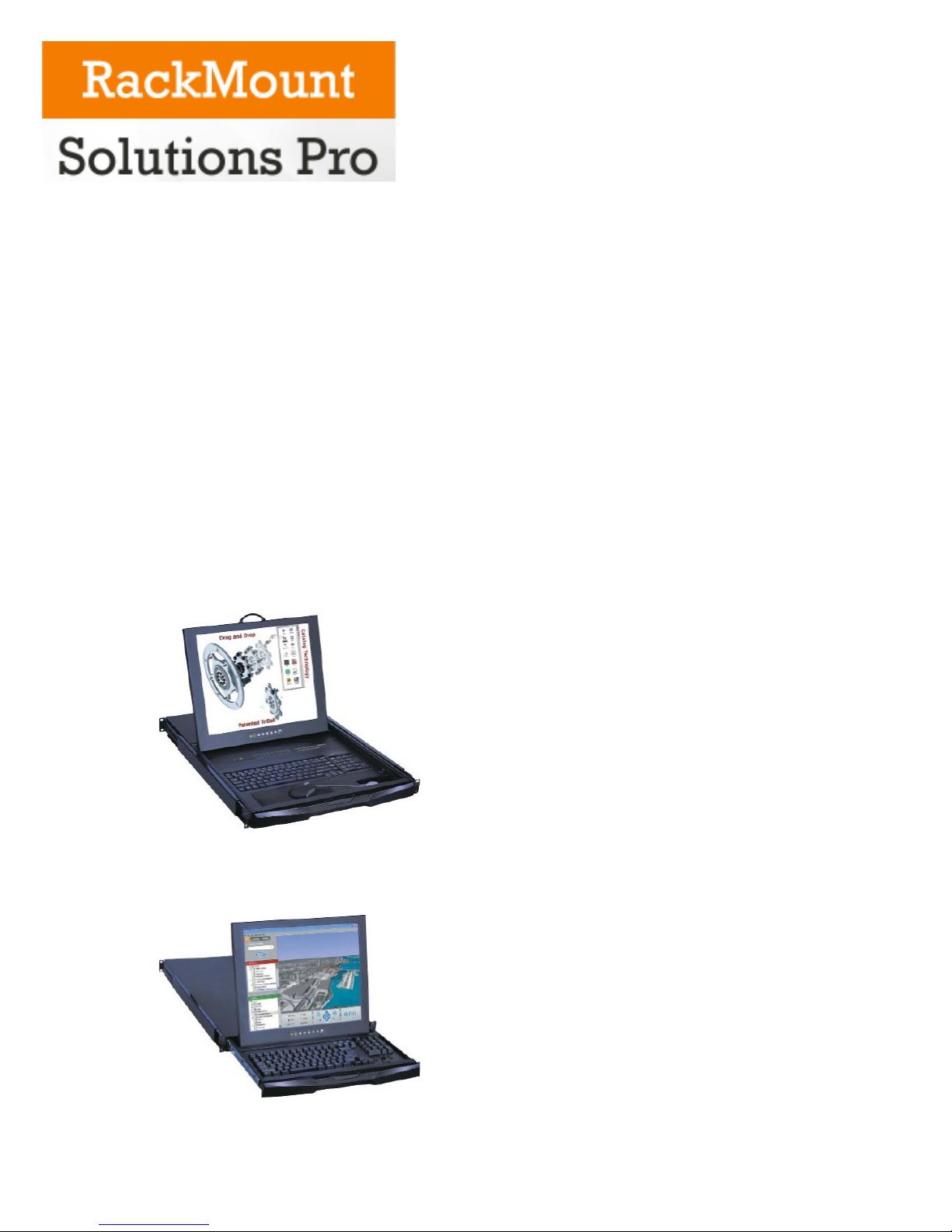
1U LCD Keyboard Drawer
17", 19" screen size
- Use of a true optical mouse
- 1U 17", 19" screen size
Models
RKP-7 / 9 Series
- 1U 17", 19" screen size
- Desk top size keyboard
Models
RKP-1617 / 1619 Series

Blank page

Chapter 1 Getting Started
1.1 Important Safeguards..........................................................1
1.2 Regulatory Notice................................................................2
1.3 Package Contents............................................................3-4
1.4 Before Installation...............................................................5
1.5 Unpacking...........................................................................5
1.6 OptionalAccessories...........................................................5
1.7 Peripheral Products.............................................................6
1.8 Structure Diagram...............................................................7
1.9 How to Install “One Man” Installation Slides....................8-9
1.10 How to Use The Slides.....................................................10
1.11 RKP-7 / 9 (Single console)
- Use CE-6 to connect to server via PS/2 interface........................11
1.12 RKP-7 / 9 (Single console)
- Use CE-6 to connect to KVM via PS/2 interface..........................11
1.13 RKP-7 / 9 (Single console)
- Use CE-6 to connect to server via USB interface........................12
1.14 RKP-7 / 9 (Single console)
- Use CE-6 to connect to KVM via USB interface..........................12
Chapter 2 Operation
2.1 On-screenDisplayOperation.............................................13
2.2 On-screen Menu...............................................................14
Chapter 3 Standard Specification
3.1 Specifications...................................................................15
3.2 Keyboard & Mouse...........................................................16
Chapter 4 Optional Specification
4.1 KVM Options.....................................................................17
4.2 DVI-D Input Option............................................................17
4.3 BNC+ S-Video Option.......................................................17
4.4 Audio Option.....................................................................18
4.5 Touchscreen Options........................................................19
4.6 DC power Options.............................................................19
Chapter 5 Troubleshooting..........................................................20
Chapter 6 Dimensions......................................................................21
Contents

1.1 Important Safeguards Chapter 1
P. 1
Please read all of these instructions carefully before you use the device. Save this manual for future
reference.
What the warranty does not cover
■Any product, on which the serial number has been defaced, modified or removed.
■Damage, deterioration or malfunction resulting from:
□Accident, misuse, neglect, fire, water, lightning, or other acts of nature, unauthorized product modifi-
cation, or failure to follow instructions supplied with the product.
□Repair or attempted repair by anyone not authorized by us.
□Any damage of the product due to shipment.
□Removal or installation of the product.
□Causes external to the product, such as electric power fluctuation or failure.
□Use of supplies or parts not meeting our specifications.
□Normal wear and tear.
□Any other causes which does not relate to a product defect.
■Removal, installation, and set-up service charges.

P. 2
Legal Information
First English printing, October 2002
Information in this document has been carefully checked for accuracy; however, no guarantee is
given to the correctness of the contents. The information in this document is subject to change without no-
tice. We are not liable for any injury or loss that results from the use of this equipment.
Safety Instructions
■Unplug equipment before cleaning. Don’t use liquid or spray detergent; use a moist cloth.
■Keep equipment away from excessive humidity and heat. Preferably, keep it in an air-conditioned envi-
ronment with temperatures not exceeding 40º Celsius (104º Fahrenheit).
■When installing, place the equipment on a sturdy, level surface to prevent it from accidentally falling and
causing damage to other equipment or injury to persons nearby.
■When the drawer is in an open position, do not cover, block or in any way obstruct the gap between it
and the power supply. Proper air convection is necessary to keep it from overheating.
■Arrange the equipment’s power cord in such a way that others won’t trip or fall over it.
■If you are using a power cord that didn’t ship with the equipment, ensure that it is rated for the voltage
and current labeled on the equipment’s electrical ratings label. The voltage rating on the cord should be
higher than the one listed on the equipment’s ratings label.
■Observe all precautions and warnings attached to the equipment.
■If you don’t intend on using the equipment for a long time, disconnect it from the power outlet to prevent
being damaged by transient over-voltage.
■Keep all liquids away from the equipment to minimize the risk of accidental spillage. Liquid spilled on to
the power supply or on other hardware may cause damage, fire or electrical shock.
■Only qualified service personnel should open the chassis. Opening it yourself could damage the equip
ment and invalidate its warranty.
■If any part of the equipment becomes damaged or stops functioning, have it checked by qualified service
personnel.
Regulatory Notices Federal Communications Commission (FCC)
This equipment has been tested and found to comply with the limits for a Class B digital device, pursuant to
Part 15 of the FCC rules. These limits are designed to provide reasonable protection against harmful interfer-
ence in a residential installation.
Any changes or modifications made to this equipment may void the user’s authority to operate this equip-
ment. This equipment generates, uses, and can radiate radio frequency energy and, if not installed and used
in accordance with the instructions, may cause harmful interference to radio communications.
However, there is no guarantee that interference will not occur in a particular installation. If this equipment
does cause harmful interference to radio or television reception, which can be determined by turning the
equipment off and on, the user is encouraged to try to correct the interference by one or more of the follow-
ing measures:
■Re-position or relocate the receiving antenna.
■Increase the separation between the equipment and receiver.
■Connect the equipment into an outlet on a circuit different from that to which the receiver is connected.
1.2 Regulatory Notice Chapter 1
1.3 Package Contents Chapter 1
P. 3
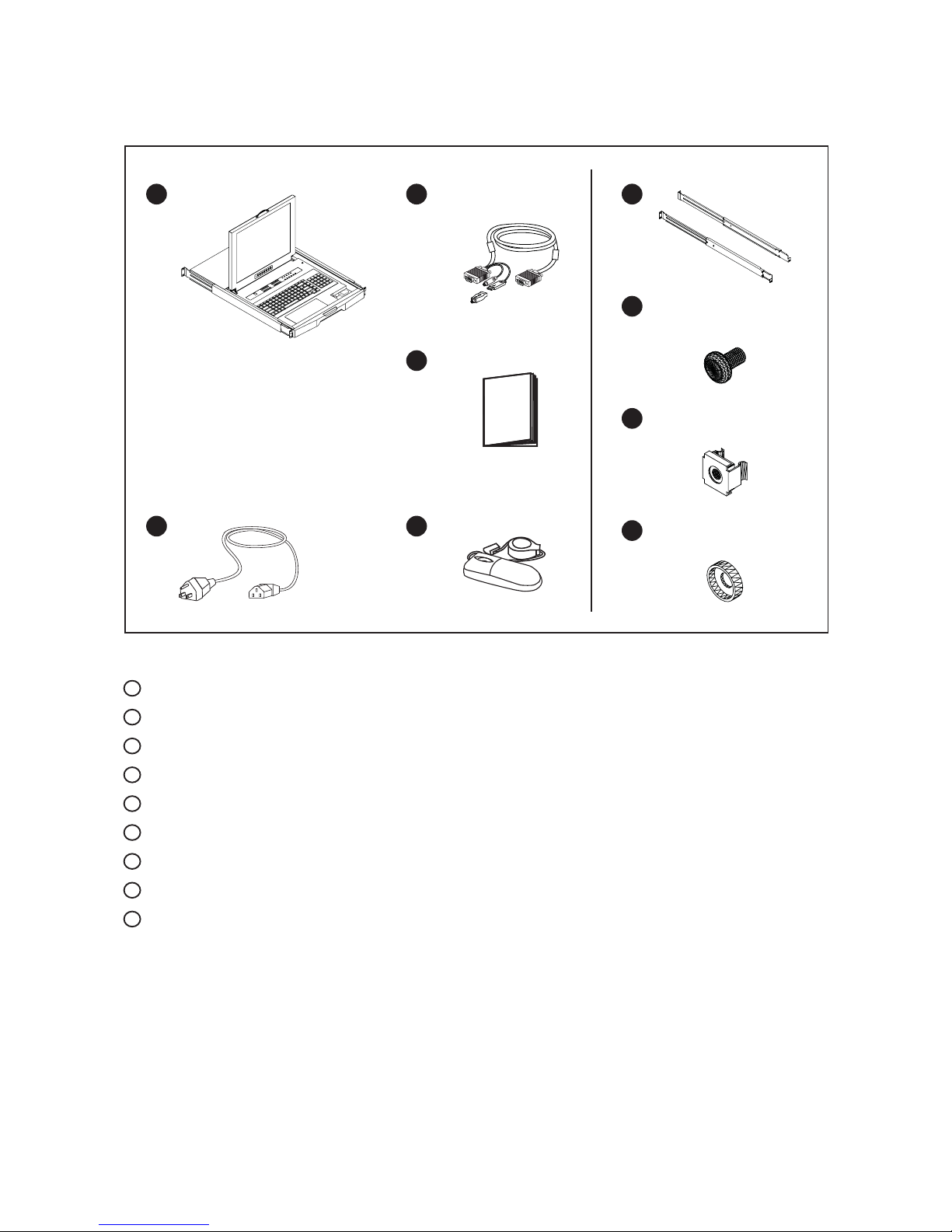
For RKP-7 / 9 series
LCD keyboard drawer x 1 pc
Power cord x 1 pc
CE-6 Combo 4-in-1 KVM cable x 1 pc
User manual x 1 pc
WOM-01 Mini USB optical mouse x 1 pc
Mounting bracket x 2 pcs
M6*15mm screw x 8 pcs
M6 cage nut x 6 pcs
Cup washer x 8 pcs
User
Manual
1 6
5
4
3
7
8
9
5
4
2
6
1
3
7
8
9
2
1.3 Package Contents Chapter 1
P. 4
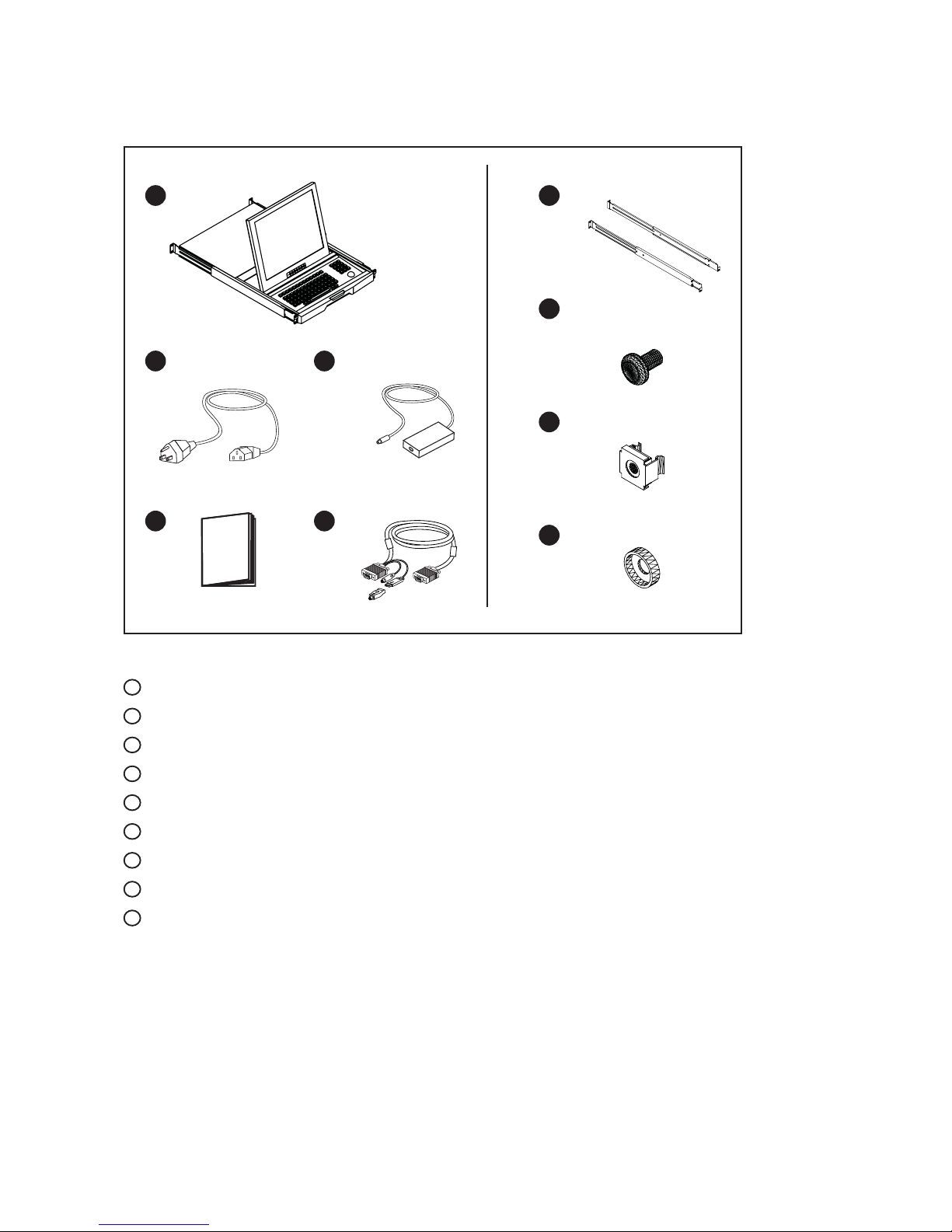
LCD keyboard drawer x 1 pc
Power cord x 1 pc
User manual x 1 pc
Auto switch power adapter x 1 pc
CE-6 Combo 4-in-1 KVM cable x 1 pc
Mounting bracket x 2 pcs
M6*15mm screw x 8 pcs
M6 cage nut x 6 pcs
Cup washer x 8 pcs
5
4
2
6
1
3
7
User
Manual
1
3
42
For RKP-1617 / 1619 series
6
7
8
9
5
8
9
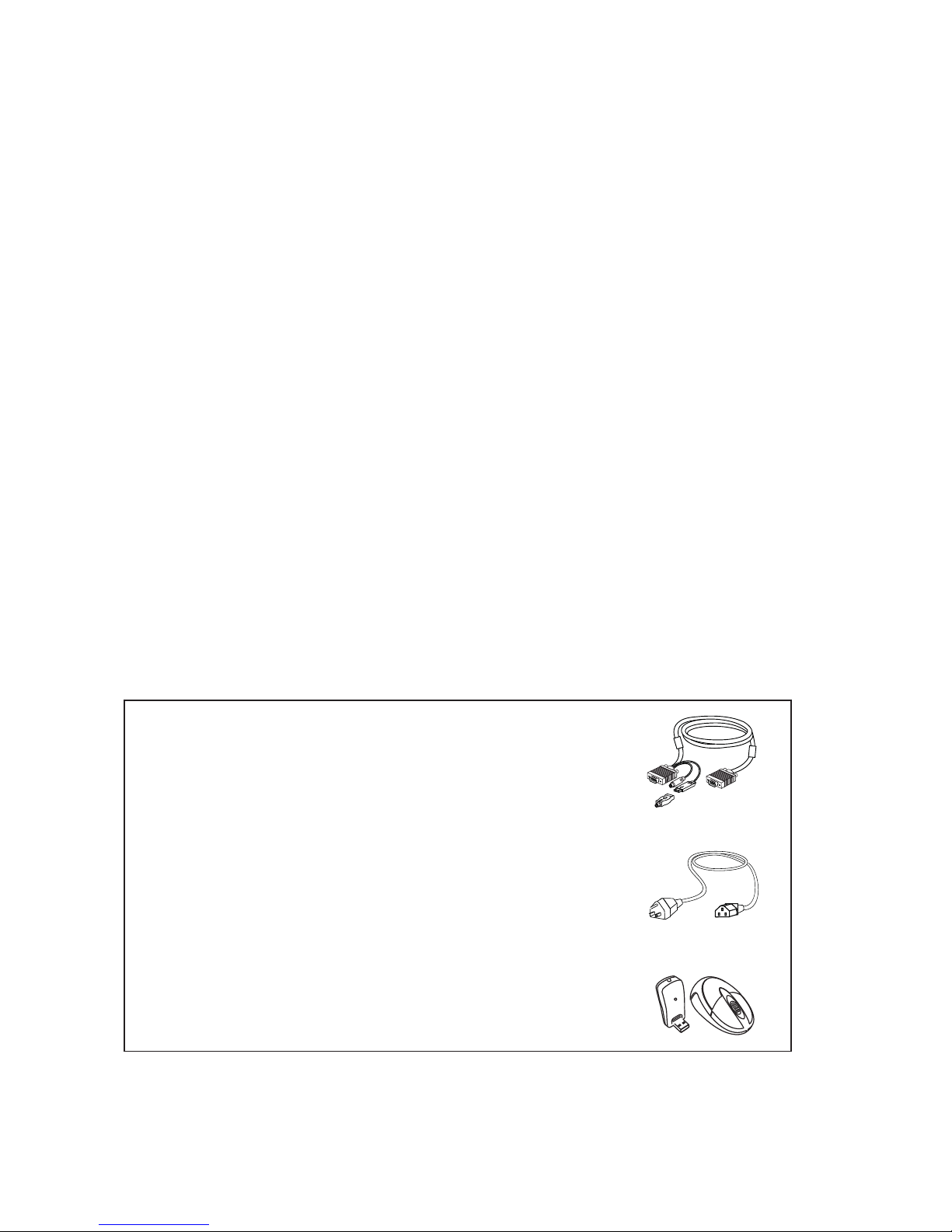
1. Combo 4-in-1 KVM cable
1.1 CE-6 6 feet
1.2 CE-10 10 feet
1.3 CE-15 15 feet
2. Power Cord
2.1 IEC power cord
2.2 NEMA 5-15 power cord (US)
2.3 BS 1363 power cord (UK)
2.4 CEE 7/4 power cord (German)
2.5 AS 3112 power cord (Australia)
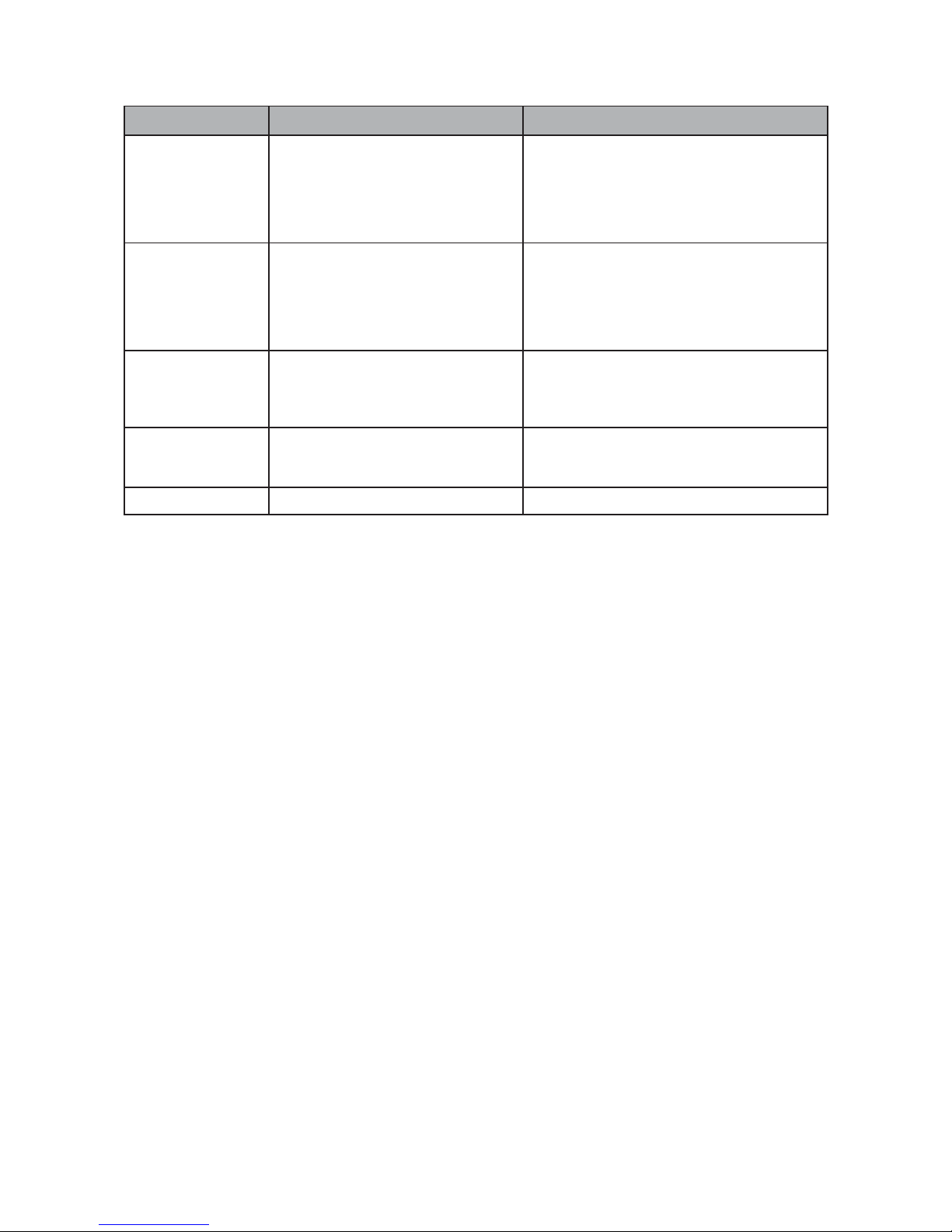
3. Wireless USB optical mouse
3.1 WOM-02
Remarks
■WOM-02 is for RKP-7 / 9 series only
■It is very important to locate the LCD Keyboard Drawer in a suitable environment.
■The surface for placing and fixing the LCD Keyboard Drawer should be stable and level or mounted into a suitable
cabinet.
■Make sure the place has good ventilation, is out of direct sunlight, away from sources of excessive dust, dirt, heat,
water, moisture and vibration.
■Position LCD Keyboard Drawer with respect to related facilities.
The LCD keyboard drawer comes with the standard parts shown on the package contents. Check and make sure they
are included and in good condition. If anything is missing, or damage, contact the supplier immediately.
1.5 Unpacking
1.4 Before Installation Chapter 1
P. 5
1.6 Optional Accessories
P. 6
1.7 Peripheral Products Chapter 1
Item Model No. Description
Matrix Cat6 KVM
MU-1602 / MU-1603 / MU-1604
MU-IP1613 / MU-IP1614 / MU-IP1624
MU-3202 / MU-3203 / MU-3204
MU-IP3213 / MU-IP3214 / MU-IP3224
Matrix Cat6 16 port KVM
Matrix IP Cat6 16 port KVM
Matrix Cat6 32 port KVM
Matrix IP Cat6 32 port KVM
Matrix DB-15 KVM
M-802 / M-803 / M-804
M-IP813 / M-IP814 / M-IP824
M-1602 / M-1603 / M-1604
M-IP1613 / M-IP1614 / M-IP1624
Matrix DB-15 8 port KVM
Matrix IP DB-15 8 port KVM
Matrix DB-15 16 port KVM
Matrix IP DB-15 16 port KVM
Combo Cat6 KVM
U-801 / U-802 / U-IP802
U-1601 / U-1602 / U-IP1602
U-3201 / U-3202 / U-IP3202
Combo Cat6 8 port KVM
Combo Cat6 16 port KVM
Combo Cat6 32 port KVM
Combo DB-15 KVM CV-S801 / CV-802 / IP-802
CV-S1601 / CV-1602 / IP-1602
Combo DB-15 8 port KVM
Combo DB-15 16 port KVM
PS/2 DB-15 KVM CV-401 / CV-801 / CV-1601 4 / 8 / 16 port PS/2 DB-15 KVM
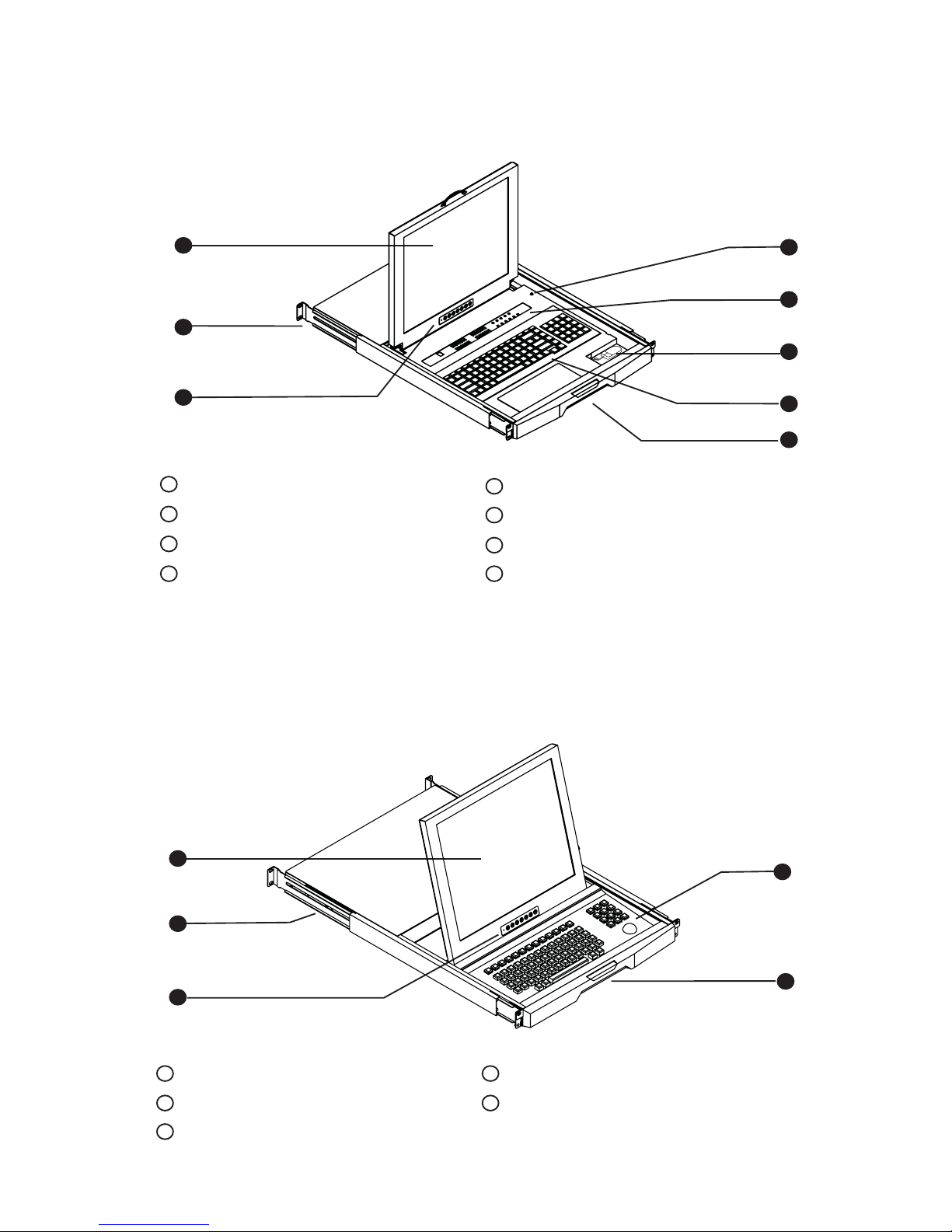
LCD interchangeable module kit
“One Man” Installation Slide
LCD membrane
Microswitch
1
1
2
2
3
3
5
4
6
5
7
7
Membrane switch (KVM option)
Mini USB optical mouse
104 key notepad keyboard with full numberical pad
Carry handle to release the 2-pt lock
P. 7
1.8 Structure Diagram Chapter 1
LCD interchangeable module kit
“One Man” Installation Slide
LCD membrane
1
1
2
2
3
5
Full “Unix style” keyboard with numerial pad
Carry handle to release the 2-pt lock
4
4
For RKP-1617 / 1619 series
For RKP-7 / 9 series
4
6
8
8
5
3
Questo manuale è adatto per i seguenti modelli
3
Indice
Altri manuali Rackmount Cassetto LCD


Manuali Cassetto LCD popolari di altre marche

Acnodes
Acnodes KD 8228 Manuale utente

Ameriwood
Ameriwood 9524328PCOM Manuale utente

Kesseböhmer
Kesseböhmer TANDEM solo Manuale utente

Crystal Image Technologies
Crystal Image Technologies RMD-151-A Series Manuale utente

APW Wyott
APW Wyott Ease Extreme HDX-1-120 Manuale utente

NTI
NTI RACKMUX-V17-N Manuale utente


GRASS
GRASS DWD XP Manuale utente

StarTech.com
StarTech.com DuraView RACKCONS1701 Manuale utente

Fisher & Paykel
Fisher & Paykel IZONA CoolDrawer RB36S Manuale utente

Synergy Global Technology
Synergy Global Technology LCD1U17-44 Manuale utente

Fujitsu
Fujitsu RC25 Manuale utente

Acnodes
Acnodes RK 1000B Manuale utente