
Rain Bird COMMODORE 64/128K Manuale utente

THE MUSIC SYSTEM
COMMODORE
64/128K
ADVANCED
D64 ATTACHED
TO THIS PDF

Philip Black (SYSTEM) SOUND/VMW/
ADVANCED EDITOR
TMS KEYBOARD/
EDITOR/SYSTEM DESIGN
Adrian Boot (ISLAND LOGIC) CONCEPT/SYSTEM
DESIGN/USER MANUAL
David Ellis (SYSTEM) CONCEPT/SYSTEM
DESIGN/USER MANUAL
Nicky Johns (ISLAND LOGIC) FILING/
INTEGRATION/DESIGN/
UTILITIES
Geoffrey Ellis (SYSTEM) DESIGN/
SYNTHESISER
Ewan Hayward (SYSTEM) ADVANCED LINKER
JOEY (ISLAND LOGIC) ADVANCED MIDI
Ching Man Wong (ISLAND LOGIC) COMMAND LINE/
KEYBOARD/GRAPHICS
Steve McGarry (ISLAND LOGIC) ADVANCED PRINTER
Shaun McGarry (ISLAND LOGIC) DEVELOPMENT
SUPPORT/PRINTER
Additional design/help/support/encouragement from:
Brian Jones (ISLAND LOGIC) Keith Shaw (SYSTEM)
Sue Shaw (SYSTEM) Steve Swallow (SYSTEM)
ii

AMS DEVELOPMENT TEAM ii
INTRODUCTION 2
EDITOR 10
KEYBOARD 37
SYNTHESISER 44
MIDI 63
THE PRINTER MODULE 73
LINKER 81
INDEX 86
APPENDIX 93
CONTENTS
THE MUSIC SYSTEM
ADVANCED
COMMODORE
64/128K

2
The Music System TMS is a comprehensive microcomputer-based music
program for creating, editing, playing and printing music. The system allows
easy input and storage of music which can then be played back through the
Commodore 64 internal sound system, or through an external MIDI
keyboard/synthesiser. Music can be printed out in proper musical notation
together with lyrics.
The music is entered in various ways: through an extremely versatile
EDITOR in written music format (note at a time). Via an on-screen piano
KEYBOARD emulator, or via an externally connected MIDI keyboard. Each
of these three input modes can create music files compatible with all other
modules. The LINKER can connect these music files together to form much
larger compositions. An understanding of the power as well as the limita-
tions of TMS can be gained through experience with the EDITOR module.
This module provides a central reference for the rest of the system, its
highly flexible step by step music input producing very accurate results.
The types of sound that can be generated are almost unlimited due to the
flexibility of the SYNTHESISER module. This allows you to create the
shapes of the sounds simply and quickly. The sound shapes (ENVE-
LOPES) are incorporated into the music using the EDITOR, KEYBOARD or
MIDI modules, to give you amazing versatility over your compositions.
INTRODUCTION
The six modules are directly accessible from the CONTROL SCREEN.
Each module is identifiable by its own symbol or icon. When applicable data
files are preserved when moving from module to module.
Editor Keyboard Synthesiser
Linker Printer Midi

3
TMS is loaded from disk via the Commodore 1541 disk drive after typing
LOAD“TMS”,8,1 and pressing RETURN. The Commodore 64 also allows
you to enter LOAD“*”,8,1 (RETURN). After the Island Logic/System Copy-
right screen has appeared the main TMS program will load automatically.
The loading will stop at the CONTROL SCREEN waiting for you to select a
module. When moving from one module to the next, you must always pass
through this screen. The highlighted icon is the one which may be run.
Press SPACE or SHIFT SPACE to select the next icon. Keep pressing to
get back to the original. Once selected the required module can be run by
pressing RETURN. Make sure that the TMS system disk is in your disk
drive before trying to load a module, otherwise an error message pop-up
will appear.
In general SPACE is used throughout the system to move a highlight or
select an operation.
When in the module return to the CONTROL screen by pressing function
key F5 to activate the command line pop-up. Use SPACE to move the
highlight bar over the EXIT command (eg. EXIT KEYBOARD) and press
RETURN. A short cut back to the CONTROL SCREEN can be achieved via
the COM CLR/HOME key pair. The COM key or Commodore key is at the
bottom left of the keyboard. Make sure the TMS system disk is in the disk
drive before leaving a module.
Moving around the MUSIC SYSTEM
TMS CONTROL SCREEN - EDITOR ICON SELECTED.
THE MUSIC SYSTEM
4
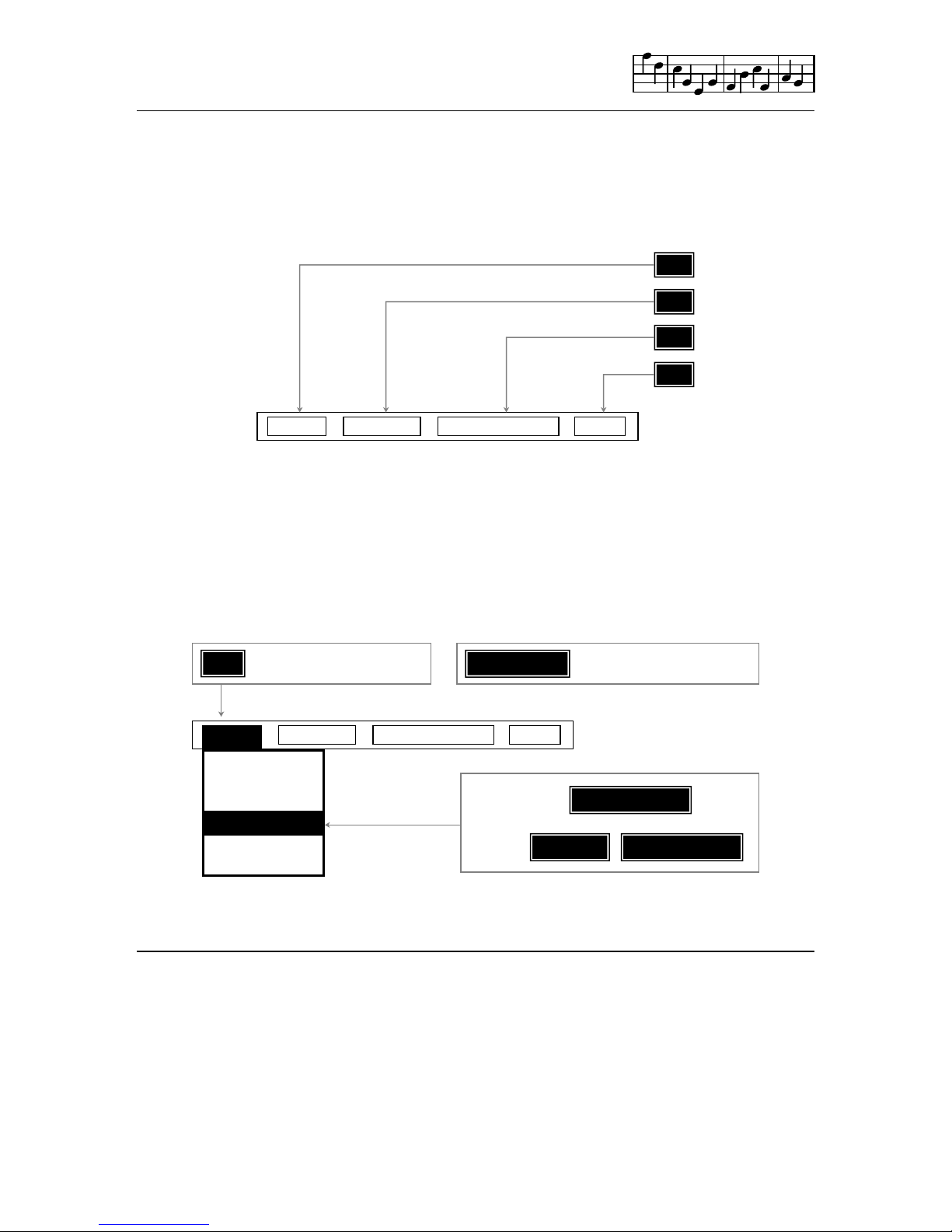
In each of the modules the command line provides easy access to the
available functions of TMS. Any command line pop-up menu can be activat-
ed by pressing one of the four commodore function keys, and de-activated
by pressing the same function key. Try selecting each of the command line
pop-ups.
The command line
You will notice that each of the pop-ups except INFO F7 has a horizontal
HIGHLIGHT bar or cursor which can be moved by pressing the SPACE bar.
This highlight cursor can also be moved in the opposite direction by holding
down SHIFT while pressing the SPACE bar. The highlight cursor is used to
select the function you intend to use.
Menu auto-scroll
In some cases, when the highlight reaches the bottom of a pop-up menu,
the menu itself will automatically scroll up, displaying new functions. It is
important to remember this feature. If you are looking for a particular
function and can’t see it within the selected pop-up, scroll the highlight
cursor up or down to auto-scroll the menu itself. You may reset the menu
after an autoscroll by pressing the function key to pop-down the menu
window and pressing the same key again to pop it back up.
InfoFiles Values Commands
f1
f3
f5
f7
InfoFiles Values Commands
f1 RETURN
SPACE
SPACESHIFT
Catalogue
Load
Save
Rename
Pop-up/pop-down Activate selection
↓Down
↑Up

5
The menu scrolls in a loop, a broken line showing the top of menu.
The SHIFT SPACE key combination causes the reverse to occur. When the
highlight reaches the top of the pop-up window the menu auto scrolls down.
Each item within the VALUES pop-up represents a value that can be
changed. For example when TEMPO or KEY SIGNATURE are selected,
the value can be changed using either the Qor Wkeys. These keys are
used throughout the system to change values.
The INFO pop-up only provides information and you can not directly
change it. Quantities such as available space, the size of individual voices,
and the values of important controls are displayed. This is the information
that you will often need to check during the operation of TMS.
InfoFiles Values Commands
Key signature
Save
Time signature
Tempo
Resolution
Volume
Filter
Voice
F # 6 sharps
Save
4/4
Presto
Expert
15
3
3
f3 Pop-up/pop-down
SPACE
↓Down
Highlight bar
Tempo
Save
Resolution
Volume
Filter
Voice
- - - - - - - - - - - - - - - - - - - - - - - - - - - - - -
Key signature
Presto
Save
Expert
15
3
3
F # 6 sharps
Auto scroll
Top of menu

6
The FILES pop-up and the COMMANDS pop-up both expect you to activate
a selected function by pressing RETURN. Often the action of pressing
RETURN will produce one or more secondary pop-ups either as a second
interactive window, or as simple messages or warnings. Remember, press-
ing the same function key will close down the window.
FILES
The most important function of the COMMAND LINE is to control the
loading and saving of files. Depending upon which module you are in, TMS
uses up to six different types of file.
Music files - Prefix m. Music as created by the EDITOR, KEYBOARD, or
converted from MIDI. Music files can be loaded into the LINKER, MIDI,
SYNTHESISER or PRINTER.
Sound files - Prefix s. Created and/or edited by the SYNTHESISER and are
used by the EDITOR, LINKER and KEYBOARD modules. Each sound file
can store 15 different instrument sounds.
InfoFiles Values Commands
Track Events
Free 9999
9999
9999
9999
9999
9999
9999
1
2
3
4
5
6
InfoFiles Values Commands
f5
RETURN
Save
Pop-up/pop-down
Activate selection
SPACE Select command
Clear all tracks
Metronome
Voice monitor window
Exit midi
Delete track

7
Midi files - Prefix x. Created via the MIDI module, and require an external
midi keyboard and interface. Midi files are easily converted to TMS music
files for use by the EDITOR and back to MIDI files for playback through a
MIDI.
Linker files - Prefix l. These files can only be created and used by the
LINKER. They use music ( m. ) files to produce much longer and more
complex compositions than the EDITOR or KEYBOARD alone can provide.
Notepad files - Prefix n. These are special files that are used by the
EDITOR to allow you to ‘cut and paste’ sections of music between voices
or even between music files
Text files - Prefix t. These files are created and used by the PRINTER
module: they are files of Lyrics that are normally associated with specific
music files.
It is very important that you ensure, when loading and saving files, that the
file is of the correct type. It is possible that two or more files can have the
same file name but different file types. ie. s.jazz is a sound file whereas
m.jazz is a music file.
Examples x.rock midi file
m.sonata music file
s.piano sound file
l.bigtune linker file
t.words text file
n.goodbit notepad file
FILES options
To CATALOGUE the files available to the module you are in, first select the
FILES pop-up by pressing f1. Then move the highlight, using the SPACE
key, to select CATALOGUE. Press RETURN and wait a few moments. If
the disk contains any available files, then these will be displayed within a
CATALOGUE pop-up. Press RETURN to close the pop-up.
To LOAD a file, select the FILES pop-up f1, move the highlight bar to LOAD
press RETURN. After a few moments a pop-up will appear with a catalogue
of files available to the module. Move the highlight over the file you wish to
Indice


