
RCA Skylighting ST21CCTA Manuale utente

Skylighting
ST21CCTA
WiFi LED Smart Bulb
User Manual

RCA APP USER GUIDE
Setup instructions for Siri Shorcuts, Alexa and Google Assistant.
Smarter More Helpful Home Light Bulbs
Works with Siri Shortcuts, Alexa and Google Assistant
Easily turn lights On/O, set groups and schedules. Choose energizing daylight or wind
down with relaxing soft white light. Get creative with color, it’s all up to you. Control
lighting with simple voice commands and an intuitive mobile app. Set up is simple. The
bulbs connect directly to your Wi-Fi at home. It has never been easier to customize
your home’s lighting to suit your lifestyle.

CONTENTS
Network Connect and App Seup..........................................................................................................................................................1
App Setup..............................................................................................................................................................................................2-3
Smart Plug Setup.................................................................................................................................................................................4-6
Profile: Overview / Security / Location / Alarm / Family / Notifications / Settings / Sharing / Help / Alexa / Goo-
gle / About .........................................................................................................................................................................................7-13
Features .............................................................................................................................................................................................14-17
Settings .................................................................................................................................................................................................. 17
Groups...............................................................................................................................................................................................18-20
Room Management ............................................................................................................................................................................. 21
Creating Smart Scenes .................................................................................................................................................................22-28
Siri Shortcuts...................................................................................................................................................................................29-30
Alexa .................................................................................................................................................................................................31-34
Google Assistant ...........................................................................................................................................................................35-37

CAUTION: RISK OF ELECTRIC SHOCK OR BURNS – USE IN A DRY LOCATION ONLY. Do not install the device
with wet hands or when standing on wet or damp surfaces. Suitable for use in operating environment between
-20°C and 40°C (-4°F and 104°F). Not for use in totally enclosed luminaires. Do not use with dimmers. Please
make sure the voltage of the LED bulb is compatible with the main electricity of your country before connecting to
a bulb holder. Ensure that the base of the bulb matches the bulb holder. This device uses a non-replaceable light
source. When the light source reaches the end of its life cycle, the device should be replaced.
What’s in the Box
Get Ready
·2×Smart Wi-Fi LED Bulb
·1×User Manual
·If your Wi-Fi coverage does not reach the bulb, consider a Wi-Fi range extender.
·The smart Bulb works with any Wi-Fi router with a 2.4GHz band. Please check your router guide to enable the 2.4
GHz band. No need for a separate hub.
·Lamps and fixtures with metal housings may reduce the quality of the Wi-Fi signal.
·Do not use the bulb with dimmer switches.
·Please ensure the power to the bulb is on for the bulbs to be online. By switching o power to the bulb you will not
be able to access the bulb using the App.
·Find an existing light socket. (E26 shape)
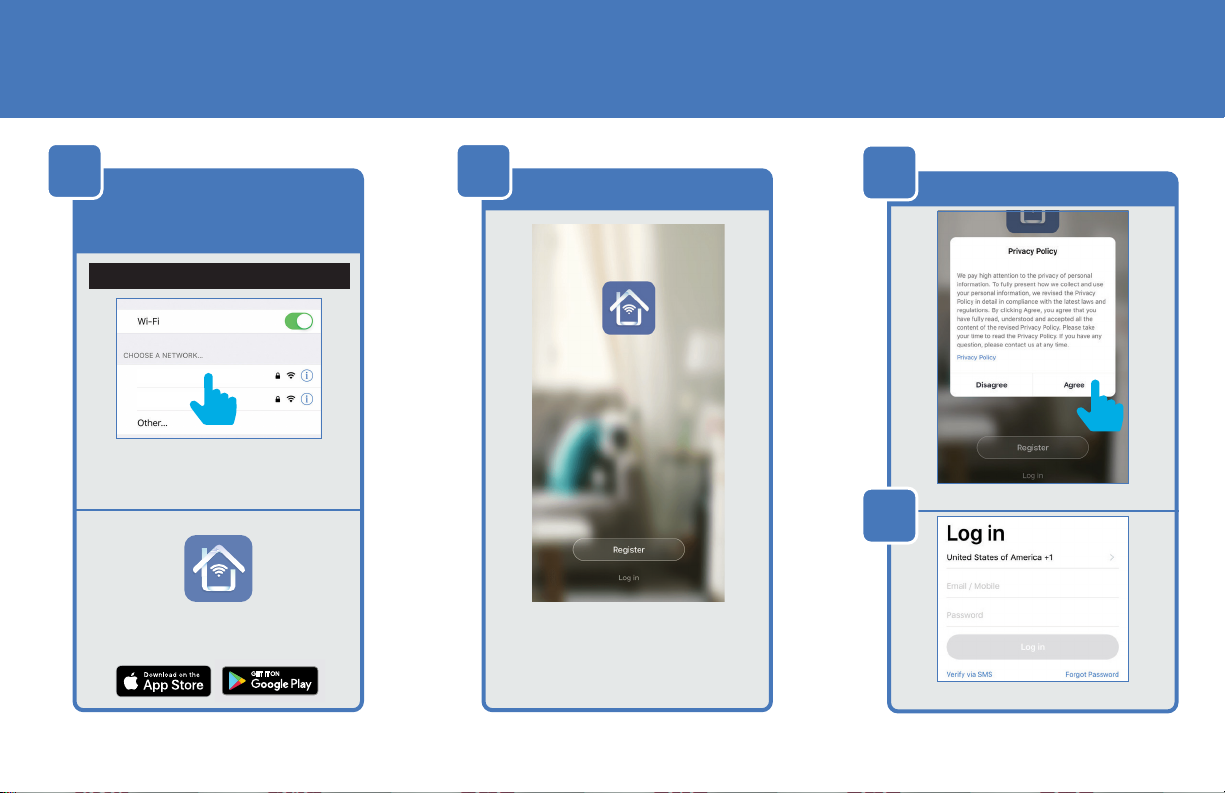
NETWORK CONNECT AND APP SETUP
Wi-Fi 2.4GHz
Wi-Fi 5GHz
1 2
Connect to a 2.4GHz
Wi-Fi Network. Download and
install the Feit Electric App
Register
NOTE: Only works with 2.4GHz Wi-Fi networks
Go to your Wi-Fi settings and
connect your phone to your
2.4GHz Wi-Fi network.
Download and launch the RCA App Tap Register to create a new ac-
count or Tap Log in if you have
an existing account.
3a
3b
Privacy Policy
Returning users Log in and skip to step 10
1

APP SETUP
4 5 6
Register Verification/Password Permissions
You may use an email or mobile
number to create an account. Then
tap Continue.
(A verification code will be sent to
your email or mobile number.)
Continue
Continue
Enter Verification Code sent to your
email or mobile number.
Create a Password then tap Done.
Done
Allow Bluetooth
(Recommended)
Allow Notifications
(Highly Recommended)
2
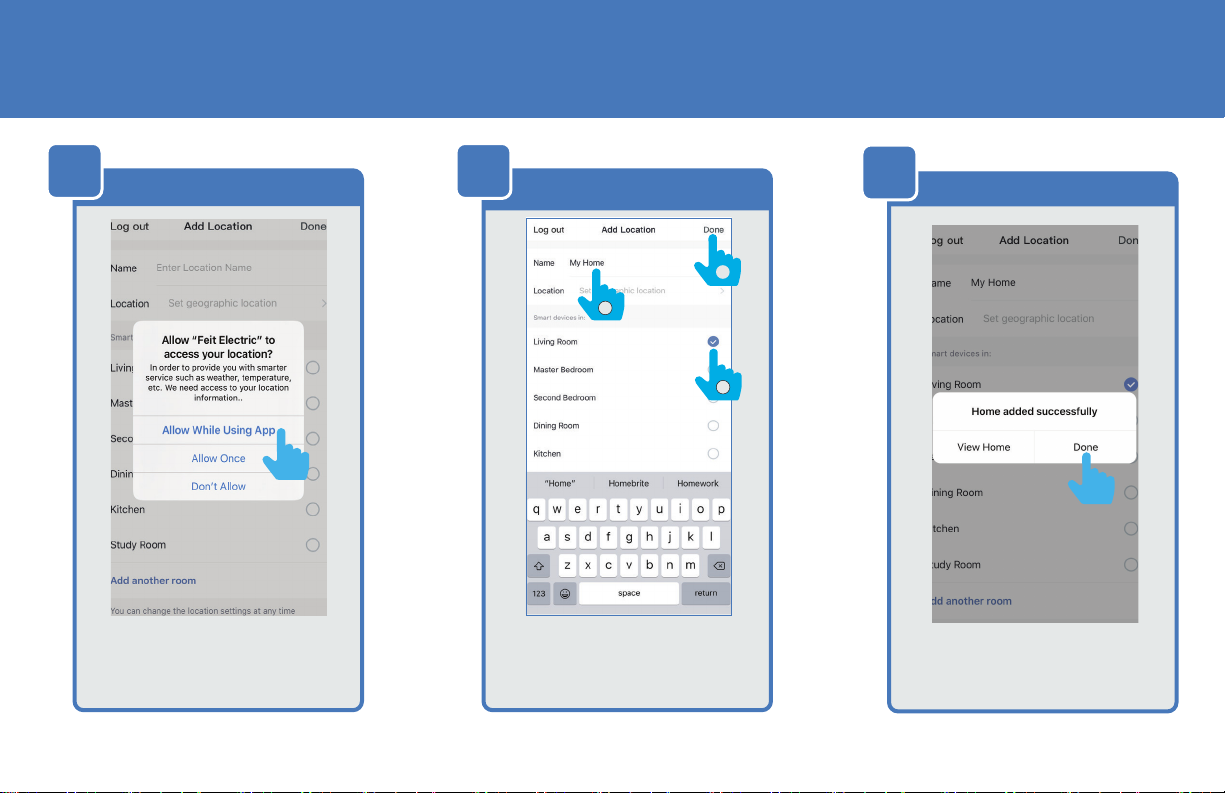
APP SETUP
7 8 Name LocationLocation Access 9Confirm Home Added
You must Allow RCA App to access
your location to connect to your
device.
O
P
N
1. Enter your location name.
2. Check where your device is
located.
3. Tap Done.
Tap Done or View Home for location
settings.
3

SMART BULB SETUP
1 2 3
Add Device Add Lighting Device Confirm Pairing
IMPORTANT!
Install and Power On
your Smart Bulb(s) before proceeding.
Tap + in the upper right corner
NOTE: If this is the first device you
are setting up, you can also select
Add Device.
Not Compatible with 5G Wi-Fi Net-
works
Make sure you are connected to
a 2.4GHz Wi-Fi Network, then tap
Lighting, then tap Lighting device.
Power On the bulb(s) and make sure
the light(s) are blinking, then tap
Confirm.
NOTE: If the bulbs are not blinking,
turn bulbs ON-OFF-ON-OFF-ON.
4
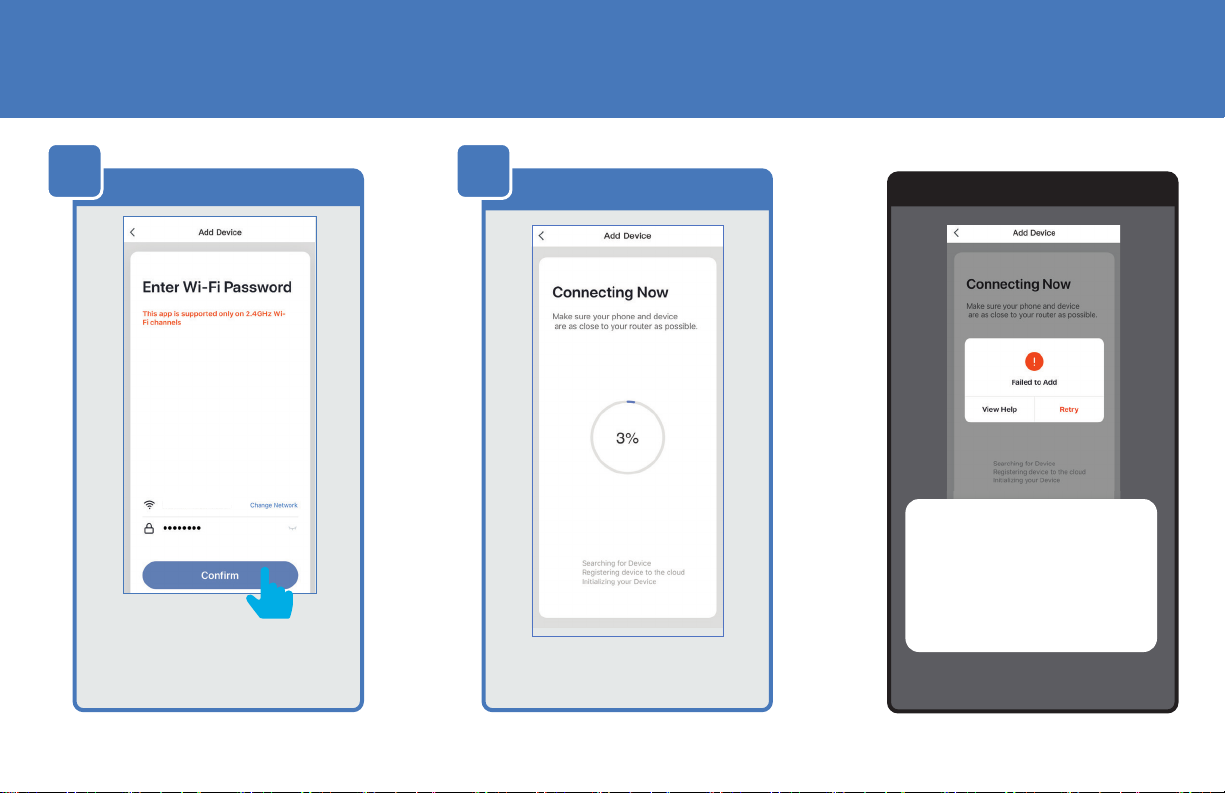
SMART BULB SETUP
4 5 Connect
Confirm Wi-Fi connection Troubleshooting
Wi-Fi 2.4GHz
After confirming that you are on a
2.4GHz Wi-Fi network, enter your
password then tap Confirm.
The connecting status window will
appear. Wait until it’s completed.
If you see a Failed to Add noti-
fication, check to be sure your
Wi-Fi password was entered
correctly.
Close the app and repeat the
previous steps to try connecting
again or View Help for further
assistance.
5

SMART BULB SETUP
6Device Added Edit Device Name Adding Additional Devices
Once device is successfully added,
tap the Pen icon to rename the
device.
O
N
Once device has been renamed,
1. Tap Save
2. then tap back icon <.
Then tap Done.
NOTE: Constant power to
the bulb(s) is required at all
times.
To add additional deivces tap the
plus (+) sign in the upper corner.
Repeat steps 2, 3, 4, 5 and 6.
6
Indice


