
Regency Digital-Display 2024 Manuale utente

2024 USERGUIDE
PG 2/10
The high-resolution touch control display brings more
features to the surface providing an unmatched user
experience.
Critical information including engine performance,fuel
level and voltage is always in view or just a touch away.
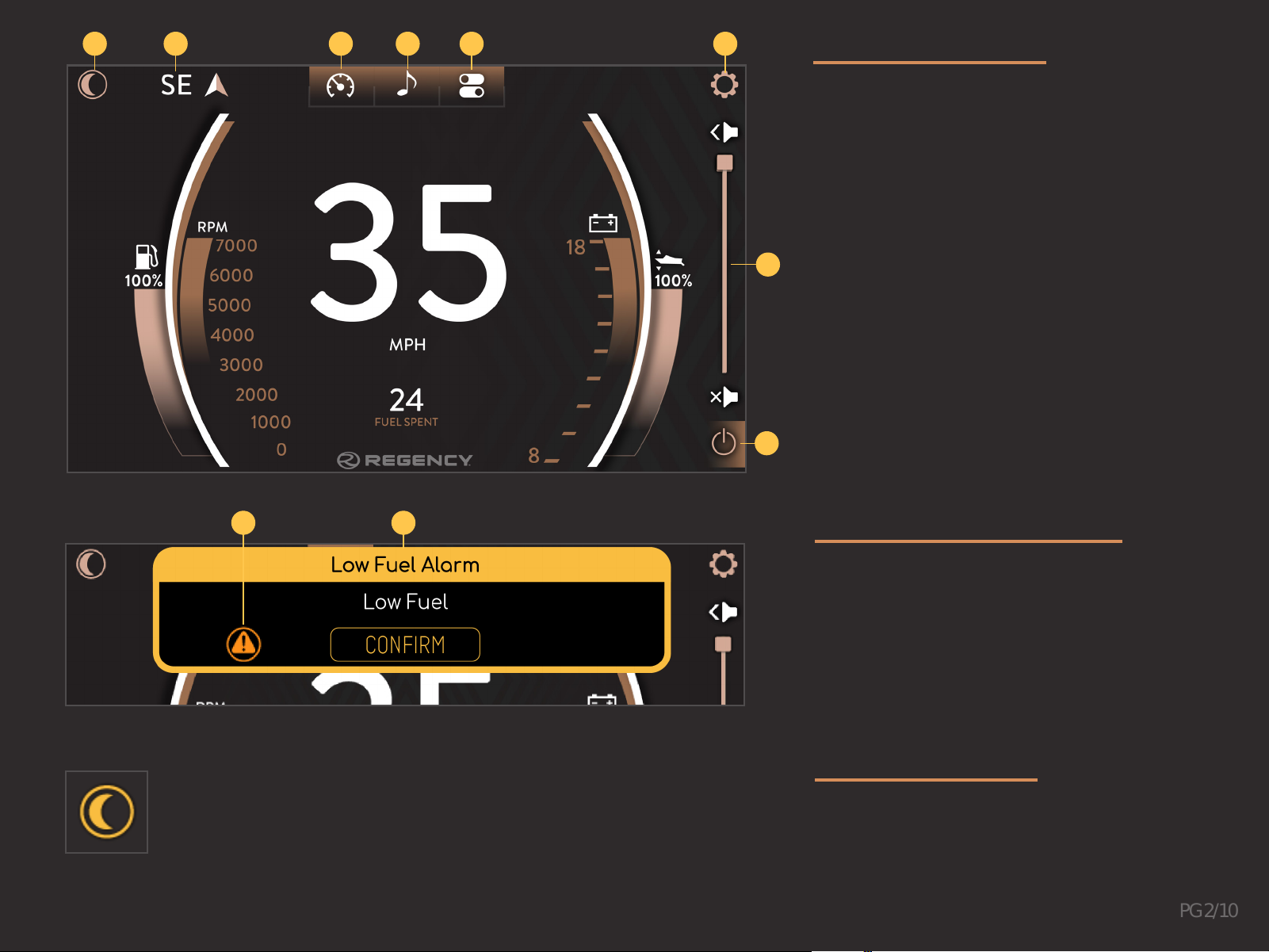
1. Alert Indicator
2. Alert Banner
The Night Mode button toggles the back-lighting between the daytime
and nighttime set points. This can be adjusted in the System Display
section of the Settings menu.
MAIN DISPLAY
ALERTS & ALARMS
NIGHT MODE
1 2 4 5 6
1 2
3
8
7
1. Night Mode Button
2. Heading
3. Gauge Screen
4. Audio Screen
5. Controls Screen
6. Settings Menu Button
7. Volume Control
8. Radio Power On/Off
PG 3/10
4
2
35
1
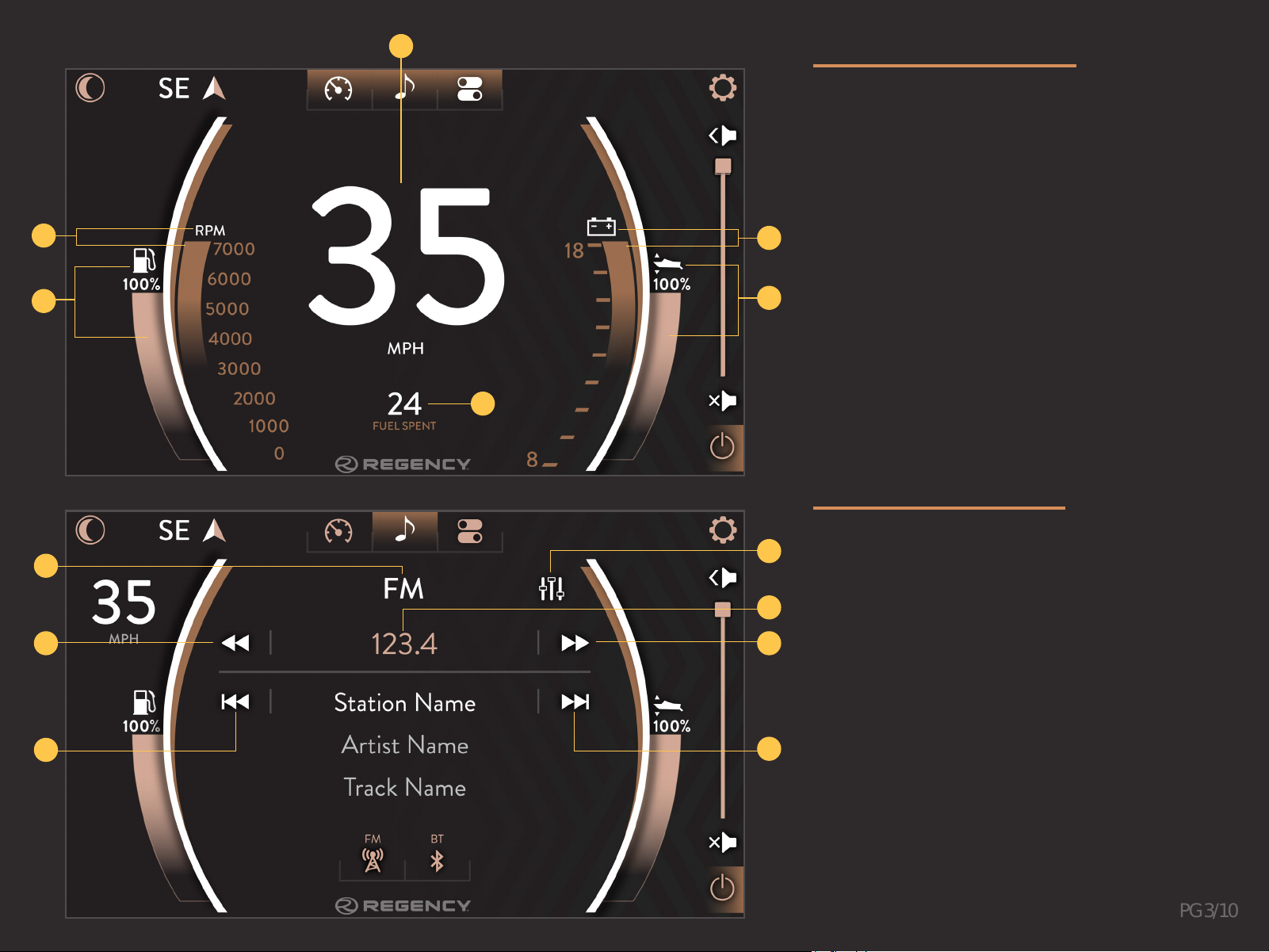
1. Speed
2. Engine RPM
3. Fuel
4. Voltage
5. Trim Level
6. Fuel Burned
GAUGE SCREEN
The Gauge Screen places an emphasis on high visibility.
Speed is quickly and easily scanned,along with important
read-outs like engine RPM,water pressure, trim and fuel
levels taking predominance over other information.
7
RADIO SCREEN
Use the Radio Screen to browse different radio stations,
connect mobile devices via Bluetooth,and make sound
any sound adjustments necessary.
6
6
5
3
2
1
4
1. Audio Source
2. Scan Back
3. Track Back
4. Equalizer
5. Selected Station
6. Scan Forward
7. Track Forward
PG 4/10
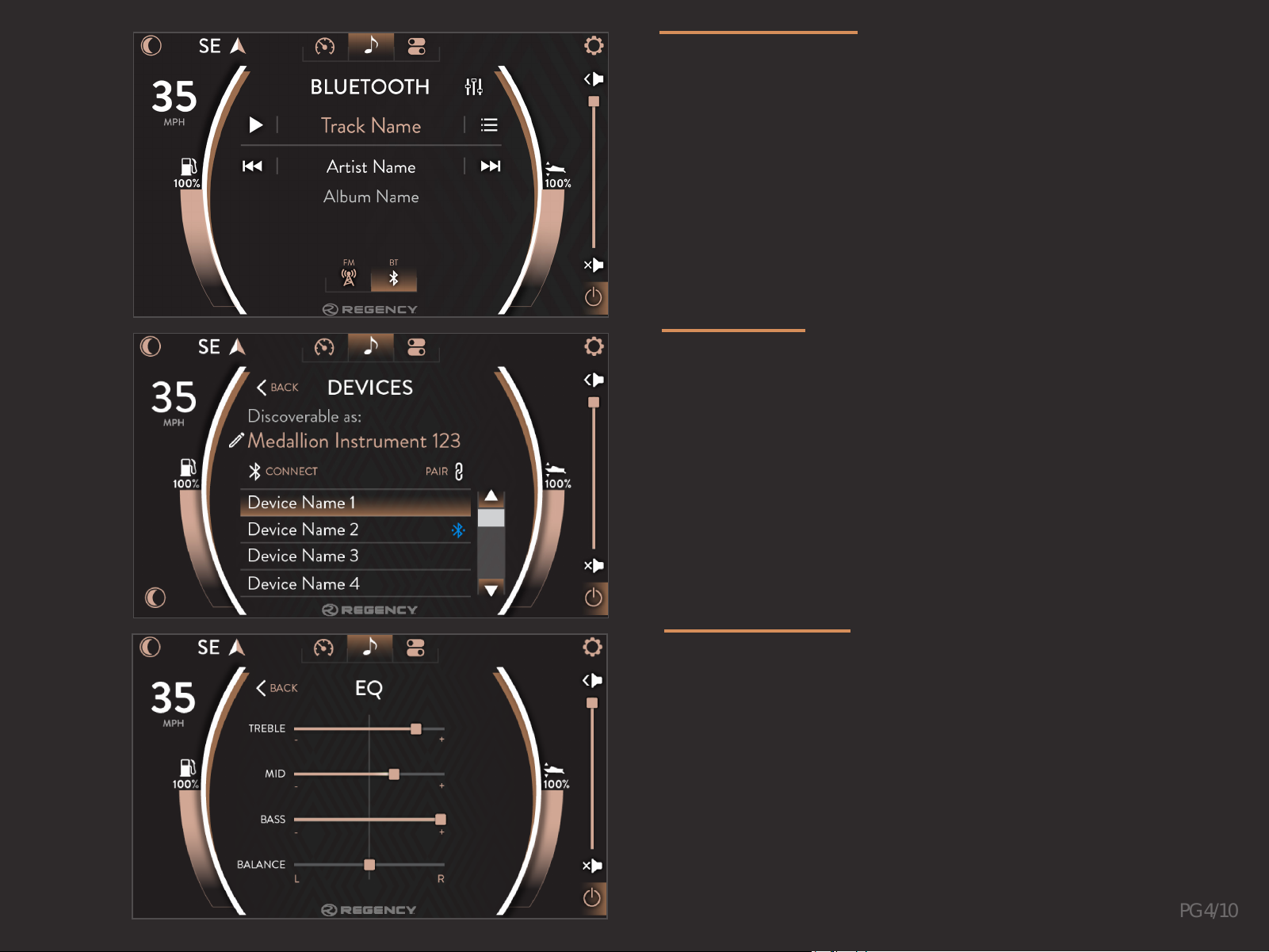
DEVICES
Devices can be viewed through the Bluetooth Screen.At this
screen,the device display name can be edited, new devices can
be pair/connected,and devices can be removed.
BLUETOOTH
Touch Bluetooth to access a device that has already been paired
to your system,or connect new devices through this screen. The
The Bluetooth screen recognizes the audio playing from device
and provides information including theTrack Name,Artist Name,
andArtist Title. The Equalizer and Devices can also be accessed
through this screen.
EQUALIZER
From the Equalizer page,the user is able to adjust the treble,
mid,bass and balance. It is recommended to leave the treble
and bass centered at 0..
PG 5/10
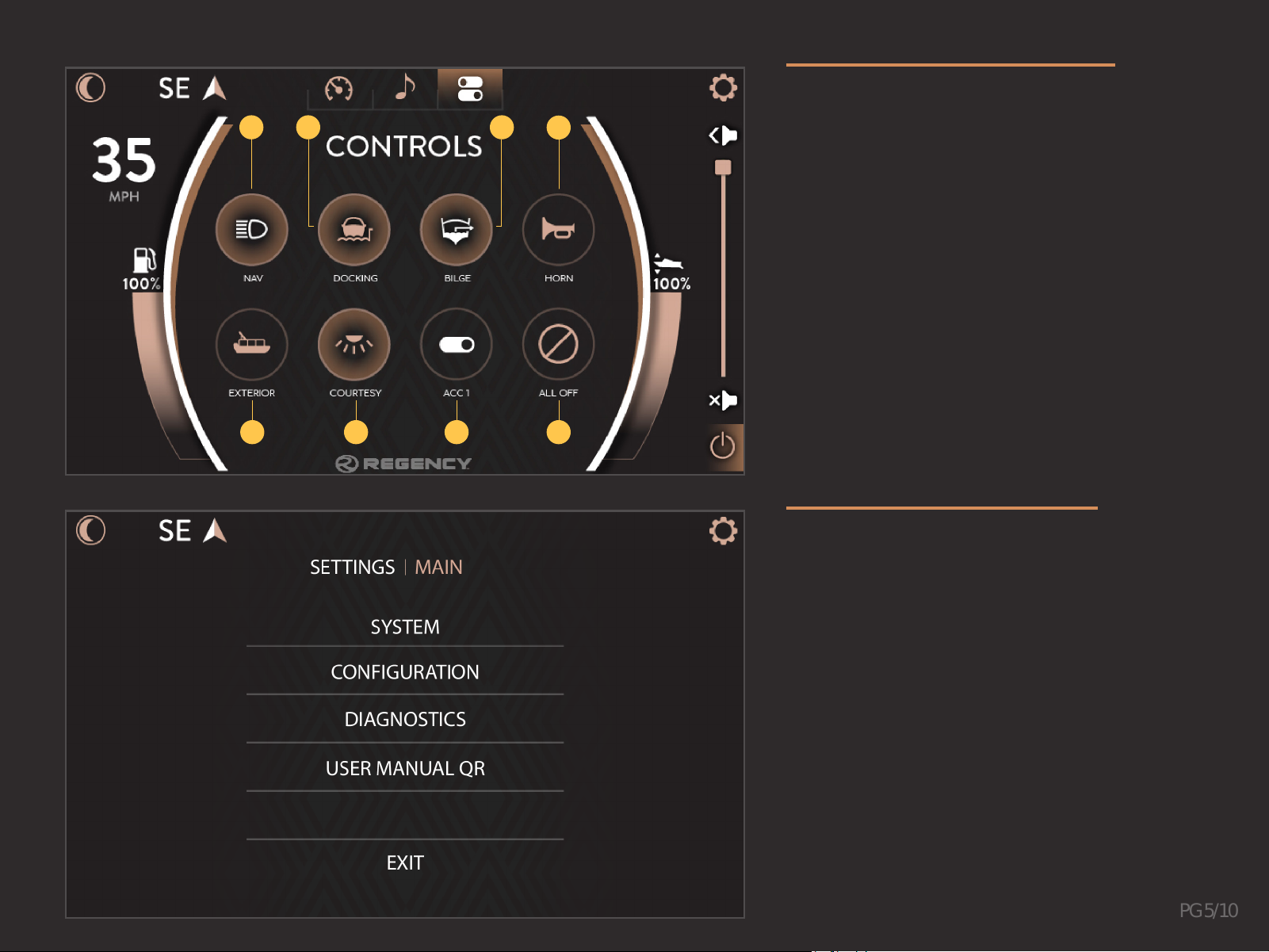
CONTROLS SCREEN
The Controls Screen allows On/Off switching functionality
to all interior and exterior lighting, water pump systems,
and blower.A highlighted icon will indicate which
elements are active.
SETTINGS SCREEN
Manage updates,system settings and configurations,
and view diagnostics information in the settings screen.
Changes are automatically saved upon leaving the
settings screen mode.
1 2 3 4
5 6 7 8
1. Navigation Lights On/Off
2. Docking Lights On/Off
3. Bilge On/Off
4. Horn On/Off
5. Exterior Lights On/Off
6. Courtesy Lights On/Off
7. Accessory 1 On/Off
8. All Buttons Off
PG 6/10
SYSTEM SETTINGS MENU
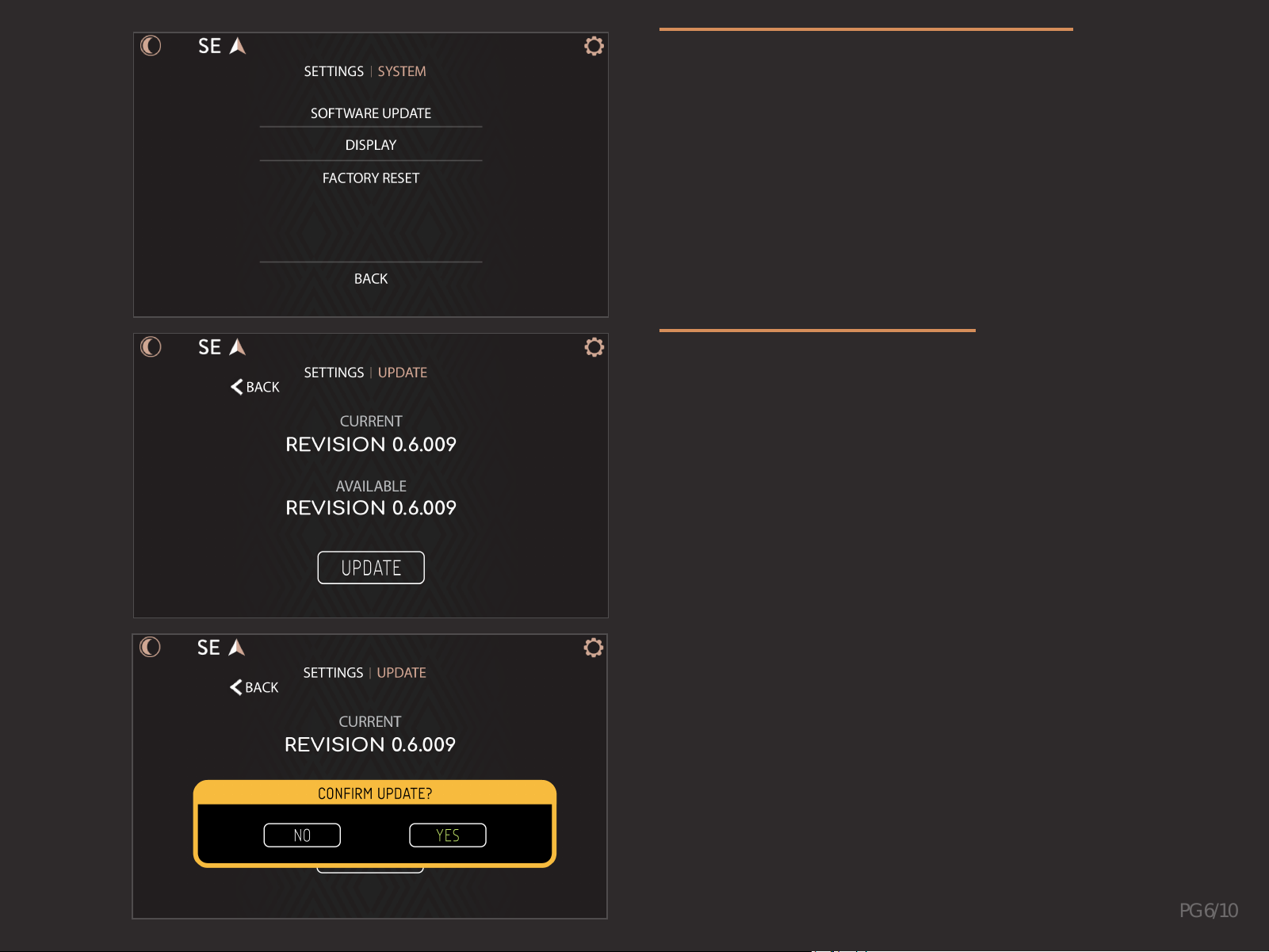
The System Settings Menu contains options for software
updates,display options and factory reset.
SOFTWARE UPDATE
Use the Software Update screen to view the installed software
revisions and update the existing software via USB drive.
Verify that the software update is the only file that is on the USB
Input Device.
Insert the USB device into the USB Port that is found at the Dash.
Once the file is finished copying to the system,an Update button
will appear.
Press the Update button andYes on the confirmation alert.
The system will reboot to a status bar and animation on the
touch display. This status bar shows the user the progress of
the software update. Once the software update is complete, the
system will reboot into the application.You may then remove the
USB drive.
PG 7/10
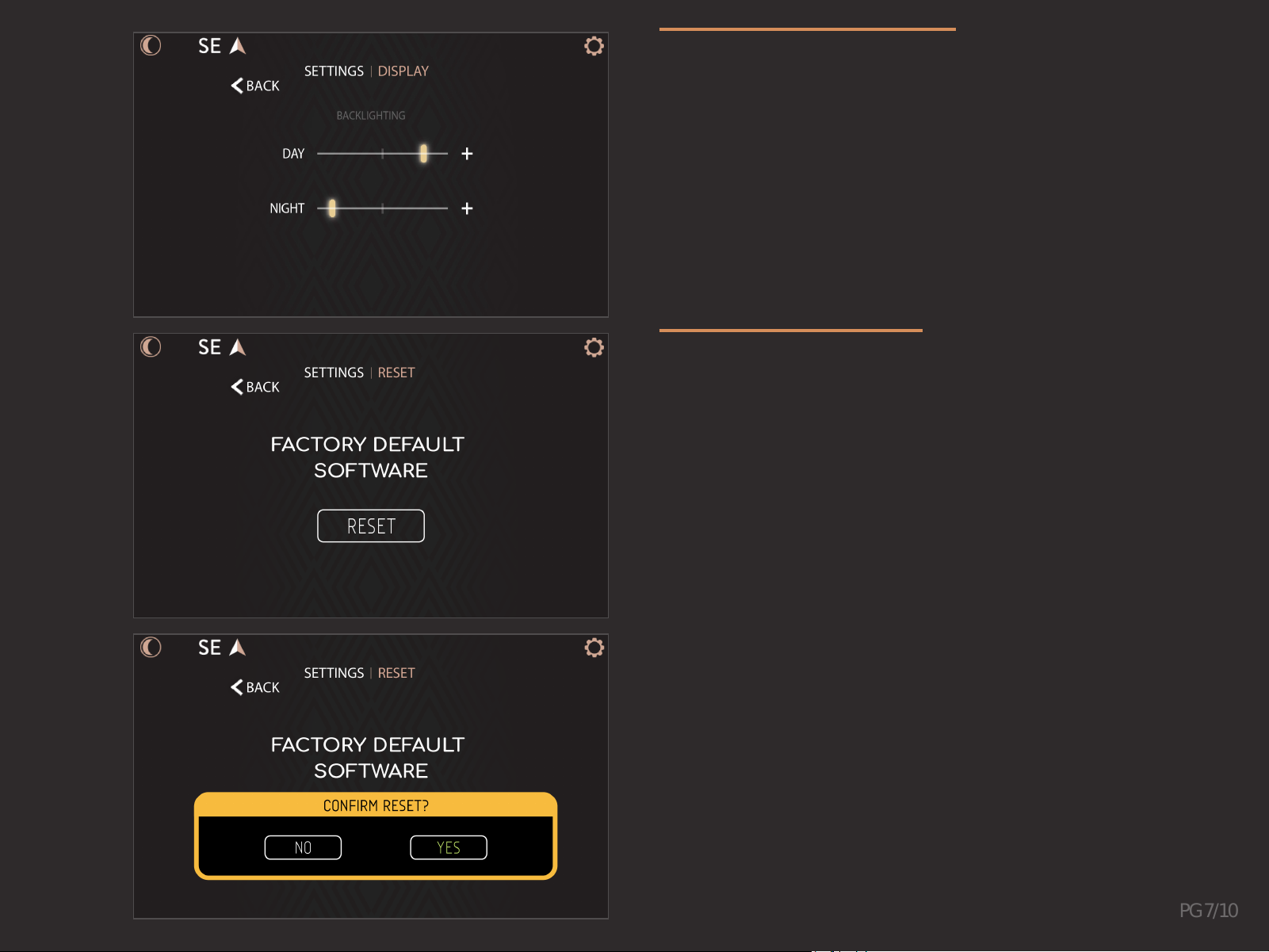
DISPLAY OPTIONS
Adjust backlighting brightness levels for Day and Night
modes in the Display Options Screen.The Night Mode button
toggles between the two set-points.
FACTORY RESET
Restore your system back to the default factory settings in
the Factory Reset screen. Tap the Reset button andYes on the
confirmation alert to revert all settings.
PG 8/10
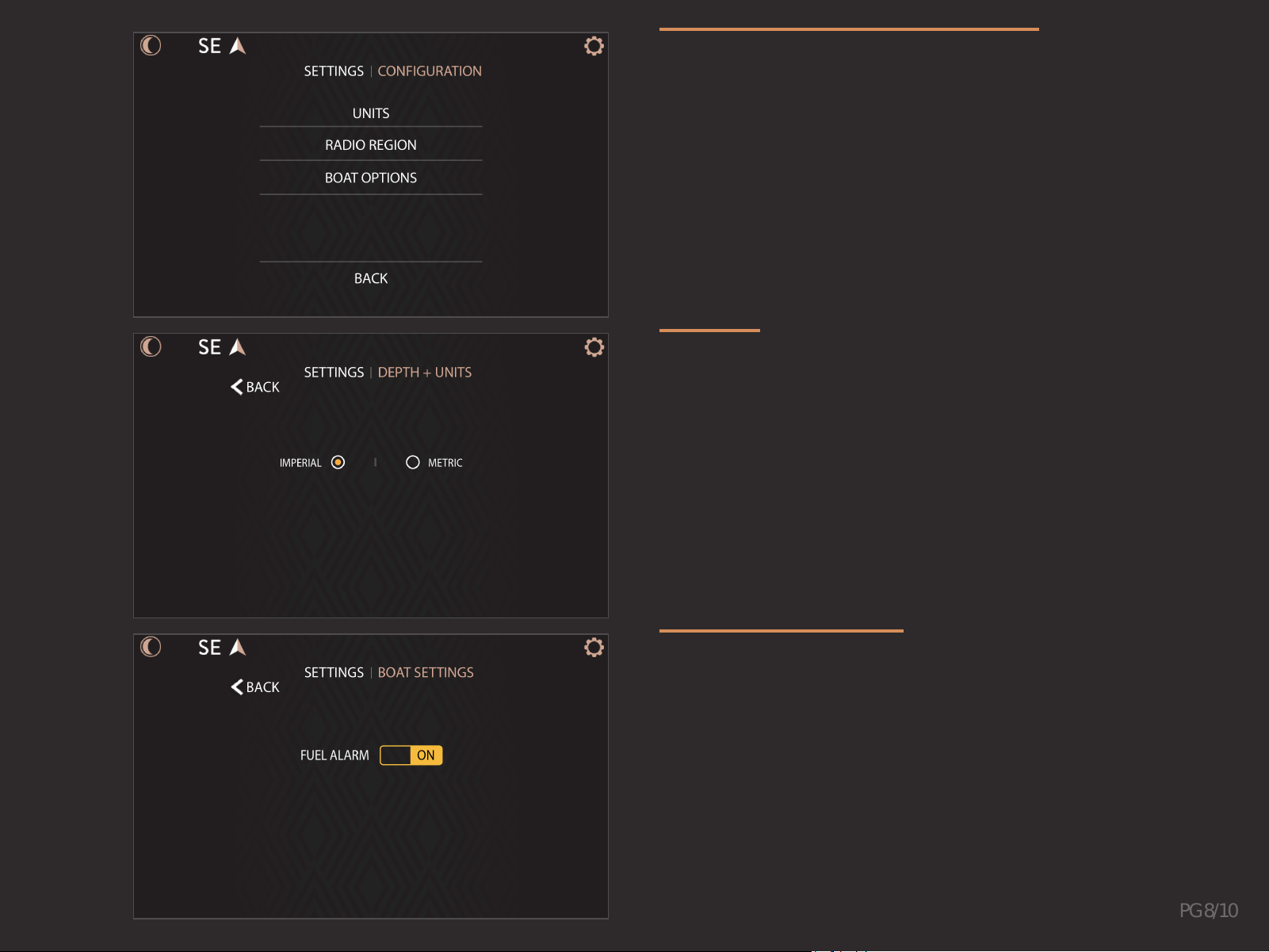
CONFIGURATION MENU
Customize options for a preferred boating experience in the
Configuration Settings menu.
UNITS
Switch between Imperial or Metric units for system wide
read-outs.
Units will convert speed from MPH to km/h,depth from Feet to
Meters,and temperature from Fahrenheit to Celsius.
BOAT OPTIONS
Enable/disable the fuel alarm and select fuel tank size under
the Boat Options menu.
PG 9/10
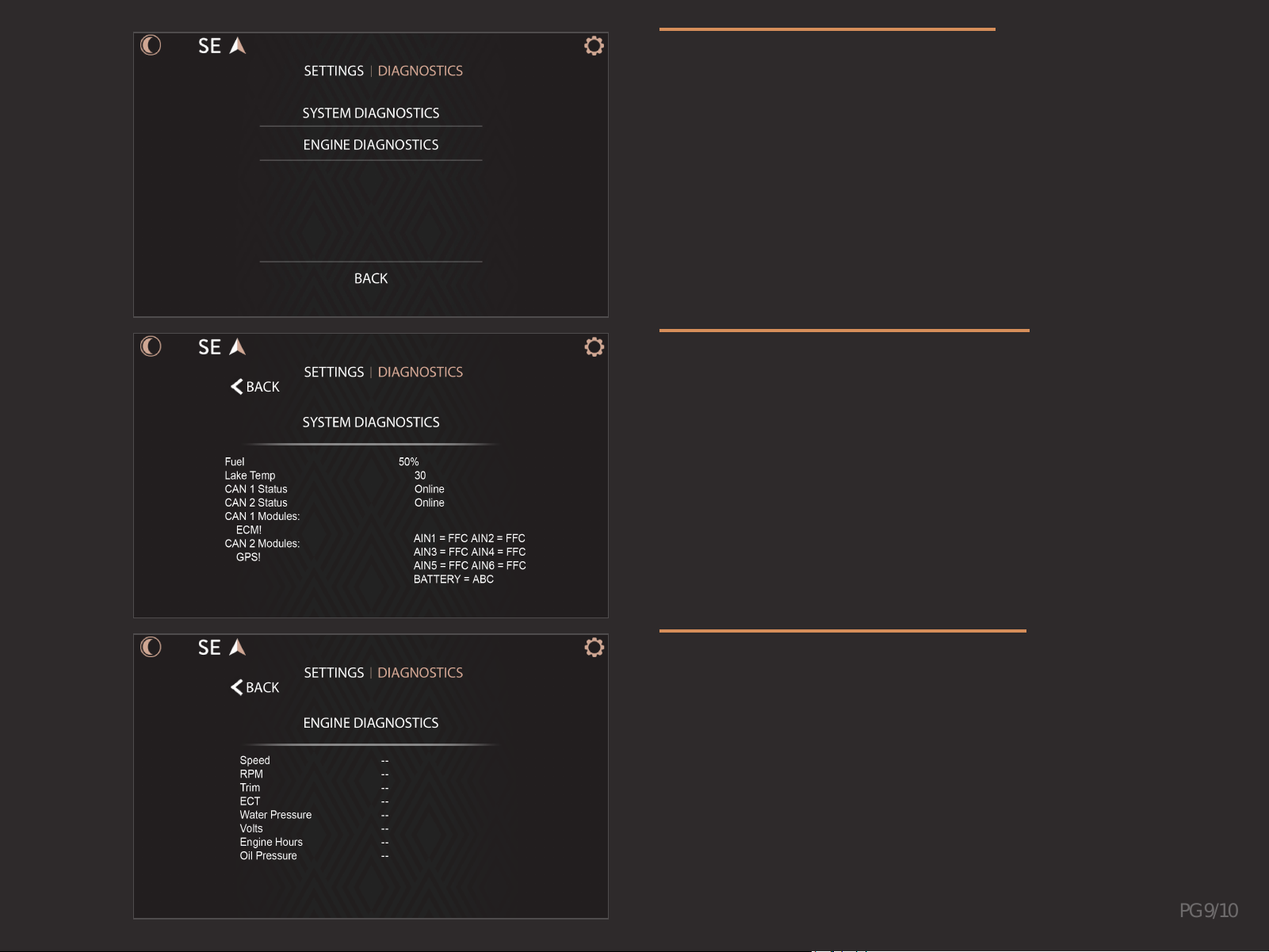
DIAGNOSTICS MENU
Displays on-screen diagnostic data from the Diagnostics
Settings menu. Information is broken down between engine
related diagnostics and system related.
SYSTEM DIAGNOSTICS
View boat sensors data,power module outputs, current
active or inactive engine alarms, and global positioning
system status in the System Diagnostics screen. CAN
modules will turn green when the modules are detected.
CAN modules will turn gray when there is no communication
between the display and the module.
CAN 1 = Engine Communication Network
CAN 2 = BoatAccessory Communication Network
ENGINE DIAGNOSTICS
View engine related data such as speed,RPM,trim level,
water pressure,voltage,engine hours,etc. in the Engine
Diagnostics screen.
PG 10/10
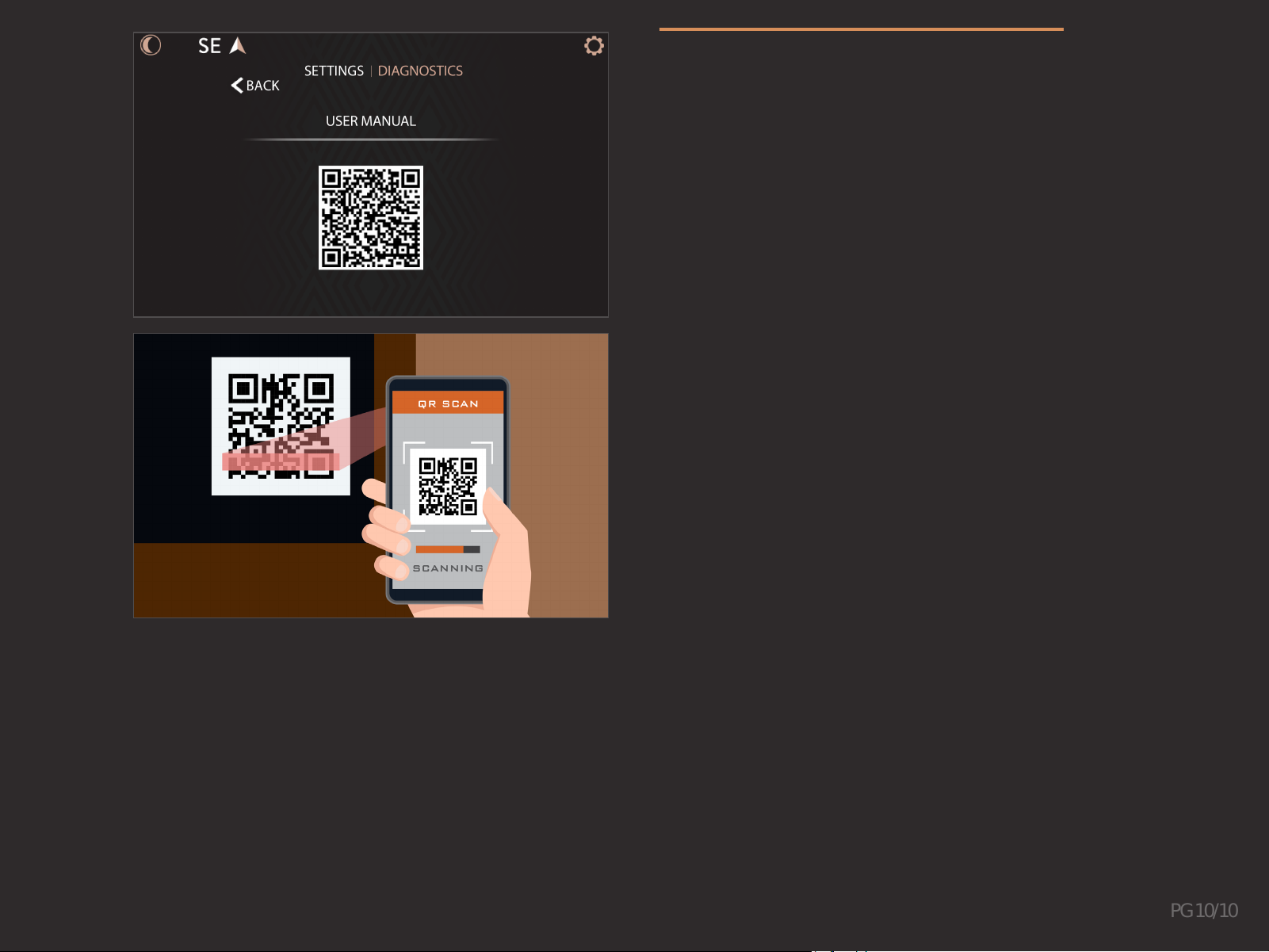
USER MANUAL QR CODE
Scanning the displayed User Manual QR code will direct
the viewer to the online guide from their mobile device.The
online version will be the current and the most up-to-date
source of information.
Indice


