
Rehan ACUITY BASIC Manuale utente

USER MANUAL
MANUEL DE L’UTILISATEUR
MANUALE UTENTE
MANUAL DE USO
Acuity Basic

2

FR
IT
ES
EN
3
RC
English.........................................................................................
Français................................................................................................
Italiano..............................................................................................
Español..............................................................................................
Remote Control..................................................................................

4

5
EN
Table of contents
1 Introduction............................................................................................................6
2 Installation, safety and maintenance .....................................................................6
Installation..............................................................................................................6
Adjust the tilt of the screen....................................................................................6
Adjust the height of the screen..............................................................................7
Connecting the cables...........................................................................................7
Transporting the Acuity..........................................................................................7
Tips for usage........................................................................................................7
3 Controls - Screen...................................................................................................8
3.1 Display Modes....................................................................................................8
3.2 Zoom ..................................................................................................................8
3.3 Block auto focus ................................................................................................8
3.4 Brightness ..........................................................................................................8
3.5 Contrast..............................................................................................................8
3.6 White balance.....................................................................................................9
3.7 Advanced Reading Aids.....................................................................................9
3.8 Tableau ...............................................................................................................9
3.9 Brake Handle......................................................................................................9
4 Controls - Remote Control ....................................................................................10
5 Advanced Menu.....................................................................................................10
6 Switch Screen........................................................................................................12
7 Regulations............................................................................................................12
8 WEEE & RoHS Directives .....................................................................................12
9 Warranty Information .............................................................................................12
10 Technical specications.........................................................................................13
User Manual V1.8

6
EN
1 Introduction
Congratulations with your Acuity Basic; a desktop video magnier of high quality that is
especially user friendly with its touch sensitive input method.
Read this manual thoroughly before you start to use your Acuity. Information in this manual
refers to both the Acuity Basic and Acuity Basic with Switch Screen models.
This manual contains instructions on how the device needs to be installed, and describes
all of the functions of the Acuity.
2 Installation, safety and maintenance
Package contents
The package of the Acuity contains the following:
• Acuity Basic or Acuity Basic with Switch Screen
• Power adaptor
• Manual
• Remote Control and Remote Control Receiver (optional accessory)
• HDMI Cable (for Acuity Basic with Switch screen function only)
Installation
Never open up the device yourself; this will void your warranty. If you
suspect the device is in need of service or repairs, please contact your
supplier.
The Acuity will be delivered to you in a pre-assembled state. All you have to do is slide the
screen up to your preferred height, connect the adapter and switch on the device.
Adjust the tilt of the screen
The screen can be tilted by rmly holding the screen on the left and right side, and tilting
the screen in your preferred position.

7
EN
Adjust the height of the screen
The height of the screen can be adjusted by rmly holding the screen on the left and right
side, and pulling the screen up or down to your preferred position.
Connecting the cables
The only cable required to be connected is the power cable. Insert the power cable into the
back of the device and then into a wall socket.
Transporting the Acuity
If the device needs to be transported it is adviced to transport it in its original packaging in order
to avoid any potential damage to the device.
Tips for usage
• Avoid direct sunlight on the screen and tableau.
• Be careful when handling the moving parts of the reading table.
• The Acuity requires little or no maintenance. If you want to clean the exterior of the
device, only use a dry cloth. The use of aggressive cleaning products like alcohol,
acetone or other chemical substances is prohibited.
• Do not use the Acuity as a support for walking, sitting down or getting up.
• Switch off the device if you do not intend to use it.
• Ensure that the Acuity is placed in a well ventilated room.
• Place the Acuity on a stable surface to prevent it from falling.
• Only use your Acuity indoors. Do not expose the device to extreme temperature
fluctuations or humidity. Do not place your Acuity next to a heat source.
• Only use the supplied cables and connect the adaptor to a wall socket outlet.
• Ensure that the Acuity is placed at a minimal distance of 10 cm / 4 inches from the edge
of the table.

8
EN
3 Controls - Screen
The on/off switch of the Acuity is located at the lower right
hand side on the back of the monitor. To start up or shut-
down the device, hold it for 2 seconds until you hear the
start up or shutdown tone.
The controls of the Acuity can be found below the screen and consist of touch sensitive
pads:
3.1 Display Modes
Tap
Tap this icon to cycle through all available display modes.
Press-and-hold
Press and hold the Display Mode icon to quickly switch between your last used high contrast
mode and the full colour mode.
Swipe
Swipe from left of right to go to the next display mode in the cycle.
Swipe from right of left to go to the previous display mode in the cycle.
3.2 Zoom
Tap or press and hold the minus icon allows you to zoom out.
Tap or press and hold the plus icon allows you to zoom in.
The magnication level will be shown on screen.
3.3 Block auto focus
By tapping the magnier icon the device will refocus on your reading material
and block the auto focus on that level.
Tap a zoom button to unblock the auto focus.
3.4 Brightness
Tap
By tapping this icon you can cycle through 5 brightness levels.
3.5 Contrast
Swipe and hold
Swipe this icon from left to right and hold your nger on the right side of the rounded
rectangle to gradually increase the contrast.
Swipe this icon from right to left and hold your nger on the left side of the rounded rectangle
to gradually decrease the contrast.
Contrast can only be adjusted in high contrast modes, not in photo modes.

9
EN
3.6 White Balance
Swipe and hold
Swipe this icon from left to right and hold your nger on the right side of the rounded
rectangle to gradually change the white balance to the colder, bluer side.
Swipe this icon from right to left and hold your nger on the left side of the rounded rectangle
to gradually change the white balance to the warmer, oranger side.
White balance can only be adjusted in photo modes, not in high contrast modes.
Brightness, contrast and White balance can’t be adjusted when reading aids are in use.
3.7 Advanced Reading Aids
Press-and-hold
Press and hold this icon to enter the Advanced Reading Aids menu.
The following reading aids are available:
Swipe up or down over this icon to select the desired reading aid required. Each reading aid
has 5 settings that are indicated by a number shown in the icon.
To change the setting value you can tap this icon to go to the next level or you can swipe
from right to left.
To change to a different reading aid then swipe up or down over this icon and then tap to
set the desired level of the reading aid selected.
To exit from the Advanced Reading Aids menu press and hold this icon for 2 seconds. The
reading aid will now disappear from the screen.
3.8 Tableau
The Acuity contains a tableau on which you can place your reading material. The tableau
can move from left to right and from front to back.
3.9 Brake Handle
In front of the tableau of the Acuity you will nd a single brake handle with which you can
control the movement of the tableau. The handle has 4 positions:
Left = The tableau can be moved freely.
Middle-left = Free movement from left to right.
Front to back movement can be adjusted by 5 millimeter increments
by moving the tableau.
Middle-right = Free movement from left to right, front to back movement is blocked.
Right = All movement of the tableau is blocked.
horizontal
blanking
vertical
blanking
horizontal
line
vertical
line
10
EN
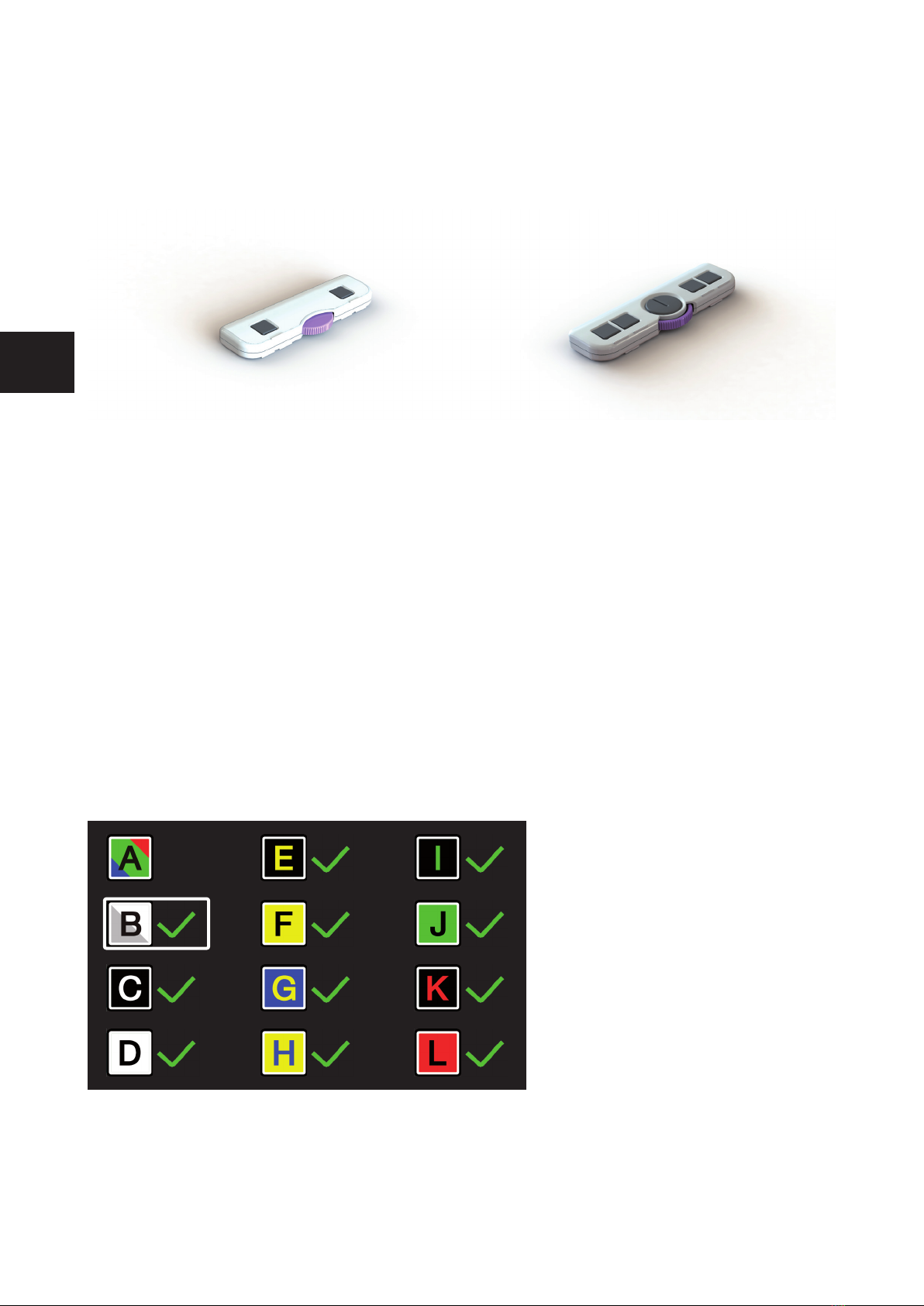
4 Controls - Remote Control
The Acuity can be used with a remote control. This remote control is sold seperately. An
overview of the available Remote Controls and their functions can be found on pages 42
and 44 of this User Manual. Contact your supplier for more information.
5 Advanced Menu
The Acuity contains an advanced menu with which you can (de)activate certain functions of
the Acuity. You can access the advanced menu by ensuring the device is switched off, then
holding the on/off button approx. 10 seconds until you hear a beep after the start up tone.
By tapping the brightness icon you can cycle through multiple screens of selectable options.
Tap the plus icon of the zoom button to highlight which mode you wish to change.
You can recognize the highlighted function by the white rounded rectangle around it.
Tap the magnier icon to activate/deactivate your selection.
To save any changes, or to exit without making changes power off the device and power it
on again.
Display modes
On the rst screen you can select
whether you want the photo mode
to have realistic or high saturation
colors and which high contrast
mode you want available in your
Acuity live mode.
The second screen shows advanced
functions.
Altri manuali per ACUITY BASIC
1
Indice
Lingue:
Altri manuali Rehan Lente d'ingrandimento

Rehan
Rehan i-See Manuale utente

Rehan
Rehan i-See HD Manuale utente

Rehan
Rehan Looky Book Manuale utente
Rehan
Rehan ACUITY BASIC Manuale utente

Rehan
Rehan Looky 6 HD Manuale utente

Rehan
Rehan Looky 4+ HD Manuale utente

Rehan
Rehan Looky4 Manuale utente

Rehan
Rehan i-See Speech Manuale utente

Rehan
Rehan i-See Touch Manuale utente

Rehan
Rehan LOOKY Manuale utente


