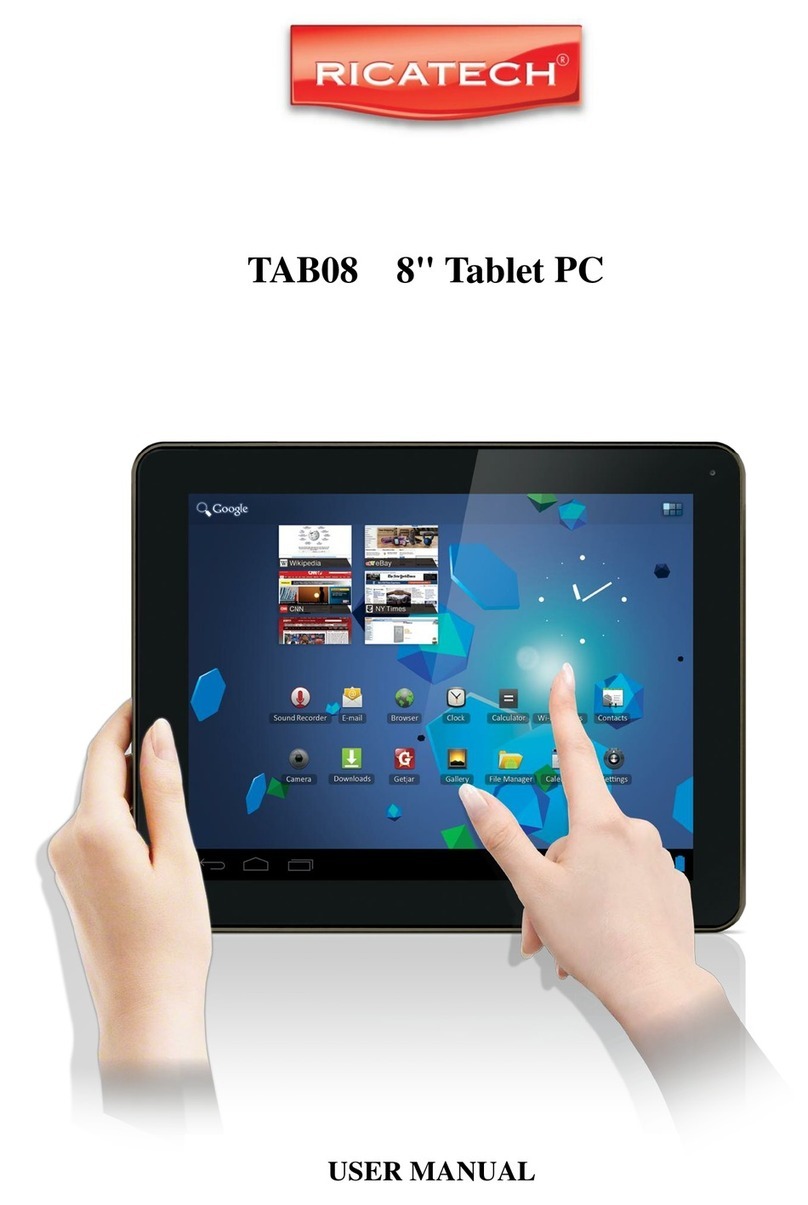
Ricatech Media Tablet Manuale utente

USER MANUAL
GEBRUIKERSHANDLEIDING
MODE D’EMPLOI
BEDIENUNGSANLEITUNG

English
Table of Contents
Caution
Caution--------------------------------------------------------------------------
Package Content--------------------------------------------------------------
Hardware Overview
Hardware Overview-----------------------------------------------------------
Getting Started
Charging the Battery----------------------------------------------------------
Turn On/Off---------------------------------------------------------------------
Operation Interface
Using the Touchscreen -------------------------------------------------------
Basics ---------------------------------------------------------------------------
Opening & Switching Applications------------------------------------------
Status Bar Overview ----------------------------------------------------------
Settings
Opening Settings--------------------------------------------------------------
Wireless & networks ----------------------------------------------------------
Sound & display ---------------------------------------------------------------
Location & security------------------------------------------------------------
Applications --------------------------------------------------------------------
Privacy --------------------------------------------------------------------------
SD Card & sevice storage----------------------------------------------------
Language & keyboard --------------------------------------------------------
Date & time ---------------------------------------------------------------------
Touch panel calibration-------------------------------------------------------
USB Mode select --------------------------------------------------------------
Update Media Library --------------------------------------------------------
Factory data reset-------------------------------------------------------------
About device -------------------------------------------------------------------
Software Installment And Management
APK Installer -------------------------------------------------------------------
ES File Explorer----------------------------------------------------------------
Android Market-----------------------------------------------------------------
Specication----------------------------------------------------------------

Caution
Moisture
Open without
Authorization
High Temperature
Poor Ventilation
Media Tablet User Manual
Mini USB Cable
Adapter
Hard Object Damage
Dust and smoke

Hardware Overview
1. Power
2. Volume / Back
3. LED power indicator
4. LED charging indicator
5. Home
6. Touch screen
7. Speaker
8. Camera(optional)
9. Stylist
10. Microphone
11. Micro SD slot
12. Earphone jack
13. Mini USB port
14. Mini HDMI output jack
15. Reset
16. Power jack

Getting Started
CHARGING THE BATTERY
1. Plug one end of the adaptor into a power outlet, the other end into the device. The LED
charging indicator turns red, indicating that the device is currently being charged.
2. During charging, the battery icon animation will appear on the screen. When the device is fully
charged, the battery animation icon will stop and turn green.
Note: If the device is completely out of power, please connect it to a power outlet. And the screen will
prompt “ the power is too low, charging now.” You must charge the device for few minutes before the
device can be operated.
Maximizing Battery Life
1. The device uses internal Lithium-ion polymer battery. and must be charged with the supplied adap-
tor.
2. It is recommended to fully charge your b attery for 8 hours rst two times. After that, the device can
be fully charged within 4 hours.
3. It is recommended to fully charge the device at least once a month to avoid permanent damage to
the battery.
TURN ON/OFF
To turn on the device, hold the power( ) button for three seconds.
To shutdown the device, hold the power( ) button for three seconds and select “OFF” then
“OK” on screen.
Note: 1. The device will be turned off automatically when it is low on battery.
2. If the device is not properly shutdown, the device will attempt to scan and repair
memory storage after restarted. This may cause the device take longer time to boot up.
3. By pressing power( )button it will put the device into power saving standby mode. To turn it back
on, simply press the power( ) button again.

OPERATION INTERFACE
USING THE TOUCHSCREEN
The main way to control Android features is by using nger to
manipulate icons, buttons, menu items, the on-screen keyboard,
other items on the touchscreen, and to zoom in or out photos,
webpages, e-mail, and maps. You can also change the screen’s
orientation.
Touch:
To act on items on the screen, such as application and
setting icons, to type letters and symbols using the on-screen
keyboard, or to press on-screen buttons, you simply touch them
with your nger.
Touch & hold:
Touch & hold an item on the screen by touching it and not lifting your nger until an action occurs. For
example, to open a menu
for customizing the Home screen, you touch an empty area on the
Home screen until the menu opens.
Drag:
Touch & hold an item for a moment and then, without lifting your nger, move your nger on the screen
until you reach the target position. You drag items on the Home screen to reposition them.
Swipe or slide:
To swipe or slide, you quickly move your nger across the surface of the screen, without pausing when
you rst touch it. ( So you don’t drag an item instead ). For example, you slide the screen up or down
to scroll a list, and in some Calendar views you swipe quickly across the screen to change the range
of time visible.
Double-tap:
Tap quickly twice on a webpage, map, or other screen to zoom.
For example, you double-tap a section of a webpage in Browser
to zoom that section to t the width of the screen.Touch (+ /-) at
the lower right corner can do zooming action also.
Pinch ngers together or apart
(only workable on multi-touch model):
When viewing photos, webpages, e-mail , or maps, you can
zoom in and zoom out by pinch your ngers together or apart.
Rotate the screen:
The orientation of the screen rotates with the device as you turn
it from upright to its side and back again.

OPERATION INTERFACE
BASICS
1. Extended Home Screens:
There are ve extended home screens available to place your shortcuts, widgets and more.
To switch between each screen, swipe left or right across screen using nger or click the
page Icon.
2. Manage Home/Extended Screen Icon
2.1) To add an Item to the Home Screen:
2.1.1) Open the Home screen where you want to add the
Item.
2.1.2) Press Menu ( ) Or just touch & hold an empty
location on the Home screen.If there are no empty
spots on the Home screen, Add is dimmed; you must
delete or move an Item before you can add another Item,
or switch to another Home screen.
2.1.3) In the menu that opens, touch the type of Item to add.
2.2) To move around an item on the Home screen
2.2.1) Touch & hold the Item you want to move.
2.2.2) Drag the item to a new location on the screen. Pause
at the edge of the screen to drag the item onto another
home screen panel.
2.2.3) When the item is where you want, lift your nger.
2.3) To remove an Item from the Home screen.
2.3.1) Touch & hold the Item you want to remove.
2.3.2) Drag the Item to the Trash Can Icon.
2.3.3) When the Icon turns red, lift your nger.
2.4) To change the Home screen wallpaper
2.4.1) Touch & hold an empty area of the Home screen
and in the menu that opens, touch Wallpapers.
2.4.2) Touch Live wallpapers, Pictures, or Wallpapers.
2.4.3) Locate the wallpaper you like to use then touch
Save or Set wallpaper.
2.5) To rename a folder
2.5.1) Touch the folder to open it.
2.5.2) Touch & hold the folder window’s title bar.
2.5.3) Enter a new name in the dialog that appears.
2.5.4) Touch OK.

OPERATION INTERFACE
OPENING & SWITCHING APPLICATIONS
1. To open and close the Launcher ( )
- On the Home screen, touch the Launcher Icon to open it.
(If you have more applications than it can t on the Launcher
in one view, you can slide the Launcher up or down to view more.)
- Touch Home button to close the Launcher.
2. To open an application
- Touch an application’s Icon on the Launcher. OR
- Touch an application’s Icon on the Home screen.
3. To switch to a recently used application
3.1) Press & hold the Home button. (A small window opens, with
icons of applications that you’ve used recently.)
3.2) Touch an Icon to open its application.
(Or press Back to return to the current application)
STATUS BAR OVERVIEW
1. Touch the Language setting ( ) icon to re-set the language.
2. Touch the Connection setting ( ) Icon to display wireless & network settings.
3. Touch the Screen orientation sensor ( ) Icon to enable or disable the screen orientation sensor.
4. Touch the Handwriting Recognition ( ) Icon to enable or disable the handwriting recognition
function.
5. Repeatedly touch the Brightnes control ( ) Icon to select the brightness level.
6. Touch the Back ( ) Icon to return to previous screen.
7. Touch the Menu ( ) Icon to display menu settings.
3G Status
WIFI Connection Status Screen orientation
Sensor on/off
Battery Status Connection Setting Brightness Control
Current Time Language Settings Back Menu
Handwriting
recognition on/off

Settings
OPENING SETTINGS
The Settings application contains most of the tools for
customizing and conguring your device.
To open Settings:
- Press Home, press Menu, and touch Settings. OR
- Touch the Setting Icon on the Home screen or in the
Launcher.
WIRELESS & NETWORKS
Manage Wi-Fi setti ngs ( ) and connecting to
wireless network.
1) Wi-Fi
- Check to turn on Wi-Fi ( )so you can connect to Wi-Fi networks.
2) Wi-Fi settings
2.1) To connect to a Wi-Fi network( ), click on
the Wi-Fi settings and wait for the device to search
available network.
2.2) When the desired Wi-Fi network appeared, simply
touch the Wi-Fi network you like to connect to
establish connection.
2.3) If the Wi-Fi is a secured network, you will be
required to enter the password before you can
establish the Wi-Fi connection.
3) Bluetooth
Check to turn on Bluetooth so you can connect to
Bluetooth devices
4) Bluetooth settings
4.1) To scan for Bluetooth devices
4.1.1) Touch Scan for devices to begin scanning
Bluetooth devices in range.
4.1.2) Once the desired Bluetooth device name
appear in the list, simply touch it and begin paring
4.2) To make the device Discoverable
4.2.1) Check the Discoverable Check Box and the
device will become visible to other Bluetooth
device for 120 seconds
4.2.2) Your Bluetooth device should be able to scan for the device.
The device name will appear exactly
as what is being provided in the Device name setting.
4.2.3) To turn off Discoverable after pairing, simply uncheck the Discoverable or wait for 120
seconds the device will automatically become non-discoverable.
5) Mobile networks setting screen
- Data enabled: Uncheck to prevent the device from transmitting data on any mobile network.
- Data roaming: Uncheck to prevent the device from transmitting data on other carriers’ mobile network
when you can’t access your own carrier’s mobile network.
- Data usage: Only available if your carrier enforces a mobile network data use policy.
- Access Point Name: Opens the APNs screen, where you can select mobile access point conguration;
or press Menu to add a new APN. Consult your carrier about how to use the tools on this screen.

Settings
Network operators:
Opens a screen that searches for and displays mobile networks thatare compatible with
the device. Consult your carrier to understand the billing implications of selecting another carrier.
SOUND & DISPLAY
Sound Settings
1. Media volume: Set volume for music and videos.
2. Notication ringtone: Set your default notication ringtone.
3. Audible selection: Play sound when making screen selection.
4. SD card notication: Play sound for SD card notications.
Display Setting
1. Orientation: Switch orientation automatically when rotating
device.
2. Animation: All window animation are shown.
3. Brightness: Adjust the brightness of the screen.
4. Screen timeout: Adjust the delay before the
screen automatically turns off.
LOCATION & SECURITY
1. Use wireless networks: Location determined by
Wi-Fi and/or mobile networks.
3. Visible password: Show password as you type.
APPLICATIONS
1. Unknown sources: Allow install of non-Market
applications.
2. Manage applications: Manage and remove
installed applications.
3. Running services: View and control currently
running services.
4. Development: Set options for application
development.
PRIVACY
1. Use My Location: Use my location for Google
search results and other Google services.
2. Back up My settings: backup my setting or
delete all backup on Google server.
SD CARD & DEVICE STORAGE
Display available storage space on internal device
memory and SD card memory.
Note: To remove SD card safely from device when
the device is powered on, select Unmount SD card
to safely remove the SD card to avoid any damage.
Questo manuale è adatto per i seguenti modelli
1
Indice
Lingue:
Altri manuali Ricatech Tavoletta