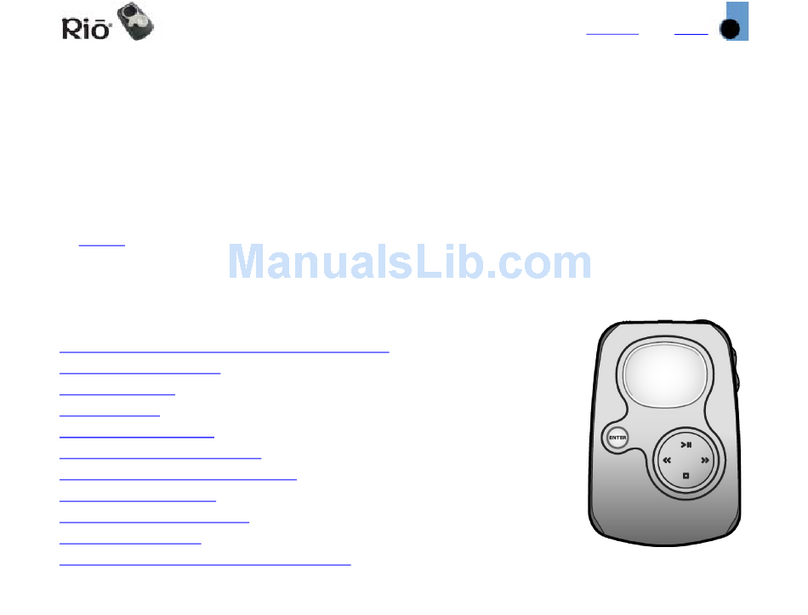
Rio Nike psa play 60 Manuale utente

Printed in USA - Part Number 52260014-001. getting started guide
portable sport audio

1
table of contents
2 introduction
3 important information
4 set up and software
6 basic software information
9 how to use the psa[play
10 psa[play controls
11 liquid crystal display (lcd)
12 customer care center
13 warranty information
15 regulatory information
16 frequently asked questions

2
Congratulations on your purchase of the psa[play, portable
sport audio player. psa[play is the ultimate sport audio solution,
delivering wearable, digital, skip-free music and audio for peo-
ple on the go.
The psa[play connects easily to your pc or mac for downloading
digital audio files from the internet or for encoding digital audio
tracks from your own cds.
Heads up! Be smart about how you use this portable music play-
er, especially around cars and other traffic. Being able to hear
what’s going on around you is an important part of safe exercise.
For instant gratification, install the battery, plug in the head-
phones and hit play!
Before you can really enjoy all the features of your psa[play, you
must first:
1. Install the battery.
2. Install the necessary software from the CD-ROM.
3. Connect the psa[play to the USB port on your computer.
introduction

3
warning
To reduce the chance of electric shock or injury, do not use or
operate this device in or near water or wet locations.
warning: risk of electric shock: do not open
To reduce the risk of electric shock, do not remove the cover or
disassemble the player. No user-serviceable parts are inside.
Refer servicing to qualified personnel.
warning: batteries
Risk of explosion if battery is replaced by an incorrect type.
Dispose of used batteries according to the instructions.
caution while driving
Use of headphones while operating a vehicle is not recom-
mended and is unlawful in some states and areas. Be careful
and attentive while driving. Stop operation of the player if you
find it disruptive or distracting while operating any type of
vehicle.
care of the psa[play
Exposure to extreme hot or cold temperatures may cause
damage or malfunction to the player.
Do not clean the player with solvents, chemicals or abrasive
cleaners, if necessary, use just a soft cloth.
important information

4
The following items are included in the package:
• psa[play portable sport audio player
• Remote control
• AA alkaline battery
• Belt clip
• Sport arm band (ships with psa[play 120 only)
• Premium sport headphones
• Getting started guide
• Software CD-ROM
• Universal Serial Bus (USB) cable
1. To power up the psa[play
Open the battery cover.
Insert the battery into the psa[play.
Optional: Insert external flash memory card (sold separately
on www.riostuff.com). CAUTION: Make sure the psa[play
power is OFF before inserting or removing external memory
cards.
Replace the battery cover.
2. Install the software on the computer. (see below)
3. Plug in the USB cable
Plug one end of the USB cable into the multifunction port.
Plug the other end into the computer’s USB port. The
psa[play multifunction port provides one connection on the
player for the USB cable, the headphones or remote.
pc
1. Place the software cd in the CD-ROM drive on your computer.
After a few seconds, the installation window displays.
2. Click on the nike audio manager button.
3. Follow the instructions on the computer screen.
set up and software
flash memory
battery

5
If the startup window does not appear automatically, follow
these steps to begin the install manually:
1. Click the start button on the task bar and choose run.
2. Type d:\setup32.exe in the line labeled open. If your
computer’s CD-ROM drive uses a letter other than d,
substitute that letter for d.
3. Click the OK button and follow the on-screen instructions.
4. Reboot your computer when the installation is complete.
When the installation is complete, the nike audio manager icon
will reside on your computer desktop.
mac
1. Place the software cd in the CD-ROM drive on your computer.
2. The cd contents display automatically. To manually
display the cd contents, double click the icon on your
computer’s desktop.
3. Double click the SoundJam Installer.
4. Click the Install button to begin the installation.
5. Reboot your computer when the installation is complete.
registration
You can complete registration during installation or at a later
date. Registering your software is an important part of realizing
its full functionality. For example, prior to registration the nike
audio manager allows you to encode 50 free tracks from your
cds. SoundJam mp also allows you to encode 50 free tracks
from your cds prior to registration. After registration you can
encode and write all you want.
note: The psa[play must be connected to your computer and turned
on to complete online registration.
set up and software

6
nike audio manager (pc)
The nike audio manager manages digital audio content from
your pc’s desktop. It incorporates the most commonly used
software tools necessary for managing digital audio content in
one application.
Use nike audio manager to:
1. Manage the audio content on your computer.
2. Encode audio tracks from a CD-ROM.
3. Manage the audio content on your psa[play.
4. Create a custom CD-ROM.
5. Search for and download digital audio from the internet
with the built in web browser.
note: The recommended WMA file bit compression rate is 64 kbps.
The nike audio manager contains a database for storing and
organizing your digital audio tracks. This database provides a
method for encoding and organizing your entire cd collection
and storing these files on your pc’s hard drive or on any other
storage device.
Click the buttons along the top of the main window to:
1. make a playlist
Build and manage playlists and albums to listen to on your pc or
psa[play. View digital tracks embedded with id3 tags by title
and more.
1. Click the playlist button. The empty play list screen displays.
2. Click the select tracks from database or select playlists
from database buttons.
3. Tag tracks you wish to listen to by clicking the tag check
box to the left of the song title. Scroll down if you cannot
find a song.
4. Click the OK button to return to the main screen with the
selected tracks listed.
software: basic information

7
2. copy to your portable player
Click the copy to devices button to organize the content on your
player. Download tracks to your psa[play for playback on the go.
1. Plug the USB cable into the player; plug the other end of
the cable into the USB port on your PC.
2. Slide the power switch on the player to On.
3. Click the Copy to Devices button.
4. Click the Select Tracks from Database or the Select Playlists
from Database buttons.
5. Select the tracks you want to download from your playlist
by clicking the check box to the left of the song title.
6. Click the OK button.
7. Select Internal or External flash memory location.
8. Click the Copy to Portable button.
3. write audio cds
Create custom cds from your favorite tracks and playlists stored
in the database. See the online help topics for detailed instruc-
tions on writing audio cds.
4. read a cd
Encode your entire cd collection and store it on your pc. Listen to
encoded tracks on your pc or download them to your player.
1. Insert a cd in your computer’s CD-ROM drive and the
software automatically connects to cddb for title, artist and
track information.
2. Tag the tracks you want to encode by clicking the check box
to the left of the song title.
3. Click the start reading button.
5. nike.com
Click the nike.com button and the built in internet browser con-
nects to sites like the nike site at www.nike.com. Search for your
favorite audio tracks on the web and download them
directly to your computer.
6. use the help system to learn more
To learn more about using the nike audio manager to
write or encode cds, use the help menu at the top of the
audio manager screen.
software: basic information

8
SoundJam mp (mac)
SoundJam MP player and encoder for the mac os converts music
quickly into digital quality mp3 files from cd, aiff, quicktime,
and wav formats. SoundJam MP takes advantage of the high
compression of the mp3 format, allowing you to compress your
music collection while maintaining digital quality. Use the
online help system to learn more.
main window
Use the SoundJam mp main window to:
• Listen to audio on your mac.
• Play music files from your playlist or CD-ROM.
master playlist
Use the master playlist editor to:
• Search your audio collection stored on your mac.
• Build and manage custom playlists.
converter
Use the converter window to:
• Encode audio cds.
• Save tracks into mp3 format to be transferred to and
played on the psa[play, portable sport audio player.
connection manager
Use the Connection Manager window to:
• Manage the content on your player.
• To export audio to the player, choose the track or playlist by
selecting "Add..." or drag the desired track to the view window.
skins
Go to the skins menu to select an alternate player design.
software: basic information

9
listen to audio with or without the remote
Plug in the headphones using the remote
1. Unplug the USB cable from the player multifunction port.
2. Plug the remote into the player multifunction port.
3. Plug the headphones into the remote.
Use the remote in order to take advantage of all the
psa[play features.
Plug in the headphones without using
the remote
1. Unplug the USB cable from the player’s multifunction port.
2. Plug the headphones directly into the multifunction port of
the main player.
Bypass the remote to reduce overall size and weight, and
improve battery life.
how to use the psa[play
TRACK
Altri manuali per Nike psa play 60
1
Indice
Altri manuali Rio Lettore MP3