
Rosewill RXS-3211 Manuale utente

Wired Internet Camera RXS-3211
User Manual

Wired Internet Camera RXS-3211 UserManual
1
Content
Chapter 1 Knowing your IP Camera..............................................................................3
1.1 Check your package.........................................................................................3
1.2 Basic Information.............................................................................................4
1.3 Product Highlights...........................................................................................4
1.4 Camera Front and Rear View...........................................................................5
1.5 LED Activities Description..............................................................................6
1.6 Camera Hardware Installation .........................................................................7
1.7 Camera Software Installation...........................................................................8
Chapter 2 Connecting your IP Camera........................................................................14
2.1 Camera Installation........................................................................................14
2.1.1 IP Camera connects with Computer....................................................14
2.1.2 IP Camera connects with Router/Wireless Router..............................20
Chapter 3 Camera’s Management Interface ................................................................23
3.1 Camera Settings.............................................................................................23
3.2 LAN Settings .................................................................................................25
3.2.1 LAN ....................................................................................................26
3.2.2 RTSP ...................................................................................................28
3.2.3 Dynamic DNS.....................................................................................29
3.2.4 UPnP...................................................................................................29
3.2.5 LoginFree............................................................................................31
3.3 Video Settings................................................................................................31
3.3.1 Dual Mode ..........................................................................................32
3.3.2 MPEG4 ...............................................................................................32
3.3.3 MJPEG................................................................................................33
3.4 E-mail/FTP Settings.......................................................................................34
3.4.1 E-Mail (with Gmail and hotmail setup examples)..............................35
3.4.2 FTP Configuration ..............................................................................38
3.5 Motion Detection Settings .............................................................................39
3.5.1 Motion Detection Basic Setting..........................................................39
3.5.2 Motion Detection Region Setting .......................................................40
3.6 Schedule Settings...........................................................................................41
3.7 System Settings..............................................................................................42
3.7.1 Camera Information............................................................................43
3.7.2 Date / Time Setting .............................................................................44
3.8 Status..............................................................................................................46
3.9 Account Settings ............................................................................................46

Wired Internet Camera RXS-3211 UserManual
2
3.10 Log...............................................................................................................48
Chapter 4 Using Surveillance Software.......................................................................50
4.1 Installing Surveillance Software....................................................................50
4.2 Using Surveillance Software..........................................................................53
4.3 Configure Surveillance Software...................................................................56
4.3.1 Configure cameras..............................................................................56
4.3.2 General Options..................................................................................62
4.4 Change Display Layout..................................................................................65
4.5 Full-Screen Mode...........................................................................................67
4.6 Scan................................................................................................................67
4.7 Zoom-in / Zoom-Out......................................................................................68
4.8 Snapshot.........................................................................................................69
4.9 Recording.......................................................................................................70
4.10 Video Playback ............................................................................................70
Chapter 5 Appendix.....................................................................................................72
5.1 Product Specification.....................................................................................72
5.2 FAQ / Troubleshooting ..................................................................................73
5.2.1 I can not connect to IP camera............................................................73
5.2.2 Image refreshes very slow ..................................................................74
5.2.3 IP camera is not responding................................................................75
5.2.4 Image is fuzzy.....................................................................................75
5.2.5 I set the IP camera to send image by Email or FTP, but nothing is
received........................................................................................................76
5.3 Additional Setup guides.................................................................................77
5.3.1 Obtain a free Dyndns account to view while away.............................77
5.3.2 Using this IP Camera with a router or firewall...................................81
5.3.3 Using cell phone as IP Camera’s Image Viewer.................................84
Wired Internet Camera RXS-3211 UserManual
3
Chapter 1 Knowing your IP Camera
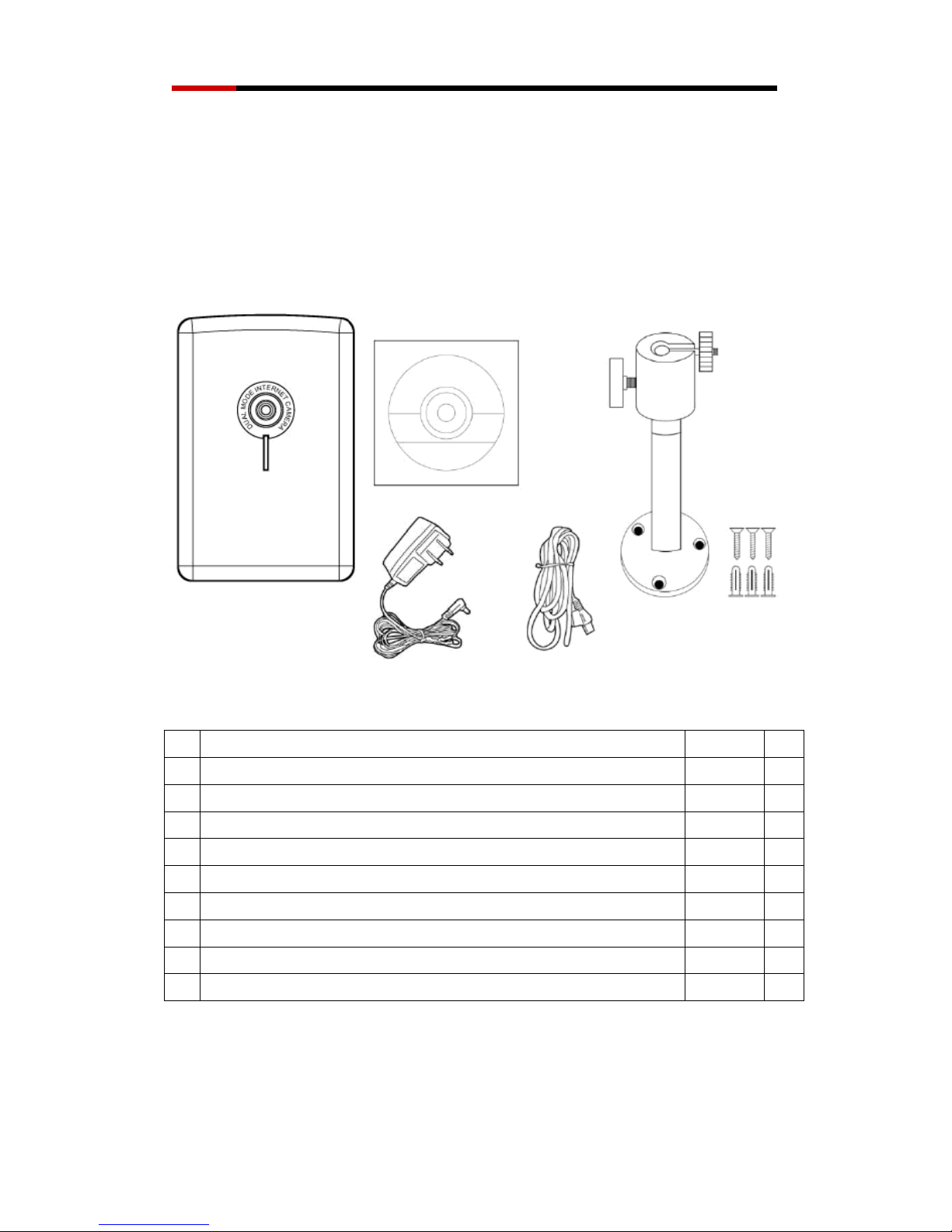
1.1 Check your package
Figure 1.1-1
Item Name Quantity
1 Rosewill RXS-3211 Wired Internet Camera 1 □
2 5V/1A Power Adapter 1 □
3 Camera Stand accessory kit
Wall Mount Stand 1 □
Wall Anchors 3 □
Screws 3 □
4 39.3in (100cm) Category 5 Ethernet Cable 1 □
5 Quick Installation Guide 1 □
6 CD (Including User Manual/Utility/Driver) 1
□
If any of the above items are missing, please contact Rosewill Support.

Wired Internet Camera RXS-3211 UserManual
4
1.2 Basic Information
Thank you for purchasing this Internet IP camera! This IP camera is an ideal
product for all kinds of video-surveillance purposes, like home/office safety,
kid/pet monitoring, and remote video acquire etc. Unlike conventional
close-circuit video camera, you’re not limited to the length of cable! Once this
IP camera is connected to Internet, you can check video from anywhere in the
world where Internet access is available.
You can discover more useful functions in next section!
1.3 Product Highlights
No pre-loaded software required - all you need is a browser like Internet
Explorer 6 (and above, with plugin installed).
Supports VGA (640 x 480), QVGA (320 x 240), and QQVGA (160 x 120)
video resolution.
Supports two video compression formats (MJPEG and MPEG4).
Supports DHCP and you can also assign a fixed IP address to the
camera.
Supports Dynamic DNS (used to allocate the IP camera”s Internet
address, when the ISP you’re using does not assign you with a fixed
Internet address).
Supports UPnP, Windows XP (and above) will discover this IP camera in
network neighbor automatically.
Send captured picture by Email or FTP when motion is detected.

Wired Internet Camera RXS-3211 UserManual
5
Configurable motion detection sensitivity (6 levels from most sensitive to
least sensitive) with three adjustable areas support.
Built-in real-time clock, date and time information will be recorded with
every captured picture / video clip (also supports auto time
synchronization via network time protocol).
Supports up to 4 users login simultaneously, and you can set different
password to different user.
Usage and event logging.
1.4 Camera Front and Rear View
Figure 1.4-1 Front View
Power LED: Indicates power and WPS status
LAN LED: Indicates LAN activity
Camera: Video camera with lens
LED activity for LAN / Power LED will be given later.
Camera
Lens
LAN LED
Power LED
status

Wired Internet Camera RXS-3211 UserManual
6
Figure 1.4-2 Rear View
Stand Connector: Connects to any standard tripod / camera wall holder.
WPS / Reset Button: Press and release this button to activate WPS mode
(WPS mode is not available in Wired Camera); press and hold this button for
10 seconds to clear all settings of this camera and return to factory default.
Power Jack: Connect to 5V power adapter.
LAN Jack: Connect to LAN by Ethernet cable.
1.5 LED Activities Description
LED Name Status Description
Slow Blinking Camera is booting
Steady On Camera is correctly powered
Blue
Off Camera is off
On Camera is correctly powered
Off Camera is not connected to LAN
Green
Flash Camera is logged in
WPS
Reset to Default
Power Jack
With 5V DC
LAN port
Stand Connector

Wired Internet Camera RXS-3211 UserManual
7
1.6 Camera Hardware Installation
Please follow the following instructions to set your IP camera up.
1. Unpack the product package and check if anything missing.
2. Insert supplied LAN cable to “LAN” jack. You can choose to plug the other
end onto one of the following: your computer, and your wired or wireless
router.
Figure 1.6-1
3. Plug the power adapter to wall socket, and connect the power connector to
the power jack located at the back of the IP camera.

Wired Internet Camera RXS-3211 UserManual
8
Figure 1.6-2
4. Connect your stand to the connector or place the camera in a secure place,
and point the camera to the place you wish to monitor.
1.7 Camera Software Installation
Follow the simple steps below to run the Install Wizard to guide you quickly
through the Installation process. The following installation is implemented in
Windows XP. The installation procedures in Windows 2000/XP/Server
2003/Vista/Win7 are similar.
1. Insert the CD shipped along with the Internet Camera into your CD-ROM
drive. The “Autorun.exe” program should be executed automatically. If not,
run “Autorun.exe” manually from “Autorun” folder in the CD.
2. The Install Wizard will show four selections, select the program you want to
install or click “Exit” to install the program later. The following installation
steps are the demonstration of “Install Administrator Utility” and ““Install

Wired Internet Camera RXS-3211 UserManual
9
16 Chan Camera Viewer“.
“Install the Administrator Utility” provides the driver and Admin
Utility . Administrator Utility helps your computer to search,
configure, and view the camera through IE browser.
Figure 1.7-1
3. First click “Install Administrator Utility“ and when the following window
appears, click “Next”.
Figure 1.7-2
Altri manuali per RXS-3211
1
Indice
Altri manuali Rosewill Telecamera di sicurezza


