
ROVARY RV2000P Manuale utente

RV2000P
English
Deutsch
CO2 monitor
Manual/Betriebsanleitung

SCAN
QR CODE
We're here to help!
Thank you for purchasing the RV2000P CO2 monitor.
This product can be used to monitor the CO2 value,
the humidity (RH) and the temperature.
Questions? We will be happy to assist you.
Send an email to support@rovary.com.
Scan the QR code to go directly to the
Rovary website or go to
https://www.rovary.com/pages/veelgestelde-vragen.

Table of contents
What is a good CO2 value? 1
Overview and Features 2
Getting started: Using the CO2 monitor for the first time 3
LCD Display 4
General Controls and Settings 5
Trend chart display 6
Operating the main menu 7
Activating or deactivating alarm function 7
Turn on/off human and plant modes 8
Log function 9
Calibrate the CO2 monitor manually (CALI) 9
Adjust Celsius or Fahrenheit 10
Adjust limits (ADV) 10
Battery 11
Switching ON/OFF 11
Specifications 12
Troubleshooting 14
Annex 16

1
What is a good CO2 value?
A CO2 monitor gives an accurate indication of CO2 values in PPM (Parts per million).
The CO2 monitor will sound an alarm if the CO2 concentration reaches a dangerously high level.
What exactly do the LED indicators on the CO2 monitor mean?
Green: A PPM value of less than 800 means the room is well ventilated.
Orange: A PPM value between 800 and 1200, this means that ventilation is desired.
Red: A PPM value of more than 1200 PPM, ventilation is necessary.
400
600
800
1000
1200
2000
5000
Healthy outdoor air level
Healthy indoor climate
Acceptable
Ventilation is desirable
Ventilation is necessary
Negative health effects
Dangerous with prolonged exposure

2
Overview and Features
1
3
4
5
6
7
8
9
10
11
12 13
15
16
14
2
1 Front panel
2 Home Screen
3 Up button
4 Down button
5 Menu Button
6 Enter button
7 Power indicator
8 High level
DescriptionItem
9 Acceptable level
10 Good level
11 USB port
12 Opening for cord
13 Wall mount
14 On-off switch
15 Label
16 Sensors
DescriptionItem

3
Connect the charger
To switch on the CO2 monitor, the device must be connected to the
charger when using for the first time.
Press pin
Press the pin on the back of the CO2 meter, the monitor will now turn on.
Attention: The pin must be pushed in all the way or the monitor will not work.
Ready to use
The display will count down from 30 to 0. Once the countdown is complete,
the product is ready to use. The CO2 monitor is already calibrated.
Getting started: Using the CO2 monitor for the first time
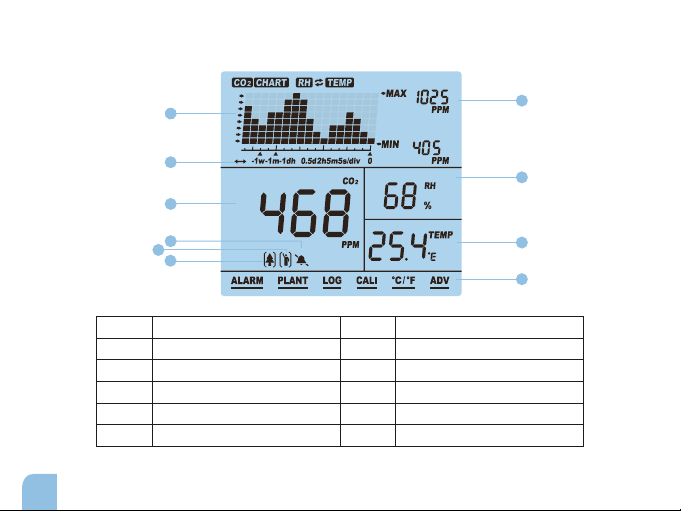
4
1 CO2/RH/TEMP chart
2 Time per division
3 CO2 measurement
4 Audible alarm on/off
5 Human mode
DescriptionItem
6 Plant mode
7 Max. and min. value
8 RH value
9 Temperature measurement
10 Main Menu
DescriptionItem
LCD Display
1
2
3
4
6
5
7
8
9
10

5
Select ALARM to turn the sound on or off.
Select PLANT to switch between human and plant modes.
Select LOG to view the historical data.
Select CALI to calibrate manually.
Select °C/°F to switch between Celsius and Fahrenheit temperature units.
Select ADV to adjust the limits.
The main menu functions can be activated by clicking MENU.
The bar below the function indicates which choice is currently selected.
To change the function,you can use the arrows.
To select the function, press the ENTER button.
Note that if nothing is pressed after 1 minute, the main menu will disappear
and the unit will return to normal state.
General Controls and Settings
Control buttons
Main Menu
Attention: The control buttons do not need to be pressed. The monitor responds
to a light touch. If the buttons are pressed too hard, the buttons will not function properly.

6
Trend chart display
The trend chart graph shows the past measurements
for one of the three parameters (CO2/RH/TEMP).
There are 4 modes that can be switched using the
arrows: CO2, TEMP, RH and CYCLE (CYCLE
automatically switches between CO2/TEMP/RH).
How does the trend chart view work?
1. Press switch between the three parameters or CYCLE (CO2/TEMP/RH).
2. Press switch between the different zoom levels (minute/hour/day/week).
Table of available zoom levels
Below is a table of the available zoom levels
for all parameters CO2/TEMP/RH and the
duration of each division for the relevant
zoom levels.
Max/Min
In the top right corner of the display are two numeric indicators: MAX and MIN.
When the zoom level is changed, the MAX and MIN values are displayed on the graph
of the selected parameter (CO2, RH and TEMP).
1M (minute)
Zoomlevel Time per division
1H (hour)
1D (day)
1W (week)
5sec/div
5m/div
2h/div
0.5d/div

7
Operating the main menu
The main menu functions can be activated by clicking .
The bar below the function indicates which choice is currently selected.
To change the function, you can use .
To select the function, press the button .
Activating or deactivating alarm function
To enable the alarm function, use the following the steps below:
1. Click .
2. Click .
3. Click .
4. When is displayed, it means the alarm is switched on.
In addition, it is also possible to disable the alarm function.
This can be done by performing the following steps:
1. Click .
2. Click .
3. Click .
4. When is displayed, it means the alarm is switched off.
Indice
Lingue:


