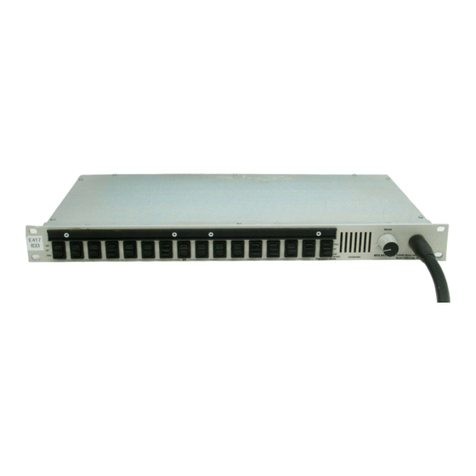
RTS Digital Matrix Intercom RVON-8 Manuale utente

LIT000077-000 Rev A 12/2006
User Manual
version 1.0.0


Table
Of
Contents
Chapter 1
Introduction .................................................................................................................................................3
Welcome to RVONedit ...............................................................................................................................3
Getting Started with RVONedit ..................................................................................................................3
Step 1 ...........................................................................................................................................................3
Step 2 ...........................................................................................................................................................4
Step 3 ...........................................................................................................................................................4
RVONedit Field Types ................................................................................................................................4
Chapter 2
Screen Descriptions ....................................................................................................................................5
RVONedit Main Application Screen ..........................................................................................................5
Device Catalog ............................................................................................................................................6
Device Configuration and Status .................................................................................................................8
Device Information and Status ....................................................................................................................9
Pass-Through and/or GPI/O Information ..................................................................................................10
SNMP Information ....................................................................................................................................13
System Information ...................................................................................................................................14
Community Strings ...................................................................................................................................14
Valid Hosts ................................................................................................................................................14
Trap Targets ..............................................................................................................................................15
Authentication Information .......................................................................................................................15
Channel Configuration And Status ...........................................................................................................17
Channel Configuration ..............................................................................................................................18
Channel Status ...........................................................................................................................................20
VOIP Status ...............................................................................................................................................22
Network Status ..........................................................................................................................................23
Errors Grid .................................................................................................................................................24
Change User Screen ..................................................................................................................................24
Preferences Dialog ....................................................................................................................................26
Catalog Page ..............................................................................................................................................27
Devices Page .............................................................................................................................................28
Channels Page ...........................................................................................................................................29
Directories Page ........................................................................................................................................30
Add Device ................................................................................................................................................31
Send Changes ............................................................................................................................................32
Paste Special ..............................................................................................................................................37
Options button ...........................................................................................................................................38
Options button ...........................................................................................................................................40
Download Firmware Screen ......................................................................................................................40

Chapter 3
Application Tasks ...............................................................................................................................43
How to Add Devices to RVONedit .....................................................................................................44
How to Download firmware upgrades in RVONedit ..........................................................................46
How to Change User ...........................................................................................................................48
How to Send Changes .........................................................................................................................49
How to Copy and Paste Channel Settings ...........................................................................................50
Use Paste Special to Paste Device Settings. .......................................................................................51
Use Paste Special to Paste Channel Settings ......................................................................................52
How to Open Preferences ...................................................................................................................53
How to Show/Hide the Device Catalog ..............................................................................................54
Use Device Descriptions in the Device Catalog .................................................................................55
How to Show/Hide the SNMP Configuration Information ................................................................56
How to Show/Hide the Authentication Table .....................................................................................57
How to Enable/Disable “Auto-connect the application when changing devices” ..............................58
How to Save a Configuration File .......................................................................................................59
How to Load a File ..............................................................................................................................60
How to Add/Remove a User Profile To/From the Authentication Table ...........................................61
How to Expand/Collapse the Device Configuration Information Areas ............................................62
How to Show/Hide Channel Columns ................................................................................................62
How to Undo, Redo, and Abort Changes ............................................................................................64
How to change the IP Address, Netmask, and Gateway .....................................................................65
How to Setup the Pass-through Port ...................................................................................................65
How to Setup the GPIO for an RVON-I/O .........................................................................................65
How to Manually Disconnect from RVONedit ..................................................................................65
How to Open a File .............................................................................................................................66
How to Use the Forward and Back button ..........................................................................................67
How to Change Devices using the Device Catalog Tree ....................................................................67
How to Change Devices using F3 .......................................................................................................67
How to Hide Individual Rows in the Channel Configuration Grid ....................................................68
How to Tear Down a Channel .............................................................................................................69
How to Set the Column Size in the Channel Configuration Grid .......................................................70
How to set a default folder in RVONedit ...........................................................................................72
What is the difference between File|Open and File|Load? .................................................................73
File|Open .............................................................................................................................................73
File|Load .............................................................................................................................................73
How to manually connect an RVONedit device .................................................................................74
How to Update Older Version RVON Devices Using RVONedit .....................................................75

3
CHAPTER 1
Introduction
Welcome to RVONedit
RVONedit is a Windows®-based GUI (graphical user interface) application for configuring and displaying RVON (VoIP)
devices connected to your Matrix system. RVONedit is to the VoIP products as AZedit is to ADAM, Cronus, and Zeus. The
RVON devices included are:
•RVON-8
•RVON-I/O
•RVON-1
•RVON-C
To fully use the RVONedit application, you must have the following minimum version installed:
NOTE: RVONedit can download firmware to older versions, but requires these versions in order to automatically detect the
devices and to view or modify the device configurations.
Getting Started with RVONedit
Once you have updated the firmware for each RVON device through AZedit, serially, or by using Telnet, you can start using
RVONedit by itself. When RVONedit is setup, you will be able to download firmware upgrades from the RVONedit screen.
Step 1
Using the RVONedit installation wizard, install RVONedit on the PC connected to the Intercom System (ADAM, Cronus, or
Zeus).
FIRMWARE VERSION
RVON-8 V 2.0.0 or later
RVON-1 V 2.0.0 or later
RVON-I/O V 2.0.0 or later
RVON-C V 2.0.0 or later

Introduction
4
Step 2
Add Devices to the RVONedit application. This can be done manually or automatically. For information on how to add
devices to RVONedit see, “How to Add Devices to RVONedit” on page 44.
Step 3
Using the Device Configuration section of the RVONedit screen configure your RVON device.
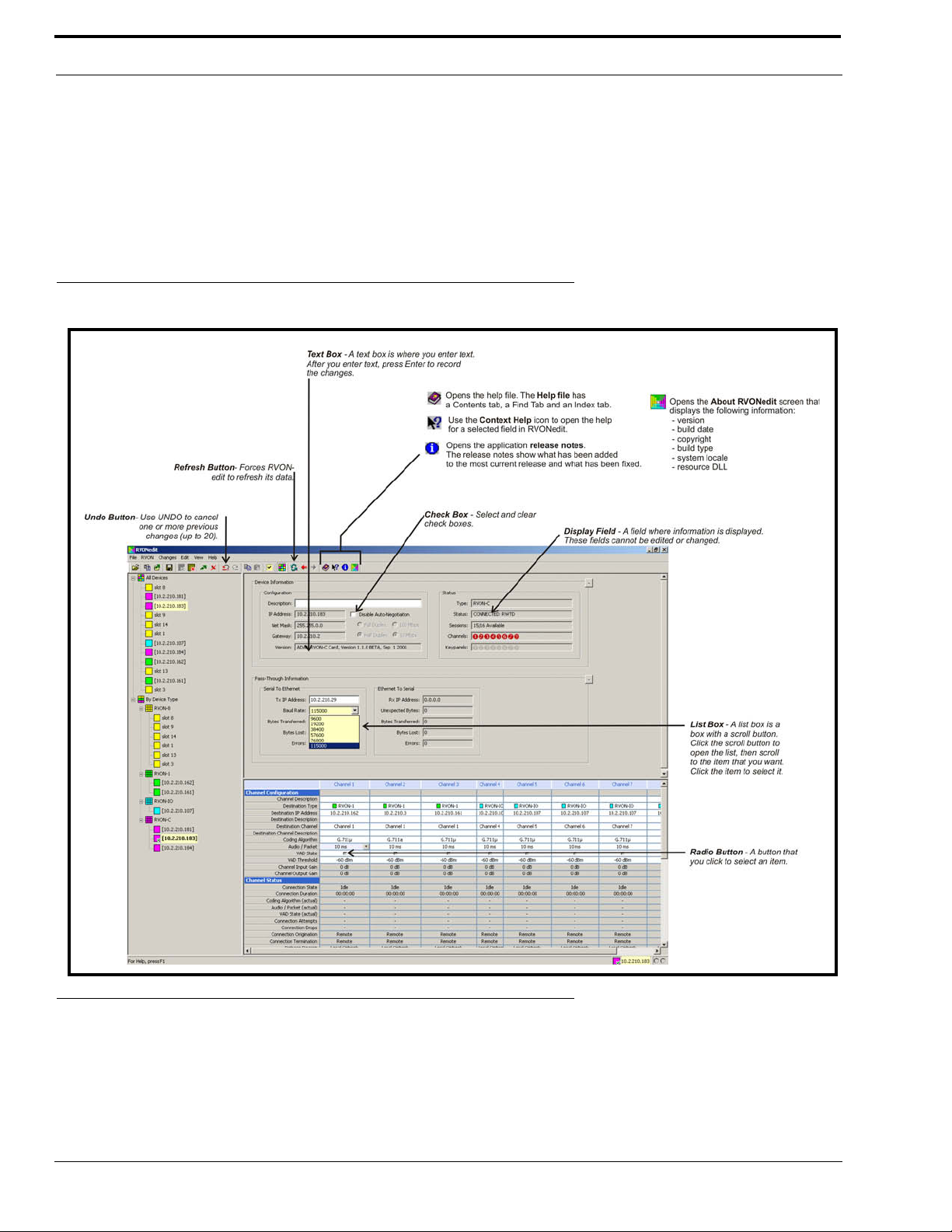
RVONedit Field Types
FIGURE 1. RVONedit Field Types

5
CHAPTER 2
Screen Descriptions
RVONedit Main Application Screen
The Main Application screen in RVONedit is split into three (3) main areas:
1. Device Catalog - Displays the RVON devices currently configured in your Intercom System.
2. Device Configuration - Displays the Device Status and Configuration options of each device.
3. Channel Configuration - Displays the Channel Status and Configuration options of each device.

Screen Descriptions
6
Device Catalog
Use the Device Catalog to view the RVON devices you have connected to your Intercom System. There are two ways to view
these devices: All Devices or by Device Type.
The Device Catalog uses expandable/collapsible trees. By clicking the “+” icon, you can open a catalog, or click “-” to
close the catalog.
NOTE: You can also double-click By Device Type or All Devices to open and close the catalog tree.
When displaying All Devices, RVONedit, by default, displays the RVON devices in order of how the devices were added to
the application.
The Device Catalog section of the RVONedit screen can be configured
one of 3 ways:
All Devices - If you select Show All Devices in Preferences
(Edit>Preferences or Alt+Enter), every RVON device in the
Matrix displays
Device Type- If you select Show By Device Type in Preferences
(Edit>Preferences or Alt+Enter) the RVON devices are
grouped by the type of device it is.
- RVON-8
- RVON-1
- RVON-I/O
- RVON-C
NOTE: If you select both options, you will see duplicates of each of the
RVON devices in the Matrix.

7
Device Catalog
When displaying the RVON devices by Device Types, you will see color coded squares to distinguish between the different
RVON products.
= RVON-8
= RVON-1
= RVON-I/O
= RVON-C
NOTE: Initially, when RVONedit is installed, the device catalog will be empty. Remember to update your RVON firmware
to the minimum requirements (see page 3) before you Add Devices to RVONedit.
Once you have finished adding the RVON devices to the catalog, you can now display its configuration and status section of
the RVONedit screen.

Screen Descriptions
8
Device Configuration and Status
The Device Configuration and Status section displays information about the selected device. Device Information is grouped
into four(4) sections:
•Device Information and Status
•Pass-Through and/or GPI/O Support Information
•SNMP Information
•Authentication Information
Use the Device Configuration and
Status section to configure or display
configuration settings.
The GPI/O section (outlined in Red),
only displays when RVON-1 is the
selected device.
Altri manuali per Digital Matrix Intercom RVON-8
2
Questo manuale è adatto per i seguenti modelli
3
Indice
Altri manuali RTS Sistema di interfono

RTS
RTS CLD Color Keypanel Family DKP 16 CLD Manuale utente

RTS
RTS Two-Wire Intercom Series Manuale utente

RTS
RTS XCP-16-DB9-T Aggiornamento firmware

RTS
RTS KP-98-7 Manuale utente

RTS
RTS XCP-ADAM-MC Guida rapida

RTS
RTS Cronus Manuale utente

RTS
RTS IFB-828 Manuale utente

RTS
RTS XCP-16-DB9-T Guida rapida

RTS
RTS WMS300 Manuale utente

RTS
RTS SSA-424 Manuale utente