
Russound BGB2 Manuale utente

BGB2 iBridge Bay
Instruction Manual

2
1. Read these instructions.
2. Keep these instructions.
3. Heed all warnings.
4. Follow all instructions.
5. Do not use this apparatus near water.
6. Clean only with dry cloth.
7. Do not block any ventilation openings. Install
in accordance with the manufacturer’s
instructions.
8. Do not install near any heat sources such as
radiators, heat registers, stoves, or other
apparatus (including amplifiers) that produce
heat.
9. Do not defeat the safety purpose of the
polarized or grounding plug. A polarized
plug has two blades with one wider than the
other. A grounding plug has two blades and
a third grounding prong. The wide blade or
the third prong is provided for your safety. If
the provided plug does not fit into your out-
let, consult an electrician for replacement of
the obsolete outlet.
10. Protect the power cord from being walked
on or pinched, particularly at plugs, conven-
ience receptacles, and the point where it
exits from the apparatus.
11. Use only attachments or accessories speci-
fied by the manufacturer.
12. Use only with the cart, stand, tripod, brack-
et, or table specified by the manufacturer or
sold with the apparatus. When a cart is
used, use caution when moving the cart-
apparatus combination to avoid injury from
tip-over.
13. Unplug this apparatus during lightning
storms or when unused for long periods of
time.
14. Refer all servicing to qualified service per-
sonnel. Servicing is required when the appa-
ratus has been damaged in any way, such
as the power supply cord or plug is dam-
aged, liquid has been spilled or objects have
fallen into the apparatus, or the apparatus
has been exposed to rain or moisture, does
not operate normally, or has been dropped.
If you have any questions, call Russound at
800.638.8055 or 603.659.5170.
Safety Precautions

3
Table of Contents
Product Information
Product Overview ..........................................................................4
Operation
UNO-TS2 Touchscreen Control ........................................................5
SRC2 Remote Control Function Keys ............................................6-9
UNO-S2 Keypad Control ..............................................................10
Installation
Installing iBridge Bay Application ..................................................11
Rear View....................................................................................12
Installing Hardware ..................................................................13-14
Connection Overview Diagram ......................................................15
Troubleshooting
System Troubleshooting ..........................................................16-18
Specifications and Warranty
Specifications andWarranty ..........................................................19

4
Product Information
Product Overview
The iBridge Bay (BGB2) is a table-top device that
allows you to use an Apple®Mac®computer as a
remote source for a Russound RNET®multiroom
system. Used with a Russound RNET A/V Decoder,
it provides RNET access to a Mac’s iTunes®media
library.
With a Russound RNET system, the Bay treats the
iTunes media library as a fully functional RNET
smart source. It gives the system’s keypads, touch-
screens, and remote controls full control of iTunes:
Play, Pause, Next Song, Previous Song, Playlist Up,
and Playlist Down. The UNO-TS2 touchscreen adds
the ability to select music by playlist, genre, artist,
album, and song.
The iBridge Bay also enables program information
to display on the RNET system’s keypads and
touchscreens. They show playlist, artist, album, and
song title information from iTunes.
The iBridge Bay uses Russound software (iBridge
Bay Application) to interface with iTunes on the Mac.
The Mac uses Front Row, a user interface for media
(music, video, DVD) selection on the Mac. The
default settings for the iBridge Bay launches the
Mac’s Front Row interface and the iBridge Bay on
startup.
The iBridge Bay can be used two different ways in
an RNET multiroom system. It can be used as an
audio only source in audio zones, or it can serve as
an audio and video source, also displaying video,
photos, and movies in multiroom zones equipped
with a video display.
When used in zones with a video display, you can
use a Russound SRC2 remote control aimed directly
at a keypad or touchscreen to directly control Front
Row on the Mac while watching changes occur on
the video display.
The iBridge Bay supports Mac models running OS X
10.4 or higher and iTunes. It connects via a single
CAT-5e cable to an RNET A/V Decoder at the sys-
tem controller.

5
UNO-TS2 Touchscreen Control
An UNO-TS2 touchscreen provides the most com-
plete control and feedback option for iTunes. The
touchscreen allows navigation through the menus in
iTunes to select music by playlist, genre, artist,
album, and song. It also displays current selec-
tions.
Note:
UNO-TS2 screen version 2.00.01 is
required for use with iBridge Bay.
Once you select the iBridge Bay from the home
screen, you reach the Bay screens. From the
screen you can scroll through playlists by pressing
the +and –hard keys to the right of the display,
or select the next or previous song with the song
>| or |< hard key. You can also press the Shuffle
soft key to toggle Shuffle off and on.
Pressing the Music soft key displays the Request
screen (right) to access music through any of the
five categories. Selecting any one of the categories
allows you to quickly navigate through your music.
Note: Shared playlists appear with the first four let-
ters of the “Shared Name” as a prefix to the playlist
name. Example: a playlist from shared name
“James” would show as “Jame:Rock Hits.”
Operation

6
Operation
Use the RNET remote control to navigate
through your iTunes music library playlists
via the iBridge Bay.
Aim the SRC2 at the keypad or touch-
screen, press “R” and then the power but-
ton located on the upper right hand corner
of the SRC2 (if the keypad/touchscreen is
off).
Select the iBridge Bay by choosing its cor-
responding source number button located
on the lower half of the SRC2.
To pause a song, press the 'pause' button.
To resume a paused song, press either
'play' or 'pause'.
To scroll through iTunes playlists, use the
channel “+” and “-“ buttons to scroll up and
down.
To select 'previous song' and 'next song'
press the 'next' and 'previous' buttons.
To search forward and search back within
a track, press and hold the 'next' or 'previ-
ous' buttons.
RNET system controls within an audio zone using a Russound SRC2
remote control

7
Operation
SRC2 Remote Control Function Keys
RNET System Control
POWER button - Turns Russound system zones on
and off.
RUSSOUND SYSTEM button - Activates control of
Russound system controller and keypads, and con-
nected sources
VOLUME UP/DOWN - Raises and lowers the volume
for the room you are in
CHANNEL UP/DOWN - Navigates up and down
playlists
SOURCE SELECTION BUTTONS - Selects Russound
source to control with the SRC2 remote control
PAUSE - Pauses/unpauses selected media
PLAY - Accesses NOW PLAYING and SHUFFLE MODE
STOP - Exits NOW PLAYING and SHUFFLE MODE
PREVIOUS TRACK- (press) Skips to previous track in
playlist. (press and hold) Search back.
NEXT TRACK - (press) Skips to next track in playlist.
(press and hold) Search forward.

8
The iBridge Bay allows you to access
media through Apple Front Row software in
zones equipped with a video display.
With the video display powered on, aim the
SRC2 at the keypad or touchscreen, press
“R” and then the power button located on
the upper right hand corner of the SRC2 (if
the keypad/touchscreen is off).
Select the iBridge Bay by choosing its cor-
responding source number button located
on the lower half of the SRC2.
To rotate around Front Row media types
(music, videos, DVD, photos) use the left
and right arrow buttons.
To select, press the 'OK' button when the
desired media type is located in the fore-
ground of the video display.
Use the up and down arrow buttons to nav-
igate menus within a media type.
To select from a menu, press the 'OK' but-
ton. Use the 'Menu' button to navigate
backwards.
Operation
Remote navigation through Front Row from a video equipped zone using
a Russound SRC2 remote control

9
Operation
Front Row Controls
MENU - Toggles between Front Row menu and
iBridge Bay screen saver. Also navigates back-
wards through menus.
OK - Selects highlighted option. Also performs
Play/Pause on Front Row Now Playing screens.
UP ARROW - Navigates through Front Row menus.
DOWN ARROW - Navigates through Front Row
menus.
RIGHT ARROW - Skips to next track/photo/chapter
in list.
LEFT ARROW - Skips to previous
track/photo/chapter in list.
PREVIOUS - Press and hold to search back
through a track or scene (iTunes only).
NEXT - Press and hold to search forward through
a track or scene (iTunes only).
SRC2 Remote Control Function Keys
10
iBridge Bay
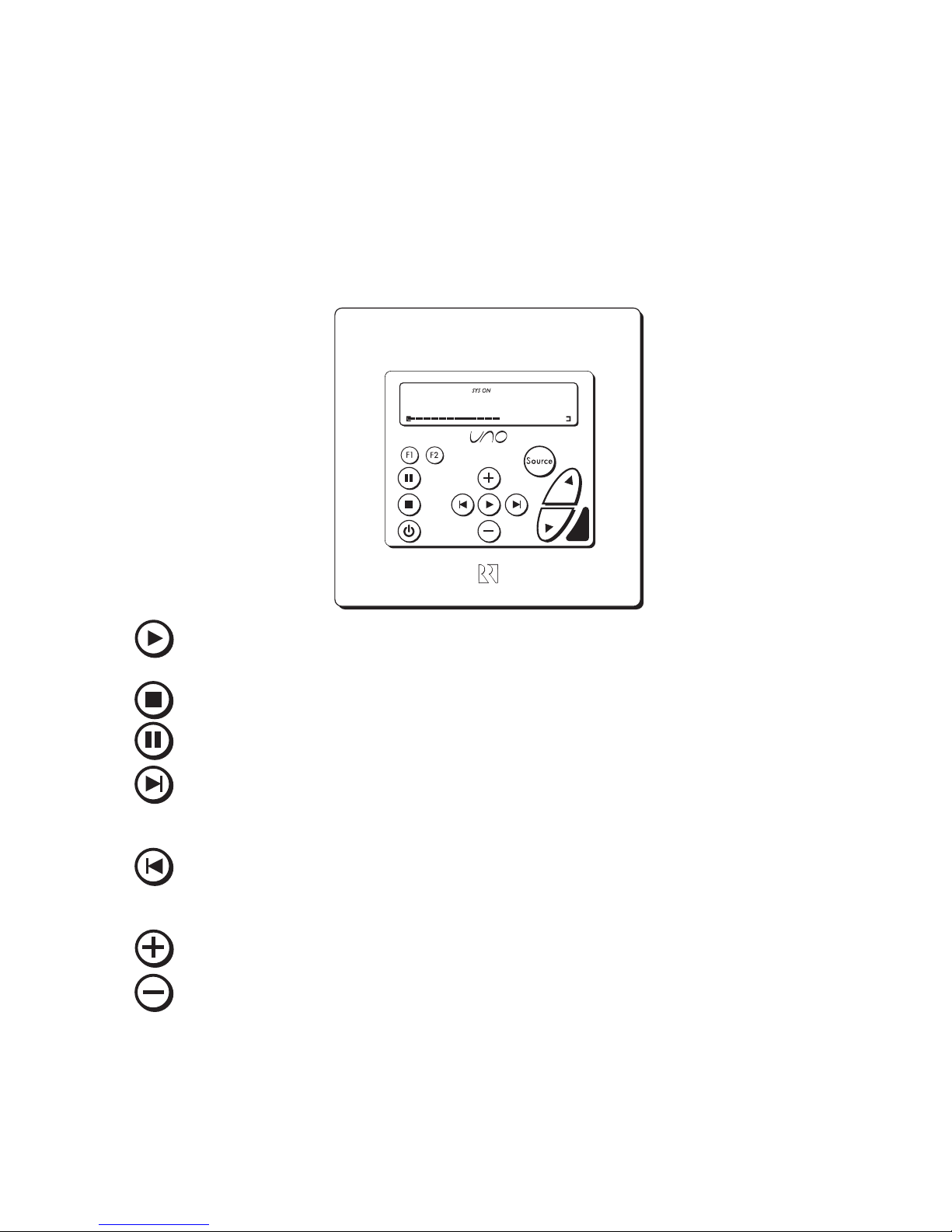
PLAY - plays paused media, accesses NOW PLAYING to display information for media
playing, pressing a second time accesses SHUFFLE MODE.
STOP - Exits NOW PLAYING menu.
PAUSE - pauses media playing, resume play of paused media.
NEXT TRACK - (press) selects next track, scrolls through artist, album, and song title in
NOW PLAYING mode, toggles shuffle off or on in SHUFFLE mode. (press and hold)
Search forward.
PREVIOUS TRACK - (press) selects previous track, scrolls through artist, album, and
song title in NOW PLAYING mode, toggles shuffle off or on in SHUFFLE mode. (press
and hold) Search back.
PLUS - scrolls up through playlists.
MINUS - scrolls down through playlists.
UNO-S2 Keypad Control
Operation
Questo manuale è adatto per i seguenti modelli
1
Indice
Altri manuali Russound Hardware di rete


Manuali Hardware di rete popolari di altre marche

Matrix Switch Corporation
Matrix Switch Corporation MSC-HD161DEL Manuale utente

B&B Electronics
B&B Electronics ZXT9-IO-222R2 Manuale utente

Yudor
Yudor YDS-16 Manuale utente

D-Link
D-Link ShareCenter DNS-320L Manuale utente

Samsung
Samsung ES1642dc Istruzioni per l’uso

Honeywell Home
Honeywell Home LTEM-PV Istruzioni per il montaggio


