SABINE GRAPHI-Q2 Manuale utente

1
B1-GRQ-2-OpGuide-v1-050125.pmd
GRQ3121 (1U, single channel, one input, two outputs)
GRQ3122 (2U,dualchannel,oneinput&outputperchannel)
GRQ3121-S (1U,blank front panel slave,single channel, one input,two outputs)
GRQ3122-S (1U,blankfront panel slave, dual channel, oneinput&output per channel)
GRQ2RemoteforWindowsTM Softwareincludedwitheveryunit;runsupto8Graphi-Q2sperCOMport
(maximum of 2 COM ports)
• All front panel controls are analog-style; signal path is digital
• “Tweek-n-Peek”feature: FrontpaneladjustmentsofallparametersareshowninLEDdisplayscreen
• 24-bit A/D and D/A conversion, 32-bit processing
• 20 to 20 KHz Frequency Response
• +18 dBV Maximum Signal Input & Output
• FloatingPointSHARCProcessor
• >110dBdynamicrange
Eachchannelprovides(nowwithfully independent processing on 1x2 units):
• 31-band graphic EQ, with ± 6 or 12 dB range (selectable)
• Crossover: Bessel, Butterworth, and Linkwitz Reily filters; slopes to 48 dB/octave (Software only)
• High Cut Filter (3KHz to 20KHz) and Low Cut Filter (20 Hz to 1KHz)
• FBXFeedbackExterminator:upto12Filters,withSetupMode(AutoSetupModeviaremotecontrol)
• Parametric Filters: up to 12 filters, numeric or graphic control (Software only)
• Compressor/Limiter,withcontrolsforratio, threshold, andgain(attack,release,andkneeadjustable
with remote)
• Digital Delay, with up to 1 second delay, adjustable in 20 microsecond increments
• Bypass: dedicated switches for FBX, EQ, and Delay with built in LED indicators
• LED Segmented Indicators: FBX Filters, Level, Gain Reduction
• LED Point Indicators: FBX Setup, Remote, EQ Range
• LEDCharacterDisplay:Delaysetting,EQfaderboost/cut,HighCutFiltersetting LowCutFiltersetting,
CompressorRatio,Threshold,Gain,andStausMessages.
BackPanel:
• XLR & 1/4" TRS inputs & outputs
• RS-232 Serial input & output (additional serial input on the slave front panels)
• Remote switching (8-position contact closure switch; allows switch selection of all 20 stored Graphi-
Q2presets)
Graphi-Q2RemoteSoftwareFeatures:
All front panel controls, plus more, including:
• FBX filter depth & width adjustments; switchable to parametric filters (depth, width & frequency
adjustments)
• Graphic EQ filter width adjustments
• Passwordprotection
• View & edit frequency response curves
• 20user-definedstoredpresets
• Control and link up to 8 Graphi-Q2s (16 channels of audio) per COM port (1 or 2 ports can be used)
• Future-proofFREEFlashRAMupgradecapability: upgradeyourfirmwareandsoftwarefromtheSabine
website(www.Sabine.com)!
Summary of Features
SUMMARY OF FEATURES
OperatingGuideVersion1:for SabineGraphi-Q2swith:
• GRQ2FirmwareVersion2.20
• GRQ2RemoteSoftwareVersion5.0

2
DECLARATION OF CONFORMITY
EN 60065: 1993
EN 60742: 1995
EN 55103-1: 1997
EN 55022: 08:94 + a1:05:05
EN 55103-2: 1997
EC - DECLARATION OF CONFORMITY
CE MARKING
We, the Manufacturer
SABINE, INC.
13301 NW US HIGHWAY 441
ALACHUA, FLORIDA USA
declare that the product
EQUALIZER
SABINE MODEL GRQ3100
Is in conformity with
Council Directive: 73/23/EEC and 89/336/EEC (EMC Directives)
Standards to which conformity is declared:
Manufacturer'sSignature:
Date: October31, 2002 Name: DoranOster,SabinePresident

3
B1-GRQ-2-OpGuide-v1-050125.pmd
TABLE OF CONTENTS
Summary of Features......................................................................................................................................................... 1
Section One: Introduction................................................................................................................................................. 4
SectionTwo: Analog vs. Digital Signal Processing (DSP) .............................................................................................. 5
SectionThree: Front & Back PanelViews ........................................................................................................................ 6
Section Four: Block Diagram/Internal Signal Path.......................................................................................................... 8
Section Five: Installation .................................................................................................................................................. 9
5.1. BETWEEN MIXER OUTPUT AND POWER AMPLIFIER ............................................................................................................ 9
5.2. TWO CHANNEL GRAPHI-Q2: MAINS AND MONITORS. .......................................................................................................... 9
5.3. USE WITH A POWERED MIXER .............................................................................................................................................. 10
5.4. USE AT A MIXER INSERT POINT ............................................................................................................................................. 10
5.5. SINGLE CHANNEL GRAPHI-Q2:ONE INPUTTWO OUTPUTS ............................................................................................... 11
5.6. WHAT NOTTO DO ..................................................................................................................................................................... 11
Section Six: Using Graphi-Q2 Front Panel Controls ....................................................................................................... 12
6.1. FRONT PANEL CALIBRATION .................................................................................................................................................. 12
6.2. GRAPHIC EQUALIZER CONTROLS......................................................................................................................................... 12
6.3. HIGH CUT/LOW CUT FILTERS ................................................................................................................................................. 13
6.4. FEEDBACK CONTROL AND PARAMETRIC EQUALIZATION.................................................................................................. 13
6.5. COMPRESSOR/LIMITER CONTROLS ..................................................................................................................................... 17
6.6. DIGITAL DELAY CONTROLS .................................................................................................................................................... 17
6.7. BYPASS ..................................................................................................................................................................................... 17
6.8. FRONT PANEL DEFAULT SETTINGS ADJUSTABLE ONLY BY SOFTWARE .......................................................................... 18
6.9. FRONT PANEL CONTROL OPTIONS ....................................................................................................................................... 18
Section Seven: GRQ2-Remote Software Installation ...................................................................................................... 19
7.1. SYSTEM REQUIREMENTS AND RECOMMENDATIONS ........................................................................................................ 19
7.2. CONNECTIONS......................................................................................................................................................................... 19
7.3. INSTALLINGTHE SOFTWARE .................................................................................................................................................. 20
Section Eight: Using GRQ2-Remote Software ................................................................................................................ 21
8.1. WELCOME SCREEN/NETWORK CHAIN SCREEN ................................................................................................................. 21
8.2. GRQ MAIN SCREEN & MAIN FUNCTIONS .............................................................................................................................. 22
8.3. LINKING PARAMETERS AND CONTROLWITHTHE GRQ-REMOTE SOFTWARE ................................................................ 29
8.4. RESET PARAMETERS .............................................................................................................................................................. 33
8.5. PRINTING GRAPHI-Q SETTINGS FOR DOCUMENTATION..................................................................................................... 33
8.6. STORING AND RECALLING GRQ PRESETS ......................................................................................................................... 33
8.7. ASSIGNING NAMESTO GRAPHI-QS ....................................................................................................................................... 36
8.8. PASSWORD PROTECTIONWITH GRQ-REMOTE SOFTWARE .............................................................................................. 37
8.9. NAVIGATING WITH MULTIPLE UNITS ...................................................................................................................................... 38
8.10. UPGRADING GRAPHI-Q FIRMWARE & SOFTWARE ............................................................................................................. 38
Section Nine: Suggestions for Optimal Use of the Graphi-Q2....................................................................................... 39
9.1. SYSTEMSETUPSUGGESTIONS............................................................................................................................................. 39
9.2. WIDE & NARROW FILTERS: GRAPHIC, PARAMETRIC, AND FBX ......................................................................................... 40
9.3. RECOMMENDED EQ USAGE .................................................................................................................................................. 41
9.4. USING DIGITAL DELAY ............................................................................................................................................................. 42
9.5. USINGTHE COMPRESSOR/LIMITER ...................................................................................................................................... 47
SectionTen: TroubleshootingTips.................................................................................................................................. 51
Section Eleven: Graphi-Q2 Engineering Specifications ................................................................................................ 53
SectionTwelve:Cautions &Warranty ............................................................................................................................... 54

4
Section One: Introduction
Congratulations on your purchase of the Sabine Graphi-Q2. This product represents our latest
breakthrough in our never-ending quest to improve the world’s sound.
Asidefromthepowerfularrayoffeaturespackedintoasingleunit (graphicEQ,FBXfilters,parametric
filters,high and low cut filters,delay, compression, andlimiting), the Graphi-Q2 also offers a choice of
user interfaces.
Computercontrol: learntoloveit. Astheworldbecomesanincreasinglydigitalplace,thecomputer
isomnipresent. Someregardthisasamixedblessing. Inaudioapplications,thedownsideofcomputer-
controlled digital audio stems from the unfamiliarity and operational limitations of its control interface.
Afteryearsofexperiencewithanalogcontrols,manysoundengineerspreferthe“hands-on”approach
tocontrol audio with knobs andfaders. It’s intuitive and direct. To theanalog lover, typing commands
onakeyboardfeelsawkwardandmayrequireredirectingone’sattentiontothecontrolinterface,rather
than the sound emerging from the speakers.
Ontheotherhand,thereisnoquestionthatthe digital signal processing available through a computer
interfaceoffersimprovedprecision andreliabilityofcontroloveryour audio. Equalizationadjustments
inthe digital realm are exceptionallyaccurate,offer pinpoint resolution, andminimizephase distortion
and frequency drift. Compressor parameters not only can be set quite precisely, but also offer an
expanded range of adjustment and ease of storage and recall that are much more difficult to achieve
withanalogtechnology. And,withtheSabineFBXalgorithm,oneofthemostseriousproblemsofaudio
amplification —that lovely howling sound we call feedback —can be removed with the precision and
delicacy of laser surgery.
AnalogANDDigital-Best of Both Worlds. TheGraphi-Q2combinesthebestofboth worlds. If you
needtoputyourhandsonfadersandknobstofullyexperienceaudio,weofferyoutheeaseandcomfort
of our “analog-style”front panel. Push, pull, turn, and tweak to your heart’s content!
If your fingers naturally gravitate toward computer keyboards, the Graphi-Q2 offers your kind of user
interface as well. Each Graphi-Q2 comes equipped with an RS-232 serial interface and the Sabine
Graphi-Q2RemoteforWindowsTM software. Allthefrontpanelcontrols,andsomeimportantadditional
ones, can be adjusted from your computer keyboard. And if you’re seriously addicted to the thrill of
punchingkeys,youcansavesomemoneyasyouindulgeyourselfwithaGraphi-Q2BlankFrontPanel
Slave unit. Only controllable via computer, these models make mis-adjustment by unauthorized,
untrained, or unthinking individuals impossible!
Whatever your control preference, the Graphi-Q2 opens up a world of signal processing power
previouslyunavailableatitsexceptionalprice. Allspecificationsaretopnotch(24-bitA/DandD/A,32-
bit internal processing) and all of its functions operate concurrently and ergonomically. So allow us to
suggest you read and study this entire manual to understand the whole story. Enjoy!
SECTION ONE: INTRODUCTION

5
B1-GRQ-2-OpGuide-v1-050125.pmd
SECTION TWO: ANALOG VS. DIGITAL SIGNAL PROCESSING
Section Two: Analog vs. Digital Signal Processing (DSP)
The ongoing debate continues: what sounds better, digital or analog signal processing? Audio
engineers ALL have an opinion on this, but the lack of documented research on the topic makes
conclusions tentative. Nonetheless, the audio industry is slowly moving to digital as circuit designs
continuously improve and technology advances into the realm of 24-bit resolution —which provides
fineraudiodetail,particularlyatlowlevelsofdynamicrange.Thetentativeconclusionwewouldsuggest
is that the sound of digital circuits is widely variable, encompassing the capacity to sound remarkably
like analog circuits …and much more. Beyond these considerations, however, there are undeniable
advantages to DSP …and one disadvantage that we believe we have solved with the Graphi-Q2.
THE ADVANTAGES
1. GREATERPRECISIONAND REPEATABLEACCURACY. Analogcircuitry produceslessexact
andrepeatableadjustment. Identicalanalog circuitsmayproducedifferentresultswhen process-
ing an identical audio signal, due to the tolerance of components comprising the analog circuit.
Digital circuits rely on repeatable mathematical calculations and thus are more consistent. For
equalizers, this means that the slope, shape, and symmetry of digital EQs are consistent across
frequencies, and from one application to the next.
Inadditiontotheprecisionattributabletodigitalprocessing,theGraphi-Q2 offers a high degree of
operationalprecisionandrepeatabilityaswell. Onananaloggraphicequalizer,theoperatormust
infer the value of a knob or EQ fader setting from its position. With the Graphi-Q2 Tweek-n-Peek
feature, the exact value of each knob is visually displayed as each setting is adjusted.
2. LESSPHASEDISTORTION. Allequalizerscausesomedegreeofphaseshifting. Inanalogfilters,
this phase shift exceeds the width of the filter —often by a considerable margin. In other words,
the phase shift encompasses frequencies beyond the boost or cut range of the filter. With digital
filters, this phase shift can be restricted to within the filter width.
3. LESS FILTER DRIFT. Analog circuits rely on components that vary as they age and/or are
subjected to different ambient temperatures. This variation can in turn cause analog filters to drift
from their original settings. In contrast, digital filters are based on mathematical formulas and will
remain constant over time and changing temperatures.
4. LESS NOISE. As analog parts wear, get dirty, or corrode, readjusting them can introduce noise
into the signal path. All audio engineers are familiar with the sound of a “scratchy fader.”Digital
controls affect the signal, but are not actually in the audio path and thus cannot introduce noise.
5. RECALLAND STORAGEOFSETTINGS. Becausedigitalfilterscanberepresentedmathemati-
cally, settings are easily stored, recalled, and copied to other channels or units. Analog filters are
dependentonthephysicalpositionofpotentiometersandsliders,andstoringandrecallingsettings
requiresservomotorsandautomatedrepositioningofcontrols. Thisisbothmoreexpensivetobuild
and produces less accurate results.
6. COST. Astechnologyimproves,featuresincreaseandpricesplummet. Nowhereisthistrendmore
apparentthaninthedigitalworld. DSPcircuitryisgenerallysmaller,lesscostly,andmorepowerful
than comparable analog circuitry, which means you get a lot more bang for your buck (or
DeutschMark, pound, or peso) with a digital box. Compare the price of the Graphi-Q2 to a high
quality analog graphic equalizer, and you’ll see what we mean —especially when you add a
compressor, delay, FBX and parametric EQ, and software interface to the comparison.
THE DISADVANTAGES
1. FAMILIARITY AND EASE OF USE. The sole disadvantage of digital processors that few if any
soundengineers will argue has to do with the familiarity and user-friendliness of the digitalcontrol
interface. Many powerful DSP products are menu-driven and difficult to use. One very special
featureof the Graphi-Q2 GRQ3122andGRQ3121 models is thefamiliar analog-style interface of
the front panel. The control surface looks, feels, and operates like a graphic equalizer from the
1970’s—withthepowerandfeaturesof21st centurytechnology. Ifyou’rea21st centurytechnophile
wholovescomputersandknobs,thenyouwon’tbedisappointedeither—justpluginaserialcable,
loadupthesoftware,andyou’llfindawholenewworldofhacker-pleasingsoftware controlwaiting
for your command.


6
Section Three: Front & Back Panel Views
SECTION THREE: FRONT AND BACK PANEL VIEWS
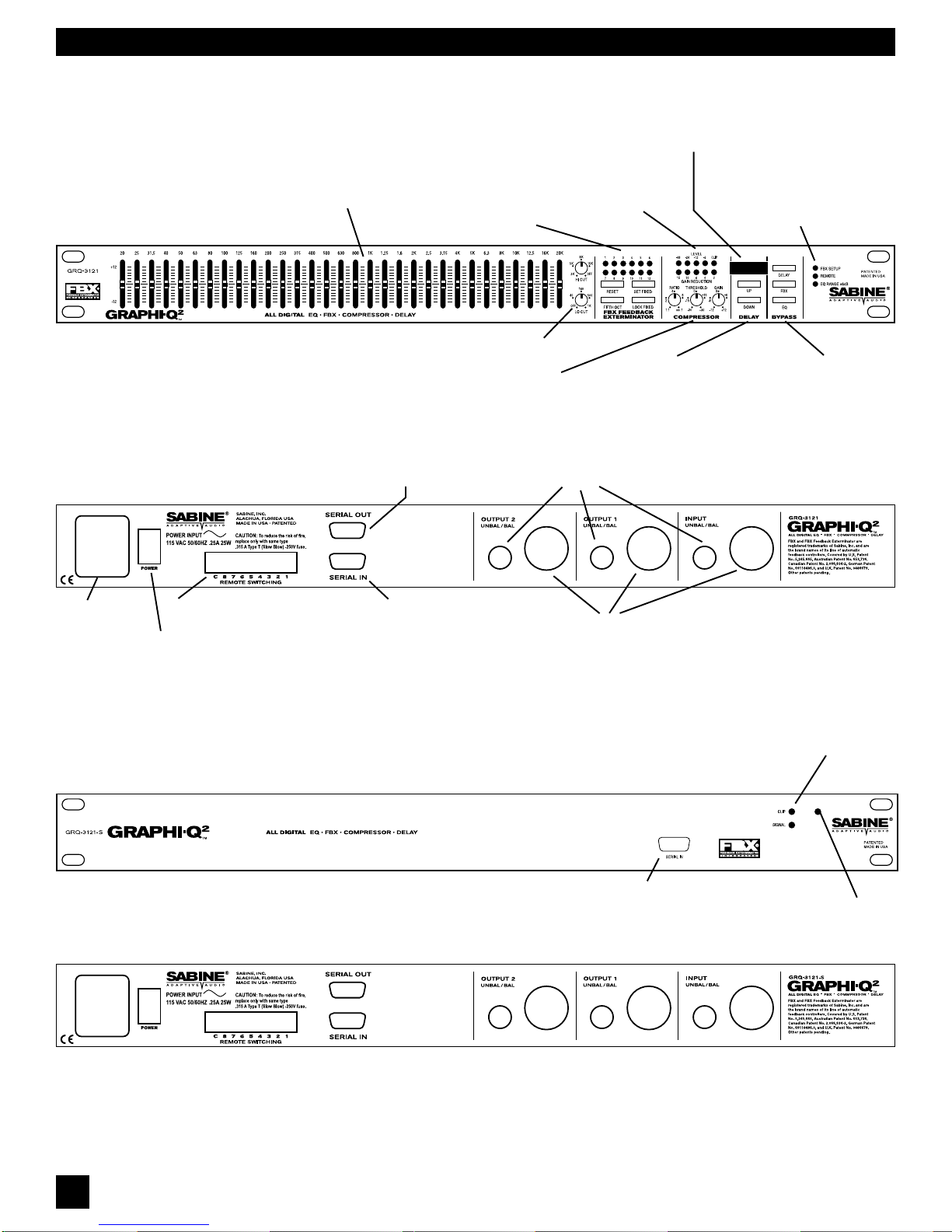
Clip LED-lights
at 3 dB below
clipping Signal
LED-lights when
input is above 30
dBV peak
Phoenix block connectors
For contact closure switch RS-232 Serial In
Connect to serial port
of PC, or previous
GRQ in chain
RS-232 Serial Out
Connect to next
GRQ in chain
XLR connectors
Power connector
& fuse
Additional
RS-232 Serial In Power On LED
FBX Section
12 filter indicators
Reset, Width,
Set, & Lock Fixed Filter
Controls
Compressor Section
Level Indicators
Ratio, Threshold, & Gain controls
Bypass Controls
Status LEDs
FBX SETUP - Fast FBX Setup
REMOTE - GRQ Remote active
EQ Range - EQ fader range indicator
EQ faders
Adjust boost/cut for 31
specific frequencies
High & Low Cut Filters
Input signal &
gain reduction
indicators
Digital Delay
up & down controls.
EQ range
Press up & down buttons simulta-
neously to toggle EQ range between
+6 dB and +12 dB
Digital Delay / Tweek-n-Peek Display
Digital delay time value displayed. Also
momentarily displays current firmware at
power up, or value of any front panel
control altered.
XLRXLRXLR
GG
GG
GRR
RR
RQ3Q3
Q3Q3
Q3121 Bac121 Bac
121 Bac121 Bac
121 Back Panelk Panel
k Panelk Panel
k Panel
GG
GG
GRR
RR
RQ3Q3
Q3Q3
Q3121-S Front Panel121-S Front Panel
121-S Front Panel121-S Front Panel
121-S Front Panel
GG
GG
GRR
RR
RQ3Q3
Q3Q3
Q3121-S Bac121-S Bac
121-S Bac121-S Bac
121-S Back Panelk Panel
k Panelk Panel
k Panel
GG
GG
GRR
RR
RQ3Q3
Q3Q3
Q3121 Front Panel121 Front Panel
121 Front Panel121 Front Panel
121 Front Panel
1/4” TRS connectors
Power Switch

7
B1-GRQ-2-OpGuide-v1-050125.pmd
SECTION THREE: FRONT AND BACK PANEL VIEWS
GG
GG
GRR
RR
RQ3Q3
Q3Q3
Q3122 Front Panel122 Front Panel
122 Front Panel122 Front Panel
122 Front Panel
GG
GG
GRR
RR
RQ3Q3
Q3Q3
Q3122 Bac122 Bac
122 Bac122 Bac
122 Back Panelk Panel
k Panelk Panel
k Panel
GG
GG
GRR
RR
RQ3Q3
Q3Q3
Q3122-S Bac122-S Bac
122-S Bac122-S Bac
122-S Back Panelk Panel
k Panelk Panel
k Panel
GG
GG
GRR
RR
RQ3Q3
Q3Q3
Q3122-S Front Panel122-S Front Panel
122-S Front Panel122-S Front Panel
122-S Front Panel

8
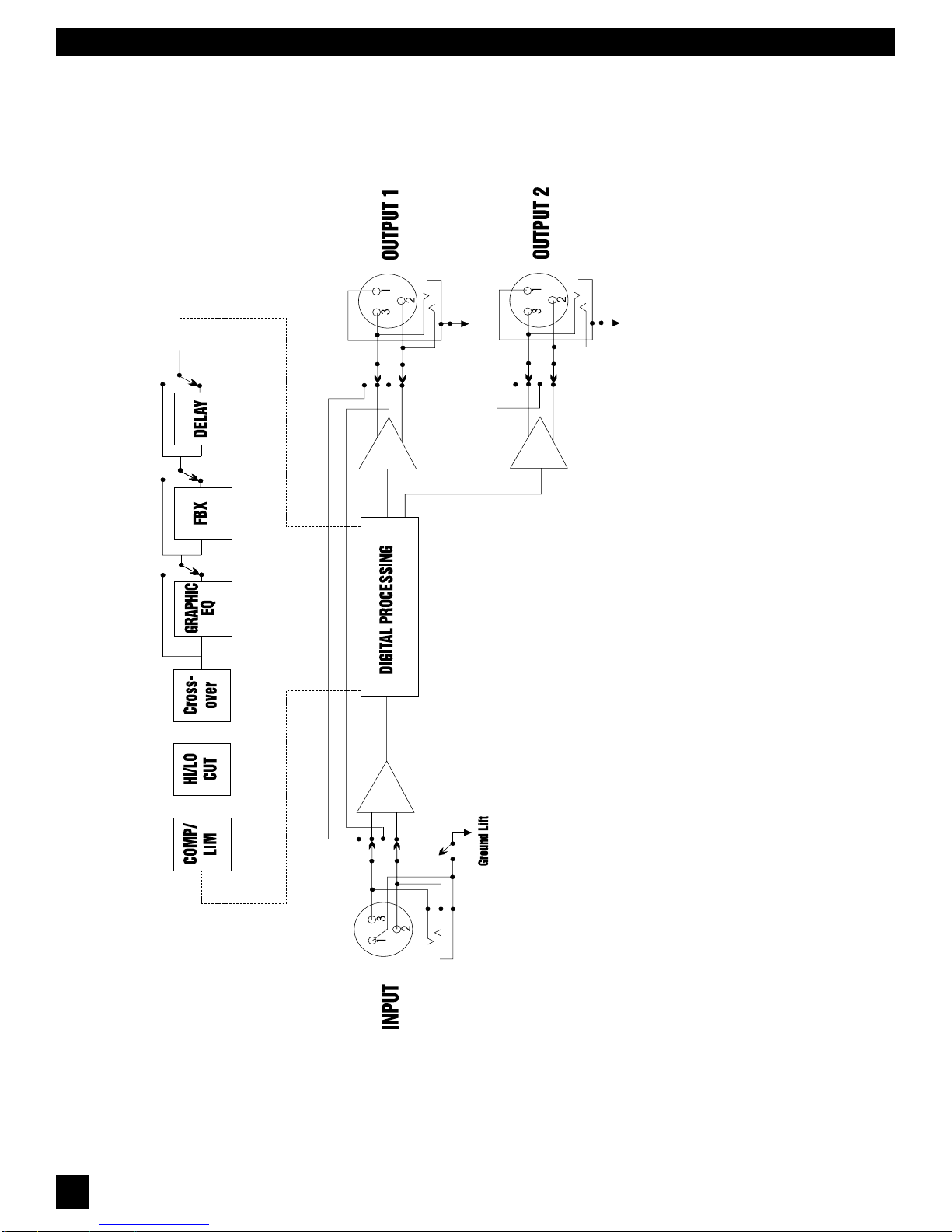
Section Four: Block Diagram/Internal Signal Path
SECTION FOUR: BLOCK DIAGRAM/INTERNAL SIGNAL PATH

9
B1-GRQ-2-OpGuide-v1-050125.pmd
Section Five: Installation
TheGraphi-Q2shouldbeplacedin a well-ventilated, well-groundedequipmentrack,preferablywithin
easyreachofthesoundengineer. Graphi-Q2slaveunitsneednotbeasimmediatelyaccessible,since
control is through a computer interface.
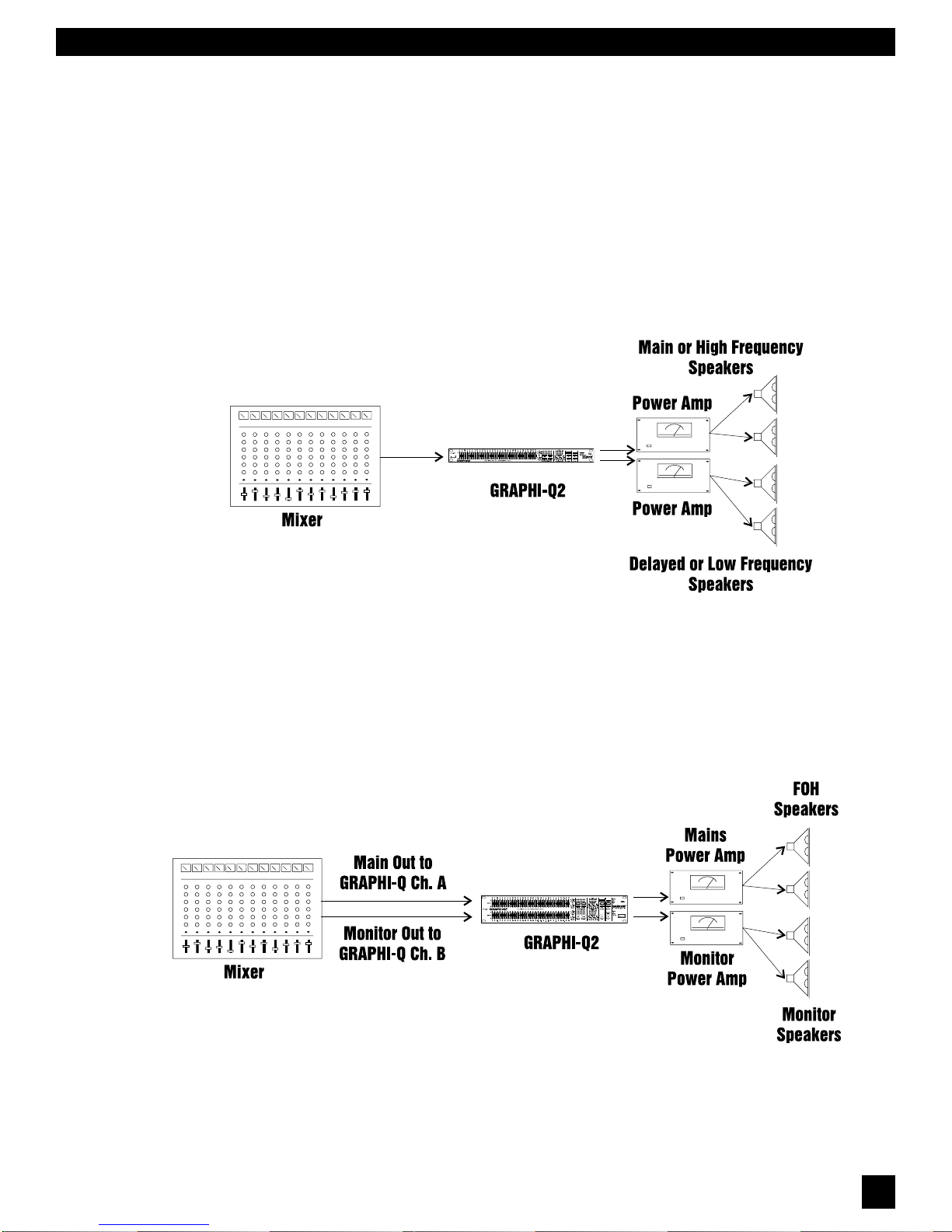
5.1. BETWEEN MIXER OUTPUT AND POWER AMPLIFIER
The most common placement of the Graphi-Q2 in a sound system is between the output of a mixing
consoleandtheinputtoapoweramplifier. InthisconfigurationtheGRQ2canprovideallyoursystem
processing, including delay and crossover. A typical configuration will look like this:
This configuration can also be simplified using a single channel (one input,
usingonlyoneoutput)Graphi-Q2.
5.2. TWO CHANNEL GRAPHI-Q2: MAINS AND MONITORS.
Alternatively,withatwo-channelGraphi-Q2,youmayelecttorouteonemixeroutputthroughGraphi-Q2
channelAintoapowerampdrivingyourmainspeakers,andyourmixermonitoroutputintoGraphi-Q2
channel B, routed to your monitor speakers. This configuration is diagrammed below:
Section Five: Installation

10
5.3. USE WITH A POWERED MIXER
Withapoweredmixer,theGraphi-Q2mustbeinsertedbetweenthe“LineOut”jack(s)(lineleveloutput,
before the signal goes through the amplifier) and the “Amplifier In”jack(s), as shown below:
NOTE: Not all powered mixers will offer such patch points, or they may label them differently. When
in doubt consult the manual of the console manufacturer.
5.4. USE AT A MIXER INSERT POINT
TheGraphi-Q2mayalsobeusedatamixerinsertpoint,eitherforasingleinputchannel,orforagroup
orbusinsertpoint. Thiswill dedicate all of the features andprocessingpoweroftheGraphi-Q2to one
ortwosinglechannelsonyourmixer,ortoasubgroupofinputs(forexample,allthedrumsinyourmix).
The patching will look like this:
SECTION FIVE: INSTALLATION
Questo manuale è adatto per i seguenti modelli
4
Indice
Altri manuali SABINE Equalizzatore stereo