
Salamander FPS1/EL/CS/GG Manuale utente

Salamander Mobile Interactive Display Stands 501-662 [03.18] page 1 of 24
COLOR
BLACK
WHITE
fps1/el/CS/gg user manuAl
FPS SERIES mobile interactive
display stands
Designed to support Cisco Webex Board 55”
ADA
COMPLIANT
Salamander Mobile Interactive Display Stands 501-662 [03.18] page 2 of 24
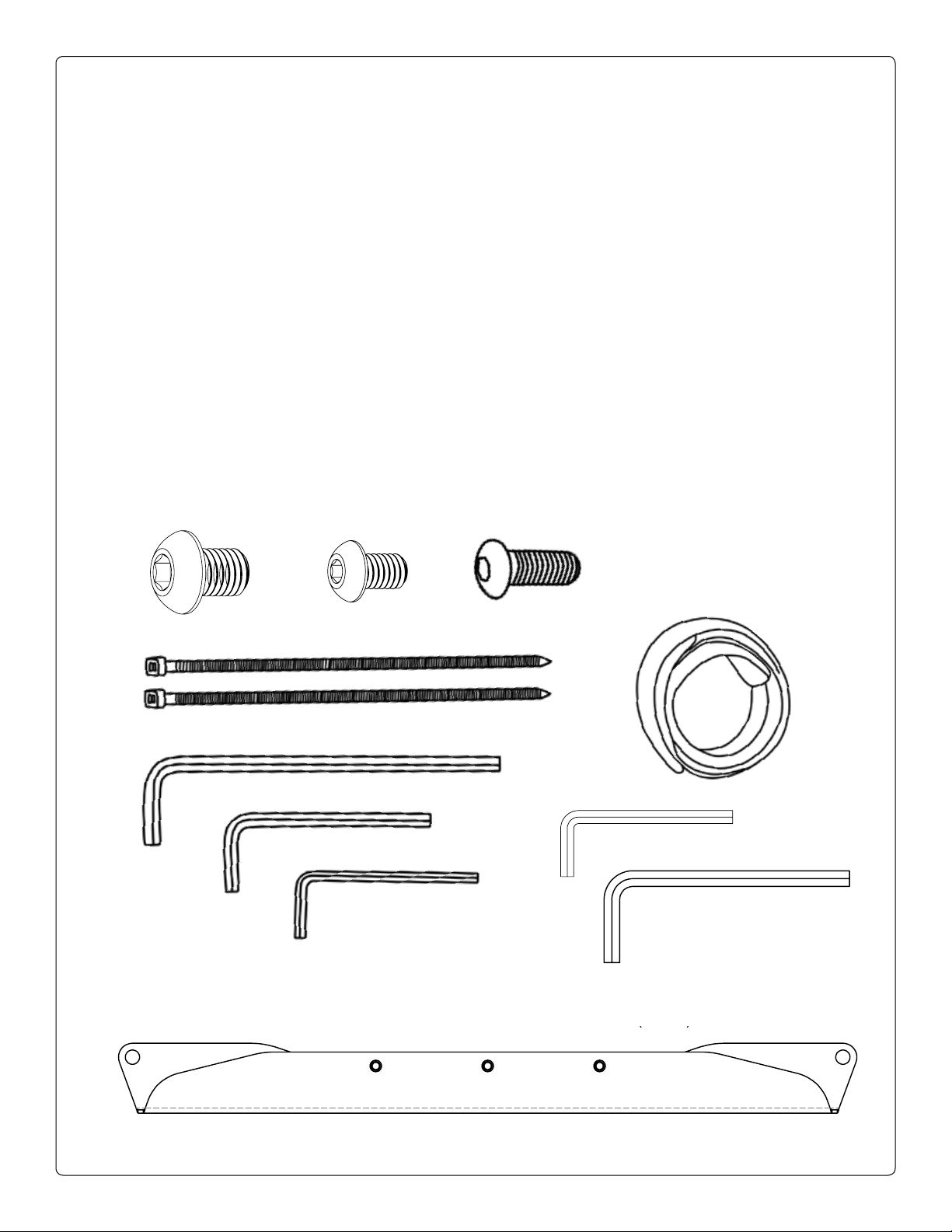
PARTS
ID QTY PART NUMBER DESCRIPTION
(1) PHK-960 Display Mounting Fastener Set - Metric
A (4) 301-722 M12 x 16mm Button Head Screw
B (6) 301-015 5/16-18 x 1/2” Button Head Screw - for Display Bracket
D(8) 301-010 5/16-18 x 3/4” Button Head Screw - for Leg Attachment
E (4) 400-010 Cable ties
F (3) 400-125 Velcro cinch strap
G (1) 400-060 3/16” Hex wrench - long arm
H (1) 400-080 5/32” Hex wrench
I (1) 400-070 1/8” Hex wrench
J (1) 400-058 3/16” Hex wrench - short arm
K (1) 400-075 5/16” Hex wrench
L (2) 305-067/GT Display Interface Brackets
AB
E
G
H
I
F
D
305-067/GT
DISPLAY INTERFACE BRACKET (QTY 2)
301-015
5/16-18 x 1/2" BUTTON HEAD SCREW (QTY 6)
301-722
M12 x 16mm BUTTON HEAD SCREW (QTY 4)
400-058
3/16" HEX KEY - SHORT ARM (QTY 1)
400-075
5/16" HEX KEY (QTY 1)
PHK-965 (?)
305-067/GT
DISPLAY INTERFACE BRACKET (QTY 2)
301-015
5/16-18 x 1/2" BUTTON HEAD SCREW (QTY 6)
301-722
M12 x 16mm BUTTON HEAD SCREW (QTY 4)
400-058
3/16" HEX KEY - SHORT ARM (QTY 1)
400-075
5/16" HEX KEY (QTY 1)
PHK-965 (?)
L
305-067/GT
DISPLAY INTERFACE BRACKET (QTY 2)
301-015
5/16-18 x 1/2" BUTTON HEAD SCREW (QTY 6)
301-722
M12 x 16mm BUTTON HEAD SCREW (QTY 4)
400-058
3/16" HEX KEY - SHORT ARM (QTY 1)
400-075
5/16" HEX KEY (QTY 1)
PHK-965 (?)
305-067/GT
DISPLAY INTERFACE BRACKET (QTY 2)
301-015
5/16-18 x 1/2" BUTTON HEAD SCREW (QTY 6)
301-722
M12 x 16mm BUTTON HEAD SCREW (QTY 4)
400-058
3/16" HEX KEY - SHORT ARM (QTY 1)
400-075
5/16" HEX KEY (QTY 1)
PHK-965 (?)
305-067/GT
DISPLAY INTERFACE BRACKET (QTY 2)
301-015
5/16-18 x 1/2" BUTTON HEAD SCREW (QTY 6)
301-722
M12 x 16mm BUTTON HEAD SCREW (QTY 4)
400-058
3/16" HEX KEY - SHORT ARM (QTY 1)
400-075
5/16" HEX KEY (QTY 1)
PHK-965 (?)
K
J

Salamander Mobile Interactive Display Stands 501-662 [03.18] page 3 of 24
warnings [English]
IMPORTANT SAFETY INSTRUCTIONS
READ ALL INSTRUCTIONS BEFORE USING THIS FURNISHING
When using an electrical furnishing, basic precautions should always be followed, including the following:
WARNING – To reduce the risk of burns, re, electric shock, or injury to persons:
DANGER – To reduce the risk of electric shock: Always unplug furnishing from the electrical outlet before
cleaning
WARNING! Failure to comply with these instructions may result in accident involving serious personal injury.
Failing to follow these instructions can result in the product being damaged or being destroyed or voiding of
the warranty.
WARNING! For use with video monitors weighing 175lbs (80kg) or less. Use with heavier televisions
may result in instability causing tip over resulting
in death or serious injury.
WARNING – Keep hands away from moving parts while operating device.
CAUTION! Manage cables carefully. Use cable ties to keep wires away from moving parts.
WARNING – Keep children away from moving parts and Monitor.
CAUTION! When relocating the device, set to lowest position and use handle to move
and position the device.
• Unplug from outlet before putting on or taking o parts.
• Close supervision is necessary when this furnishing is used by or near childern,invalids, or disabled
persons
• Use this furnishing only for its intended use as described in these instructions. Do not use
attachments not recommended by the manufacturer.
• Never operate this furnishing if it has a damaged cord or plug,if it is not working properly,if it has
been dropped or damaged,or dropped into water. Return the furnishing to a service center for
examination and repair.
• Keep the cord away from heated surfaces
• Never operate the furnishing with the air openings blocked. Keep the air openings free of lint,hair
and the like.
• Never drop or insert any object into any opening
• Do not use outdoors
• Do not operate where aerosol (spray) products are being used or where oxygen is being
administered.
• To disconnect,remove plug from outlet
• For Commercial Use Only
• Disconnect power when installing,relocating or before servicing
• Protect the power cord from being walked on or pinched
• If the device makes unusual noise or smells, switch o the main voltage immediately. Return the
device to a service center for examination and repair.
Electrical Specications: Weight Capacities:
Input: 100 - 240V ~, 450W- 60HZ Max Load: FPS1/EL/CS/GG - 175 lbs (80kg)
Operation: Output 24 VDC - 8A

Salamander Mobile Interactive Display Stands 501-662 [03.18] page 4 of 24
Duty Cycle of the motor control system:
The duty cycle is 10% ~ 6 min./ hour or max. 2 min. of continuous use, irrespective of the load.
This must NOT be exceeded as this will result in a superheating of the motor. Exceeding the duty cycle will result in a
dramatic reduction of the life of the system.
The motor control system range contains the following components:
• 1 control box
• 2 or 3 Telescoping actuators
• 1 exchangeable main power cable
• 2 or 3 motor cables
• 1 Wired remote control
Troubleshooting / Initialization of the motor control system
If motor control system malfunctions follow these steps;
The system is initialized by pressing the down button once or twice and holding it down until unit runs into end stop, it will
then automatically run approx. 3 mm out again and hereafter slowly running in again. Only release the down button when
the movement has completely stopped. If the key is released before the sequence is completed then the initialization is
interrupted and must be started again from the beginning. It is sometimes necessary to press the down button twice to start
the initialization this is because the system can be in dierent modes when the initialization starts.
WARNING: Risk of Electric Shock – Connect the device to a properly grounded outlet only. Do not defeat the safety
purpose of the polarized or grounding-type plug. A polarized plug has two blades with one wider than the other. A
grounding type plug has two blades and a third grounding prong.
The wide blade or the third prong is provided for your safety. If the provided plug does not t into your outlet, consult an
electrician for replacement of the obsolete outlet. Do not use a plug adapter that defeats the ground pin of the AC plug.
SERVICING OF DOUBLE-INSULATED PRODUCTS: In a double-insulated product, two systems of insulation are provided
instead of grounding. No grounding means is provided on a double-insulated product,nor is a means for grounding to be
added to the product. Servicing a double-insulated product requires extreme care and knowledge of the system, and is
to be done only by qualied service personnel. Replacement parts for a double-insulated product must be identical to the
parts they replace.
WARNING: Do not overload the wall outlet where this device is being connected. Do not overload this device. Ensure the
total load to this device does not exceed that which is listed in the specications section of this manual.
Maintenance
• DANGER – To reduce the risk of electrical shock: Always unplug this device from the electrical outlet before cleaning.
• Clean dust and dirt with a dry cloth, on the outside of the system at appropriate intervals and inspect for damage.
• Inspect the connections, cables, and plugs and check for correct functioning as well as video monitor xing points.
• When furnishing is not in use, cords should be unpluged and bound with a wire manger, such as a velcor strap, cable
tie or the a like.
• Furnishing should be stored in a dry indoor enviorment.
Repairs
• Refer all servicing to qualied service personnel. Servicing is required when the device has been damaged in any way,
such as power-supply cord or plug is damaged, liquid has been spilled or objects have fallen into the device, the
device has been exposed to rain or moisture, does not operate normally, or has been dropped.
• There are no user-serviceable components within this device. Removal of the cover from this device may present a
shock hazard, and void the warranty.
***** SAVE THESE INSTRUCTIONS *****
Accessories and Spare Parts
Please contact your nearest Salamander Designs dealer or www.salamanderdesigns.com/commercial

Salamander Mobile Interactive Display Stands 501-662 [03.18] page 5 of 24
ASSEMBLY
UNBOX & INSTALL LEGS
Fold box sides down at
Prop base of unit up on cardboard supports

Salamander Mobile Interactive Display Stands 501-662 [03.18] page 6 of 24
INSTALL LEGS
Install legs by having one person hold leg and other person loosely install “D”
(8 quantity) screws. Please note that the leg has a long side and short side - the long
side with caster brake faces the front of the unit.
After legs have been securely fastened to stand, two-people lift stand
to upright position.
D x 8
G

display installation
Attach Brackets to Display
Check depth of screw threads in display before inserting screws. Inserting a screw that
is longer than the hole could result in damage to display. Depth can be conrmed by
inserting hex wrench into hole and marking its length then conrming this length is
sucient by comparing it to the screw you are using.
Install interface mounting brackets (L) onto display as shown using supplied
screws (A) or screws specied by the display manufacturer. Hand tighten rst
to conrm thread and depth match. Note: Ax display brackets as shown.
Touch Presenter Motorized Mobile Stand
M12 x 16MM BUTTON HEAD SCREW
A
305-067/GT
DISPLAY INTERFACE BRACKET (QTY 2)
301-015
5/16-18 x 1/2" BUTTON HEAD SCREW (QTY 6)
301-722
M12 x 16mm BUTTON HEAD SCREW (QTY 4)
400-058
3/16" HEX KEY - SHORT ARM (QTY 1)
400-075
5/16" HEX KEY (QTY 1)
PHK-965 (?)

Salamander Mobile Interactive Display Stands 501-662 [03.18] page 8 of 24
Attach Display to Stand
Loosely install ONE (1) “B” screw to the center of each display bracket.
This will act as an alignment screw for the next step.
Two people are needed to install the display on the stand. Position alignment
screw into the “key hole” slot as shown and continue holding display.
5/16 x 18 x 1/2" BUTTON HEAD SCREW

Salamander Mobile Interactive Display Stands 501-662 [03.18] page 9 of 24
Immediately use (4) “B” screws to ax the mounting brackets
to the cart-side mechanism as shown. Tighten all 6 screws rmly.
Connect Power
Control box is located behind header. Insert power cord into control box
as shown in illustration below:

Salamander Mobile Interactive Display Stands 501-662 [03.18] page 10 of 24
Route Cables from Display to Stand
Manage cables carefully. Use cable ties to keep wires away from pinch points.
• Route cables between the back of display and the hole on the front of stand.
• Manage cables through cable chain by pushing cable through nger keeper
on inner side of chain direction shown in arrows.
Operation: Remote Control
• Hold down the “down” button to initialize unit.
• Up button will raise display to presentation mode
• Down button will lower display to transport mode.
Troubleshooting
• Double check that power cord is rmly plugged into power supply
• Hold down the “down” button continuously for several seconds to reset unit
• More troubleshooting and repair information found on page four of this manual
LIMITED WARRANTY FOR COMMERCIAL VIDEO DISPLAY STANDS AND MOUNTS
Salamander is proud to stand behind our products with industry-leading warranties. Should you ever encounter any
problem with your Salamander product, let us know. We are here to make it right. 1.800.535.5659 - 860.761.9500
Full warranty including limitations and warranty claim information may be found at:
www.salamanderdesigns.com/commercial/warranty
Questo manuale è adatto per i seguenti modelli
1
Indice
Altri manuali Salamander Rack e supporto

Salamander
Salamander EZ-LIFT Series Manuale utente

Salamander
Salamander EZ1/MS85/ML209 Manuale utente

Salamander
Salamander UNIFI HUDDLE LITE UHL40A Manuale utente

Salamander
Salamander FPS1XL Manuale utente

Salamander
Salamander FPS Series Manuale utente

Salamander
Salamander Acadia AC/W/L400/WH Manuale utente

Salamander
Salamander EZ1/MS50/ML095 Manuale utente

Salamander
Salamander FPS2/ELT/GG Manuale utente

Salamander
Salamander FPS2/EL/GG Manuale utente


