
Samson Go Mic Manuale utente


Copyright 2009, Samson Technologies Corp.
Printed May, 2009 v1.1
Samson Technologies Corp.
45 Gilpin Avenue
Hauppauge, New York 11788-8816
Phone: 1-800-3-SAMSON (1-800-372-6766)
Fax: 631-784-2201
www.samsontech.com

Table of Contents
Introduction . . . . . . . . . . . . . . . . . . . . . . . . . . . . . . . . . . . . . . . . . . . 2
Go Mic Features. . . . . . . . . . . . . . . . . . . . . . . . . . . . . . . . . . . . . . . . . 4
Go Mic Layout . . . . . . . . . . . . . . . . . . . . . . . . . . . . . . . . . . . . . . . . . . 5
Installing the Go Mic . . . . . . . . . . . . . . . . . . . . . . . . . . . . . . . . . . . . . 6
Getting Started with Windows XP . . . . . . . . . . . . . . . . . . . . . . . . . . . . . 6
Getting Started with Windows Vista . . . . . . . . . . . . . . . . . . . . . . . . . . . 9
Getting Started with MAC OS X . . . . . . . . . . . . . . . . . . . . . . . . . . . . . .11
Operating the Go Mic . . . . . . . . . . . . . . . . . . . . . . . . . . . . . . . . . . 13 - 19
Go Mic Quick Start . . . . . . . . . . . . . . . . . . . . . . . . . . . . . . . . . . . . . .13
Powering the Go Mic . . . . . . . . . . . . . . . . . . . . . . . . . . . . . . . . . . . . .15
Setting Up the Signal Level . . . . . . . . . . . . . . . . . . . . . . . . . . . . . . . . .15
Stand Mounting the Go Mic . . . . . . . . . . . . . . . . . . . . . . . . . . . . . . . .15
Polar Patterns. . . . . . . . . . . . . . . . . . . . . . . . . . . . . . . . . . . . . . . . . .16
Microphone Placement . . . . . . . . . . . . . . . . . . . . . . . . . . . . . . . . . . .16
P-Popping. . . . . . . . . . . . . . . . . . . . . . . . . . . . . . . . . . . . . . . . . . . .17
Application Notes . . . . . . . . . . . . . . . . . . . . . . . . . . . . . . . . . . . . . . .18
Go Mic Specifications . . . . . . . . . . . . . . . . . . . . . . . . . . . . . . . . . . 20 - 21

2
Introduction
Congratulations on your purchase of the Samson Go Mic portable USB studio condenser.
The Go Mic is a dual-pattern studio microphone featuring high quality onboard digital
converters and USB interface fit into an extremely portable, fold-up design making it ideal
for professional digital recording or webcasting. The Go Mic is a studio quality condenser
microphone offering both unidirectional, or cardioid, and omnidirectional pick-up patterns,
plus there’s a 10 dB PAD for recording hot signals. The Go Mic’s built-in audio interface
features a robust headphone output allowing you to monitor your recordings. The clever
clip design allows you to mount the microphone on your laptop or you can convert the
clip mount to a convenient desk stand. You can even mount the Go Mic on a standard
microphone stand with the included adapter. You get everything you need to get started
recording on your computer including USB cable, cable clip, mic stand mount and handy
carry case to keep your mic protected during transport. The Go Mic is perfect for recording
any acoustic audio source on your favorite DAW (Digital Audio Workstation). Just plug in the
supplied USB cable, launch your DAW and start recording. The Go Mic faithfully reproduces a
variety of sound sources including vocals, acoustic string and wind instruments, percussion,
and overhead cymbals, to name a few. It is also great for VoIP, chatting and webcasting.
The extended frequency and fast transient response ensures an accurate reproduction with
linear characteristics from bottom to top. Whether you’re recording your latest song idea,
a podcast, or your band’s next big hit, the Go Mic is the simplest and most comprehensive
solution for high quality recording on a Mac or PC. Just plug it in and start creating!

3
In these pages, you’ll find a detailed description of the features of the Go Mic USB Studio
Condenser Microphone, as well as step-by-step instructions for its setup and use, and full
specifications. You’ll also find a warranty card enclosed—please don’t forget to fill it out and
mail it in so that you can receive online technical support and so we can send you updated
information about these and other Samson products in the future. Also, be sure to check out
our website (www.samsontech.com) for complete information about our full product line.
With proper care your Go Mic will operate trouble free for many years. We recommend you
record your serial number in the space provided below for future reference.
Serial number: __________________________
Date of purchase: __________________
Should your unit ever require servicing, a Return Authorization number (RA) must be
obtained before shipping your unit to Samson. Without this number, the unit will not be
accepted. Please call Samson at 1-800-3SAMSON (1-800-372-6766) for a Return Authorization
number prior to shipping your unit. Please retain the original packing materials and if
possible, return the unit in the original carton and packing materials. If you purchased your
Samson product outside the United States, please contact your local distributor for warranty
information and service.
Introduction

4
Go Mic Features
• Compact, dual pattern studio condenser with built-in audio interface and USB digital I/O.
• Compatible with most any Mac and PC based Digital Audio Workstation that support the
USB Audio class.
• Unique, fold up design with integral clip makes the microphone extremely portable and
ideal for most recording solutions, especially for mobile laptop recording.
• The microphone’s capsules are extremely detailed and the switchable Cardioid and Omni
pick-up patterns make it ideal for recording voice, conferences, acoustic instruments and
for just about any other sound source.
• The onboard headphone amplifier allows you to listen to your recording directly from
the microphone, plus you can use the output to connect active studio monitors.
• A software controlled, analog direct monitor mode is provided for zero latency
monitoring.
• Computer controlled analog Input Gain with Peak LED makes it easy to set the proper
level and get a clean signal.
• The on-board, high quality AD converters with 16 Bit, 48K sampling rate provide better
than CD quality recording.
• On the road, in the studio or in a fixed installation, the solid construction with die cast
base make the microphone a reliable audio tool, day in and day out.
• A 10 foot USB cable, cable clip and mic stand adapter are included to easily set up
the microphone right out of the box, plus you can keep it safe while carrying it in the
included zipper pouch.
• The Go Mic is perfect for recording voice, music, live instruments, podcasts, or for
chatting and VoIP.
5
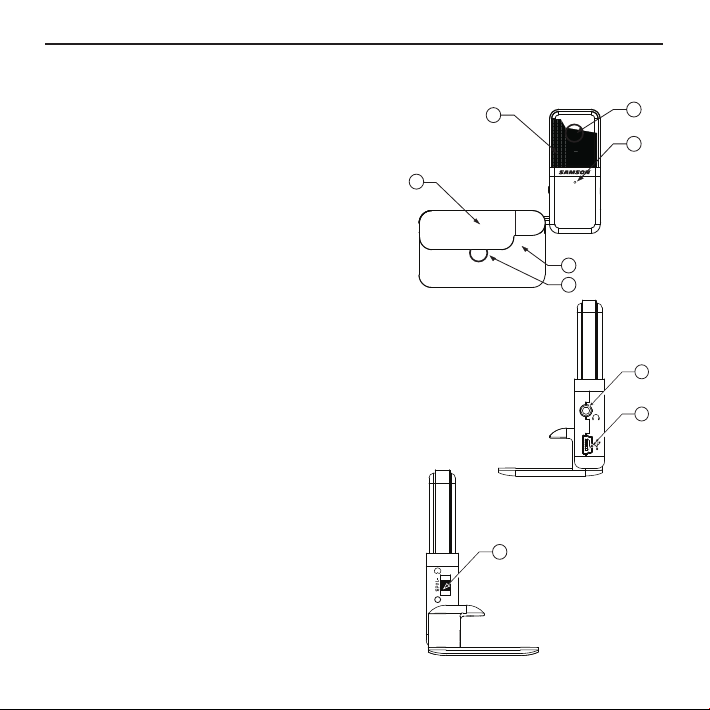
Go Mic Layout
9
6
12
3
4
5
1. Windscreen – Dual stage grill protects the
capsules and helps reduce wind noise and p-
popping.
2. Capsules – Dual, internally shock isolated
10mm capsules provide both Cardioid and
Omni polar patterns.
3. LED – The dual color Power/Clip LED lights
green to indicate power, and flashes red when
the input signal is clipping.
4. Diecast Base – The molded zinc base is
weighted and shock isolated to provide a sturdy
solution for desktop applications.
5. Mic Stand Mount – A standard Euro-mount mic
stand mounting hole and included adapters
allow you to attach the Go Mic to a standard
microphone stand.
6. Clip – Integral mounting clip for easy set-up
and installation up on just about any laptop
computer.
8. USB – Mini-B size USB connector for interfacing
with your PC or Mac.
7. Phones - 1/8-inch (.35mm) stereo jack for
connecting headphones or studio monitors.
9. Pattern switch – Selector switch used to set the
microphone for Cardioid, Cardioid with a 10 dB
Pad, or Omni pick-up pattern.
7
8

6
Installing the Go Mic
Installing the Go Mic is a simple procedure
that takes just a few minutes. Since the Go
Mic is USB compliant, you can use either
a MAC or PC, connect the included USB
cable and plug and play. You will be able
to control your Go Mic using the standard
audio interface controls in the MAC or
Windows operating system. You will find
detailed instructions on setting up with
MAC OS and Windows in the following
sections of this manual.
Getting Started with Windows XP
1. The first time you plug the Go Mic into
a USB port, Windows will install the
universal drivers for that port. A balloon
tip will pop up, telling you it has “Found
new Hardware” (figure 1).
2. When it is finished installing the drivers,
it will say “Your new hardware is installed
and ready to use” (figure 2).
Note: This balloon will not pop up again for
the same USB port.
Figure 1
Figure 2
Figure 3

7
3. To set the Go Mic as your default device
for sound playback and recording, or
to change its settings, click the Start
button, click Control Panel and then
click Sounds and Audio Devices.
Under the Audio tab, you can select the
Samson GoMic from the drop-down
menus. (figure 3).
4. To set the gain of the microphone,
click the Volume button in the Sound
recording section to make the
Microphone slider appear (figure 4). It
will say “Samson Go Mic” in the status
bar at the bottom. Moving this slider will
adjust the analog amplifier circuitry in
the microphone.
5. To set the direct monitoring level or the
playback volume in the headphones,
click the Volume button in the Sound
playback section instead. Adjusting the
Speaker slider on the left changes the
headphone level (figure 5). To turn off
the zero-latency hardware monitoring
direct monitoring (if you want to use
software play-through with effects
instead), click
Figure 5
Installing the Go Mic
Figure 4
8
Figure 6
Figure 7
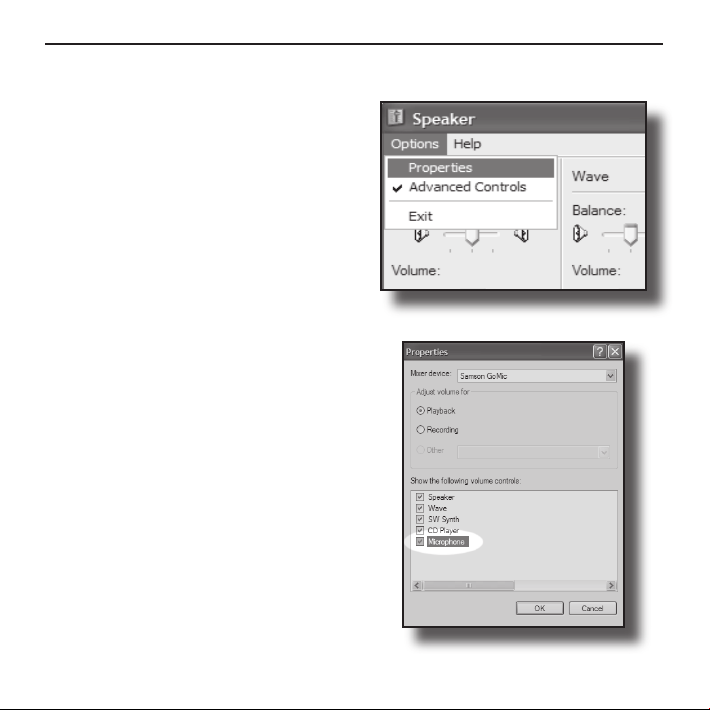
the Mute checkbox in the Microphone
section on the right. (If the Microphone
section does not appear at first, click
Options and then Properties (figure
6), and click the checkbox next to
Microphone. (Figure 7)
6. To prevent system sounds from coming
through the Go Mic, select a different
sound card for the system default, and
then choose the Go Mic manually within
your DAW software.
Installing the Go Mic
Altri manuali per Go Mic
5
Indice
Altri manuali Samson Microfono

Samson
Samson C05 Manuale utente

Samson
Samson MTR231 Manuale utente

Samson
Samson Q1U Manuale utente

Samson
Samson MTR231 Manuale utente

Samson
Samson MTR201 Manuale utente

Samson
Samson LM10 Manuale utente

Samson
Samson C01UPRO Manuale utente

Samson
Samson Q6 Manuale utente

Samson
Samson 5Kit Manuale utente

Samson
Samson Go Mic Direct Manuale utente

Samson
Samson CL5 Manuale utente

Samson
Samson C03U Manuale utente

Samson
Samson SE10 Manuale utente

Samson
Samson UB1 Manuale utente

Samson
Samson DE10x Manuale utente

Samson
Samson CL8 Manuale utente

Samson
Samson CM12C Istruzioni per l'installazione

Samson
Samson 7KIT Manuale utente

Samson
Samson R21 Manuale utente

Samson
Samson Q snare Manuale utente


