Samsung SNE-50K Manuale utente

Electronic Reading & Writing Device
SNE-50K
User manual
Read this manual thoroughly for proper
use and maintenance instructions.
Contents
Safety precautions
Get started
Books
Memo
Scheduler
Images
Settings
Appendix

Contents
Safety precautions......................3
Get started .....................................5
Unpack .........................................5
Get to know your device ..............6
Remove the leather case .............7
Insert the battery .......................... 8
Charge the battery .......................9
Turn on the device .....................12
Use the stylus ............................13
Get to know the main menu
screen ........................................14
Customize basic settings ...........15
Copy files ...................................16
©2009 SAMSUNG ELECTRONICS CO., LTD.
It is strictly forbidden to copy or use any parts of this manual
•
without permission from SAMSUNG ELECTRONICS CO., LTD
Product specifications or contents of this manual may be
•
changed without prior notice due to upgrade of product
functions.
Instructional icons
Before you start, familiarize yourself with the icons you will see in this manual:
Note - notes, usage tips, or additional information
[ ] Square brackets - device keys; for example: [ ]
(represents the Power key)
Books ............................................ 20
View books ................................20
Use bookmarks ..........................22
Delete books ..............................23
Memo ............................................ 24
Create memos ...........................24
View memos ..............................25
Delete memos ............................28
Scheduler..................................... 29
Create events .............................29
View events ................................30
Delete events .............................31
Images .......................................... 32
View images ...............................32
Delete images ............................33
Settings ........................................ 34
Appendix...................................... 37
Reset the device ........................37
Use Virtual Printer Driver ............38
Update firmware ........................40
Troubleshooting .........................42
Specifications .............................43
Recycling information ................44


3
Safety precautions
Read the following carefully to ensure your safety and prevent damge to property.
Do not touch the USB cable with wet hands, as it may
•
result in electric shock.
Place the USB cable and product away from traffic areas
•
and other objects so that they are not likely to be stepped
on or pinched by items placed on or against them.
Always turn the power off and disconnect the USB cable
•
when moving the product to reduce the risk of electric
shock, fire, or malfunction of the product.
To reduce the risk of fire, do not place the product,
•
battery or USB cable in direct sun light or near heat
sources such as heaters, candles, mosquito coils.
Do not drop the product or subject the product to any
•
strong impacts.
If the product is damaged, contact a dealer or an-
authorized service center.
If there are unusual noises, a burning smell, or smoke
•
coming from the product, turn the power off immediately
and contact a dealer or an authorized service center.
Do not disassemble, repair, or alter the product on your
•
own.
If the product is damaged, contact a dealer or an-
authorized service center.
Be careful about the use of batteries.
•
Using approved batteries may result in explosion.-
Do not puncture the battery with sharp objects or-
subject the battery to any strong impacts.
Do not leave the battery in a high temperature-
environment.
Do not allow the battery to come in contact with-
water.
Keep the battery away from children and pets.-
Do not allow the battery terminals to come in contact-
with metals.
Do not apply water or cleanser directly to the product
•
when cleaning as this may cause the surface of the
product to deteriorate or the product logo and button
indicators to fade.
Warning Comply with the following precautions to avoid injuries to yourself or others.

4
Safety precautions
Do not disconnect the USB cable while the file transfer is
•
in progress, as this may corrupt or erase your data.
Do not connect the product to a USB hub.
•
Do not leave the product in high or low temperature
•
environments or in places with high humidity or exposure
to water sources.
Do not place objects with strong magnetic fields near the
•
product.
Do not lay the product face down.
•
Use only Samsung-approved batteries and accessories.
•
Keep all accessories out of the reach of children.
•
Do not expose the product to any chemicals, such as
•
waxes, benzene, alcohol, thinners, insecticides, air
fresheners, lubricants, or detergents.
Use only a soft, dry cloth when cleaning the product, so
•
it does not scratch the product.
Caution Comply with the following precautions to avoid damage to your device or other equipment.

5
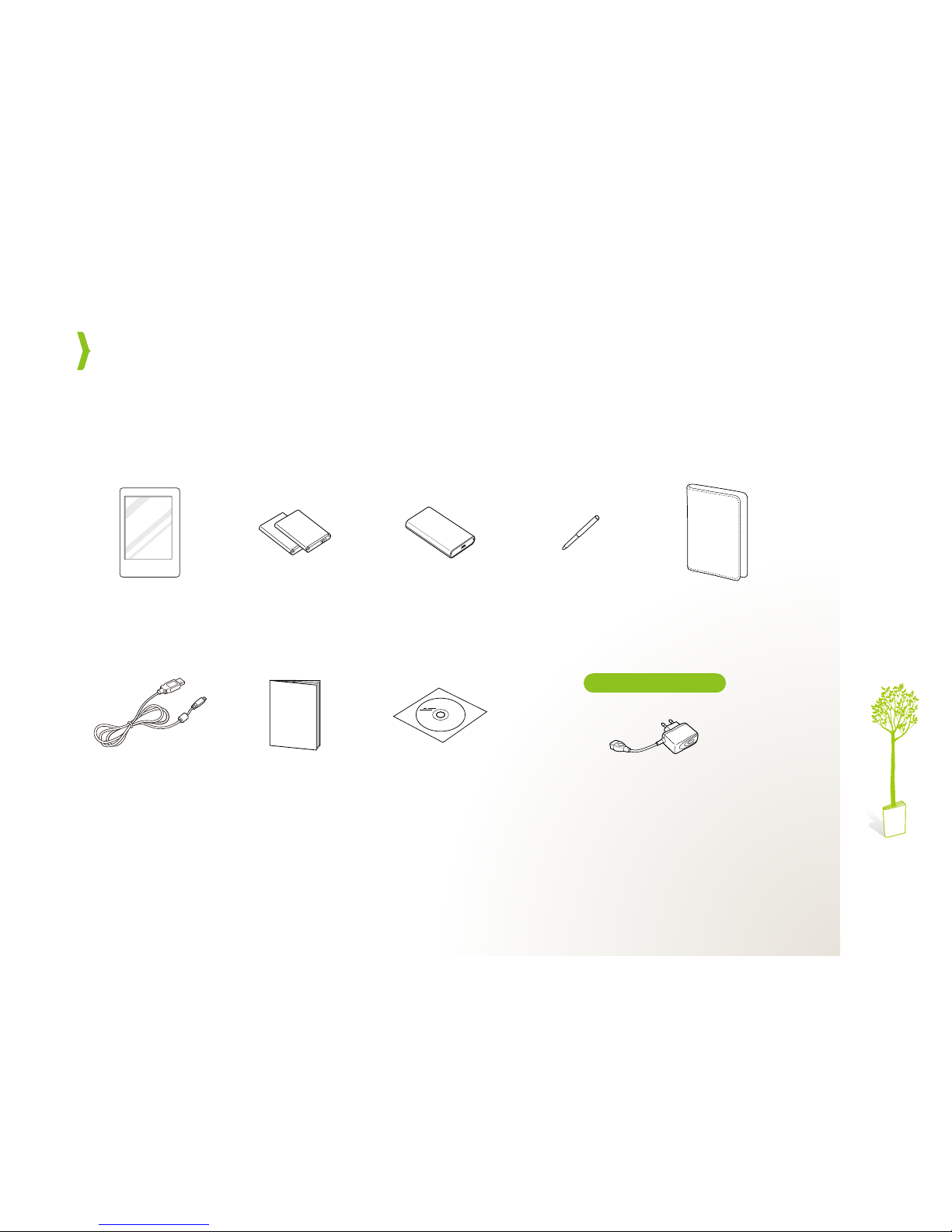
e-Paper Device Batteries (2) Charging cradle Stylus Leather case
USB cable Quick Start Guide
and Warranty
CD-ROM
(User manual and
Virtual Printer Driver)
Unpack .......................................................................................................................................................................................
Get started
Optional accessory
Adapter

6
Get started
The device is shipped in a leather case. Remove the
device from the leather case before inserting or
removing the battery (p. 7).
When using the touch buttons
Operate the touch buttons only with your fingers.
●
Make sure your hands are clean and dry when
using the touch buttons.
Lightly touch the button that corresponds to the
●
desired function.
The touch sensor may not work properly when
●
wet or in humid places.
Get to know your device .................................................................................................................................
Reset button
Touch screen
Power button
[
●]: Turn the device on or off;
Lock or unlock the touch
screen and buttons
USB cable
connection port
Stylus slot
Touch buttons
[
●]/[ ]: (for Books, Images) View previous or next page or image
[
●]: (for Books) Add or delete bookmarks (p. 22)

7
Get started
Put the device inside the leather case
When you carry the device with you, put it in the
leather case for protection.
Remove the leather case ...................................................................................................................................

8
Get started
Insert the battery .........................................................................................................................................................
Remove the battery cover.
1
Insert the battery.
2
Replace the battery cover.
3
Remove the battery
If the device is on, press and hold [ ] to turn it off.

9
Get started
Charge the battery ....................................................................................................................................................
Open the cover of the USB connection
1
port.
Connect the smaller end of the USB cable
2
to the device and the larger end to the USB
port of a PC.
The device will turn on automatically and the
●
charging indicator will turn red.
Charging indicator
Charging:
●
Charging complete:
●
When the pop-up window appears:
3
Select
●
Yes
to charge the device while using it as
a removable disk.
Select
●
No
to charge the device while using the
device’s functions. The charging cord will display
on the battery icon.
Disconnect the USB cable when charging
4
is complete.
When charging is complete, the charging
●
indicator will turn off.
Charge the battery inside the device

10
Get started
Charge the battery with the charging cradle
Remove the cover of the charging cradle.
1
Insert the battery and replace the cover.
2
Connect the smaller end of the USB cable
3
to the charging cradle and the larger end to
the USB port of a PC.
The charging indicator will turn red.
●
Charging indicator
Charging:
●
Charging complete:
●
Disconnect the USB cable when the
4
charging is complete, and remove the
battery from the charging cradle.
When the charging is complete, the charging
●
indicator will turn green.
Indice
Altri manuali Samsung Lettore di e-book