
ScottishPower PAYG Manuale utente

Your PAYG
In-Home Display
User Guide
SMETS 2 IHD Guide Jun19.indd 1 17/07/2019 09:06
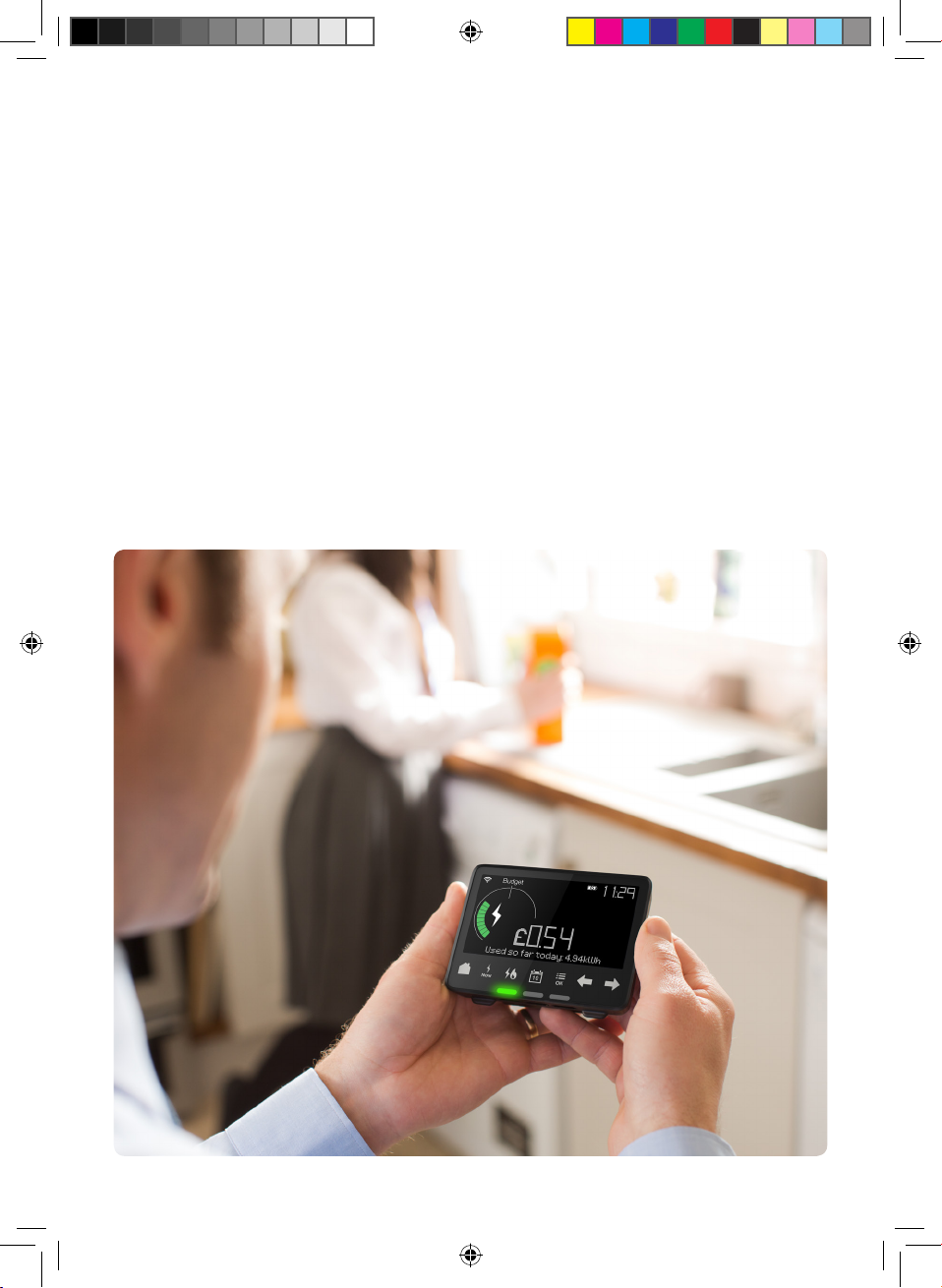
Your Smart PAYG In-Home Display (IHD)
Now that your smart PAYG meter(s) are up & running, you can start enjoying
the ease of topping up on the go via the ScottishPower App & the peace of
mind of low balance alerts on your In-Home display unit. ScottishPower will be
able to receive remote readings from your meter, so no need to have a meter
reader coming to your property. This isn’t just convenient for you it also gives
us an accurate account of your energy use, so no more estimated statements.
This user guide explains everything you need to know about using your
In-Home display, and we’ve answered some frequently asked questions for
you too. Your welcome pack should also contain user guides for your new
PAYG meter(s), however don’t worry if you still have questions about your
new meter, all our contact details are on the back cover of this leaflet.
SMETS 2 IHD Guide Jun19.indd 2 17/07/2019 09:06
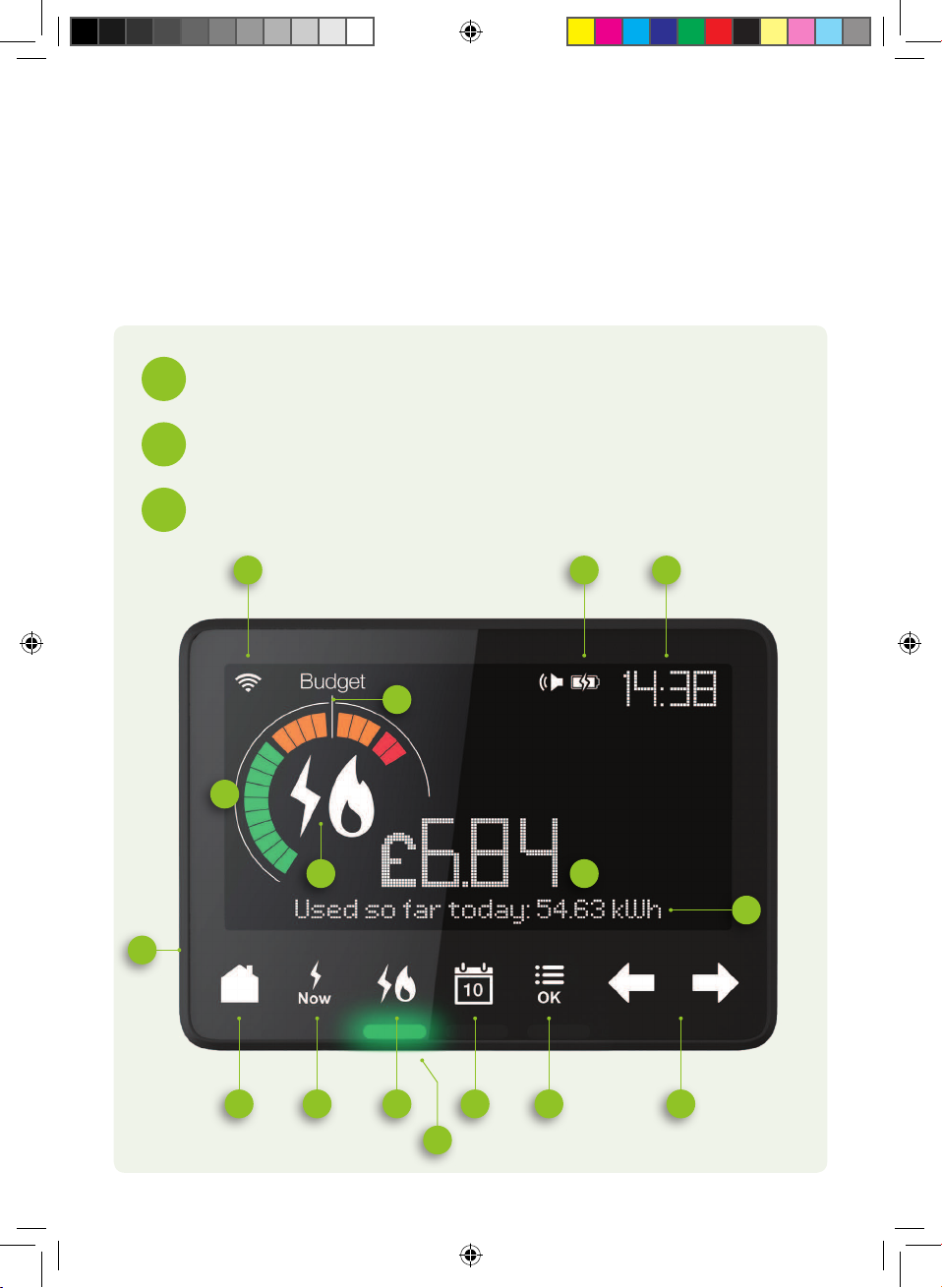
Operating your In-Home Display
Your In-Home Display is easy to use. Don’t be afraid to try it out to really
get to know it. Just use the touch buttons to control it and find out how
and when you’re using energy in your home.
Your Smart Energy Display is easy to use. Don’t be afraid to try it
out to really get to know it. Just use the touch buttons to control it
and find out how and when your business is using energy.
Wireless Signal Strength - The signal strength between
your In-Home Display and your Smart Meter
1
Battery Indicator - Battery level and charging status
2
Time - Current time in 24hr format
3
1
6
8
10
5
4
7
2
11 12 13
9
14 15 16
3
SMETS 2 IHD Guide Jun19.indd 3 17/07/2019 09:06
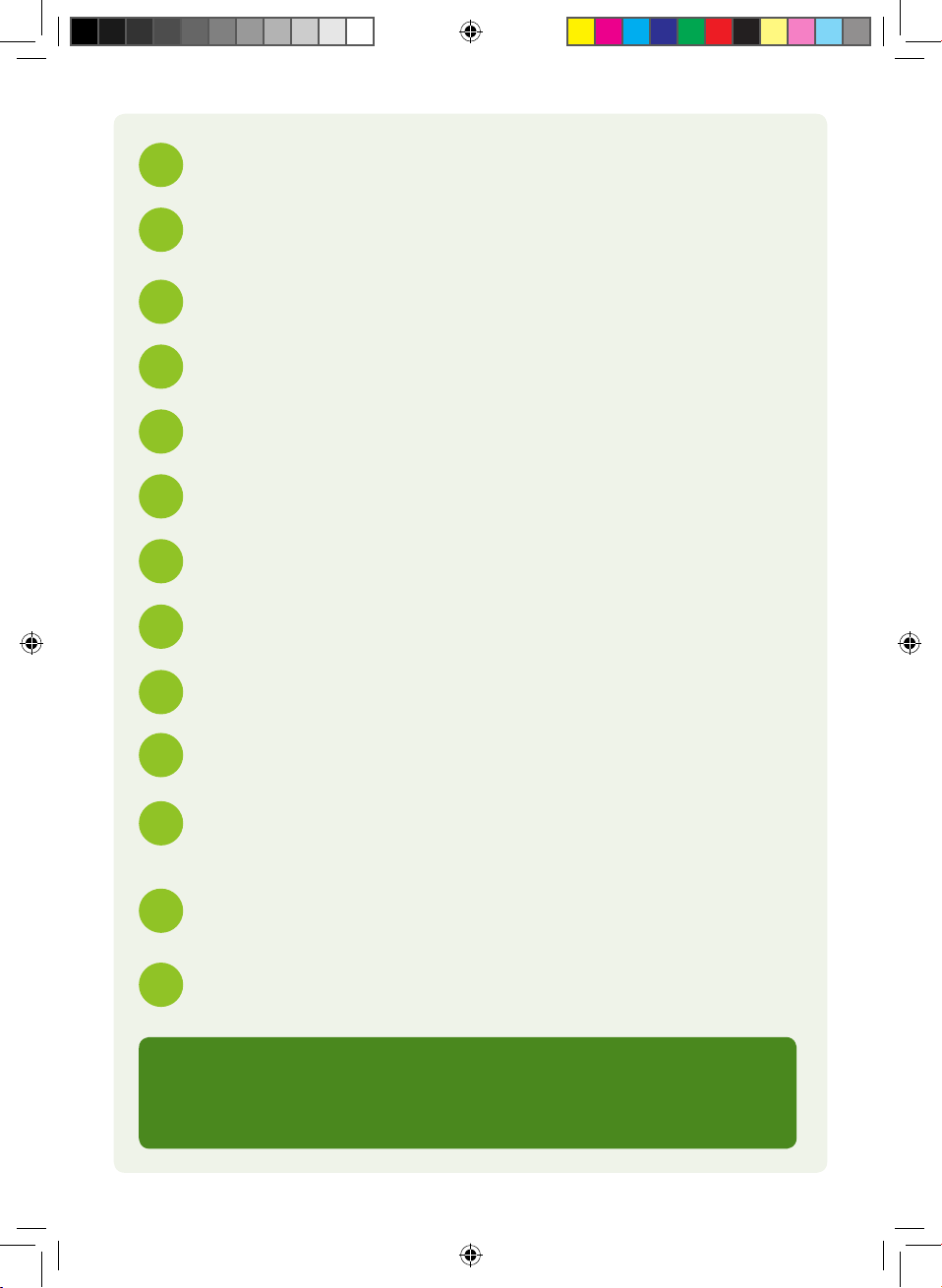
Energy Usage Dial - See your energy use at a glance:
low (green), medium (orange) or high (red).
Numeric Display - See your energy usage costs in numbers
Text Display - Displays text feedback, messages and prompts
On/O Button - On the back of the display
Home - Go to the home screen
Now - See the electricity you are using right now
4
10
7
13
Fuel Type - Shows your fuel type currently being displayed
- electricity, gas or both. The flame symbol is for gas and the
lightning symbol is for electricity.
5
11
8
14
Budget Indicator - The Budget Line indicates your personally set
budget (see more in “Setting a Budget”)
Electricity Now Lights - See your electricity use right now as
low (green), medium (orange) or high (red)
Fuel - Select gas or electricity and see your energy use by fuel type,
or the combined total
Arrows - Use the left and right arrows to scroll through the options.
Press Menu/OK again to select an option.
Menu/OK - Press MENU/OK to access the settings such as budget,
language, screen brightness. Pressing Menu/OK also selects an
option
Calender - You can choose to see your energy used SO FAR TODAY,
THIS WEEK, THIS MONTH or THIS YEAR. Use the left arrow to go
back through your usage history
6
12
9
15
16
Getting Help
Your In-Home Display has an in-built tutorial to show you how it works.
Press Menu/OK, then uses the right arrow to go to “Tutorial” and press Menu/OK.
SMETS 2 IHD Guide Jun19.indd 4 17/07/2019 09:06
Getting started
Get started with your In-Home Display
Like all wireless devices, the In-Home display can sometimes experience low signal or
lose signal completely with your smart meters, so make sure you keep it in a place where
it’ll maintain signal.
The internal battery allows you to carry the display around the house to see the eects
of turning appliances on and o. The battery lasts approx. 1 hour before it needs to be
reconnected to the power source, however we recommend that you leave it plugged in
so that it doesn’t lose power.
To switch on your In-Home display, press the button on the reverse. To switch it o press
and hold for 10 seconds. If it does lose power when running o the battery then plug
it back in and simply press on the button on the back of the display. It will take a few
minutes for the In-Home display to catch up with your energy history.
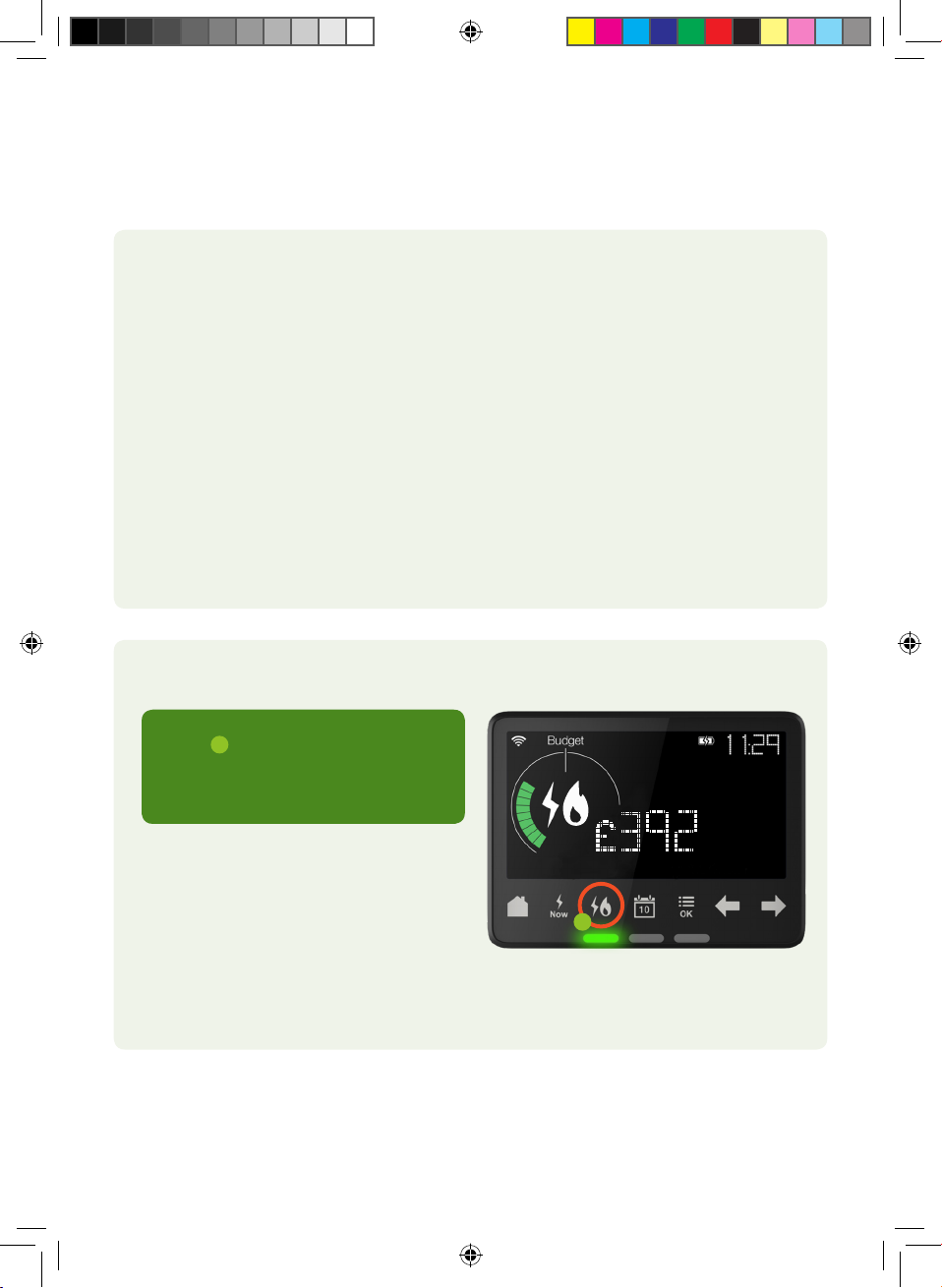
Switching between electricity and gas information
Press to select gas or electricity
and see your energy use by fuel type,
or the combined total.
Used so far today: 19.78 kWh
1
1
SMETS 2 IHD Guide Jun19.indd 5 17/07/2019 09:06

Topping Up using your Unique Transactional Reference
Number (UTRN)
In some instances you may need to top up your meter manually. You can now do this by
entering your 20 digit Unique Transactional reference number (UTRN) into your In-Home
display. You will find this number on the app or top up receipt.
Topping up using your UTRN on your In-Home display. Ensure your IHD screen is on the
desired fuel you want to top up.
{0}000-0000-0000-0000-0000
Apply Top Up Option
You have 1 message. 1 new {ok}
1- Press OK/MENU button
2- Using the right arrow navigate to
the ‘APPLY TOP UP OPTION’
3- Press OK
4- To start entering the digits of the
UTRN use the right arrow to cycle
through to your desired digit.
Pressing OK will lock in your digit
and move you onto the next
number entry
5- If you make an error you can go
back by using the left arrow
6- Once you have entered all 20 digits
press OK, check the numbers
entered are correct
7- Press to OK to submit your UTRN, a
message will appear ‘TOP UP SENT’
8- The message envelope icon will
appear on the front screen and a
rotating ‘’NEW MESSAGE’’ alert will
appear at the bottom of your IHD
screen
9- To view the message press OK/
MENU
10- Using the right arrow navigate to
the message screen, Select OK
11- 1 of 3 messages will appear Top UP
Rejected / Top UP Duplicate/
Top UP Success. If your top up is
rejected please re-enter ensuring
all digits are accurate. If your top
up continues to be rejected please
contact us
12- Press OK to choose to delete
message press OK will give you
option to delete or save message
13- If successful your meter balance
should now reflect your top up
2
4
8
SMETS 2 IHD Guide Jun19.indd 6 17/07/2019 09:06
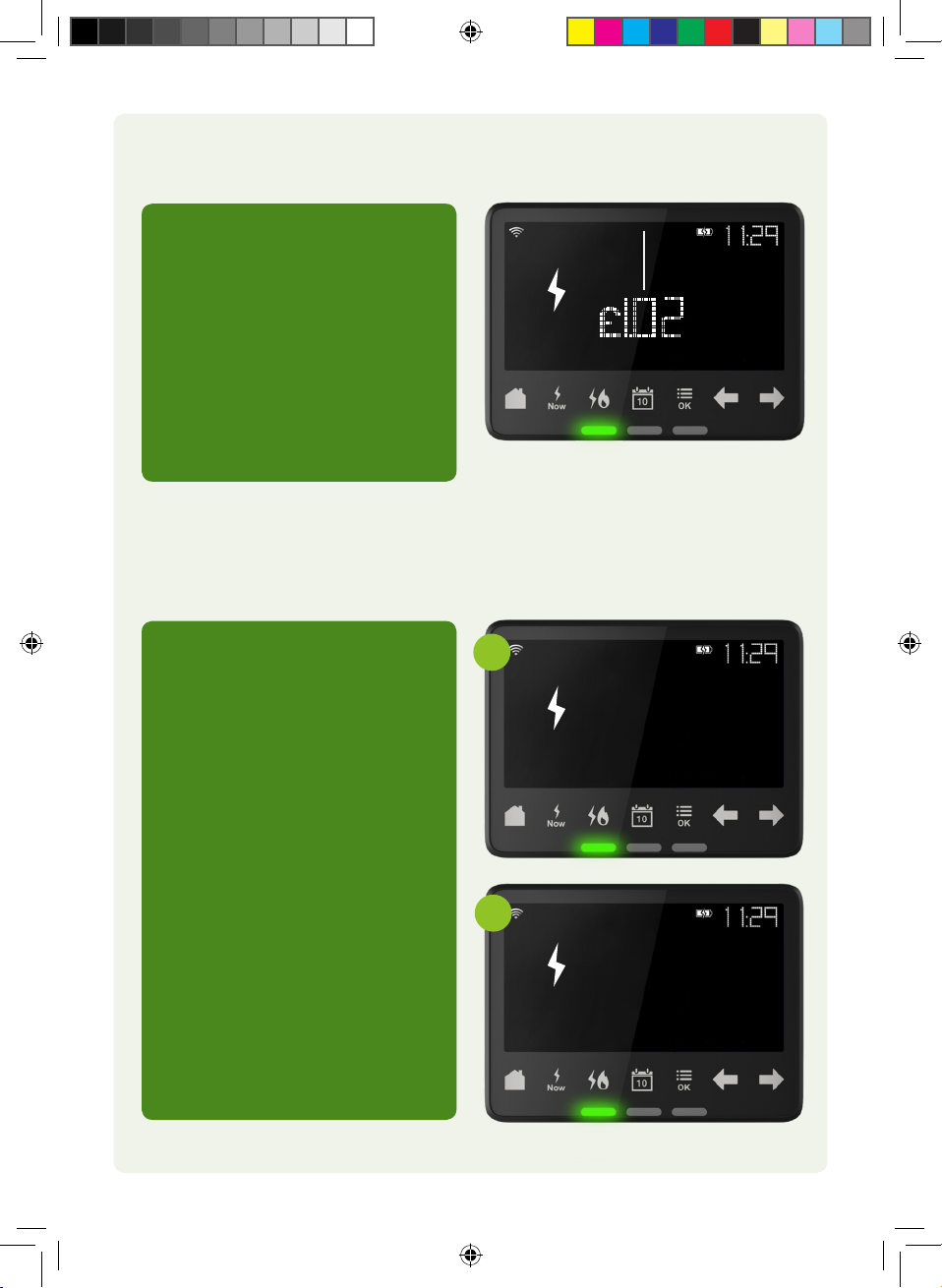
Accessing Emergency Credit for Gas and Electricity
via your In-Home Display
When your meter balance falls
below £1 you will be able to access
the emergency credit When the
LOW CREDIT WARNING is displayed
you will see an additional message
‘Emergency Credit Available ‘
1- Press OK
2- ‘’Select Emergency Credit ‘’
message will appear
3- To Activate press OK
Electricity low credit warning
Re-enabling your supply (Electricity only) via your In-Home
display your IHD will show ‘Electricity Supply Disconnected’
1- Press OK
2- Select Emergency Credit Press OK
3- ‘’Emergency Credit Selected’’ will
appear
4- Go back to the main menu
5- Activate Supply Press OK
6- Enable Electricity Supply Yes/NO
Press OK
7- Your supply will now be
re-connected and emergency
credit will be activated
Once you have activated your
emergency credit or made a top up
your supply will become armed, in
order to enable your supply you can
do this via the meter or IHD.
Please note that your gas supply will
have to be re-enabled at your meter,
see the separate gas meter user
guide.
Emergency credit selected
Enable electricity supply {YES/NO}
3
6
SMETS 2 IHD Guide Jun19.indd 7 17/07/2019 09:06
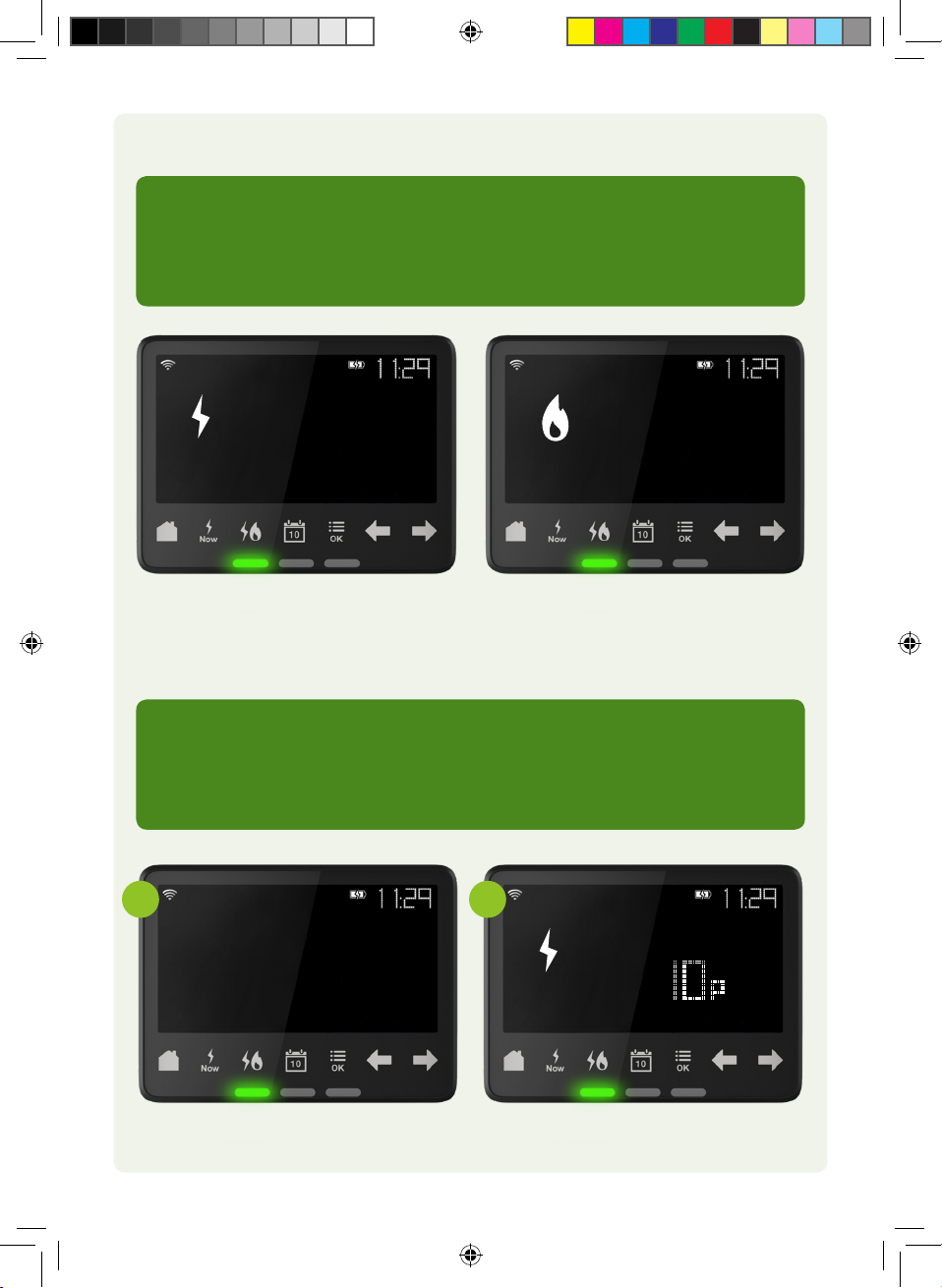
Low credit warning on your In-Home Display
Checking your tari on your In-Home display
1. Press Menu/OK button
2. Press OK on account information
3. Your current kWh rate will display
4. Press right arrow to view daily standing charges
Your IHD will provide low credit warnings. These alerts will give you enough time to
arrange a top up.
Your IHD will display the fuel which has fallen below the LOW Credit threshold of £2.
If this icon is
displayed then the
low credit warning
is for electricity.
If this icon is
displayed then the
low credit warning
is for the gas.
Account Information [OK] Prepayment tariff per kWh
3
2
SMETS 2 IHD Guide Jun19.indd 8 17/07/2019 09:06
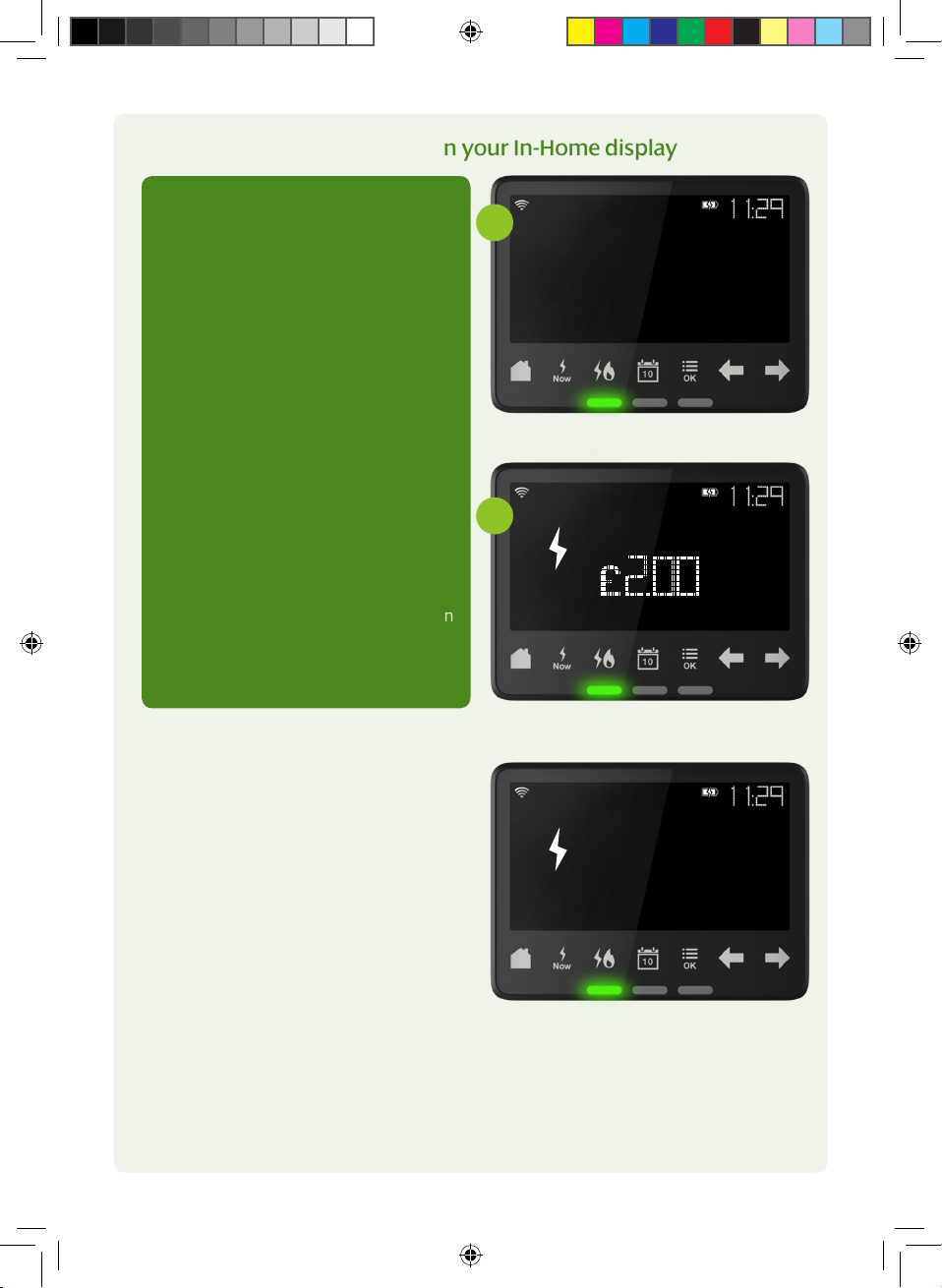
Checking your Debt Settings on your In-Home display
1. From the home screen ensure
you’re on the correct fuel, to
alternate between fuels press the
fuel button
2. Press Menu/OK button
3. Press the right arrow to cycle
through menu options until DEBTS
[OK] is displayed press OK button to
view debt information
4. Using the right arrow to cycle
through debt information which
includes the following
• Debt to clear
• Electricity or Gas debt dependant
on which fuel you have chosen
to view
• Debt 1 Total & Debt 1 recovery rate
• Debt 2 Total & Debt 2 recovery rate
• Debt 3 Total and % per top up
5. Press Home button to return to main
menu
Debts [OK]
Electricity debt
Debt 3 : 20.00 % per Top-up
3
4
SMETS 2 IHD Guide Jun19.indd 9 17/07/2019 09:06
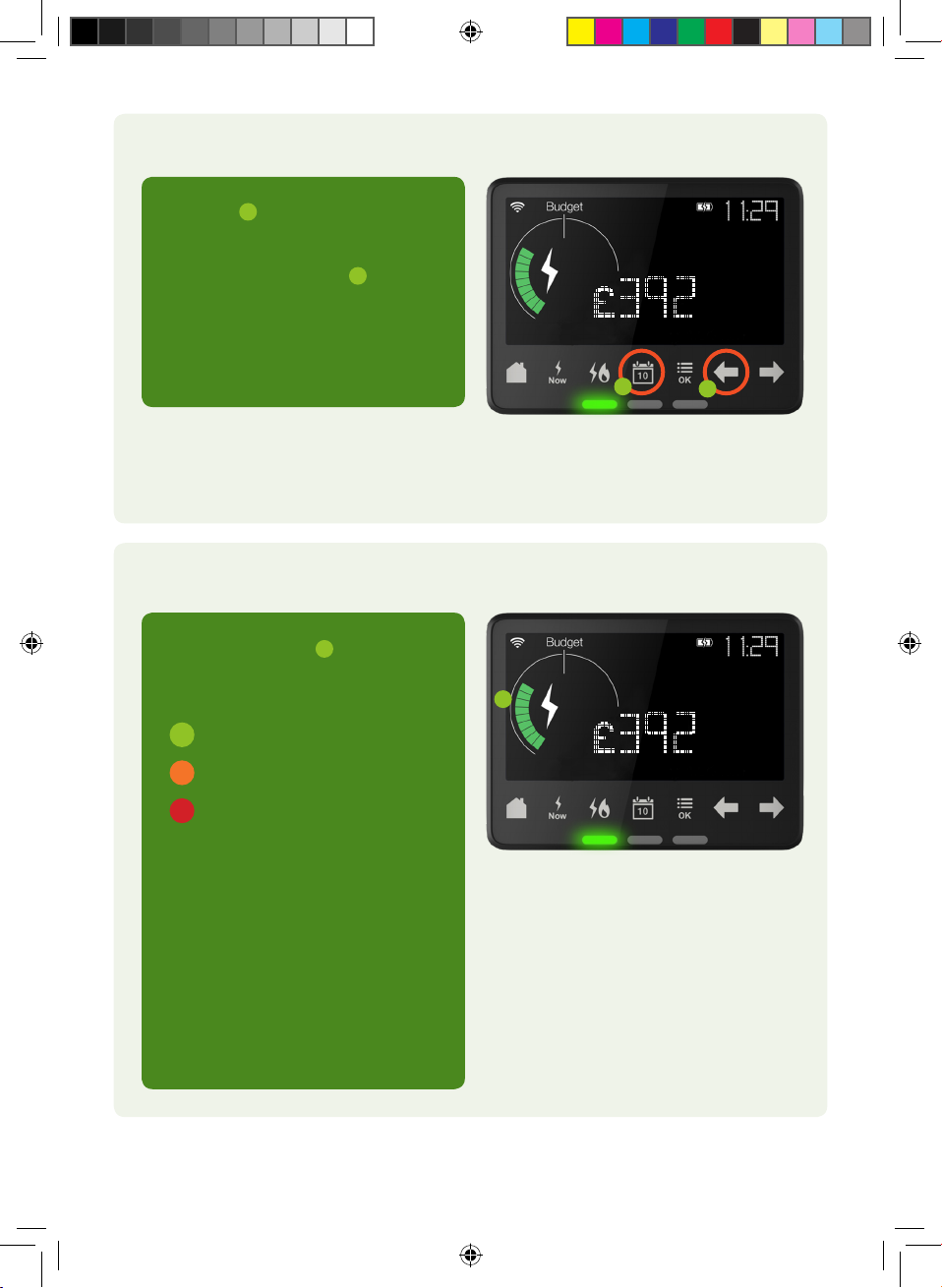
View energy use across a time frame
Light Indicator
Please note, your gas meter updates the In-Home Display every half an hour,
whereas the electricity is updated every 10 seconds
Calendar You can choose to see
your energy used SO FAR TODAY,
THIS WEEK, THIS MONTH or THIS
YEAR. Use the left arrow to go
back through the usage history.
The coloured lights give you an
indication of the electricity you’re
using in your home right now.
Green - low level of energy use
Amber - medium level of energy use
Red - high level of energy use
1
1
2
Based on your previous week’s
consumption, your In-Home Display
will begin to learn the amount of
electricity you use. If the light is red
then you are using considerably
more energy than the previous week
and you may want to look at ways to
reduce your energy use.
Used so far today: 19.78 kWh
Used so far today: 19.78 kWh
1
12
SMETS 2 IHD Guide Jun19.indd 10 17/07/2019 09:06
Indice
Manuali Accessori audio e video popolari di altre marche


Delta Electronics
Delta Electronics AFE075A43A Manuale utente

Yamaha
Yamaha PTB-4210 Manuale utente

Burst Electronics
Burst Electronics MCG-2 Manuale utente

Panasonic
Panasonic DMP-BD60 - Blu-Ray Disc Player Manuale utente

mind alive
mind alive Smart Manuale utente

MagniLink
MagniLink S PREMIUM 2 MLS-HD-2 Manuale utente