ScreenBeam SBWD100B, SBT200DI Manuale utente

ScreenBeam
Wireless Display Kit
User Manual
For Catalog # SBWD100KIT01
V2

Table of Contents
Part I. Introduction..........................................................................................................................1
1.1. Features..........................................................................................................................1
1.2. System Requirements ..................................................................................................1
1.3. Meeting ScreenBeam Wireless Display Kit...............................................................2
Part II. Connecting to a ScreenBeam Wireless Display Receiver...........................................3
2.1. Install ScreenBeam Wireless Display Software........................................................3
2.2. Set up the ScreenBeam Wireless Display Receiver................................................3
2.3. Pairing the Transmitter with Receiver.........................................................................4
2.4. Selecting a Wireless Channel......................................................................................5
Part III. Setting Wireless Display Preferences........................................................................8
3.1. Preferences Window.....................................................................................................8
3.2. Windows Viewing Configuration................................................................................10
Part IV. Updating the Software................................................................................................11
Part V. Frequently Asked Questions..........................................................................................13

1
Part I. Introduction
The ScreenBeam Wireless Display Kit wirelessly mirrors all your favorite content and
productivity apps from your mobile device screen onto a HDTV, without a Wi-Fi network or
wireless router. The kit contains everything users need to create a point-to-point connection
between the device and the room display. This dedicated connection means users don’t
worry about crashing, lag times, and choppy or freezing video. It saves time and money by
eliminating the need to run cables and drill holes.
With ScreenBeam Wireless Display Kit, users beam their favorite videos, photos and
movies to the best high-definition display in the house. Connect the ScreenBeam wireless
display receiver to the HDTV and wirelessly display content from a Windows device. The
ScreenBeam Wireless Display Kit includes a ScreenBeam USB Transmitter 2 that plugs
into a Windows 7/8 legacy device lacking native Miracast to connect to a ScreenBeam
receiver and take advantage of wireless display. Sit back and watch movies from Netflix,
Hulu, Amazon, or YouTube. Share vacation photos and videos with the entire family,
without having to huddle around a tiny screen.
1.1. Features
Mirror your compatible device screen onto HDTV or HD projector wirelessly
Extend the laptop display to the HDTV while you work on the main desktop
Works with legacy Windows 7/8 laptops, PCs, or tablets
Support HDTV with HDMI input
Does not require existing Wi-Fi router
Easy setup, everything you need is included
1.2. System Requirements
(For the application software)
Laptop, tablet or PC with Windows 7 or 8 (32/64-Bit) andAMD A6 or Intel Gen 3 Core i3
equivalent with 2GB of memory, 150 MB of hard disk spaces and a USB 2.0 port.

2
1.3. Meeting ScreenBeam Wireless Display Kit
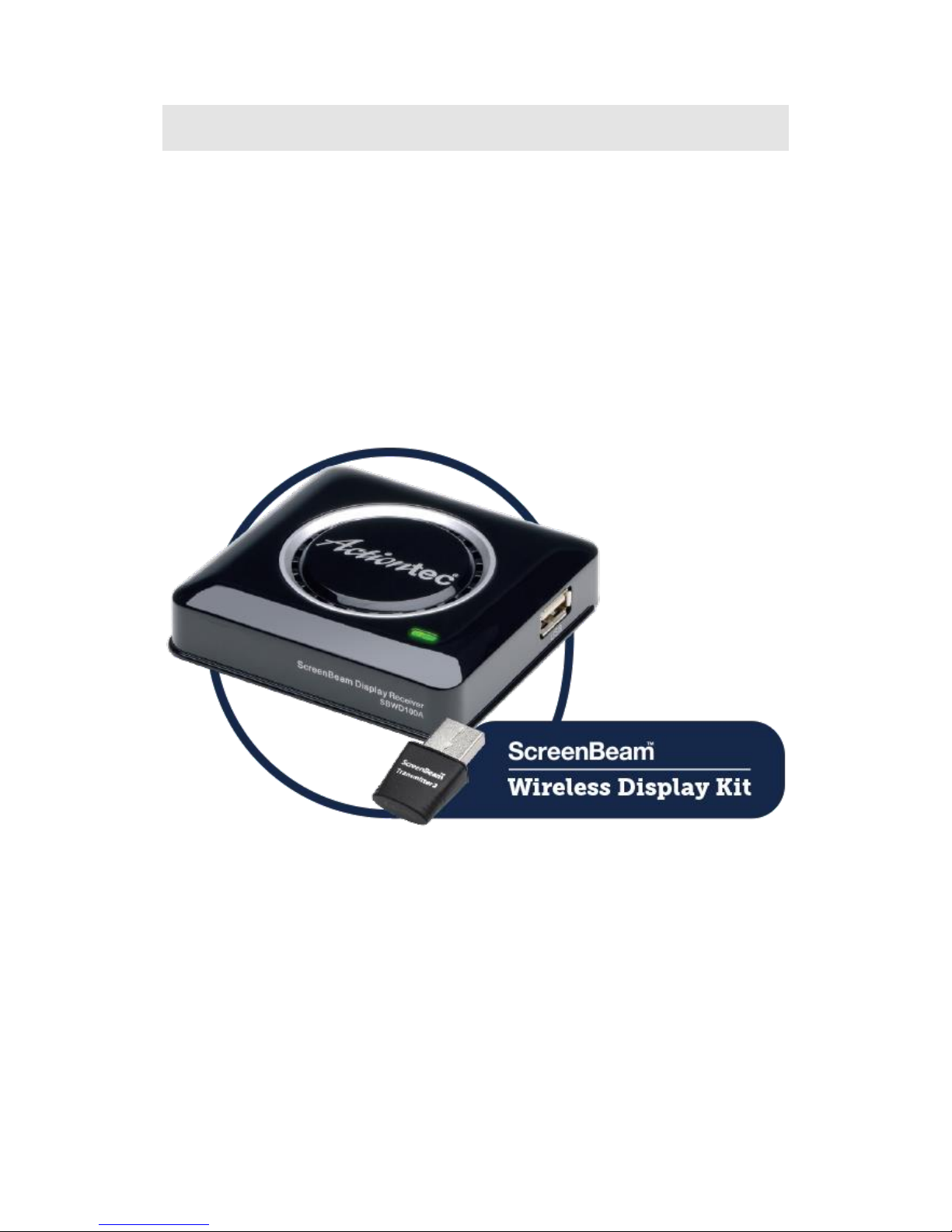
The ScreenBeam Wireless Display Kit contains three components:
- ScreenBeam Wireless Display receiver
- ScreenBeam USB Transmitter 2
- ScreenBeam Wireless Display software (download online)
The ScreenBeam USB Transmitter 2 has a single USB connection, used to connect it to a
USB port on a Windows 7/8 laptop/PC without native Miracast support. The ScreenBeam
Wireless Display receiver receives video transmissions from the laptop/PC through the
ScreenBeam USB Transmitter 2, and display on the HDTV. To use ScreenBeam in this
manner, you must install the ScreenBeam Wireless Display software on the computer.

3
Part II. Connecting to a ScreenBeam
Wireless Display Receiver
This chapter details the necessary steps to connect to the ScreenBeam Wireless Display
receiver. To prepare for the wireless display connection, you will need the following items:
ScreenBeam USB Transmitter 2
ScreenBeam Wireless Display receiver
ScreenBeam Wireless Display software
A laptop, tablet or PC running Windows 7 or 8
A HDTV with HDMI port
2.1. Install ScreenBeam Wireless Display Software
1. Download ScreenBeam Wireless Display software to your laptop, tablet or PC from
www.actiontec.com/products/sbupdate.php.
2. Click ScreenBeam_setup.exe and follow the on-screen instructions.
2.2. Set up the ScreenBeam Wireless Display Receiver
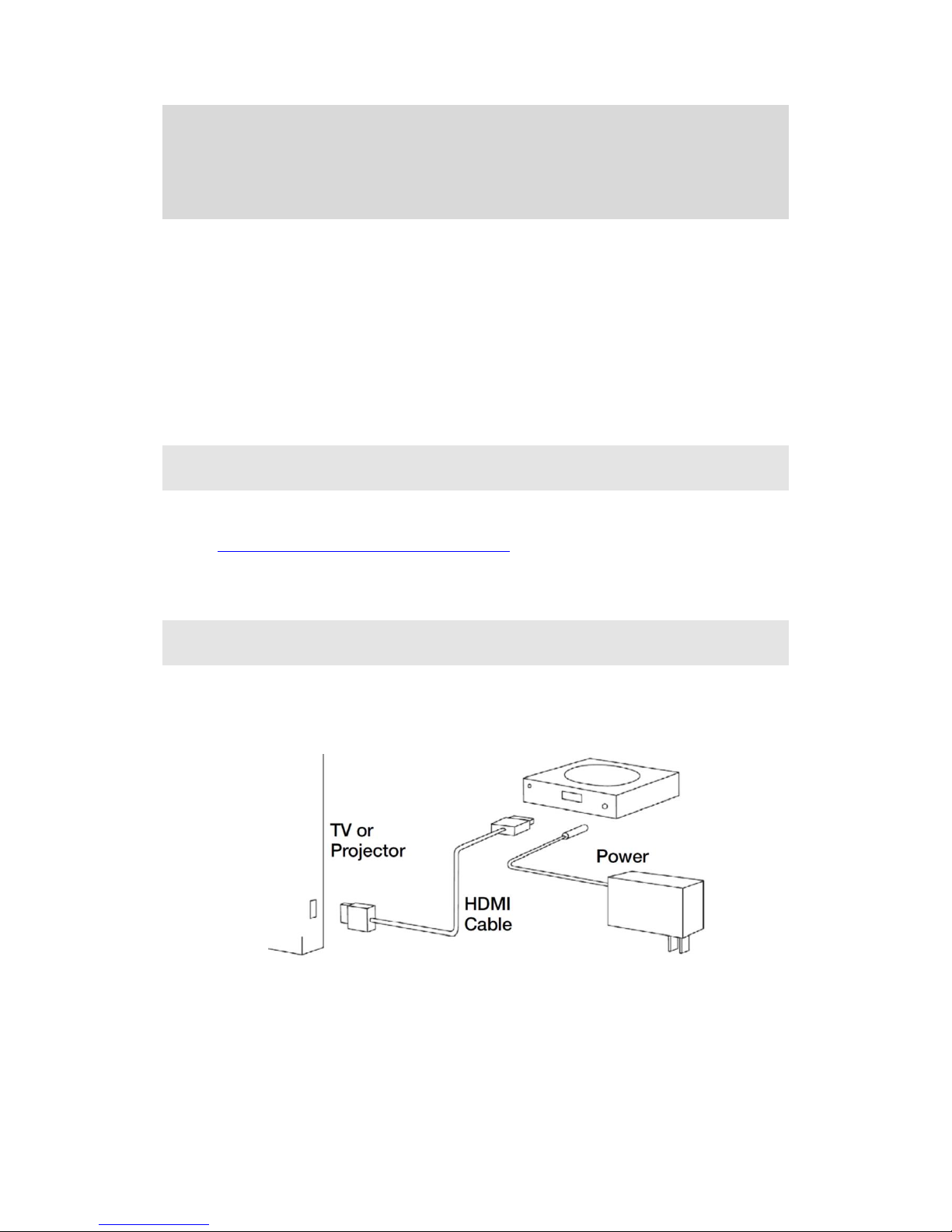
1. Place the receiver next to the monitor or projector.
2. Using an HDMI cable, connect one end to the receiver’s HDMI port and the other
end to the HDMI port on the monitor or projector.
3. Connect the power port to the receiver and plug it in.
4. Turn on the monitor or projector and select an HDMI input.
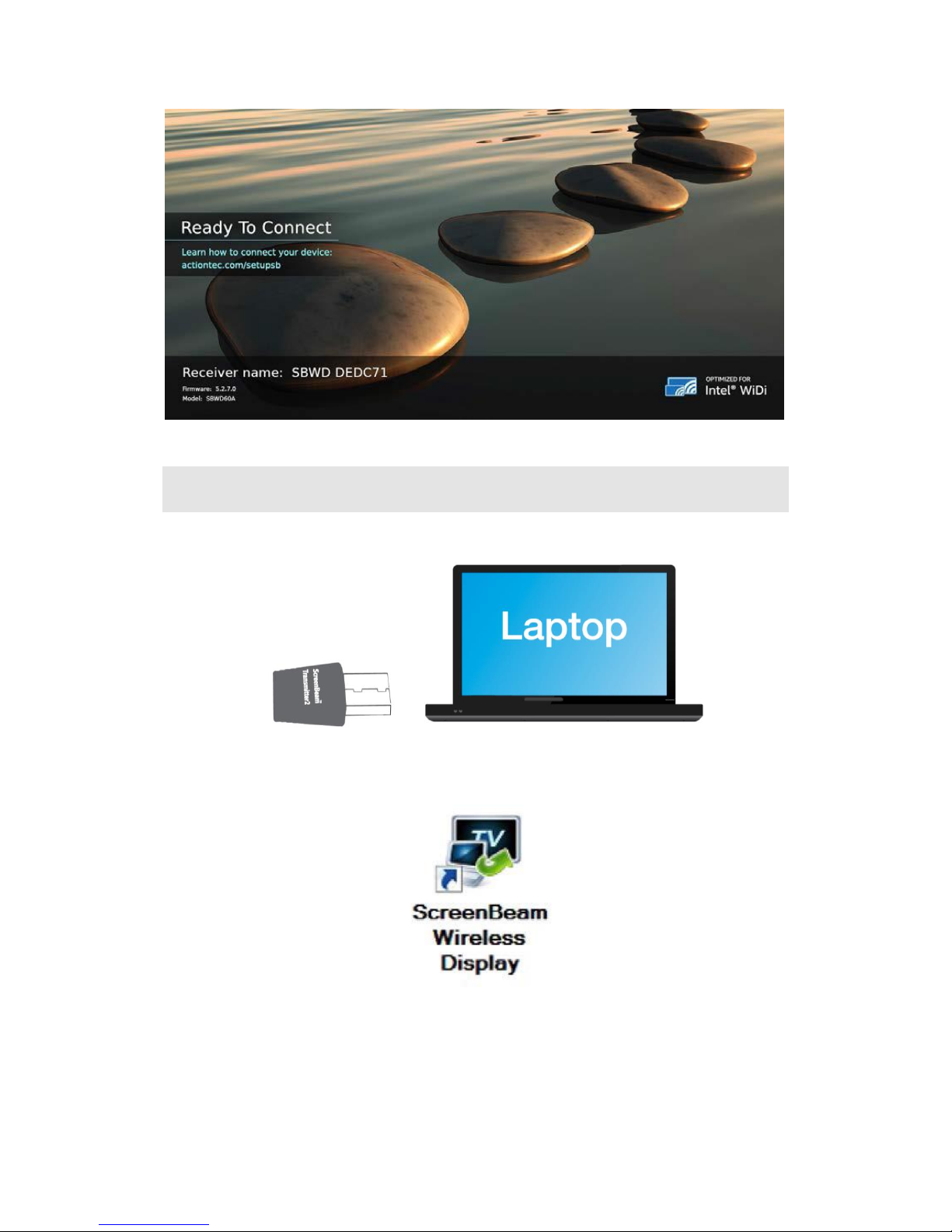
5. In approximately 30 seconds, the monitor or projector will display a Ready to
Connect screen.

4
2.3. Pairing the Transmitter with Receiver
1. Plug the transmitter into a USB port on your laptop, tablet or PC.
2. Launch the ScreenBeam wireless display software by clicking the icon on the
Windows desktop.
Note: If the main screen is not displayed after the software is launched, you can find it in
the Notification Area. Click the ScreenBeam Wireless Display icon to display the main
screen.
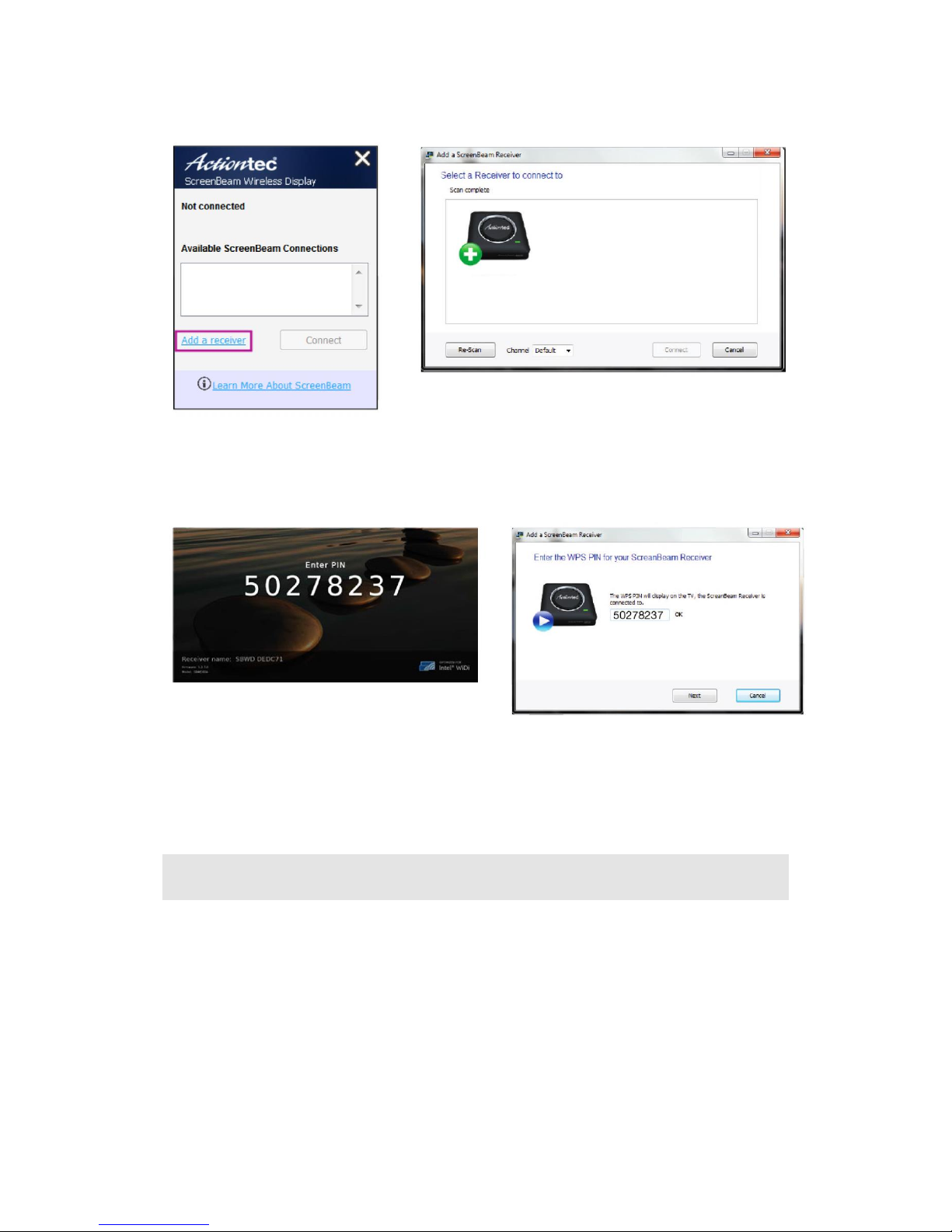
3. Click Add a Receiver on the control panel of the software, and find your receiver
name. This is the same name that appears on the Ready to Connect screen on

5
the monitor or projector.
4. APIN will appear on the screen. Enter the PIN in the software, and click Next to pair
your transmitter and receiver.
The ScreenBeam wireless display receiver and ScreenBeam USB Transmitter 2 are now
paired. As a result, you should see your laptop, tablet or PC’s screen on the HDTV monitor.
2.4. Selecting a Wireless Channel
The ScreenBeam Wireless Display software scans your environment and selects the
cleanest channel (5GHz band) automatically for the wireless connection. You can also
manually select a preferred channel. To manually select a wireless channel:
1. In the ScreenBeam Wireless Displaysoftware, click Add areceiver onthemainwindow.
2. In Add a ScreenBeam Receiver window, select a preferred channel in the Channel
drop-down list.

6
Note: “Auto” is recommended, which allows the software to automatically select the
cleanest channel available.
3. Select your receiver and then click Connect to connect to the receiver.
4. The selected channel will be used.
You can also define a wireless channel in the Preferences window:
1. Make sure the laptop, tablet or PC is disconnected from the receiver.
2. Right-click the icon in NotificationArea of the laptop, tablet or PC’s desktop and select
Preferences.
3. Select a preferred channel in the Wireless Channel list, and click OK.

7
Note: The wireless channel configuration in the Preferences window is used for a
persistent connection. Generally, “Auto” is recommended.
4. Reconnect the laptop, tablet or PC to the receiver. The selected channel will be used.

8
Part III. Setting Wireless Display
Preferences
This chapter details how to adjust the options available to you when transmitting a device’s
display to an HDTV monitor. Most of these settings reside in the Preferences window.
3.1. Preferences Window
To open the Preferences window, right-click the ScreenBeam icon from the Notification
Area of the laptop, tablet or PC’s desktop. When the ScreenBeam options menu appears,
click Preferences.
Note: Ensure the laptop, tablet or PC is disconnected from the receiver before making any
of the following changes.
Indice
Manuali Sistema microfonico popolari di altre marche

Sennheiser
Sennheiser Evolution Wireless Digital EW-DX EM 2 Manuale utente

Alpha Technologies
Alpha Technologies RBMS Manuale utente

SWIT Electronics Co.,LTD.
SWIT Electronics Co.,LTD. CW-S150 Manuale utente

Shure
Shure UA844 Manuale utente

Panasonic
Panasonic SHFX70 - DVD HOME THEATER WIRELESS SYSTEM Manuale utente

Pyle
Pyle PDWM5000 Manuale utente