
SecurUS eZoom Manuale utente


For more information about eZoom, click here. 1
Important information
How to send an alert or check in:
How to remotely arm eZoom:
• Press the SOS button for 3 seconds.
• Your emergency contact will receive your
location by email or text message alert.
• Arming eZoom with your mobile app creates an
instant SafeSpot around the locator. If it moves
from that location, you will be alerted.
• In the mobile app menu, press Arm/Disarm.
Select the locator you would like to arm (if you
have more than one).
• Press the Arm button on the screen. When it
turns green, the eZoom is armed and will alert
you if it is moved from its location.
• Note: Alerts are not sent when eZoom is tracking.
Activate and charge eZoom before
installing with auto installation kit.
For more information about eZoom, click here. 2
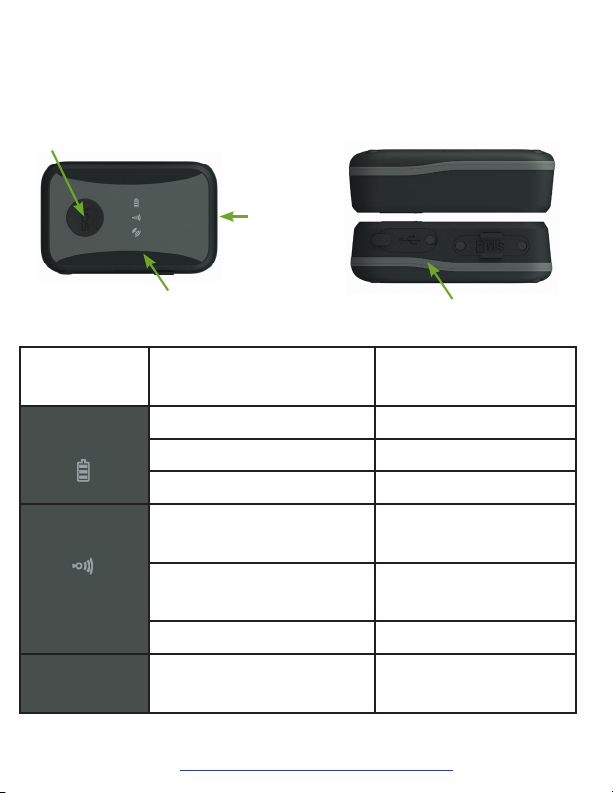
1. Your eZoom Locator
Status Lights Charging Port
Power
Button
SOS Button: alerts your contact
person to your current location
Status
Lights
Status Appearance
Battery Charging Solid
Fully charged O
Battery is low Flashing
Network Connecting Flashing every 5
seconds
Connected Flashing every 10
seconds
Not connected Not ashing
All 3 lights SOS button pressed Solid until alert is
closed

For more information about eZoom, click here. 3
2. Getting Started
• Check the coverage map:
www.securusgps.com/coverage-map.aspx
• Fully charge your locator using the AC charger
before starting the activation process.
Note: The initial charging time is 5 hours.
• Place your eZoom outside or in a window with a
clear view of the sky before activating to ensure a
strong GPS signal connection.
• DO NOT PRESS SOS BUTTON UNTIL ACTIVATED.
• Locate the IMEI number on the back of your locator
or on the bottom of the package.
• Have a credit card available.
IMEI number

For more information about eZoom, click here. 4
3. Create Your Account Online
• Go to www.SecurusGPS.com and click Activate to ll
out the Customer Registration form.
• Enter information when prompted.
• Press Submit.
• You will be sent a conrmation of your registration to the
email address you entered in the registration form.

For more information about eZoom, click here. 5
4. Account Activation
• Open the registration conrmation email message
and click on the link to activate your account.
• Log in using the email address and password you
created during step 3.
• After logging in, click Activate on the top menu.
• Select eZoom in the drop down menu. Click Next.
• Enter your IMEI when prompted. This can be found
on the back of your eZoom locator (see step 2) or on
the bottom of the package. Click Next.
• Enter information when prompted.
• Select a Service Plan and the Extended Warranty
(optional), enter your credit card information and click
Next.
• Click Settings to enter emergency contact
information.

For more information about eZoom, click here. 6
5. Edit Alert Settings
• Click Change on the Settings page.
• You have the option to receive alerts when the eZoom
enters or leaves SafeSpots.
• If desired, create SafeSpots and select how you wish to be
alerted.
• Alert Settings:
• To receive alerts, turn the Alert System on.
• To stop receiving alerts, turn it o.
• Determine if you want to have alerts sent to your email,
cell phone, or both.
• Enter at least one email address.
• Enter at least one cell phone number.
• Select if you want to receive alerts when your locator
has a low battery or when the user is traveling over a
certain speed.
• Click Save.
To send an emergency alert or check-in alert, hold
the SOS button on the eZoom GPS locator and your
emergency contact will receive your location by email
or text message.

For more information about eZoom, click here. 7
6. Find and Track Your eZoom
Find
• Online at www.SecurusGPS.com/GPSaaS:
• Log into your account and click Find.
• The eZoom’s current location will display on the map.
• From your mobile phone:
• Text Find <locator name> to 96225 from a cell phone
registered in step 5.
• Note: “Find” is not case sensitive.
• Example 1: Find Isabella
• Example 2: nd William
• eZoom will send the locator’s current location
information to your mobile phone.
Track Online
• Log into your account and click Track.
• eZoom’s current location will be centered on the map.
• The location will update every 30 seconds.
• Note: Alerts are not sent when tracking.
You can also use mobile applications to nd eZoom.
Visit www.SecurusGPS.com/MobileApps.aspx to
download apps.

For more information about eZoom, click here. 8
7. View and Download History
• You can view and/or download recent location
history in your tracking dashboard. Location
history is recorded if you did a FIND request or if
your eZoom is in continuous tracking mode.
• To view history, click History under your
locator on the tracking dashboard. Enter the
number of days or hours you would like to
view on the map.
• To download history, enter the dates you
would like to view and click Download.
• You can also control your data by deleting
location history anytime. To delete, enter the
number of days or hours you would like to
delete and click Delete.

For more information about eZoom, click here. 9
8. Create and Edit SafeSpots
• Click Settings on the tracking dashboard.
• Click Change under SafeSpots.
• To create a new Safespot, click New.
• Enter the address or select it on the map by
clicking Locate myself on Map and then
clicking on the area you would like to use as a
SafeSpot.
• Create a name for the SafeSpot.
• Create a radius. Note: To prevent false alerts,
create a radius of at least 300 yards.
• Click Save.
• To edit the address, name or radius of a Safespot,
click Edit.
• Make the changes you would like.
• Click Save.
• To delete a Safespot, select the SafeSpot you
would like to remove from the dropdown menu
and click Delete.
Indice
Altri manuali SecurUS GPS


