SENKO SGT Manuale utente

SGT Docking Station
Version II
User’s Manual
SGT Docking Station version II

Table of Contents
2
Warning …………………….…………………………………………………………
1. Overview …………………………………………………………………………..
1.1 Description ………………………………………………………...
1.2 Instructions and Parts ……………………………………………..
1.3 Key Features …………………………………………………….…
1.4 Specification …………………………………………………….…
2. Set up and Operation ……………………………………………………………..…
2.1 Power turn on/off …………………………………………………..
2.2 Bay LEDs and meanings ……………………………………......….
2.3 Charging battery …………………………………………………....
2.4 Exhaust Port & Fresh air Inlet ………………………………………
2.5 Installation of Gas Cylinder ……………………………………..…..
3. Testing …………………………………………………………………………….…
3.1 Calibration ………………………………………………………..…
3.2 Bump Test ……………………………………………………….…
4. Trouble Shooting ………………………………………………………………….…
5. Docking Station II Manager Software ……………………………………………..…
5.1 Software Installation ……………………………………………..…
6. Connecting to the SGT Docking Station II ……………………………………….….
6.1 Connecting with SENKO IR Link ……………………………………
6.2 Connecting with USB ……………………………………………….
7. Using Software …………………………………………………………………...….
7.1 Overview of Software ………………………………………………
7.1.1 Docking Station Tab …….………………………..
7.1.2 SGT Tab ……………………………………….…
7.1.3 Logs Tab …………………………………......…..
Limited Warranty …………………………………………………………………….…
3
4
4
4
5
5
6
6
6
6
7
7
7
7
8
8
9
9
11
12
12
13
13
14
15
16
17
SGT Docking Station version II

WARNING
Any unauthorized attempt to repair or modify the product, or any other cause
of damage beyond the range of the intended use including damage by fire,
lightening, or other hazard, voids liability of the manufacturer.
Do not use if the device appears to be damaged.
Use the device in a clean environment, which has no hazardous gases.
Do not use the expired gas cylinders.
Ensure to use the certified gas cylinders.
Ensure that the gas types and the concentrations match with manuals and
devices.
Severe vibration or shock to the device may cause a sudden reading change
and cause the device malfunction.
Do not leave or use the device at the watery place or at where there is any
liquid.
Do not use a device which has been failed the test.
Read the operation manual before use
✓Before operation, read the manual carefully and follow all the instructions.
✓IR link communication works only when it is placed at the bay 1 on the docking
station.
✓The deice only operates when the power LED turns to green.
✓Before upgrading firmware, connect the plug to avoid any data loss and
malfunction by unexpected power off. And the file names are fixed as below.
- Docking F/W File Name : DK_FW.bin,
- SGT F/W Name : SGT_FW.bin
- SGT_CO.bin, SGT_H2S.bin, SGT_O2.bin
3
SGT Docking Station version II

1. Overview
A Bump test and the calibration are the key features to ensure the safety of
devices and users. The SGT docking station version II provides bump testing,
event management and calibration from a simple to use multi-unit station and
gives fleet or safety managers the ability to update configurations on large fleets.
It also maintains all the important event logs that demonstrate users are working
within company requirements.
4
1.2 Instructions and Parts
1.1 Description
SGT Docking Station version II
a
c
d
efg
i
b
h
a
Bay LED
b
Bay 1
c
Handle
d
Thumbscrews
e
Power LED
f
Bump Test button
g
Calibration button
h
Bay 2, 3, 4
i
Pressure gauge
j
Cylinder 58L/116L
k
Cylinder Straps
l
Gas regulator
m
Cylinder compartment
n
Exhaust port
o
Fresh air Inlet
p
LAN port
q
Charging port
r
USB port
n
o
p
q
j
k
l
m
r
Figure 1

5
✓Zero and Span Calibration, Bump Test Function
✓Rechargeable internal battery lasts up to 1000 bump tests on a single charge
✓Indicate the current status of operation by the Power LED and Unit LED color
✓Configure settings and automatic update firmware of up to four SGT devices
✓Gas Ventilation system to remove a remained gas
✓Computer not required for normal operation
✓Save the log events after calibration and bump test
✓Enable users to adjust the setting points of Docking station and SGT via IR Link or USB
5
1.3 Key Features
1.4 Specifications
Size 52.5 x 43.7 x 21.3cm (20.66” x 17.20” x 8.40”)
Weight
(Without cylinder) 11.0kg
Temperature 41 to +104˚F (5 to +40˚C)
Warranty Full 2 years
Battery Type Rechargeable Lithium Ion
Battery Life Up to 1,000 Bump Tests
LEDs 6 Blue LEDs for each bay, 3-color LED for power,
Switch Back Light LED (Orange, Green)
Memory USB 8GB Standard
Log Capacity Approximately Up to 5 million tests (8GB, removable USB memory)
Tests Performed Bump Test and Calibration
Information
Stored
Bump/Calibration Logs, Individual Monitor Event Logs, Firmware and
Unit Configurations
Gases Available CO, H2S, O2
Compatibility Works with SGT & SGT-P (O2, CO, H2S)
Calibration Gas Compatible with 58L & 116L cylinders with C10 fitting
Interface Ethernet RJ-45(TCP/IP), 10Mb/s
Charging Adaptor DC12.0V, 3A/h
SGT Docking Station version II

6
2. Set up and Operation
2.1 Power turn on/off
The SGT Docking Station version II operates using only 2 (two) buttons for calibration and
Bump Test.
To turn on the power, follow the below:
✓Press and hold either Calibration or Bump Test button for 2 seconds.
✓The Power LED turns on to orange and blinks during the warming up and after while
turns to green when it is ready. When the unit has a low battery, the LED turns to red.
To turn off the power, follow the below:
✓Press and hold both Calibration and Bump Test buttons simultaneously for 2 seconds.
2.2 Bay LEDs and meanings
Each Bay has six blue LEDs (see Figure 2) which indicates the process status. Each of them
will turn on by order from left to right while testing. After testing is finished, make sure all six
bays are turned on otherwise, 3rd bay LED will be shown if test is failed.
2.3 Charging battery
The unit`s Power LED turns to red when the battery is very low as shown above. However, it
comes with a DC adapter with 5plugs which can be used to charge the unit using a 110V
power supply. A full charge will take approximately 3 hours and will last for approximately
1000 bump tests.
Note: Refer to Figure 1 for charging location.
Note: If unit is inactive for 300 seconds, it will automatically off (save power mode)
The button/unit only works when the power LED turns to green
SGT Docking Station version II
Figure 2

77
2.4 Exhaust Port & Fresh Air Inlet
There are two small ports on the left side of the charging port (see Figure 1). The Fresh air
inlet port will draw clean air in during an active test. The incoming air automatically counts as a
fresh air (O2, 20.9%vol).
The Exhaust port is the inverse of the Fresh air inlet port. During an active test, the used test
gas will exit the unit through the exhaust port. Optionally, tubing can be attached to the
exhaust port using the included twist connector to direct the used test gas to a suitable
location.
2.5 Installation of Gas Cylinder
Gas Cylinder which fits to Docking Station II must have the C10 fitting on it. The size of 58L
and 116L are both suitable in cylinder compartment. Before installing the cylinder for testing
SGT, ensure that Calibration concentration of gases are as same as SGT.
To install a cylinder, follow the below:
✓Remove thumbscrews and lift the handle up.
✓Install the cylinder to the gas regulator.
✓Fasten the cylinder straps and close the cylinder compartment.
✓Check the pressure gauge on the front panel.
✓Re-install thumbscrews.
✓After installing a gas cylinder, ensure USB is attached.
3. Testing
3.1 Calibration
Calibration is the comparison of measurement values delivered by a device under test with
those of a calibration standard of known accuracy. It is very important to calibrate a device
periodically for better performance of the device and sensor accuracy, especially, when it is
safety equipment.
To perform a calibration, follow the below:
✓Insert the monitor(s) into the bay facing down.
✓Slightly press down on the monitor until it locks into place.
✓Press the calibration button for 2 seconds to execute Calibration test.
✓During the 90seconds, bay LEDs begin to light as the test progress.
✓When test is finished, all (six) blue Bay LEDs illumination indicates if the SGT has passed
the test (see Figure 3).
✓Otherwise, the third blue Bay LED illumination indicates if the SGT has failed the test (see
Figure 3).
Bump test and calibration are the key features to ensure the safety of devices and users. The
SGT Docking Station version II provides bump testing, event management and calibration from
a simple to use multi-unit station.
SGT Docking Station version II

888
3.2 Bump Test
Bump test is the process which checks and verifies the performance of the monitors and
ensures that sensors are correctly responding to the target gas.
To perform a Bump Test, follow the below:
✓Insert the monitor(s) into the bay facing down.
✓Slightly press down on the monitor until it locks into place.
✓Press the Bump Test button for 2 seconds to execute Bump test.
✓During the 20~30seconds, bay LEDs begin to light as the test progress.
✓When test is finished, all (six) blue Bay LEDs illumination indicates if the SGT has passed
the test (see Figure 3).
✓Otherwise, the third blue Bay LED illumination indicates if the SGT has failed the test (see
Figure 3).
SGT has passed the
test (six LEDs)
SGT has failed the test
(only 3rd LED)
Note: Do not use the monitors that failed the calibration test.
4. Trouble Shooting
4.1 Bay Light does not turn on /test not performed
✓Clean Monitor IR window.
✓IR interference (bright lights/sunlight).
✓Monitor in gas alarm state.
4.2 All tests fail
✓Gas cylinder empty –check pressure gauge if it indicates at least 100psi/10bar.
✓Gas Expired –check gas expiration date located on the cylinder.
✓Wrong gas concentration(s) –gas cylinder and SGT concentrations not same.
✓Wrong gas type –check the gas type.
SGT Docking Station version II
Figure 3

4.3 Test results are not stored
✓USB not attached or full storage.
9
4.4 Uploaded Settings are not saved
✓“Write” button has not clicked.
✓Connection has lost.
5. SGT Docking Station II Manager Software
The purpose of SGT Docking Station II Manager Software is to customize and configure the
Station`s settings and SGT devices` internal configurations. The software can adjust and make
changes to the Docking Station and the SGT units using SENKO IR Link and/or partly USB Disk.
5.1 Software Installation
✓After downloading the file, navigate to the saved location.
✓Double click for running an installer.
✓Click “Read More” and “Run Away” if you receive a warning message.
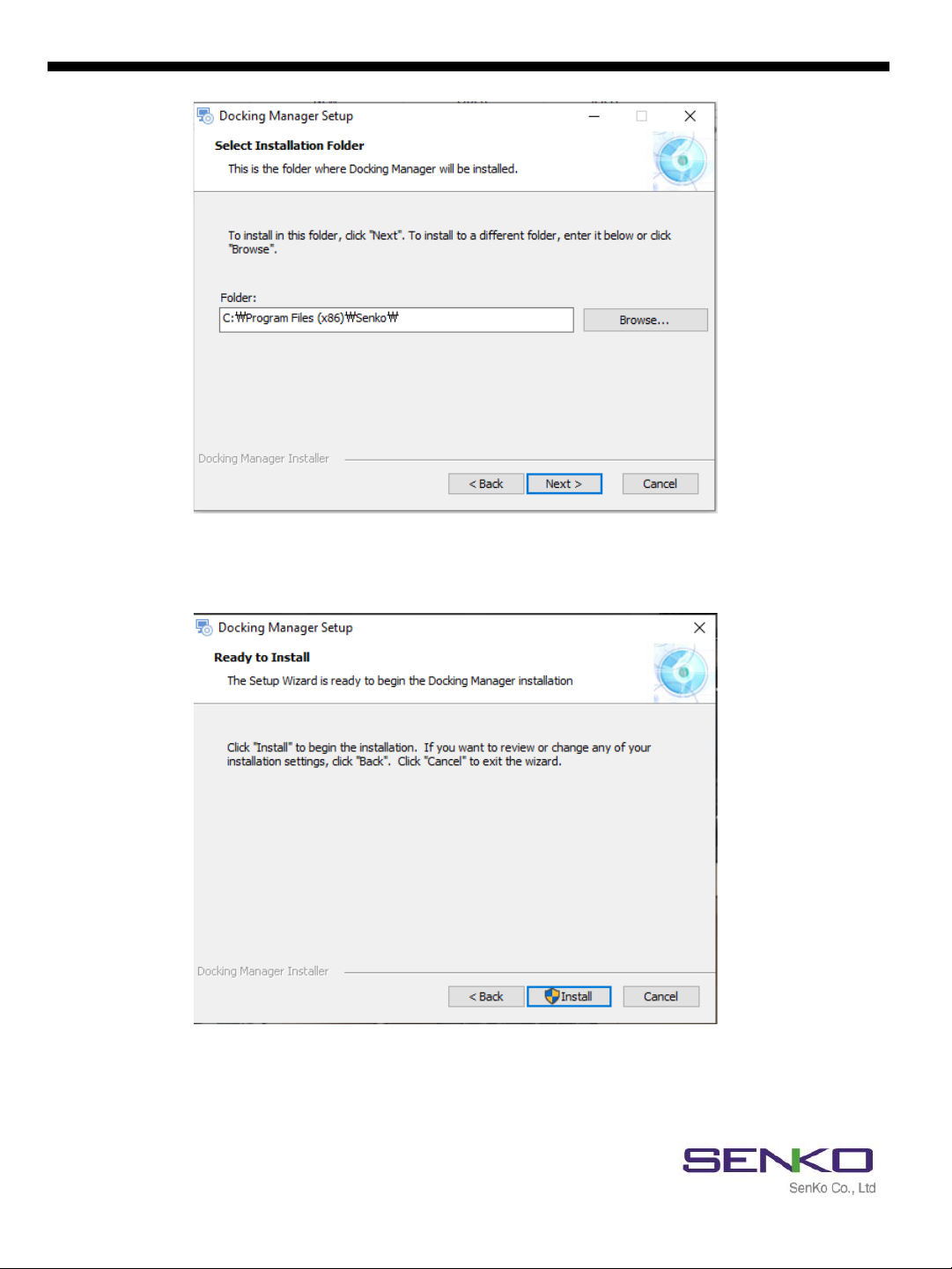
✓The Docking Manager Setup window will open. Click “Next”.
✓The “Select Installation Folder” comes up.
✓To install to a different folder, click “Browse” or enter the link.
✓To install in default folder, click “Next”
SGT Docking Station version II

10
✓The Installation will be ready to begin.
✓Click “Install”.
SGT Docking Station version II
Altri manuali per SGT
1
Indice
Altri manuali SENKO Stazione di attracco