Sentry SHDVR-04 Manuale utente

Copyright © 2011 QSG_V1.2_R201201-V05
SHDVR-04
SHDVR-08
SHDVR-16
H.264 Network DVR
Quick Setup Guide
GUI Display with USB Mouse Control
1.
GUI DISPLAY WITH USB MOUSE CONTROL
1.1
Connect USB Mouse
1.2
Quick Menu Bar
1.3
Main Menu
2.
FRONT AND REAR PANELS
2.1
Front Panel
2.2
Rear Panel
3.
BASIC OPERATION
3.1
Live Page
3.2
Record Icon
3.3
Playback
3.4
User Level Switch
3.5
VGA Output Resolution Support
3.6
System Sources Reallocation
4.
REMOTE SURVEILLANCE
5.
PACKAGE CONTENTS
6.
SECURITY CAMERAS
Please read instructions thoroughly before operation and retain it for future reference.
For the actual display & operation, please refer to your DVR in hand.

2
1. GUI DISPLAY WITH USB MOUSE CONTROL
1.1 Connect USB Mouse
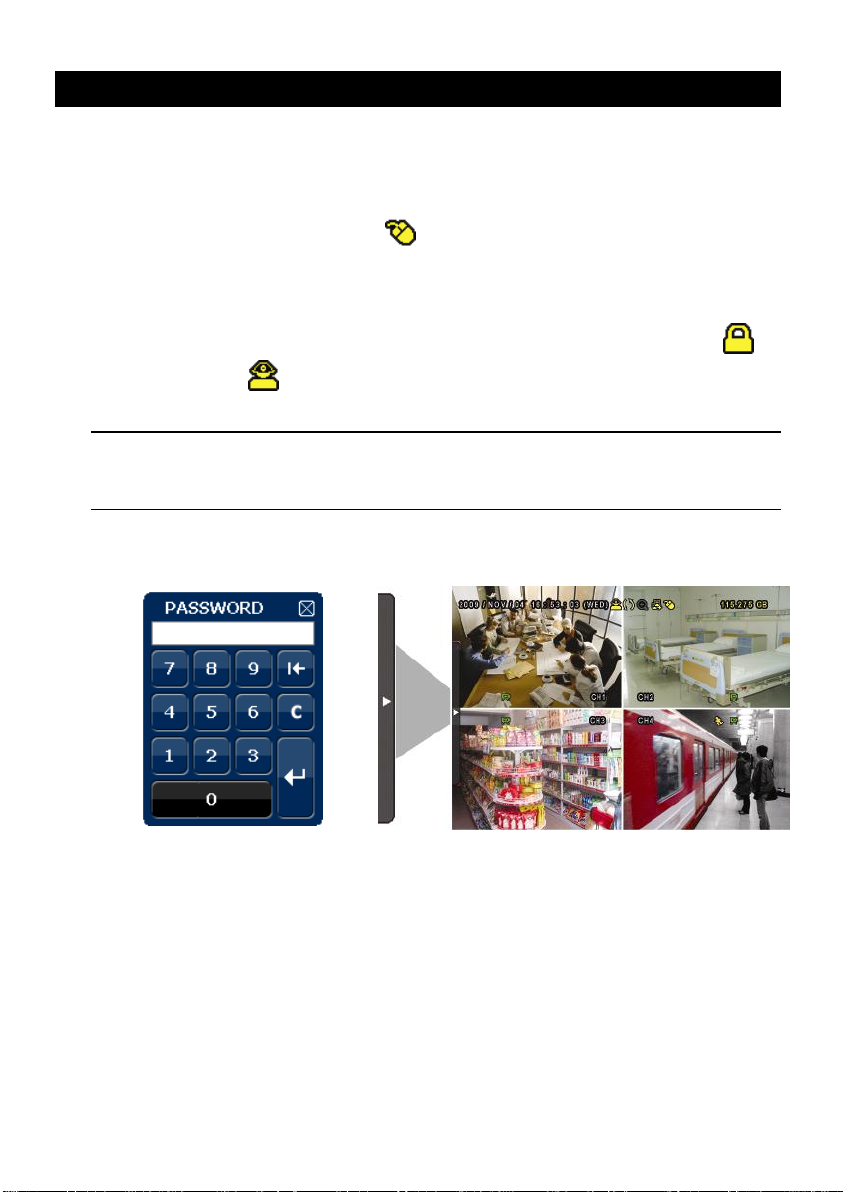
Connect your USB mouse to one of the USB ports on the DVR front panel, and
check if there’s a mouse icon ( ) on the screen, indicating the USB mouse is
detected properly.
Move your mouse to enter the DVR password with the password keypad. The
default administrator password is 0000. The status will be changed from
(key lock) to (administrator), and the quick menu bar appears on the left
side of the screen.
Note: There are two user levels for DVR access which can be set in the main menu
“SYSTEM” “TOOLS”. For details, please refer to your user manual.
Password Input
Quick Menu: Close

3
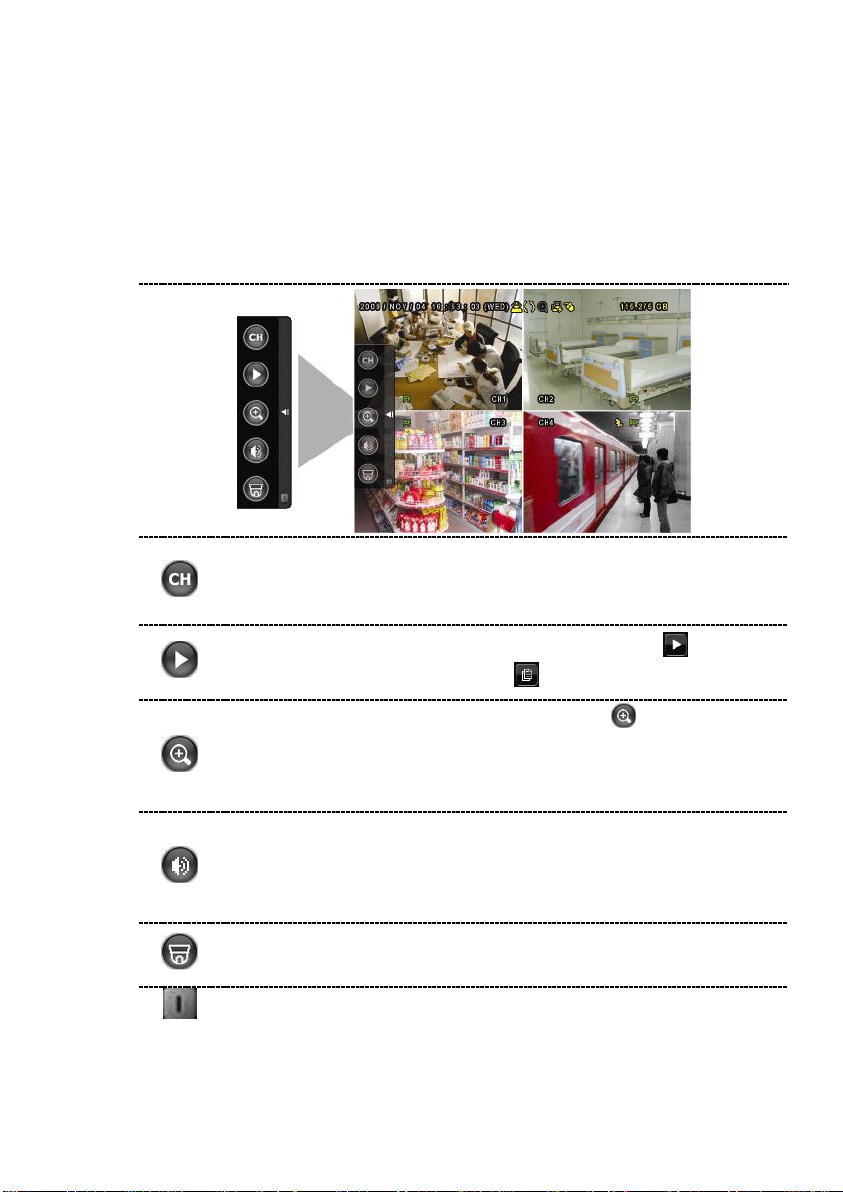
1.2 Quick Menu Bar
Move to the arrow mark to extend the quick menu bar and show the five
functions as follows:
Quick Menu: Open
Click to show the channel switch panel and select the channel you
want. For details, please refer to “3.2 Quick Menu Bar”in the user
manual.
Click to display the playback control panel, and click to play the
latest recorded video clip, or click to enter the search list.
Switch to the channel you want first, and click to enter the
zoom-in mode. In this mode, click and drag the red frame on the
bottom left of the screen to move to the place you want to see. To
exit this mode, click .
Click to select the audio channel you want:
In the live mode, only the live audio channels can be selected.
In the playback mode, live and playback audio channels can be
selected.
Click to enter the PTZ mode and show the PTZ camera control
panel.
Click to show the power off panel to either halt or reboot the system.

4
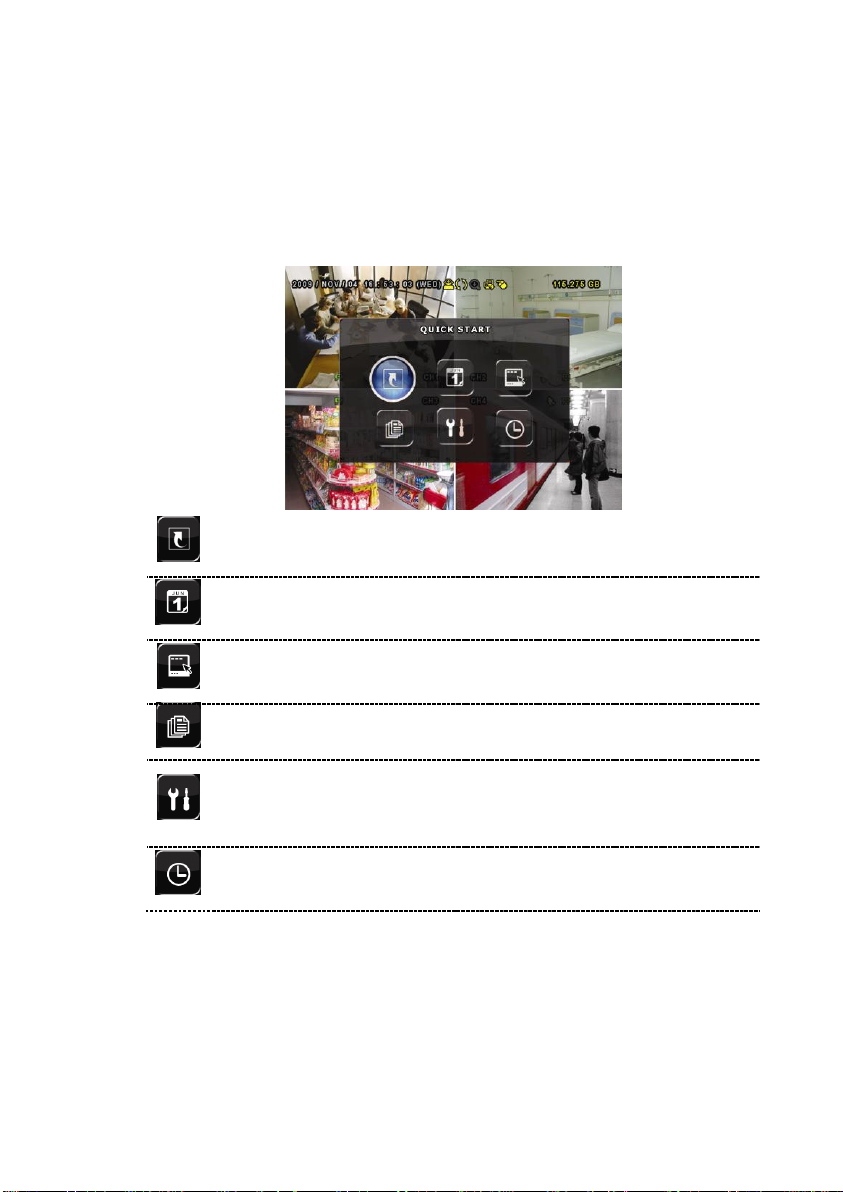
1.3 Main Menu
Right-click anywhere on the screen to show the main menu as follows, and
right-click again to exit.
Main Menu
QUICK START
Click to set the status display,
image settings, and date & time.
DATE SETUP
Click to set the date display and
daylight saving.
SYSTEM
Click to set the system
configurations.
EVENT INFORMATION
Click to enter the event search
menu.
ADVANCED CONFIG
Click to set CAMERA,
DETECTION, ALERT, NETWORK,
DISPLAY, RECORD and DEVICES.
SCHEDULE SETTING
Click to set record timer, detection
timer, and alarm timer.

5
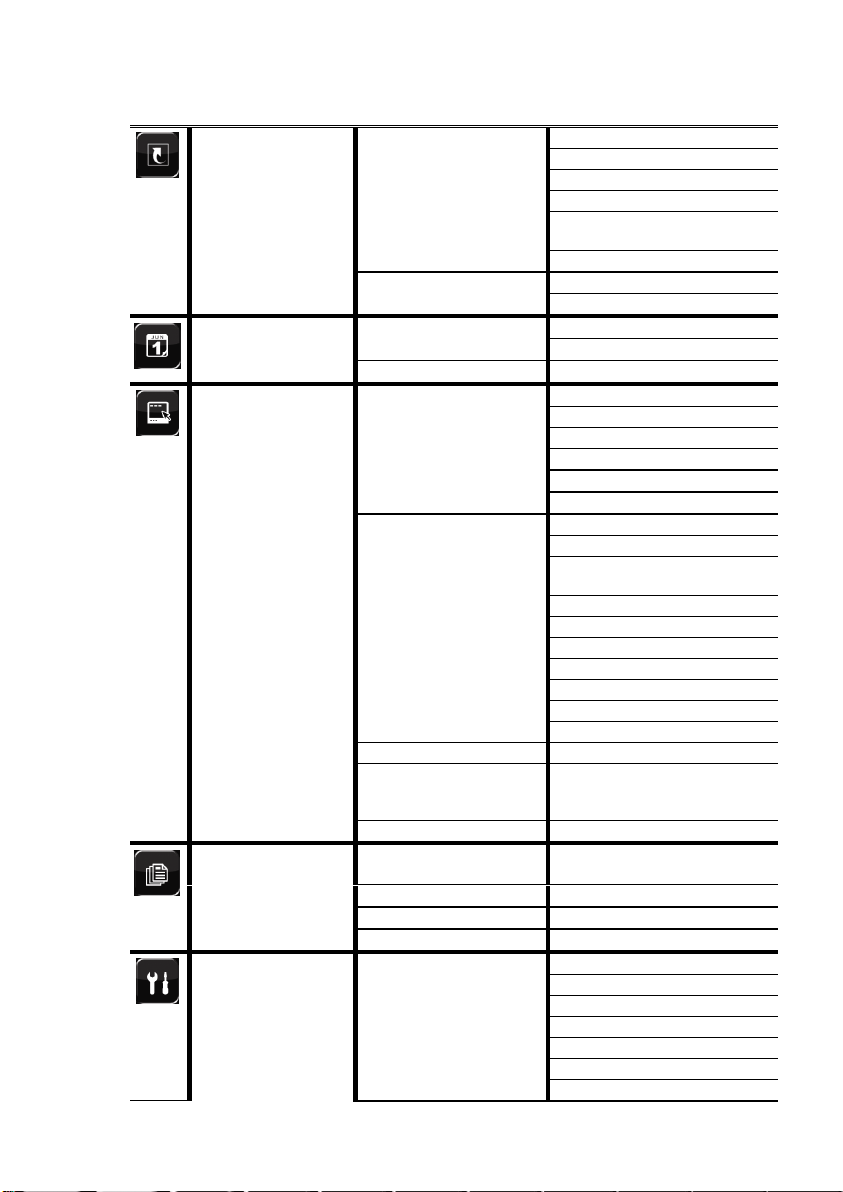
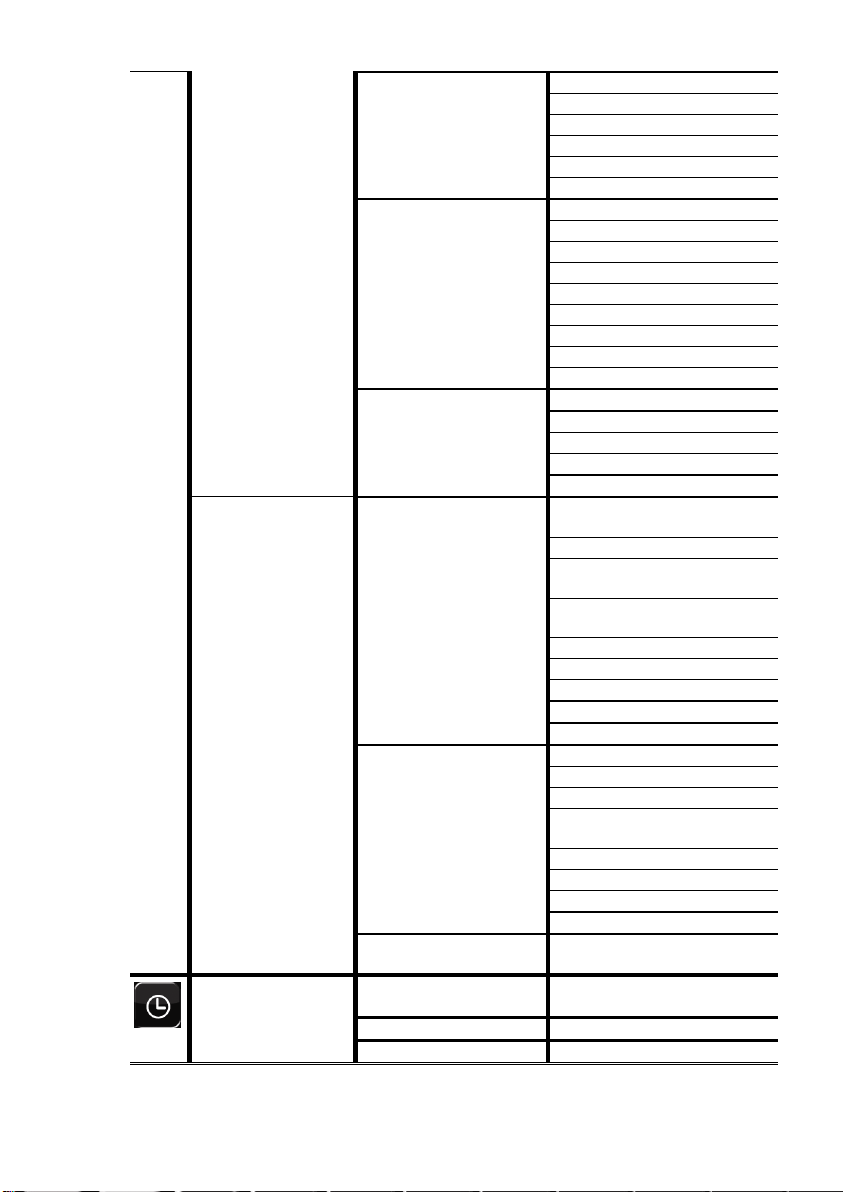
Main Menu Structure
QUICK START
GENERAL
CHANNEL TITLE
EVENT STATUS
DATE DISPLAY
MOUSE SENSITIVITY
PRIORITY (For Selected Model
Only)
RECORD CONFIG
TIME SETUP
DATE
TIME
DATE SETUP
DATE INFO
DISPLAY DATE OF MODE
FORMAT
DAYLIGHT
DAYLIGHT SAVING
SYSTEM
TOOLS
LANGUAGE
ADMIN PASSWORD
OPERATOR PASSWORD
UPGRADE
BACKUP CONFIG
RESTORE CONFIG
SYSTEM INFO
BAUD RATE
HOST ID
R.E.T.R. (For Selected Models
Only)
AUTO KEY LOCK
CLEAR HDD
RESET DEFAULT
REMOTE CONTROL ID
SERIAL TYPE
VIDEO FORMAT
VERSION
BACKUP DATA (USB)
BACKUP DATA (DVD)
(For Selected Models
Only)
BACKUP LOG (USB)
EVENT
INFORMATION
QUICK SEARCH
EVENT SEARCH
HDD INFO
EVENT LOG
ADVANCED CONFIG
CAMERA
BRIGHTNESS
CONTRAST
SATURATION
HUE
COV.
REC
CHANNEL TITLE

6
DETECTION
LS
SS
TS
MOTION
ALARM
AREA
ALERT
EXT. ALERT
INT. BUZZER
KEY BUZZER
VLOSS BUZZER
MOTION BUZZER
ALARM BUZZER
HDD BUZZER
ALARM DURATION (SEC)
HDD NEARLY FULL (GB)
NETWORK
NETWORK
SNTP
FTP
E-MAIL
DDNS
ADVANCED CONFIG
DISPLAY
DE-INTERLACE
(For Selected Models Only)
FULL SCREEN DURATION
QUAD SCREEN DURATION
(For Selected Models Only)
DWELL SCREEN DURATION
(For Selected Models Only)
DISPLAY COVERT
HDD DISPLAY MODE
VGA OUTPUT
ALPHA BLENDING
RECORD CONFIG
RECORD
MANUAL RECORD
EVENT RECORD
TIMER RECORD
PRE-ALARM RECORD
(For Selected Models Only)
OVERWRITE
EVENT RECORD ALL CH
KEEP DATA LIMIT (DAYS)
RECORD CONFIG
DEVICES (For Selected
Models Only)
SCHEDULE
SETTING
RECORD
DETECTION
ALARM

7
2. FRONT AND REAR PANELS
2.1 Front Panel
1) LED Indicators
HDD is reading or recording.
An alarm is triggered.
Timer recording is on.
Under playback status.
DVR is powered on.
2) (▲) / (▼) / (◄) / (►)
Press ▲ / ▼ / ◄ / ► to move up / down / left / right.
In the playback mode:
Press “” to pause playback.
Press “” to stop playback.
Press ““ to fast forward.
Press ““ to fast rewind.
3) MENU
Press to enter the main menu.
4) ENTER
Press to confirm the setting.
5) LIST (Event List Search)
Press to quickly search the recorded files by event lists: RECORD / MOTION /
ALARM / TIME, or select FULL to show all the event logs.
To quickly search the time you want, select “QUICK SEARCH”. Set the time
range you want, and select “Start” to play the recorded video clip during the
specified time.

8
6) PLAY
Press to playback the latest recorded data.
7) SLOW
In the playback mode, press to show slow playback.
8) ZOOM
Press to enlarge the picture of selected channel in the FRAME or FIELD
recording mode.
9) SEQ
Press to display each channel in full screen one by one starting from CH1.
When the last channel is displayed, it will repeat from CH1 again. To exit this
mode, press “SEQ”again.
10)
Press to show the 4 channel display mode.
11) CH1 ~ 16 / 1 ~ 8 / 1 ~ 4
Press the channel number buttons to select the channel to display.
12) SEARCH (For Selected Models Only)
Press to enter the time search menu. Set the time range you want, and select
“START” to play the recorded video clip during the specified time.
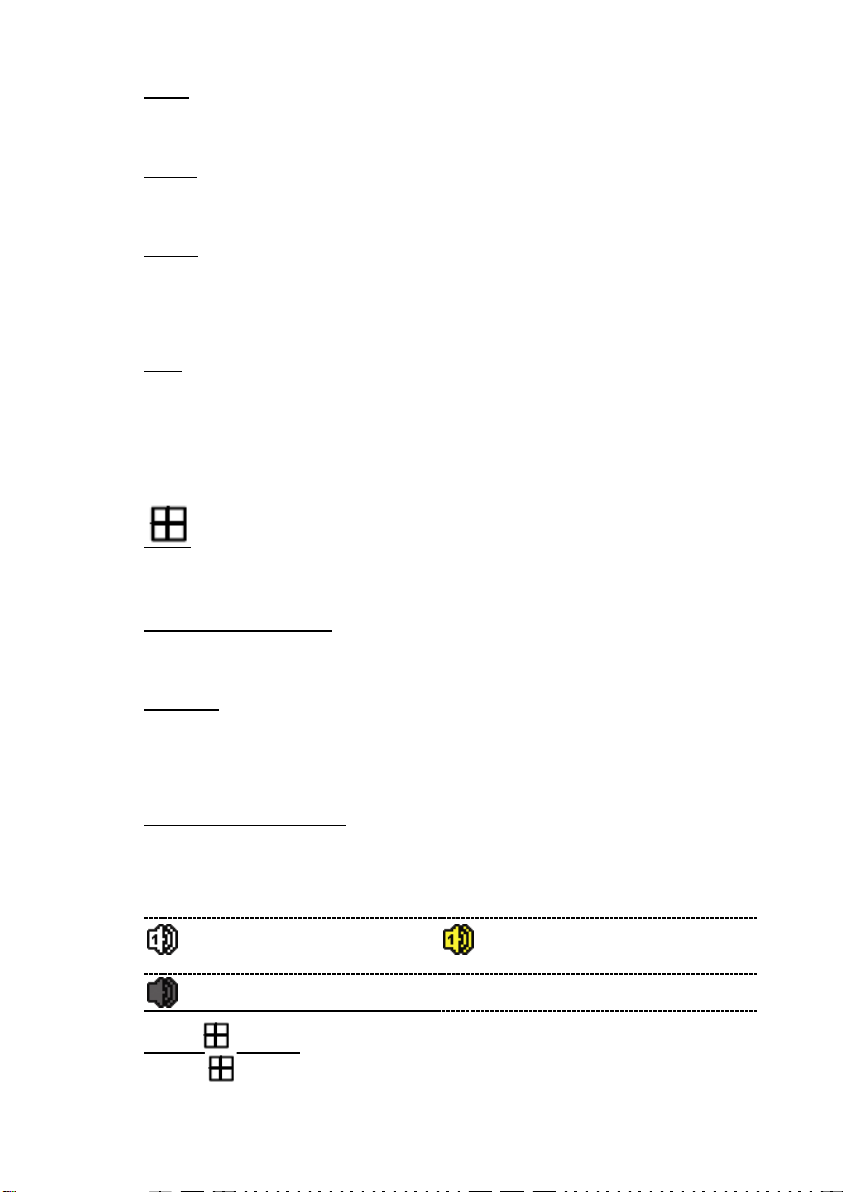
13) AUDIO (SLOW + ZOOM)
Press “SLOW” + “ZOOM” to select live or playback audio from audio channel
1~4.
Live audio from audio channel
1~4 (indicated in white)
Playback audio from audio
channel 1~4 (indicated in yellow)
Audio channel unselected
14) P.T.Z. ( + SEQ)
Press “ ” + “SEQ” at the same time to enter / exit the PTZ control mode.

9
15) USB port
There are two USB ports on the front panel, one for connecting your USB
mouse for mouse control, and the other one for connecting your USB flash drive
for video backup.
Note: It’s not allowed to have two USB mice or two USB flash drives connected on
the front panel.
For the compatible USB flash drive list, please refer to “APPENDIX 3” in the
user manual.
16) (For Selected Models Only)
Press “ ” to open / close the DVD Writer.
2.2 Rear Panel
1) 75Ω/ HI-IMPEDANCE (For Selected Models Only)
When using Loop function, please switch to HI-IMPEDANCE. When you don’t
use Loop function, please switch to 75Ω.
2) VIDEO IN (1 ~ 16 / 1 ~ 8 / 1 ~ 4): Connect to the video connector of a camera.
VIDEO LOOP (1 ~ 16 / 1 ~ 8 / 1 ~ 4): Video output connector. (For Selected
Models Only)
Note: The DVR will automatically detect the video system of the camera, please
make sure that the cameras are properly connected to the DVR and
power-supplied before the DVR is turned on.
3) AUDIO IN (1~4)
Connect to the audio connector of a camera if the camera supports audio
recording.
Note: To make a video backup with audio, make sure the camera which supports
the audio function is connected to the video-in channel and audio-in channel.


10
For example, the audio data from audio CH1 will be recorded with the video
data from video CH1.
4) AUDIO OUT
Connect to a speaker with 1 mono audio output.
Note: To know how many audio outputs your DVR supports, please refer to its
specifications.
5) MONITOR
Connect to a CRT monitor for video output.
6) CALL (For Selected Models Only)
Connect to a monitor specific for sequence display.
7) VGA
Connect to a LCD monitor directly.
8) IR (For Selected Models Only)
Connect the optional IR receiver extension cable for remote control.
9) EXTERNAL I/O
This port is used to connect external devices (such as speed dome cameras or
external alarm, etc).
For detailed I/O port PIN configuration, please refer to “APPENDIX 6”in your
user manual.
10) LAN
Connect to Internet by LAN cable.
11) DC 19V
Connect to the supplied adapter.
12) Power Switch
Switch to “” to turn on the power, and “” to turn off the power.
Questo manuale è adatto per i seguenti modelli
2
Indice
Altri manuali Sentry Registratore digitale