
SIIG FireWire 800 2-Port ExpressCard/34 Manuale utente

1
04-0448A
FireWire 800 2-Port
ExpressCard/34
Quick Installation Guide
Introducing the FireWire 800 ExpressCard
The FireWire 800 2-Port ExpressCard/34 adds FireWire 800
(1394b)interfacetoyourExpressCardequippednotebook
computer.
Features and Benefits
• Provides 2 FireWire 800 (9-pin) ports for multiple
device connections
• Supports data transfer rates up to 800Mb/s
• Supports hot-swap, hot-plug and Plug-n-Play
connection of peripheral devices
• Works with FireWire devices including DV
camcorders, CD-RW/DVD-ROM drives, portable
hard disks, digital cameras and other audio/video
devices
System Requirements
• ExpressCard-enablednotebookPCwithanavailable
ExpressCard slot
• Windows 2000/XP/Server 2003/Vista
PackageContents
• FireWire 800 2-Port ExpressCard/34
• Driver CD
• Quick Installation Guide
2
Layout
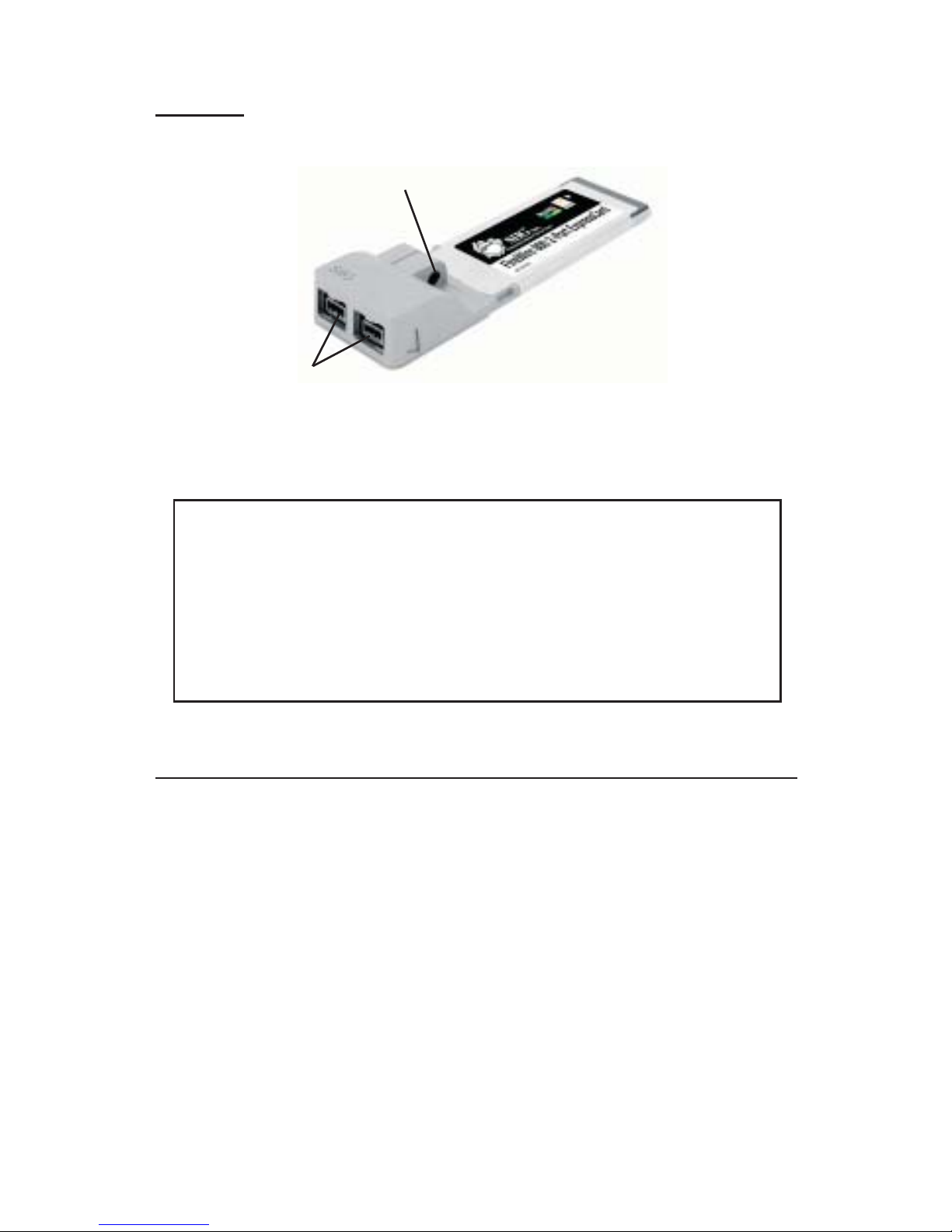
Figure 1. Layout
*Note: FireWire devices that have their own power
supply do not require the optional power adapter
to be connected in order to work. However,
non-poweredFireWiredevices require this optional
power adapter to work. The power adapter can be
purchasedatSIIG'sOnlineStore,part#NN-ADA011.
Hardware Installation
General instructions for installing the card are provided
below. Since the design of notebook computers may
vary, refer to your system’s reference manual for further
information, if needed.
Insert the ExpressCard into the ExpressCard slot of your
notebook computer. Make sure it is inserted all the way
in for a solid connection.
Power Adapter Jack*
FireWire 800 ports
(9-pin)

3
Driver Installation
This section provides information on how to install the
FireWire 800 drivers.
Windows 2000
Windows 2000 automatically installs it's built-in 1394a
driver for the FireWire 800 2-Port ExpressCard/34. To get
the full speed out of this controller, install the FireWire
800 driver using the directions below.
1. Insert the driver CD. Click Start, Run. Type
D:\setup.exe, click OK. (Change D: to match the
drive letter of your CD-ROM)
2. At the Welcome screen, click Next.
3. At the License Agreement screen, click Yes.
4. Type in your customer information, then click Next.
5. At the Destination Location screen, click Next.
6. Select Complete, then click Next.
7. At the Program Folder screen, click Next.
8. AttheDigital Signature screen, clickYes threetimes,
then click Finish.
9. Select the restart Windows option, then click Finish.
Windows XP
Windows XP automatically installs it's built-in 1394a
driver for the FireWire 800 2-Port ExpressCard/34. To get
the full speed out of this controller,install the FireWire
800 driver using the directions below.
1. Insert the driver CD. Click Start, Run. Type
D:\setup.exe, click OK. (Change D: to match the
drive letter of your CD-ROM)

4
2. At the Welcome screen, click Next.
3. At the License Agreement screen, click Yes.
4. Type in your customer information, then click Next.
5. At the Destination Location screen, click Next.
6. Select Complete, then click Next.
7. At the Program Folder screen, click Next.
8. At the Hardware Installation screen, click Continue
Anyway three times, then click Finish.
9. Select the restart Windows option, then click Finish.
Windows Server 2003
Windows Server 2003 automatically installs it's
built-in FireWire 400 driver for the FireWire 800 2-Port
ExpressCard/34. To get the full speed out of this controller,
install the FireWire 800 driver using the directions below.
1. Insert the driver CD. Click Start, Run. Type
D:\setup.exe, click OK. (Change D: to match the
drive letter of your CD-ROM)
2. At the Welcome screen, click Next.
3. At the License Agreement screen, click Yes.
4. Type in your customer information, then click Next.
5. At the Destination Location screen, click Next.
6. Select Complete, then click Next.
7. At the Program Folder screen, click Next.
8. At the Security Alert box, click Yes. (Click Yes two
times for 2003 Standard Edition)
9. At the Hardware Installation screen, click Continue
Anyway two times (click Continue Anyway three
times for 2003 Standard Edition), then click Finish.
10. Select the restart Windows option, then click Finish.

5
Windows Vista
WindowsVistaautomaticallyinstalls it's built-in FireWire
400 driver for the FireWire 800 2-Port ExpressCard/34. To
getthe full speed out ofthis controller,installthe FireWire
800 driver using the directions below.
1. Insert the driver CD. Click Start, Run. Type
D:\setup.exe, click OK. (Change D: to match the
drive letter of your CD-ROM)
2. Click Allow.
3. At the Welcome screen, click Next.
4. At the License Agreement screen, click Yes.
5. Type in your customer information, then click Next.
6. At the Destination Location screen, click Next.
7. Select Complete, then click Next.
8. At the Program Folder screen, click Next.
9. At the Windows Security box, click Install this
driversoftware anywayfourtimes, thenclickFinish.
10. Select the restart Windows option, then click Finish.
Verify Proper Installation
1. Right click My Computer, click Manage, then click
Device Manager.
2. Double click 1394 Bus host controllers. IEEE 1394b
(FireWire 800) adapter should be displayed.

6
Removing the ExpressCard
Stop the ExpressCard before removing it from the
ExpressCard slot.
1 The utility is located by the system clock.
For Windows 2000: Click the Unplug or Eject
Hardware icon. Click Remove PCI standard
PCI-to-PCI bridge.
For Windows XP/Server 2003/Vista: Click the Safely
Remove Hardware icon. Click Safely remove PCI
standard PCI-to-PCI bridge.
2. Wait for the confirmation box, then remove the
ExpressCard from the ExpressCard slot.
Connecting Devices
General driver installation steps are provided below.
Please review your device's user manual for more details.
Windows 2000
1. At the Found New Hardware Wizard, click Next.
2. Select Search for a suitable driver..., then click Next.
3. Uncheck all check boxes, then click Next.
4. Click Next, then click Finish to complete the
installation.
Windows XP
1. At the Found New Hardware Wizard,
For XP w/SP2 or later
Select No, not this time, then click Next.
For XP w/SP1 or earlier
Go directly to step #2.

7
2. SelectInstalltheSoftwareAutomatically,clickNext.
3. Click Continue Anyway. (Skip if not prompted)
4. Click Finish to complete the installation.
Server 2003
1. At the Found New Hardware Wizard,
For 2003 w/SP1 or later
Select No, not this time, then click Next.
For 2003 no service pack installed
Go directly to step #2.
2. SelectInstalltheSoftwareAutomatically,clickNext.
3. At the Security Alert box click Yes, or the Hardware
Installation box click Continue Anyway, then click
Finish to complete the installation.
Windows Vista
Windows Vista will automatically detect and install
most FireWire devices when connected. However, for
devices that do not install automatically, follow the steps
below to complete the installation.
1. Click Locate and install driver software.
2. Click Continue to complete the installation.

8
ubSwitch Utility
In order to use a DV camcorder with this controller,
Microsoft's FireWire 400 driver must be installed in the
system. We have supplied an easy to use utility that
allows switching between Microsoft's driver and the
FireWire 800 driver. Before using this utility, unplug all
devices from the FireWire 800 2-Port ExpressCard/34.
1. Click Start, Programs, Unibrain ubcore, Tools then
ubSwitch.
2. Right click the ubSwitch icon located in the system
tray by the clock.
3. Click the 1394 Adapter that you want to switch, then
click on Microsoft 1394 Drivers.
Note: If your system has multiple 1394 adapters
installed, make sure that you click on the 1394
adapter that the camcorder will be plugged into.
4. Windows will display an information box when the
driver is ready for use. It may take a few seconds for
this box to appear.
Note: To switch back to the FireWire 800 driver,
follow the same procedures, but in step 3 instead of
clickingonMicrosoft1394Drivers, clickonUnibrain
1394 Drivers.

9
Blank Page

10
Blank Page
Altri manuali per FireWire 800 2-Port ExpressCard/34
1
Indice
Altri manuali SIIG Firewire

SIIG
SIIG FireWire 800 DV Kit Manuale utente

SIIG
SIIG DP FireWire PCIe Manuale utente

SIIG
SIIG FireWire 800 ExpressCard Manuale utente

SIIG
SIIG DP FireWire 800 PCI-32T Manuale utente

SIIG
SIIG 1 FireWire 800 CardBus DV-Ki Manuale utente

SIIG
SIIG DP FireWire 800 PCI-32T Manuale utente

SIIG
SIIG FireWire ExpressCard Manuale utente

SIIG
SIIG FireWire 2-Port CardBus Manuale utente

SIIG
SIIG FireWire 3-Port CardBus Manuale utente

SIIG
SIIG 1 FireWire 800 CardBus DV-Ki Manuale utente


