
SIIG US2273 Manuale utente

1
USB 2.0+FireWire CardBus DV Kit
Quick Installation Guide
04-0274B
Features and Benefits
• FullycompliantwithUSBspecificationsrevision2.0
and IEEE 1394-1995, P1394a-2000 and OHCI 1.1
Standards
• Combo CardBus PC Card design allows you to add
theUSB2.0andFireWire(1394a)interfaceintoyour
notebook or Tablet PC at once
• Two USB 2.0 ports support 480Mbps, 12Mbps,
1.5Mbps data transfer modes
• Two FireWire ports support serial bus data transfer
rates of 400 Mbps, 200 Mbps, and 100 Mbps
• Includes Ulead VideoStudio editing software
• Includes a high quality switching power adapter to
provide standard power output for the USB ports
NOTE: USB 1.1 devices are limited to USB 1.1
speeds even when they are connected to USB 2.0
host adapter or USB 2.0 hubs.
System Requirements
• PentiumorequivalentnotebookPCwithanavailable
CardBus Type II slot
• Windows 98SE/ME/2000/XP
Recommended system for Video capturing/editing:
• Pentium III or above notebook PC
• 128MB of RAM and CD-ROM drive
• 4GB of available hard disk space
• Windows 98SE or later
2
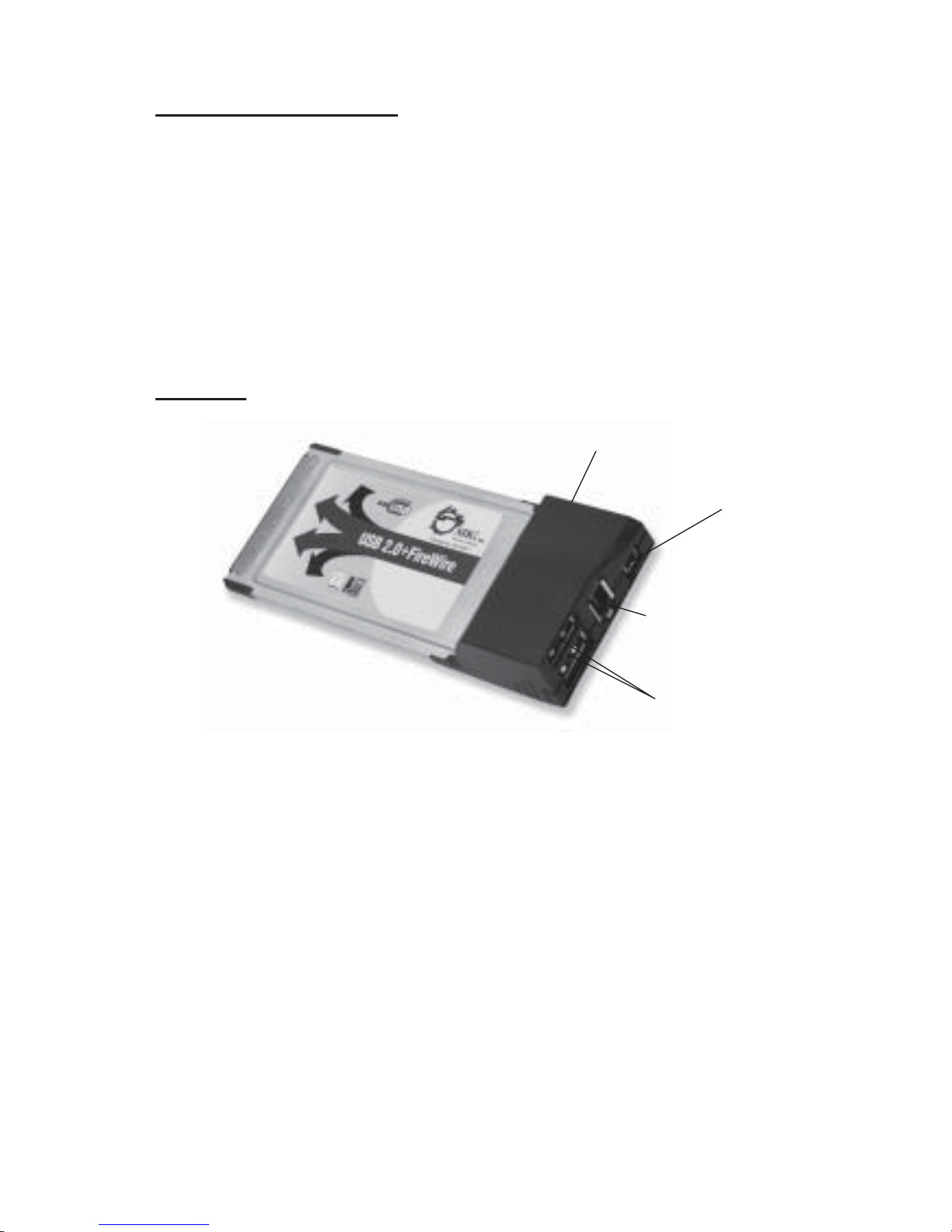
USB 2.0
Power Adapter Jack*
FireWire** 6-pin
FireWire** 4-pin
Package Contents
• (1) USB 2.0+FireWire CardBus
• (1) Switching power adapter
• (1) Driver CD
• (1) Ulead VideoStudio DV editing software CD
• (1) 1394 6-pin/4-pin DV cable
• This quick installation guide
Layout
Figure 1. Layout
* NOTE: In most cases, the power adapter doesn't need
to be plugged in. However, some USB devices may
requireadditionalpowerinordertowork. Pleaseplugin
the power adapter if your device needs it. Refer to the
device's manual for more detail.
** NOTE: The FireWire (1394) ports do not ouput any
power. Therefore, only 1394 devices with their own
power supplies will work. The included power supply
only provides standard power output for the USB 2.0
ports.
3
1. Hardware Installation
General instructions for installing the card are provided
below,sincethedesignofnotebookcomputersmayvary.
Refer to your system’s reference manual for further
information, if needed.
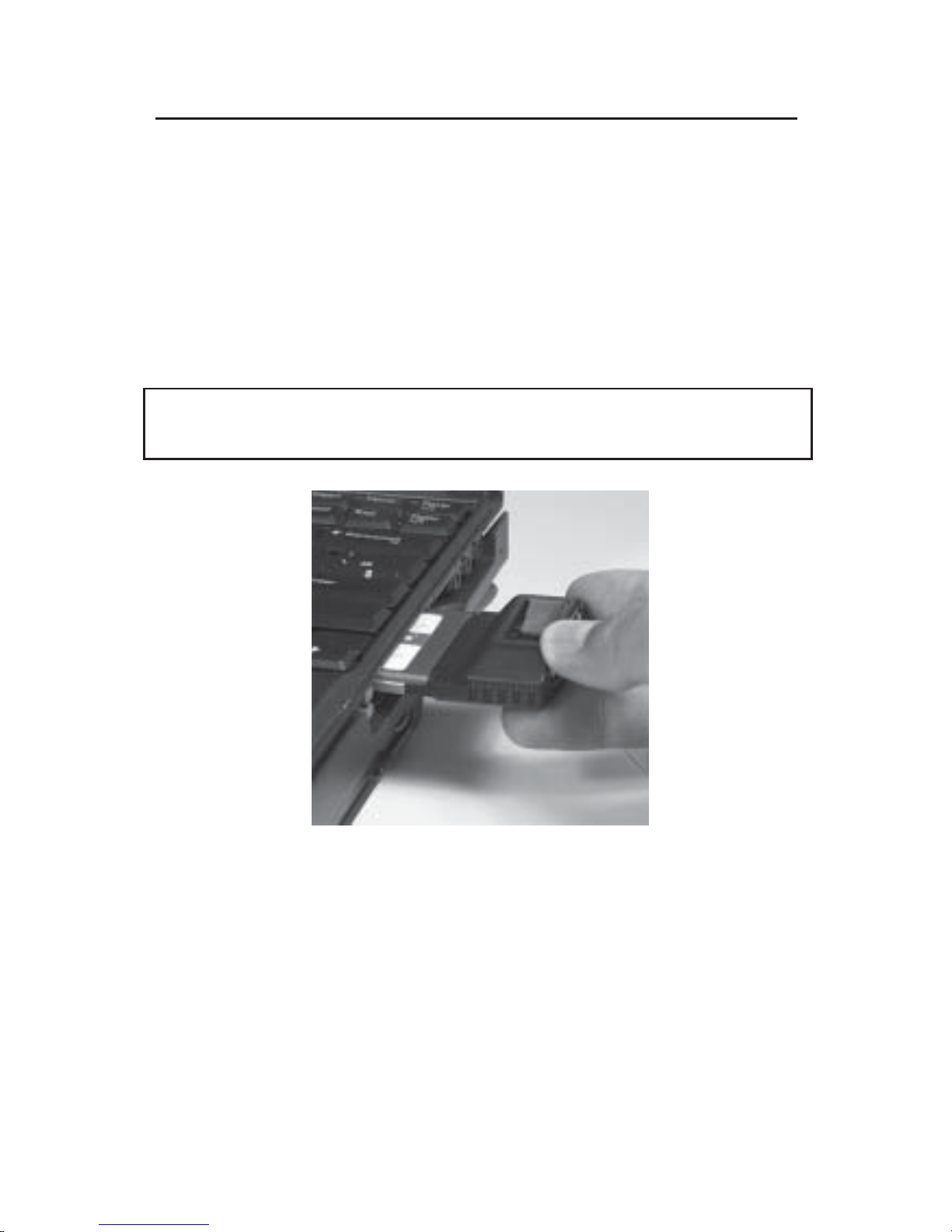
Insert the PC Card into the CardBus Type II slot of your
notebook computer with its 68-pin connector facing the
slot. Make sure it is inserted all the way in for a solid
connection.
Important: Make sure the driver is installed prior to
inserting the USB 2.0+FireWire CardBus.
Figure 2. Inserting the PC Card

4
2. Software Installation
Important: Makesurethedriverisinstalledpriorto
inserting the USB 2.0+FireWire CardBus.
2-1) Windows 98SE Driver Installation
1. Insert the driver CD. Click Start, Run, type in
X:\Setup.exe, then click OK. (Replace X: with the
drive letter of your CD-ROM)
2. Click Next, then Finish to restart Windows.
3. After Windows resumes, insert the CardBus.
4. At the Add New Hardware Wizard, click Next,
and Next again.
5. Clear all check boxes and click Next.
6. Click Next and Next again.
NOTE: If prompted for Windows Installation
CD-ROM, click OK. Insert this CD and click OK.
7. Click Finish.
8. Repeat steps 4-7 two more times.
9. At the AddNewHardwareWizard,click Nextfour
times.
10. If you are prompted to keep the current files, click
Yes (up to five times).
11. Click Finish to complete.

5
2-2) Windows ME Driver Installation
1. Insert the driver CD. Click Start, Run, type in
X:\Setup.exe, then click OK. (Replace X: with the
drive letter of your CD-ROM)
2. Click Next, then Finish to restart Windows.
3. After Windows resumes, insert the CardBus.
4. At the Add New Hardware Wizard, choose
Automatic search for a better driver
(Recommended), and click Next.
5. Click Finish and restart Windows to complete.
2-3) Windows 2000 Driver Installation
NOTE: If you have Windows 2000 with Service
Pack 4 (SP4) or later, the drivers will be installed
automatically by the operating system. Otherwise,
follow the instructions below.
1. Insert the driver CD. Click Start, Run, type in
X:\Setup.exe, then click OK. (Replace X: with the
drive letter of your CD-ROM)
2. Click Next, Finish, then restart Windows.
3. After Windows resumes, insert the CardBus.
4. On the restart, Windows automatically installs the
correct drivers for the CardBus.

6
2-4) Windows XP Driver Installation
NOTE: IfyouhaveWindowsXPwithServicePack
1 (SP1) or later, the drivers will be installed
automatically by the operating system. Otherwise,
follow the instructions below.
1. Insert the driver CD. Click Start, Run, type in
X:\Setup.exe, then click OK. (Replace X: with the
drive letter of your CD-ROM)
2. Click Next, Finish, then restart Windows.
3. After Windows resumes, insert the CardBus.
4. AttheFoundNewHardwareWizard,chooseInstall
the software automatically (Recommended), click
Next, then Finish.
5. Repeat step 4 one more time to complete.
2-5) To verify successful driver installation:
1. Check Device Manager to verify successful driver
installation.
Windows 98SE/ME: From the main desktop, right
click My Computer, then click Properties. Click
Device Manager tab.
Windows 2000/XP: Right click My Computer, then
click Manage. Click Device Manager.
2. The drivers for this controller show up differently
under different versions of Windows. Please refer
to the correct Windows version to verify.

7
2-5.1) Windows 98SE/ME
a) Under the 1394 Bus Controller:
- OHCI Compliant IEEE 1394 Host Controller
b) Under the Network Adapters: (WinME only)
- NDIS 1394 Net Adapter
c) Under the Universal Serial Bus controllers:
- ALi PCI to USB Enhanced Host Controller
- ALi PCI to USB Open Host Controller
- ALi PCI to USB Open Host Controller
- ALi PCI to USB Open Host Controller
- USB 2.0 Root Hub
- USB Root Hub
- USB Root Hub
- USB Root Hub
2-5.2) Windows 2000 (with sp3 or earlier)/XP
(without sp):
a) Under the IEEE 1394 Bus host controllers:
- OHCI Compliant IEEE 1394 Host Controller
b) Under the Network Adapters: (WinXP only)
- 1394 Net Adapter
c) Under the 1st Universal Serial Bus controllers:
- ALi PCI to USB Enhanced Host Controller
- USB 2.0 Root Hub
d) Under the 2nd Universal Serial Bus controllers:
- ALi PCI to USB Open Host Controller
- ALi PCI to USB Open Host Controller
- ALi PCI to USB Open Host Controller

8
- USB Root Hub
- USB Root Hub
- USB Root Hub
2-5.3) Windows 2000 (with sp4 or later)/XP (with
sp1 or later):
a) Under the IEEE 1394 Bus host controllers:
- OHCI Compliant IEEE 1394 Host Controller
b) Under the Network Adapters: (WinXP only)
- 1394 Net Adapter
c) Under the Universal Serial Bus controllers:
- ALi PCI to USB Enhanced Host Controller
- ALi PCI to USB Open Host Controller
- ALi PCI to USB Open Host Controller
- Standard Enhanced PCI to USB Host Controller
- USB 2.0 Root Hub (USB Root Hub in WinXP)
- USB Root Hub
- USB Root Hub
- USB Root Hub
3. If these options DO NOT appear, eject
the Cardbus, re-insert it while in Windows and
refer to software installation section to re-install
the CardBus.

9
2-6) Ulead VideoStudio software installation:
The USB 2.0+FireWire CardBus DV Kit includes Ulead
VideoStudiodigitalvideoeditingsoftwareforproducing
home videos complete with attractive titles, transitions
and sounds.
1. InserttheUleadVideoStudioDVsoftwareCD. Auto-
run should start automatically. If not, click Start,
Run, type in X:\Autorun.exe, then click OK.
(Replace X: with the drive letter of your CD-ROM)
2. Choose Install Ulead VideoStudio and follow the
on-screen instructions to complete.
NOTE: For instructions on how to use Ulead
VideoStudio,pleaserefertoVStudio.pdffilelocated
in the Document\Manual directory on the Ulead
VideoStudio DV editing software CD.
3. Connecting a DV Camcorder
Before setting up the digital video camcorder, verify the
USB 2.0+FireWire CardBus' driver has been successfully
installed in your system, then follow the procedures
below.
1. Boot up your system.
2. Connectthe4-pinconnectoroftheprovidedFireWire
(1394) DV cable to your camcorder.
3. Connect the 6-pin connector to the FireWire (1394)
port.
4. Power on the camcorder. The camcorder should
now appear in Device Manager.

10
To verify successful DV camcorder setup:
1. Check Device Manager to verify successful driver
installation.
Windows 98SE/ME: From the main desktop, right
click My Computer, then click Properties. Click
Device Manager tab.
Windows 2000/XP: Right click My Computer, then
click Manage. Click Device Manager.
2. UnderImagingDevice(s), aMicrosoftDVCamera
and VCR or DV Camcorder should be displayed.
Altri manuali per US2273
1
Indice
Altri manuali SIIG Accessori per laptop


