Silex technology SX-600 Manuale utente

SX-600
Ethernet to Wireless
Client Adapter
Setup Guide

SX-600 User’s Manual
2
Notice
silex technology america, Inc. SPECIFICALLY DISCLAIMS THE IMPLIED WARRANTIES OF
MERCHANTABILITY AND FITNESS OF THIS PRODUCT FOR A PARTICULAR PURPOSE.
silex shall not be liable for any errors contained in this manual or for any damages resulting from
loss of use, data, profits, or any incidental or consequential damages arising from the use of silex
products or services. The information contained in this documentation is subject to change
without notice.
Information and descriptions contained herein are the property of silex technology america, Inc.
Such information and descriptions may not be copied, disseminated, or distributed without the
express written consent of silex technology america, Inc. This publication is subject to change
without notice.
© Copyright 2006 silex technology america, Inc..
United States of America

SX-600 User’s Manual
3
Table of Contents
Introduction.................................................................................................................................................... 4
Package Contents ........................................................................................................................................... 4
Windows™ System Requirements................................................................................................................... 4
Other Operating Systems................................................................................................................................4
Wireless Requirements................................................................................................................................... 5
SX-600 Installation......................................................................................................................................... 5
Configure the Network Settings on your Computer................................................................................... 6
Configure the SX-600................................................................................................................................. 8
Web Browser Interface............................................................................................................................. 14
Command Line Console Configuration.................................................................................................... 14
Connecting to your network enabled device ................................................................................................ 15
Verifying Succesful Installation................................................................................................................... 15
Troubleshooting............................................................................................................................................ 15
Rear Button Function ............................................................................................................................... 17
LED Function........................................................................................................................................... 17
Where to Get Help........................................................................................................................................ 18
Safety and Regulatory Notices..................................................................................................................... 19

SX-600 User’s Manual
4
Introduction
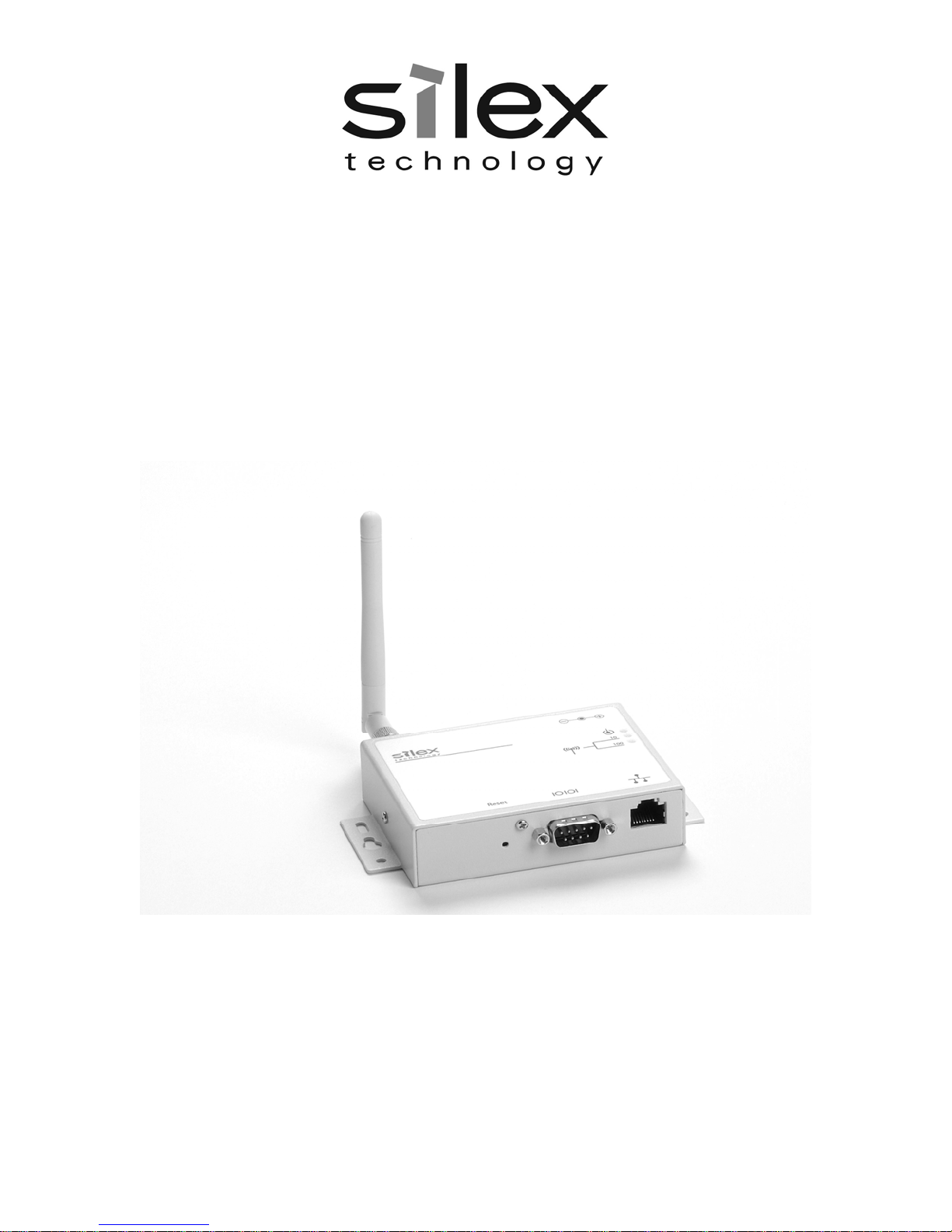
The SX-600 Ethernet to Wireless Client Adapter allows you to easily add 802.11 b/g wireless
capabilities to any Ethernet product. It is ideal for connecting Ethernet enabled printers, scanners,
and multifunction printers (MFPs) to a wireless network without having to change drivers or
management utilities. The SX-600 also brings 802.11 b/g wireless capabilities to Ethernet
enabled product such as desktop or laptop computers, point of sale terminals, medical devices,
and networked industrial control devices.
Once configured, the SX-600 is platform independent so it will work with any operating system
and any network device. It provides Ethernet pass-through to the wireless network for network
features already provided by your Ethernet enabled device. The SX-600 includes an RJ-45
connector for an auto-sensing 10/100 Ethernet, a reset button, a power jack, LEDs for status
indication, 802.11b/g WLAN connectivity, and a serial port for configuration or diagnostics.
Package Contents
SX-600 Adapter
Power supply adapter
Installation CD
Hardware Installation Guide
Crossover Ethernet Cable
Windows™ System Requirements
To configure the settings of the SX-600 using the provided ExtendView Utility in Windows, your
Windows-based system should include the following components:
•A PC with a 133 MHz or higher processor
•Microsoft Windows 98SE, ME, 2000, XP, or 2003 server operating system
•At least 64 MB of RAM (memory)
•At least 10 MB of free hard disk space (to install the software)
•A CD-ROM drive (to load the software)
•An Internet connection (for online product registration)
Other Operating Systems
Users can access the configuration settings for the SX-600 through a standard web browser by
entering the IP address of the SX-600 into the address bar.

SX-600 User’s Manual
5
Wireless Requirements
The SX-600 allows you to connect to a wireless network consisting of either of the following:
•An 802.11b/g-compatible wireless-enabled PC connected directly to the serial server
(Ad-Hoc or Peer-to-Peer Mode).
•An 802.11b/g-compatible wireless access point that allows wireless and wired
Ethernet-enabled computers to connect to the serial server.
To configure the SX-600 to communicate with your wireless network, you will need the following
information from your wireless network administrator:
•Wireless Mode used (Infrastructure or Ad-Hoc)
•The SSID (service set identifier) for your wireless network.
•Wireless Security Settings (WEP/WPA keys, 802.1x settings, etc.)
SX-600 Installation
Follow the steps below to install the SX-600.
Before attempting to install the SX-600, make sure you have installed and set up your Ethernet
device and network connection as described in the documentation that came the same way you
would for connecting it to the wired LAN.
Important: Before attempting to use the wireless connection with the SX-600, you must verify
that your Ethernet enabled device is able to connect directly with the wired LAN. If you can not
connect to the device on a wired LAN, you will not be able to connect to it and access it from the
wireless network. For details on configuring the networking functions of your Ethernet enabled
device, please see your device’s documentation.
1. Connect the SX-600 to a computer’s RJ-45 Ethernet connection using the included
Ethernet cable. The SX-600 Ethernet port supports MDIX (Automatic Crossover) so you
can use any crossover or standard Ethernet cable, but you will want to connect it directly
to the computer.
Important: Do not connect the SX-600 to a hub or a switch. It is designed to
connect with one Ethernet address and could cause network loop-back issues if
connecting from a hub or switch to a wireless network.
2. Plug the SX-600 power supply adapter into a suitable AC receptacle, and then plug the
power supply cable into the SX-600. The SX-600 will run through a sequence of power-
up diagnostics for a few seconds.
3. Configure the SX-600 to associate with your access point or wireless network.
Note: The SX-600 will only allow configuration from one network interface at a time.
While both network interfaces (wired and wireless) are enabled to transmit and receive
raw packets, only one interface can be active for configuration (HTTP, Telnet or SNMP)
purposes at a time. The default interface is wired, but it can be changed to the wireless
interface by depressing the button on the back of the SX-600 for less than 5 seconds or
in the software configuration using either ExtendView or the web browser interface.

SX-600 User’s Manual
6
Configure the Network Settings on your Computer
The default IP Address of the SX-600 is 169.254.111.111. You should set your computer to
automatically receive an IP Address so it will acquire an Auto-IP Address in order to be on the
same subnet as the SX-600 to configure it. Below are the instructions for configuring a Windows
XP PC:
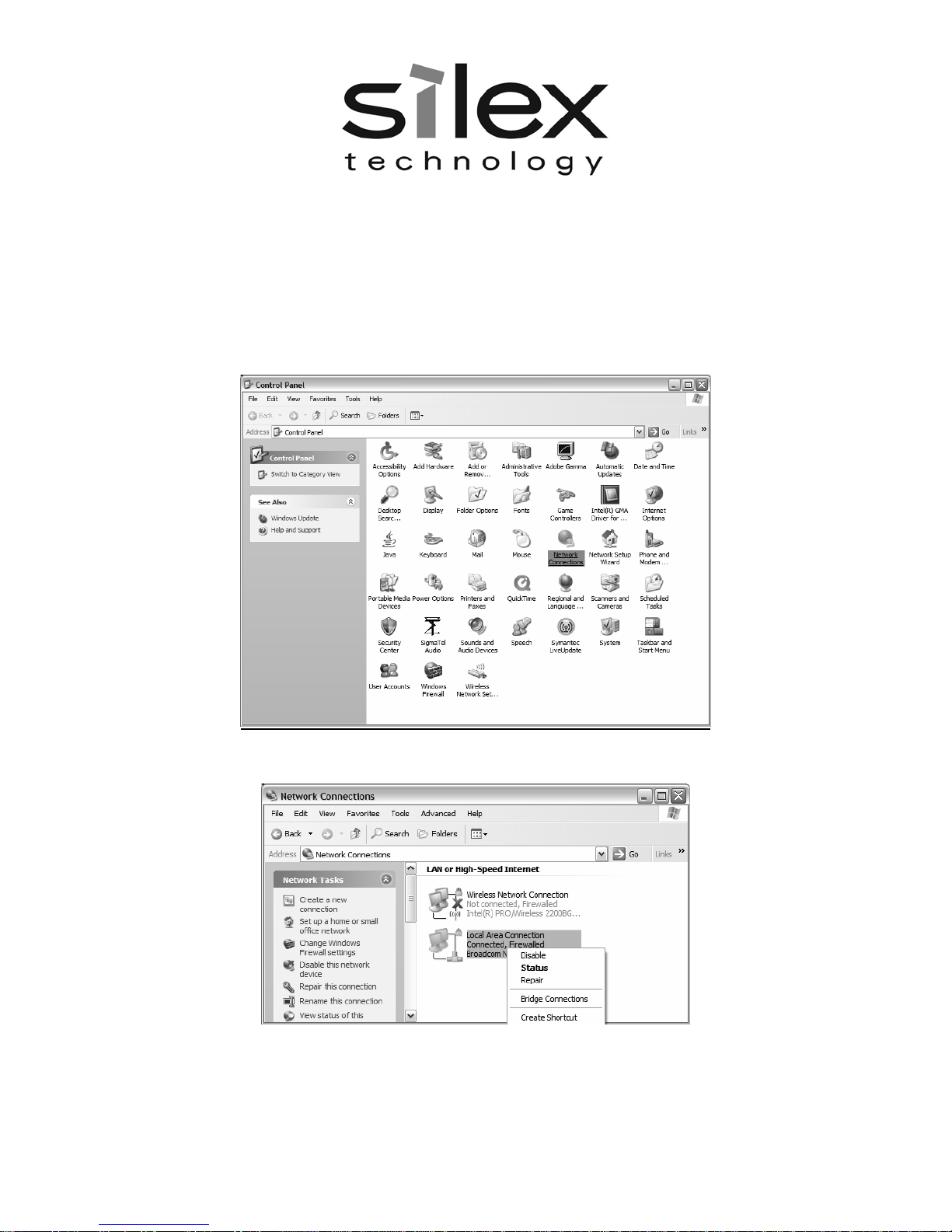
1. Click on Start, and then Control Panel. Go to Network Connections.
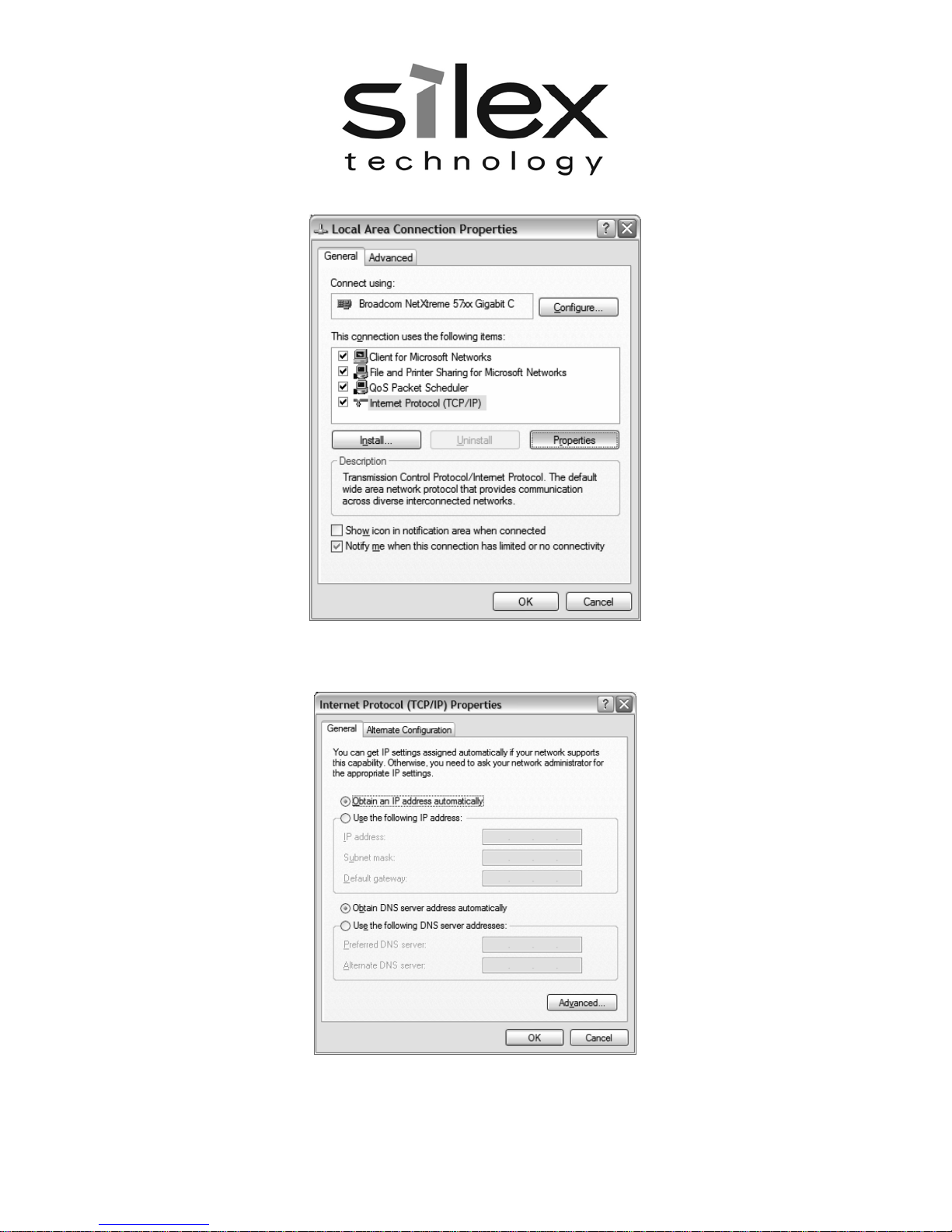
2. Right-Click on your Local Area Network connection and select Properties.

SX-600 User’s Manual
7
3. Select Internet Protocol (TCP/IP) and click Properties.
4. Select Obtain an IP Address Automatically in the TCP/IP properties and click OK, then
OK again.

SX-600 User’s Manual
8
Configure the SX-600
The SX-600 can be configured a variety of ways.
ExtendView for Windows
1. Insert the CD supplied into the CD-ROM drive of your computer. The CD should
automatically start and display a menu screen.
Note: If it does not start automatically, click the Start button on the bottom left of your screen,
click Run, and type D:/Install.exe (where “D” corresponds to the letter associated with your
CD-ROM).
2. Click on Install Software.
3. Select ExtendView, and then click on Install. Follow the prompts in the installation
wizard. After the installation is complete, you can start the ExtendView utility by clicking
on Start, Programs, silex technology, then ExtendView.
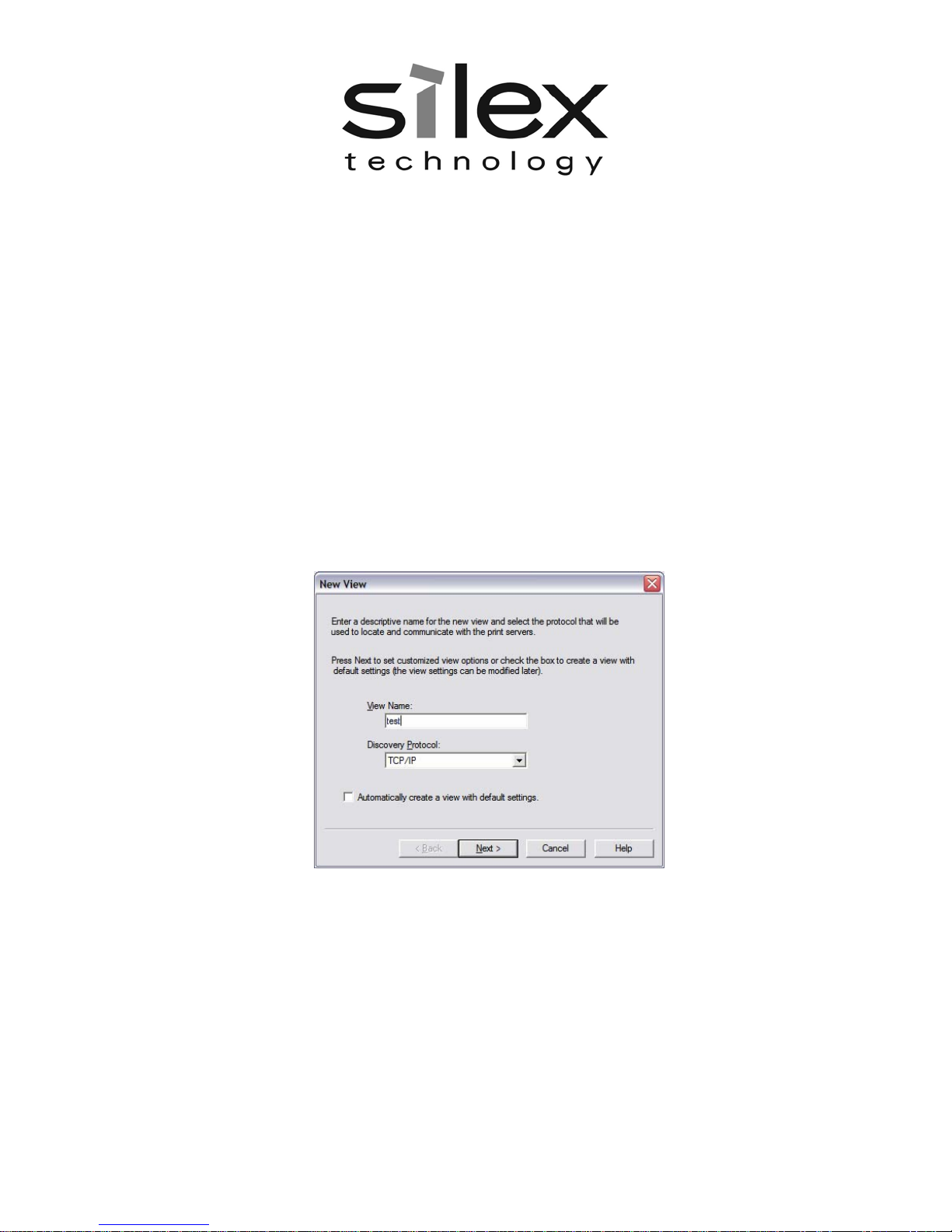
4. When you start the ExtendView utility, You will be asked to create a new View. Type in
any View Name you want. Check Automatically create a view with default settings
(unless you want to customize your view) and click Next.

SX-600 User’s Manual
9
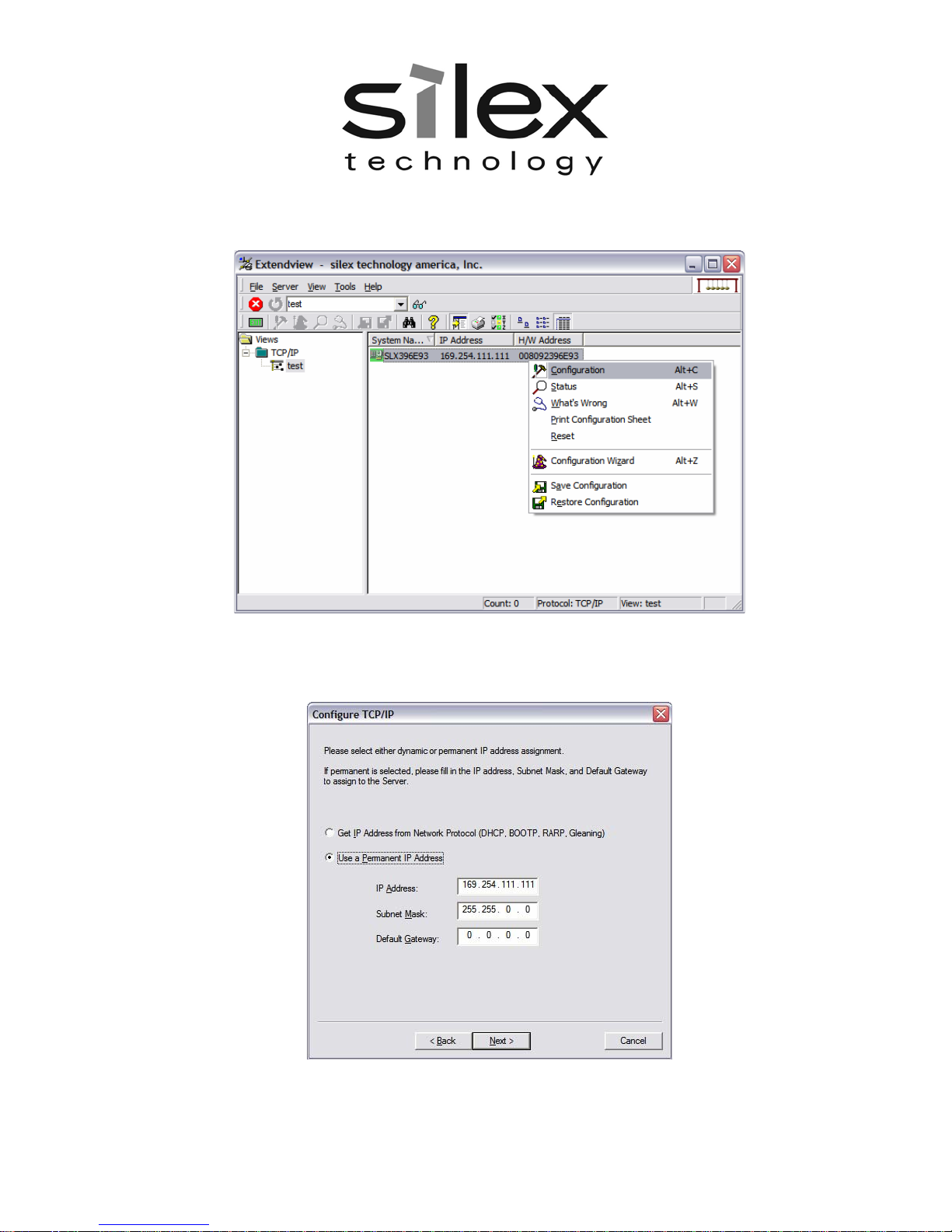
5. You should see the SX-600 in the list. If you do not see the SX-600 in the list, start again
and verify all the steps were made correctly for the installation up to this point again.
Right-Click the SX-600 (where the H/W address matches the one on the back label of
the SX-600) and click Configuration.
6. The IP Address settings of the SX-600 are for configuration purposes only. These will not
effect the network device you are connecting to. You do not normally need to change
these settings if you want to continue to make future configuration changes by connecting
directly from a PC with a crossover Ethernet cable.

SX-600 User’s Manual
10
7. Configure your wireless settings to match that of your wireless network. First choose the
Wireless Mode and type in the SSID of your wireless network.
Mode
For Mode, AD-HOC means the wireless network is composed of stations without access
points. INFRASTRUCTURE mode means all data is being passed through a central
access point.
SSID
The Service Set Identifier is used by stations to select the wireless network with which to
communicate.
Configure Bridge via:
The SX-600 will only allow configuration from one network interface at a time. While both
network interfaces (wired and wireless) are enabled to transmit and receive raw packets,
only one interface can be active for configuration (HTTP, Telnet or SNMP) purposes at a
time. The default interface is wired, but it can be changed to the wireless interface by
clicking on Wireless Connection.
Once you have entered the correct wireless mode and SSID for your wireless network,
click on Wireless Security. The other settings on this page don’t normally need to be
changed.
Indice
Altri manuali Silex technology Adattatore