
SilverNet PICO Manuale utente

V1.0 www.silvernet.com
PRO RANGE
PICO MICRO
LITE MAX
User Manual

Pro Range User Manual 2
TABLE OF CONTENTS
Introduction............................................................................................................................... 4
Supported Products ............................................................................................................... 4
Wireless Modes ..................................................................................................................... 4
System Requirements............................................................................................................ 4
Packing list ................................................................................................................................. 5
The Enclosure and LED indicators.............................................................................................. 6
Configuration............................................................................................................................. 7
Getting Started ...................................................................................................................... 7
Navigation.............................................................................................................................. 8
Status......................................................................................................................................... 9
Overview.............................................................................................................................. 10
Realtime Graphs .................................................................................................................. 12
Admin Tab................................................................................................................................ 13
System ................................................................................................................................. 13
Administration ..................................................................................................................... 15
SNMP ................................................................................................................................... 16
LED Configuration ................................................................................................................ 18
Backup/Flash Firmware........................................................................................................ 19
Reboot ................................................................................................................................. 20
Services.................................................................................................................................... 21
Dynamic DNS ....................................................................................................................... 21
Network Tab ............................................................................................................................ 27
LAN Interface ....................................................................................................................... 28
DHCP Server ........................................................................................................................ 30
Wireless Interface................................................................................................................ 34

Pro Range User Manual 3
Device Configuration ........................................................................................................... 36
Interface Configuration........................................................................................................ 40
Wireless Security.................................................................................................................. 42
VLANS .................................................................................................................................. 46
Diagnostics........................................................................................................................... 47
Standards................................................................................................................................. 48
Declaration of Conformity ................................................................................................... 48
Warnings.................................................................................................................................. 49
Radio frequency Interference Requirements....................................................................... 49
Troubleshooting....................................................................................................................... 51
Warranty.................................................................................................................................. 51
Contact SilverNet..................................................................................................................... 51
Copyright Information ............................................................................................................. 51
Other SilverNet Products ......................................................................................................... 52
Pro Range............................................................................................................................. 52
Industrial Network Transmission ......................................................................................... 52
Intelligent Wi-Fi Solutions.................................................................................................... 52
Industry Leading Technical Support..................................................................................... 52

Pro Range User Manual Introduction 4
INTRODUCTION
This User Guide describes the firmware version 2.0.9 which is integrated into all Pro Range
products provided by SilverNet Ltd.
SUPPORTED PRODUCTS
This manual covers all GEN4 products listed below:
• PICO
• MICRO
• LITE
• MAX
For more information, visit www.silvernet.com
WIRELESS MODES
The Pro Range supports the following wireless modes:
• Station
• Station WDS
• Access Point
• Access Point WDS
SYSTEM REQUIREMENTS
• Windows XP, Windows Vista, Windows 7, Windows 8, Windows 10, Linux, or Mac OS X
• Web Browser: Mozilla Firefox, Apple Safari, Google Chrome, or Microsoft Internet Explorer
9 (or above)

Pro Range User Manual Packing list 5
PACKING LIST
Please check the following items in the package before installing the device
Wireless Radio 1 piece
User manual 1 copy
Cable Gland 1 piece
Mounting bracket 1 piece
Power over Ethernet Injector 1 piece
Power cable 1 piece
Set of screws 1 piece
Please contact your distributor immediately for any missing or damaged items.

Pro Range User Manual The Enclosure and LED indicators 6
THE ENCLOSURE AND LED INDICATORS
Mark
Name
Function
1
Reset Button
Press to reboot the device manually
Hold to rest the device to factory settings
2
Ethernet Port (PoE)
10/100Mbps Ethernet port and PoE power input (48V DC)
3
Ethernet link LED
“On/Blinking”: Power is being supplied and a link has been
established to the network.
“Off”: No power and/or the Ethernet port has no connection
4
75% Signal Rx LED
“On”: Signal Strength is at 75%
“Off”: Signal Strength not at 75%
5
100% Signal Rx LED
“On”: Signal Strength is at 100%
“Off”: Signal Strength not at 100%
“Blinking”: Device is in diagnostic mode
3
4
5
1
2
Pro Range User Manual Configuration 7
CONFIGURATION
GETTING STARTED
To access the Pro Range Configuration Interface, perform the following steps:
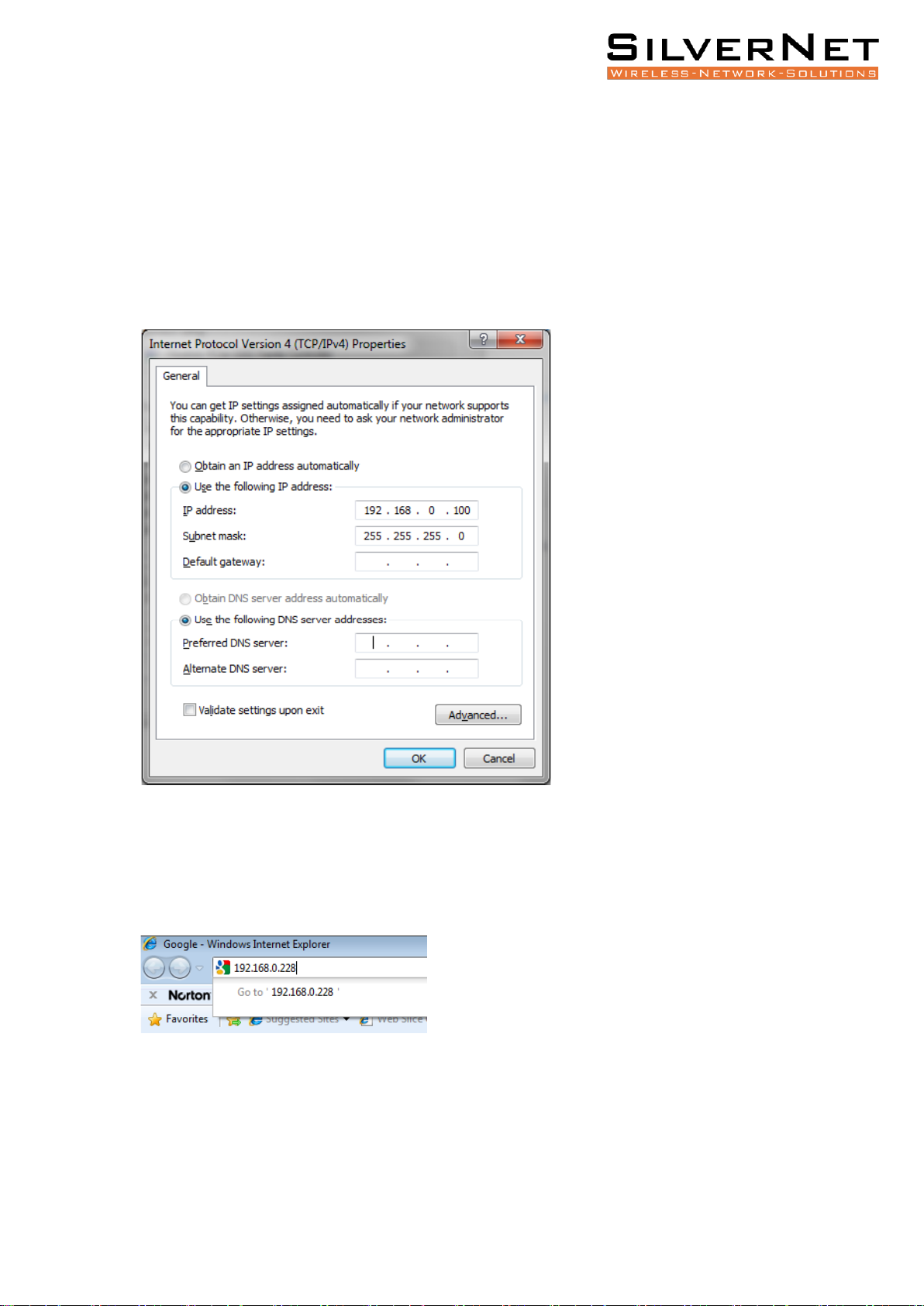
1. Configure the Ethernet adapter on your computer with a static IP address on the
192.168.0.x subnet (for example, IP address: 192.168.0.100 and subnet mask: 255.255.255.0
2. Launch your web browser and enter the default IP address of your device in the address
field. IP Address
Pro Range products are pre-configured to IP address 192.168.0.229/192.168.0.228
If the unit has been reset, it will go to the default IP address of 192.168.1.1. You will need
to change your Ethernet adapter IP address to 192.168.1.x subnet.
3. Enter admin in the Username field and password in the Password field and click Login.

Pro Range User Manual Configuration 8
NAVIGATION
The Pro Range Configuration Interface contains four main tabs, each with sub tabs which
provide a web-based management page to configure a specific aspect of the SilverNet
device:
•Status The “Status Tab” displays device status, system logs, and real-time graphs.
• Admin The “Admin Tab” displays basic system properties, NTP configuration,
administration, SNMP configuration, LED Configuration, file and firmware management and
Reboot.
• Services The “Services Tab” allows you to configure Dynamic DNS.
• Network The “Network Tab” configures the network operating mode; This includes LAN
Interface settings, Wireless Settings, VLAN Management and Network Diagnostics.
• Logout The “Logout Tab” allows you to logout of the unit.
Apply Settings To apply any settings to the radio, click Save and Apply

Pro Range User Manual Status 9
STATUS
The Status tab displays a summary of the link status information, current values of the basic
configuration settings (depending on the operating mode), network settings and
information, and traffic statistics.
AP status page
Station status page
When using the alignment buzzer, the faster the beeps the better the signal quality.

Pro Range User Manual Status 10
OVERVIEW
Wireless This shows you the SSID, operating mode, channel frequency, bitrate, BSSID,
encryption mode and the DFS status.
Associated Stations Displays the MAC address, SSID and signal information of any stations
connected to the AP.
System Displays the name of the device, the firmware version and the current system date
and time. The date and time are displayed in DAY-MONTH-YEAR HOURS:MINUTES:SECONDS
format.
Memory Displays the total amount of memory on the board and shows how much is free in
kB (Kilobytes).
Network Displays local device information including the current uptime, MAC address and IP
address.
Wireless Parameters
SSID Displays the name of the wireless network that the AP is transmitting, the Service Set
Identifier (SSID), is what you will see if you scan with your laptop.
Mode This is “Master” if the device is set in AP mode or AP WDS Mode.
This will show as “client” if the device is in station mode or station WDS mode.
Channel Shows the channel number and frequency that the device is using.
Bitrate This is the maximum bitrate supported by the radio.
BSSID Displays the MAC address of the device.
Encryption Displays the wireless encryption used.
DFS Status If DFS is enabled, the device will automatically switch channels if any radar is
detected on the current channel it is using.
Questo manuale è adatto per i seguenti modelli
3
Indice
Altri manuali SilverNet Hardware di rete


Manuali Hardware di rete popolari di altre marche

Matrix Switch Corporation
Matrix Switch Corporation MSC-HD161DEL Manuale utente

B&B Electronics
B&B Electronics ZXT9-IO-222R2 Manuale utente

Yudor
Yudor YDS-16 Manuale utente

D-Link
D-Link ShareCenter DNS-320L Manuale utente

Samsung
Samsung ES1642dc Istruzioni per l’uso

Honeywell Home
Honeywell Home LTEM-PV Istruzioni per il montaggio


