
Sin Tech Mini Clip II Manuale utente
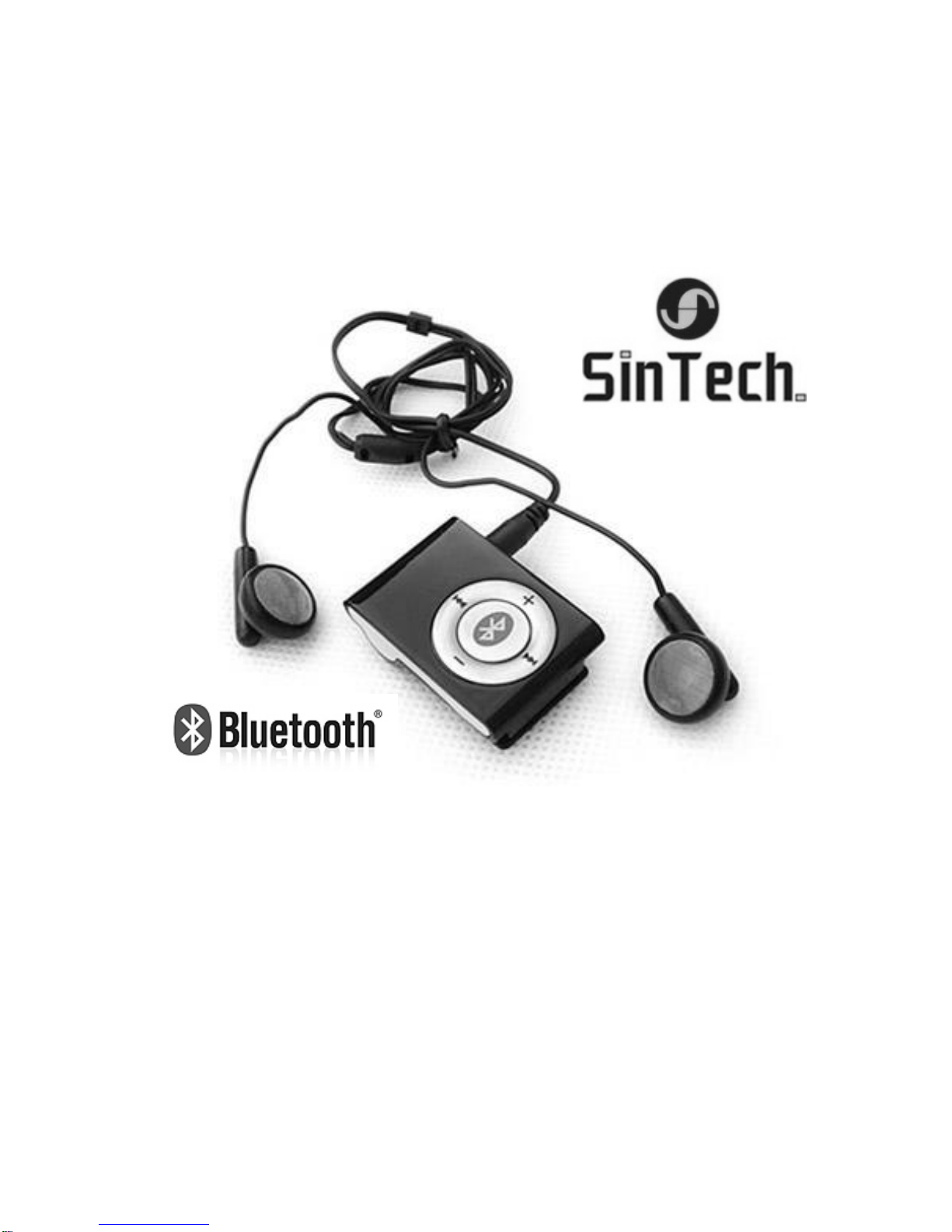
Bluetooth Stereo Headset Mini Clip II

2
User’s Manual
Table of Contents
Charging the battery …………………………………………………
Figures of Headset …………………………………………………..
How to wear headset ………………………………………………...
Match of headset ……………………………………………………..
Switch of headset ……………………………………………………
Dial a call ……………………………………………………………...
Enjoy music using headset ………………………………………….
Redial last call ………………………………………………………..
Receive and end a call ………………………………………………
Refuse a call ………………………………………………………….
Forward a call ………………………………………………………...
Adjust volume ………………………………………………………...
Mute ……………………………………………………………………
Low power …………………………………………………………….
Limited maintenance …………………………………………………
Troubleshooting ………………………………………………………
3
4
4
5
7
7
9
8
9
10
10
11
11
12
12
15

3
Thank you for buying this Bluetooth Headset, hope our product could
satisfy you, to let you know all functions of this headset, please
thoroughly read this Manual.
!! Precautions of driving
If you need use this product to make calls while in driving, please end
the call as soon as possible please also do not make records or read
documents during such time, if necessary (in cases of bad weather,
traffic jam, or vehicle malfunction), please drive the car away from
roads and stop it before dialing or receiving calls.
Please note: no calls are important than security please observe
local laws.
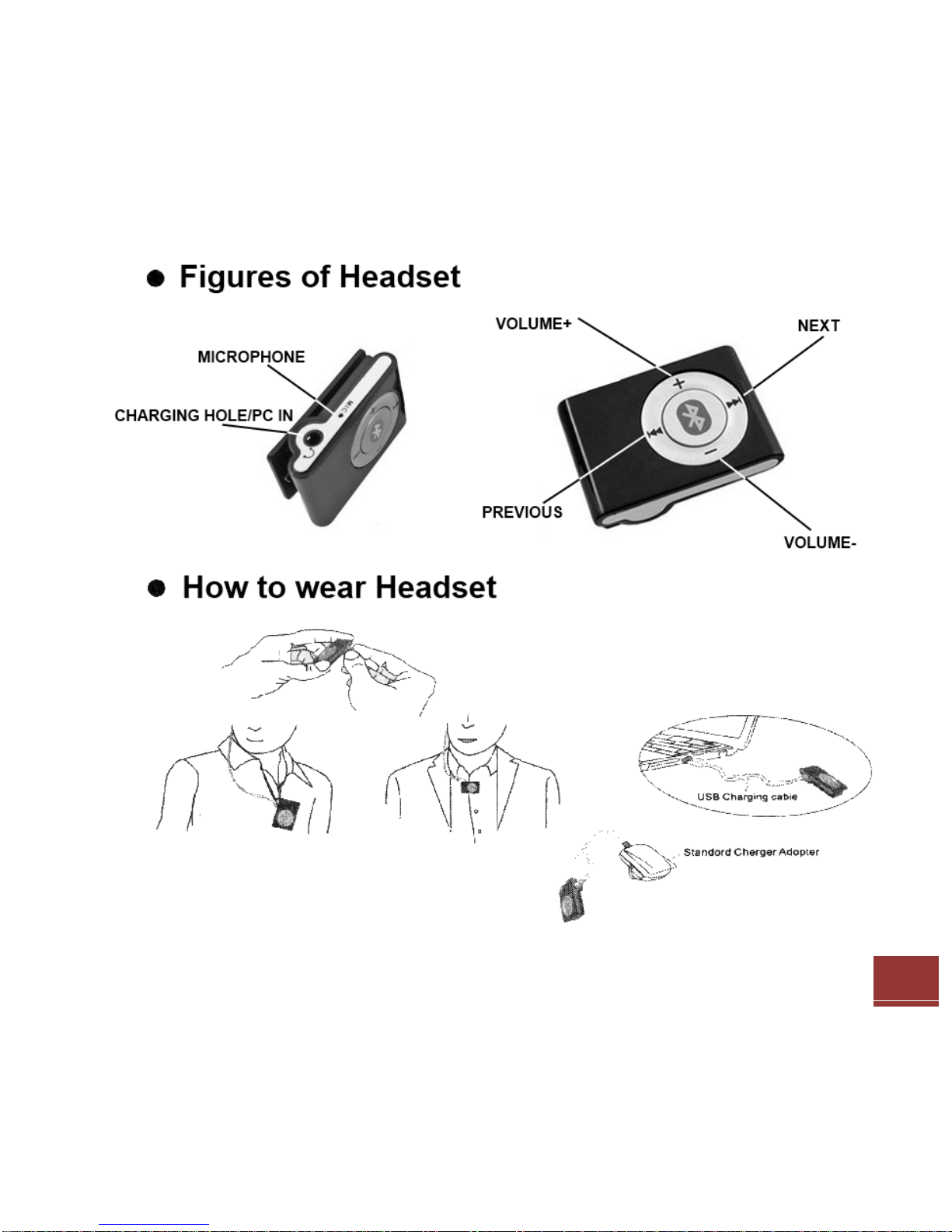
Charging the battery
New batteries are not fully charged. Before using it, please charge it
first. Full batteries support up to 10-hour continuous call and 200-hour
idle.
4

5
Charging Procedures
1. Insert transformer into AC socket.
2. Connect transformer with headset, make sure the card is
properly inserted. While charging the red indicator of blue-tooth
is on.
3. When battery is full, blue indicator turns on, the moment “do?’
Will be heard.
4. After charging please pull headset out of the transformer.
Notes: if you have not used the headset for a long time or batteries
run out, the charging indicator may not turn on until minutes later.
Match of headset
Before using the headset, you must match the headset with your
mobile, when the match is ok, you can use it. If you want it to match
with the other mobile, you must rematch it, then the headset can’t be
used together with the previous mobile.
1. Before the match, you must first power off the headset, press
and hold function button till the blue and red indicators blink in
turn.

6
2. Release the button, earphone immediately enters idle mode
waiting for match.
3. Your mobile will display a list of blue-tooth device within lm
distance, select to start match process (for instructions of
seeking blue-tooth device on mobile, please refer to USER’S
MANUAL of your mobile).
4. Enter the password “0000” following command of mobile, then
press OK (“0000” is default password), when the match is
successful, the blue indicator will blink at interval of 2s, the
moment bell rings. When match and connection are finished, you
can dial and receive calls.
5. If you fail to enter password within required time, the headset will
return to idle mode waiting for match, the moment bell rings.

7
Start-up headset
Press and hold function button for 3s, you will hear bell ring, the blue
indicator starts blinking, indicating the headset has been started-up,
ready to connect mobile now.
Power off headset
Press and hold function button, you will hear bell ring for 2 times, the
blue indicator will extinguish after blinking for 2 times, indicating the
headset has been powered off.
Notes: the headset may be automatically powered off in minutes
if it isn’t connected with any Bluetooth device.
Dial a call
Voice call (Bluetooth mobile supports voice dial, you must first set
voice tag in your phone directory).
Short press function button, when “do?” is heard, say the name of the
person stored in your mobile, the headset will automatically dial the

8
number of the person and forward the voice to headset, the moment
you will hear the bell.
Notes: If mobile uses Bluetooth headset to record voice tags, he
receiving effect may be better.
Dial using mobile
Press buttons to dial as you always do, when the contrary responds,
the voice will automatically be sent to the headset.
More functions:
These functions support Handsfree Bluetooth and AV remote control
phone. Please first make sure whether your mobile support these
functions by referring to User’s Manual.
1. Redial Last call
While in idle state, press and hold function button till “do?” is heard,
the last number is redialed. (Bluetooth mobile supports AVRCP, user
can select the number to be redialed using VOLUME+/- buttons).

9
2. Enjoy music using the headset
Enjoy the music on mobile. If your mobile supports MP3 and A2DP,
when the match is successful, you can use headset to enjoy MP3
music that the mobile plays.
Notes: if the mobile supports AVRCP, user can select
PREVIOUS, NEXT song, or STOP/PLAY the music.
3. Enjoy music in the computer
If the computer supports blue-tooth function or is configured blue-
tooth adapter, when it is matched with the headset (for details please
refer to instructions of adapter), you can use headset to enjoy the
music that the computer plays. You can also connect AUDIO OUT
whit the jack of headset, then you can enjoy the melody from your
mobile or computer. And you can select PREVIOUS, NEXT song, or
STOP/PLAY the music.
Receive and end a call
After the headset is started-up, when call comes in, you will hear bell
ring, blue indicator will blink fast, short press function button to
receive the call, short press function button again to end the call, the

10
moment you will hear bell ring. If another comes in while in a call,
short press function button, you can receive the other call and let the
first call wait.
Short press function button to end current call and shift to the waiting
call.
Refuse a call
If you don’t want to respond an incoming call, short press function
button and hold it for 2 seconds to refuse it, the moment you will hear
bell ring.
Forward a call
While in a call you can short press function button, then release it
when “do?” is heard, the voice is forwarded from the headset to
mobile. The same operations also allow you to forward the voice from
mobile back to headset, the moment you will hear the ring (depends
on type of mobile).
Indice


