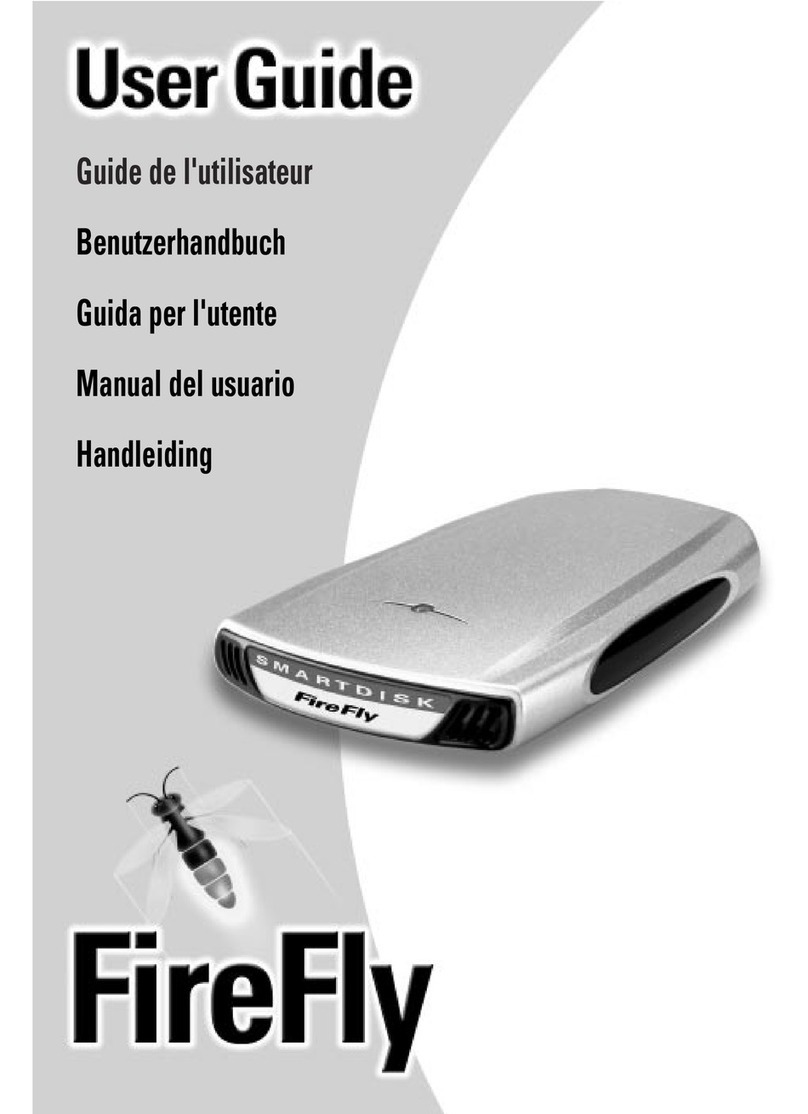
SmartDisk NetDisk Manuale utente


Guide de l'utilisateur sur CD
Guida per l'utente su CD
Benutzerhandbuch auf CD
Manual del usuario en CD
Handleiding op cd
Revision 1.0

SMARTDISK NETDISK® HARD DRIVE.....................................1
CONTROLS AND INDICATORS...................................................2
WHICH INTERFACE: USB OR ETHERNET?............................3
CONNECTING NETDISK USING USB.........................................3
STORING AND TRANSFERRING DATA VIA USB ................................5
DISCONNECTING NETDISK FROM USB.............................................6
CONNECTING NETDISK USING ETHERNET ..........................7
PREPARING FOR DEVICE REGISTRATION ..........................................7
CONNECTING THE HARDWARE TO YOUR LAN.................................8
INSTALLING NDAS™ SOFTWARE ON YOUR PC..............................9
REGISTERING AND MOUNTING YOUR NETDISK.............................10
NETDISK OPERATION USING ETHERNET............................11
SHARING NETDISK OVER YOUR LAN ............................................12
THE NDAS DEVICE MANAGER......................................................12
NETDISK STATUS AND MODE INDICATOR......................................14
CHANGING FROM READ / WRITE MODE TO READ ONLY MODE.....16
CHANGING FROM READ ONLY MODE TO READ / WRITE MODE.....17
GETTING HELP.............................................................................17
WARRANTY TERMS....................................................................18
RIGHTS............................................................................................19
FCC COMPLIANCE ......................................................................20

1
SmartDisk NetDisk® Hard Drive
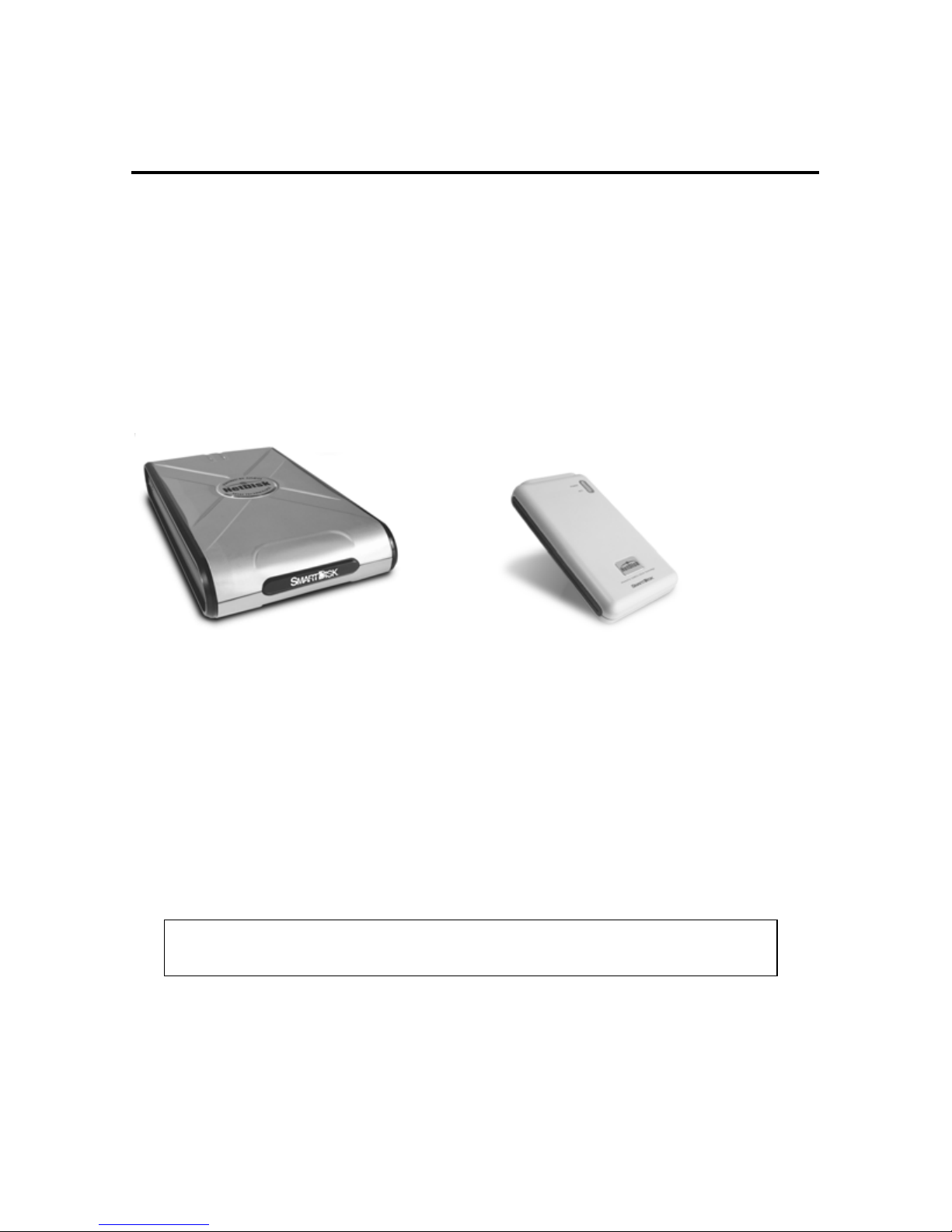
Your SmartDisk NetDisk® desktop hard drive, or NetDisk® portable
drive, is a versatile external hard drive featuring high-performance
storage and a choice of either high-speed USB 2.0 or Ethernet
interface. Once your drive is connected properly to your computer
running Windows 2000 or Windows XP, you will be able to use it as
you would any hard drive for storing your data and for performing
data back-up functions.
NetDisk Desktop Hard Drive NetDisk Portable Hard Drive
In this manual the term “NetDisk”, when used without further
qualifiers, will be used to refer to both the NetDisk desktop hard drive
and the NetDisk portable drive.
Your NetDisk drive comes pre-formatted from the factory in NTFS
format, which is the preferred format for use with Windows 2000 or
Windows XP.
Note: Capacity dependent on model. Your operating system may
report capacity as fewer gigabytes. 1 GB = 1,000,000,000 bytes.

2
Controls and Indicators
The rear panel of your NetDisk drive contains the three interface
connectors and single control switch as described below.
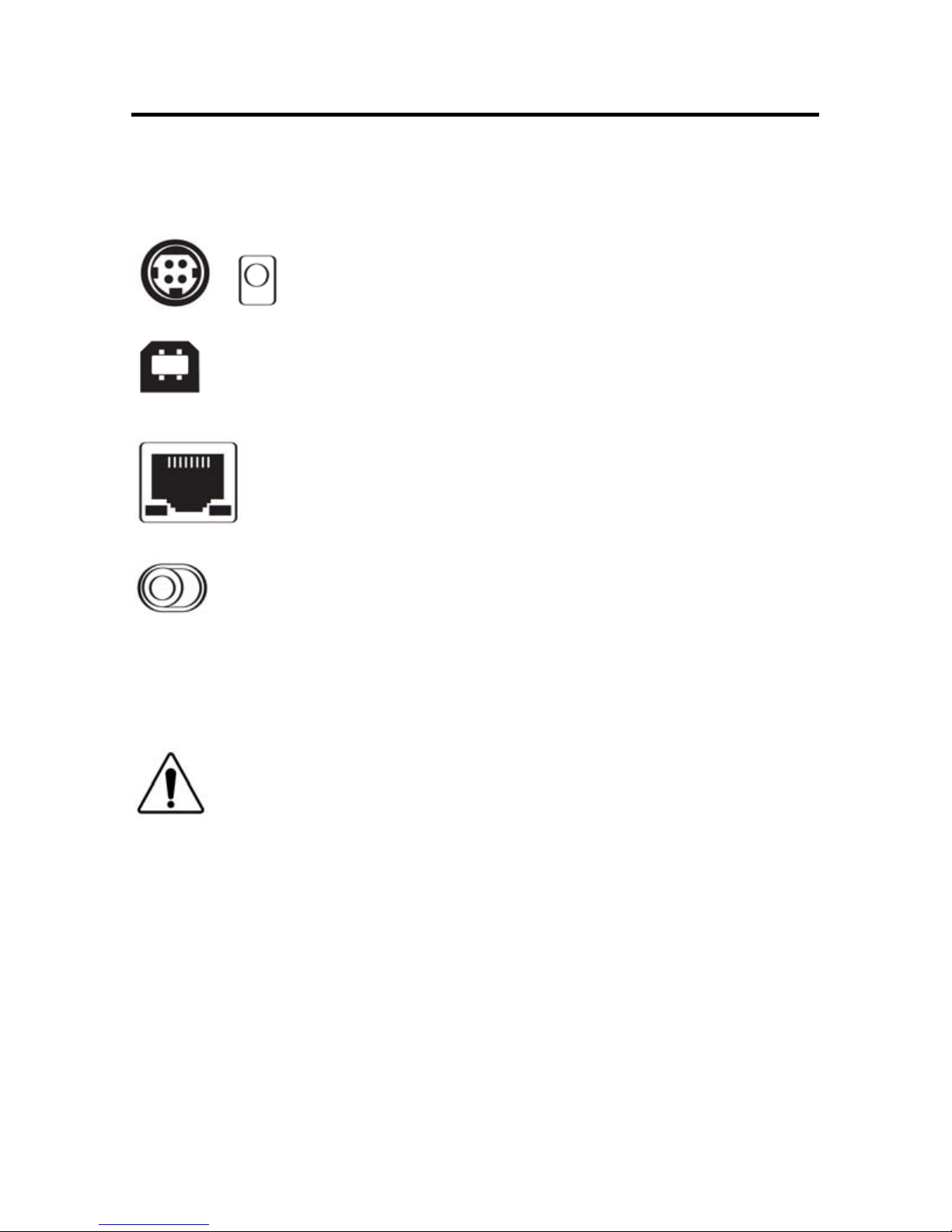
or DC Input Jack For use with the included AC Adapter.
USB Jack For use with the included USB cable.
Ethernet Jack For use with the included Ethernet cable.
Power Switch Controls power to the unit.
Slide this switch to the “ON” position to apply power to the unit,
and to the “OFF” position to remove power from the unit. To
avoid data loss, do not turn off the unit while the yellow Activity
LED is flashing.
During operation, you can monitor the current status of your NetDisk
drive by viewing the two LED’s located on the top surface of the unit.
Power LED (Green) Indicates that power is applied to the unit.
Activity LED (Yellow) Indicates that the disk drive is being accessed.
To extend the useful life of your NetDisk, turn the
unit OFF when not in use.

3
Which Interface: USB or Ethernet?
In order to install and use your NetDisk drive, you need to decide
which interface is better for you. With the flexibility of NetDisk, you
can always change the interface you want to use later, depending on
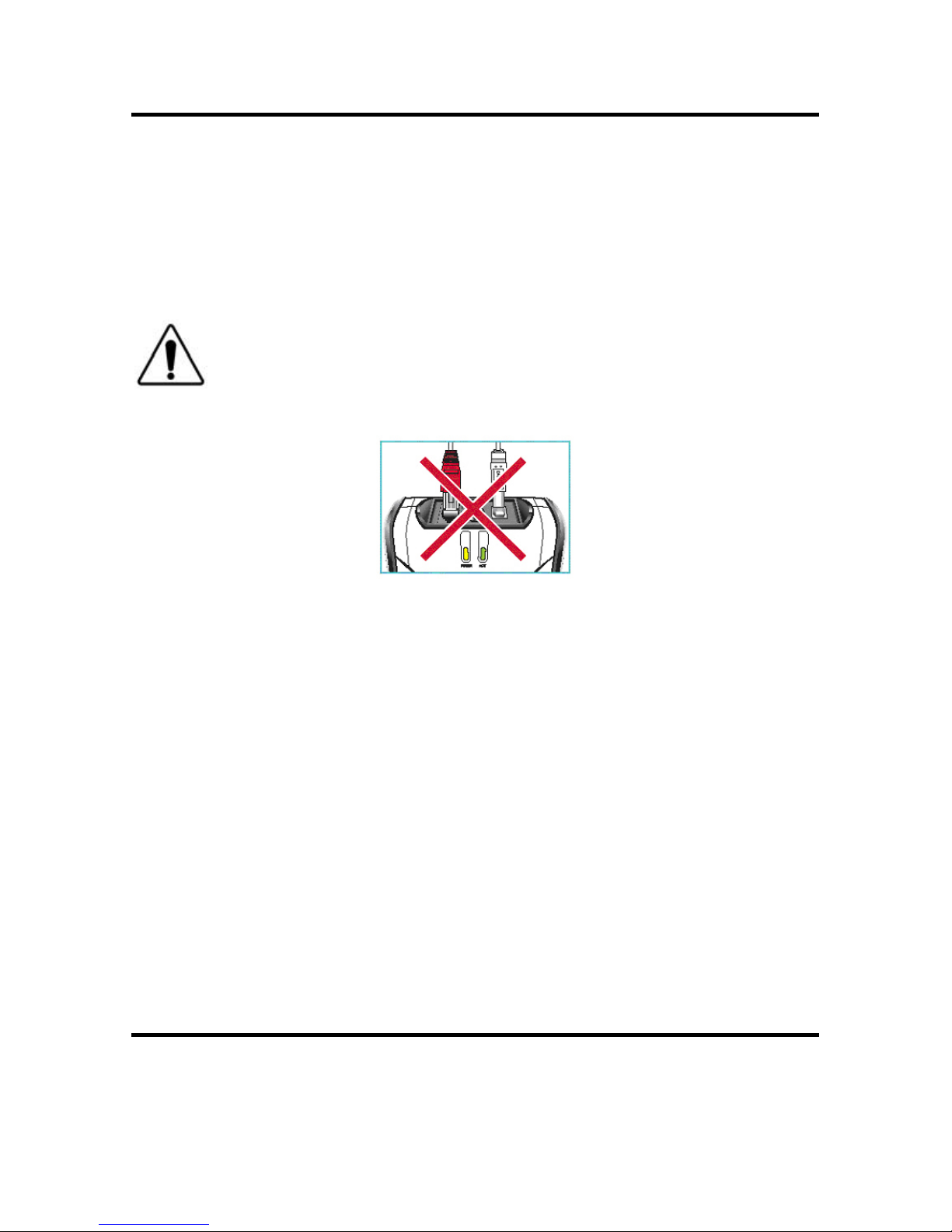
your application or computer environment. However, never attempt to
connect to both USB and Ethernet at the same time.
If you do not have an Ethernet network available to you, or you
primarily want to provide additional storage to a single computer, then
you should consider USB as your interface selection. Please continue
reading from the next section to learn how to install your NetDisk
using USB.
If your PC is connected to a Local Area Network (LAN) over
Ethernet (either wired or wireless), and you primarily want to provide
shared storage amongst two or more computers on the LAN, then you
should consider Ethernet as your interface selection. Please jump to
the section entitled Connecting NetDisk Using Ethernet to learn
how to install your NetDisk using Ethernet.
Connecting NetDisk Using USB
Installing your NetDisk using USB is extremely simple. Follow the
steps below, depending on which NetDisk model you are installing.
Caution: Do not connect both USB and Ethernet
at the same time.

4
NetDisk Desktop Drive:
1. Connect the included AC Adapter to NetDisk, and then to a
wall outlet using the included power cord.
2. Then locate the power switch on the back of the NetDisk,
and slide it to the ON position.
3. Finally, connect the included USB cable from the USB port
on NetDisk to the USB port on your PC.
NetDisk will mount automatically, and a new icon will appear in My
Computer representing your NetDisk.
NetDisk Portable Drive:
The NetDisk portable drive can be operated either in bus-powered
mode, or in self-powered mode using the included AC Adapter,
depending on the amount of power available from your computer.
Bus-Powered Mode:
This mode uses the power provided over the USB cable and does
not require use of the optional AC Adapter.
1. Locate the power switch on the back of your NetDisk
and slide it to the OFF position.
2. Next connect the included 3-connector USB cable from
the USB port on NetDisk to the USB port on your PC
(one connector of the 3-connector USB cable will be
unused).
If there is adequate power being supplied from your PC, the
NetDisk will mount automatically, and a new icon will appear in
My Computer representing your NetDisk.
If it does not mount automatically, you may need to connect
BOTH USB connectors of the supplied 3-connector USB cable
to available USB ports on your PC. If your NetDisk still fails to
mount, you will need to use the included AC Adapter in self-
powered mode, as explained below.

5
Self-Powered Mode:
1. Connect the included AC Adapter to NetDisk, and then
to a wall outlet.
2. Then locate the power switch on the back of the
NetDisk, and slide it to the ON position.
3. Next connect the included 3-connector USB cable from
the USB port on NetDisk to the USB port on your PC
(one connector of the 3-connector USB cable will be
unused).
The NetDisk will mount automatically, and a new icon will
appear in My Computer representing your NetDisk.
Note: If you are using a USB 1.1 port on your Windows computer,
the following cautionary note may appear on your display: Hi-
Speed USB Device plugged into non-Hi-Speed USB hub. This
does not indicate a problem because NetDisk is compatible with
both USB 1.1 and USB 2.0 ports. Simply close the message and
proceed. However, in this case NetDisk will operate only at USB
1.1 speeds.
Storing and Transferring Data via USB
Once your drive is connected to a computer via USB, it can be
accessed and used like any other removable disk. You can drag files
to your NetDisk’s icon to copy them, navigate to your hard drive in
Open or Save dialog boxes, or delete files stored on your SmartDisk

6
hard drive. For information on copying, opening, or deleting files,
consult your computer’s documentation.
Disconnecting NetDisk from USB
Your NetDisk drive is hot-pluggable; it can be connected and
disconnected without restarting your computer. To disconnect your
drive at any time, perform the following steps. You can also
disconnect your hard drive at any time while your computer is
powered off.
Note: Please be careful to follow the correct procedure when
disconnecting your hard drive. Simply unplugging the hard drive
without first following the instructions below may result in damage
to your hard drive and/or loss of data.
1. If you have files located on your hard drive open in any application,
close them.
2. Click the Unplug or Eject Hardware button in the System Tray.
3. Select your NetDisk drive from the menu that appears.
4. After a moment, Windows will display a message indicating that
your hardware can be safely removed.
You may also simply shut down your computer with the NetDisk
drive connected, and then disconnect it.

7
Connecting NetDisk Using Ethernet
Installing NetDisk using Ethernet is a very simple process that
involves four fundamental steps:
1. Preparing for device registration
2. Connecting the hardware to your LAN
3. Installing NDAS™ software on your PC
4. Registering and mounting your NetDisk
Note that steps 3 and 4 must be performed on each PC that will
access your NetDisk.
Preparing for Device Registration
Later in the process you will be asked to enter a unique 20-character
code, referred to as your “NDAS Device ID”, which has been
supplied with your unit. The process of entering this unique code is
referred to as Device Registration. Take this time to copy this code
where indicated in the space provided below. You will find the code
located on a sticker that has been affixed to the bottom of your
NetDisk unit. Note that although the code is comprised of both
numbers and letters, no code will contain either the letter ‘O’, or the
letter ‘I’, to avoid possible confusion with the numbers 0 and 1.
Similarly, you will be asked to enter a unique 5-character code,
referred to as your “Write Key”, which can be found below the NDAS
Device ID on the sticker on the bottom of your NetDisk unit. Take
this time to copy this code where indicated below.
Note: Since any user on your LAN who has possession of the
Write Key can gain permission to write to the NetDisk, you may
prefer to keep the Write Key written elsewhere and placed in
safekeeping.
Indice
Altri manuali SmartDisk Magazzinaggio

SmartDisk
SmartDisk FotoChute Portable Hard Drive Manuale utente

SmartDisk
SmartDisk FireLite Manuale utente

SmartDisk
SmartDisk FireLite Manuale utente

SmartDisk
SmartDisk Rover none Manuale utente

SmartDisk
SmartDisk FireFly Computer Hard Drive Manuale utente

SmartDisk
SmartDisk FireFly USBFF05P Manuale utente

SmartDisk
SmartDisk FireLite Manuale utente

SmartDisk
SmartDisk FireLite USBFL Series Manuale utente

SmartDisk
SmartDisk FireLite XPress Manuale utente

SmartDisk
SmartDisk FireLite FireWire 800 Manuale utente