6.1 Connection for Mainboard and Graphics Card
1. Connect the cable with the 24-pin mainboard connector to the appropriate sockets on the mainboard.
2. If your mainboard has an additional 4-pin / 4+4-pin CPU connection, plug the connector into the socket on the
mainboard and the power supply.
Please note: The type of connection on the mainboard depends on the manufacturer and may therefore vary.
For additional information, see the manual for your mainboard.
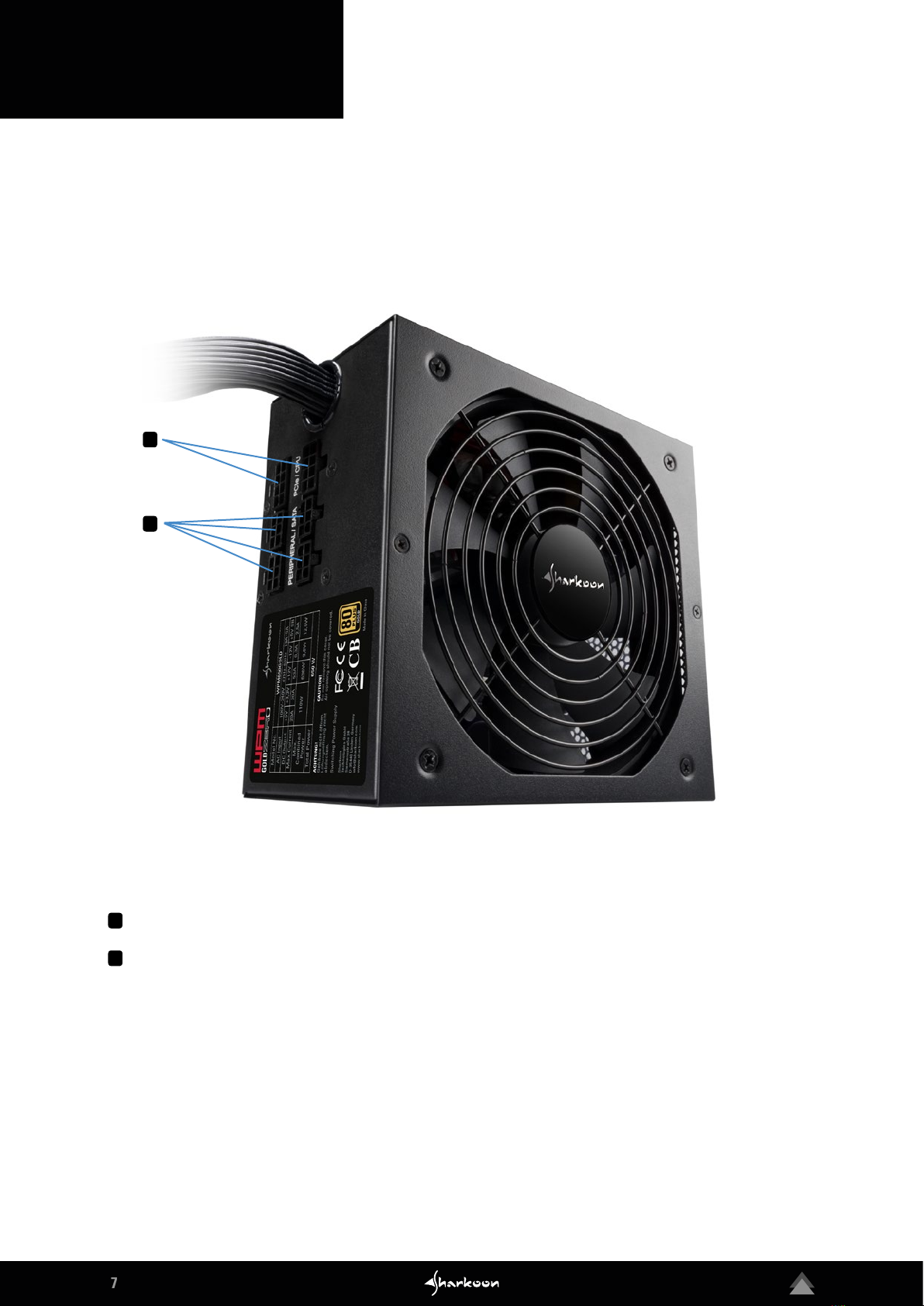
3. If your PCIe graphics card requires additional power, connect the 6-pin or 6+2-pin PCIe connector to the
power supply to ensure a stable electrical current to your graphics card.
6.2 Connecting Drives and Other Peripheral Devices
Connect drives and peripherals to the power supply.
Please note: For additional assistance, refer to the manuals for your drives and peripherals.
6.3 Checking all Connections
First, make sure all devices have been connected properly. Close the PC case. Then connect the power cord to
the power supply and to a wall outlet. Then switch on the power supply using the on/off switch on the back of
the device. This completes the installation.
Please note: The cable connectors are designed to prevent improper connection. If the connector does not fit into
the sockets of mainboard, drive or peripheral device, please check if the connector and socket are being connec-
ted in the correct orientation. Do not try to force a connector into a socket using the incorrect alignment, nor
modify the components, otherwise the power supply and your hardware will be damaged. The Sharkoon warranty
does not cover any damage that has been caused by improper handling.
6. Connecting