
Socket LAN Card Manuale utente

Quick Start Guide
for
Low Power Wireless LAN Card
SDIO version

2
TABLE OF CONTENTS
INTRODUCTION 3
GENERAL INSTALLATION 6
STEP 1: Install the Software 7
STEP 2: Insert the Card 8
CONNECTING TO OPEN AND WEP-ENABLED NETWORKS 9
STEP 1: Prepare Network Information 10
STEP 2: Connect to WLAN 11
CONNECTING TO 802.1X NETWORKS 15
STEP 1: Prepare Network Information 16
STEP 2: Install 802.1x Certificate(s) 18
STEP 3: Connect to WLAN 20
SDIO WLAN UTILITY 24
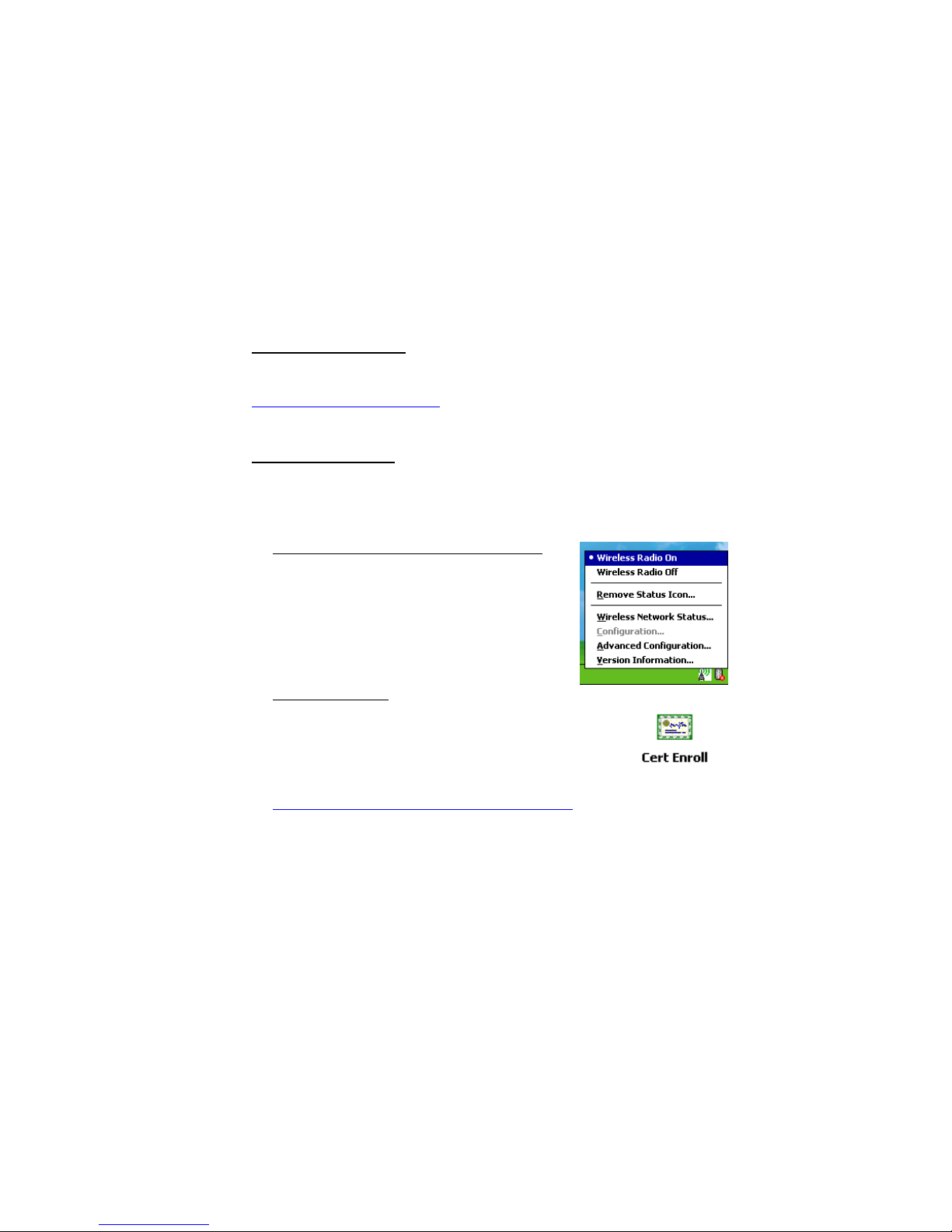
Turn Wireless Radio On/Off 25
Remove Status Icon 25
View WLAN Status 26
Configure Advanced Settings 27
View Version Information 28
Support Resources 29
Safety and Usage Tips 30
Limited Warranty 31

3
INTRODUCTION
Overview
Now you can access enterprise and public Wi-Fi
(IEEE 802.11b) Wireless LAN systems from your
Pocket PC 2003 using the smallest and lightest form
factor available with Socket’s SDIO Low Power
Wireless LAN Card. All you need is a Pocket PC
2003 with a SDIO slot running SDIO Now!, and you
can use the card to access the Internet, email, and
corporate servers.
The Socket SDIO Low Power Wireless LAN Card uses Direct Sequence
Spread Spectrum (DSSS) technology operating at 2.4 -2.5 GHz. Data rates
up to 11 Mbps are supported, providing the speed needed for quick data
downloading. The card works in environments that are open or have 40/64-
bit or 128-bit encryption enabled. The card also supports 802.1x
authentication using either Extensible Authentication Protocol-Transport
Level Security (EAP-TLS) or Protected Extensible Authentication Protocol
(PEAP) for use in environments where enhanced security is deployed.
The Low Power Wireless LAN Card can be used in two operating modes.
In Infrastructure mode (default), the adapter transmits and receives data
with an associated access point (AP) or an infrastructure of networked APs.
Ad Hoc mode lets you create one-to-one or one-to-many peer-to-peer
networks without APs, connecting directly with other 802.11b cards.
4
Product Registration
Socket highly recommends that all users register their Socket products.
Registered users receive priority for technical support. Register online at:
www.socketcom.com/prodreg
About the Software
To connect to your WLAN network, use Microsoft’s Zero Configuration
utility built into Windows Mobile 2003. The utility automatically detects
and helps you connect to available WLAN networks.
• Socket SDIO WLAN Configuration Utility
This utility enables you to monitor wireless
network performance; view IP address
information; configure advanced settings such
as power saving modes and preamble modes;
and view card, utility, and firmware version
information.
• Socket Cert Enroll
Socket Cert Enroll makes it easy to install a personal
certificate for 802.1x networks using EAP-TLS
authentication.
For software updates:
www.socketcom.com/support/support_wlan.asp
5
About This Quick Start Guide
For complete setup and usage instructions, please refer to the User’s Guide
on the installation CD.
For more information about the SDIO form factor and SDIO Now!
software, please visit: www.bsquare.com/products/sdionow/
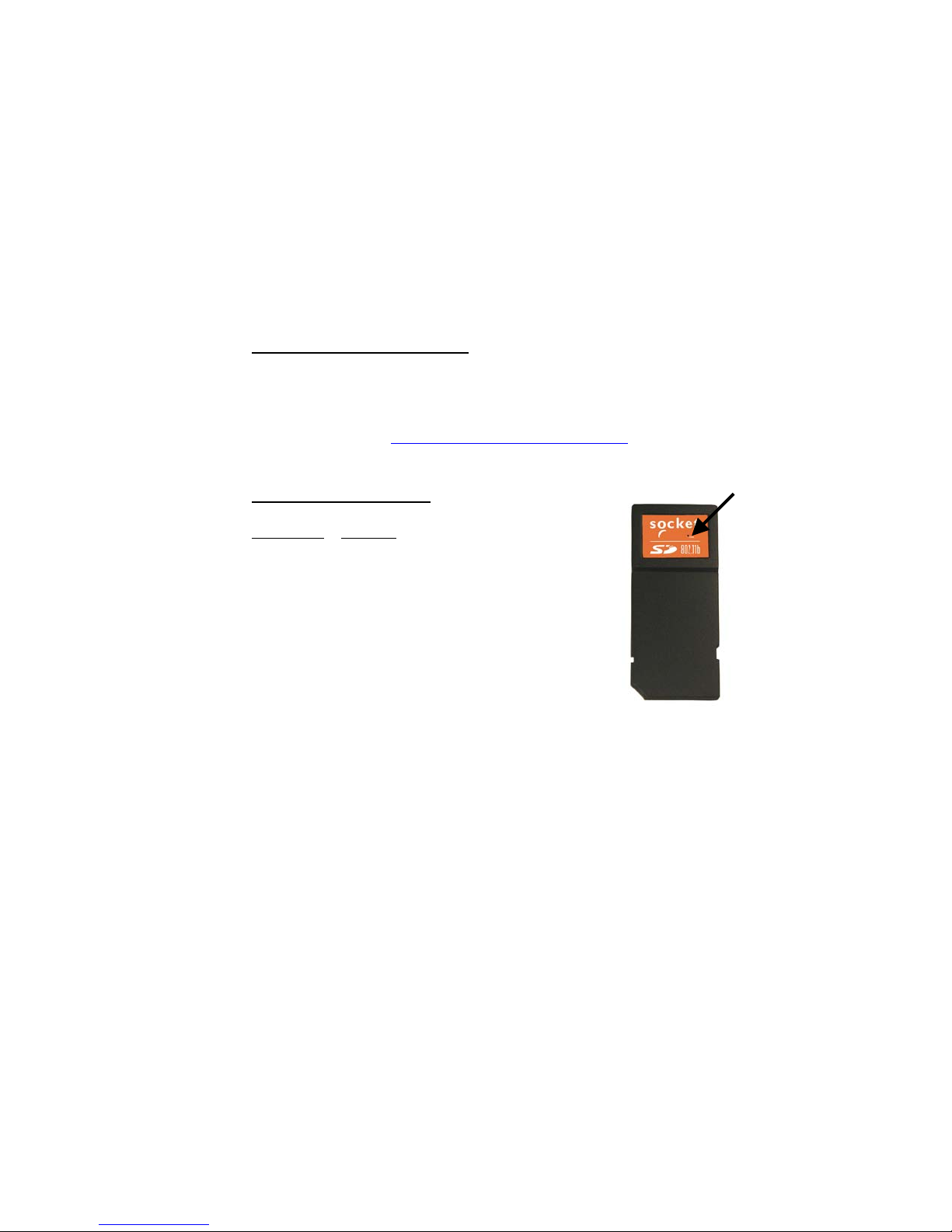
About the Link Indicator
LED Status Meaning
Off Radio disabled/cannot transmit.
Slow Flash Radio transmitter on, card not
connected.
On Card is connected to an access
point or other wireless LAN
station.

6
GENERAL INSTALLATION
Installation Summary
STEP 1: Install the software.
STEP 2: Insert the card.
Note: After completing the general installation, refer to the section for your
specific type of WLAN network to learn how to configure settings and
connect to your network.
OPEN AND WEP-ENABLED NETWORKS 7
STEP 1: Install the Software
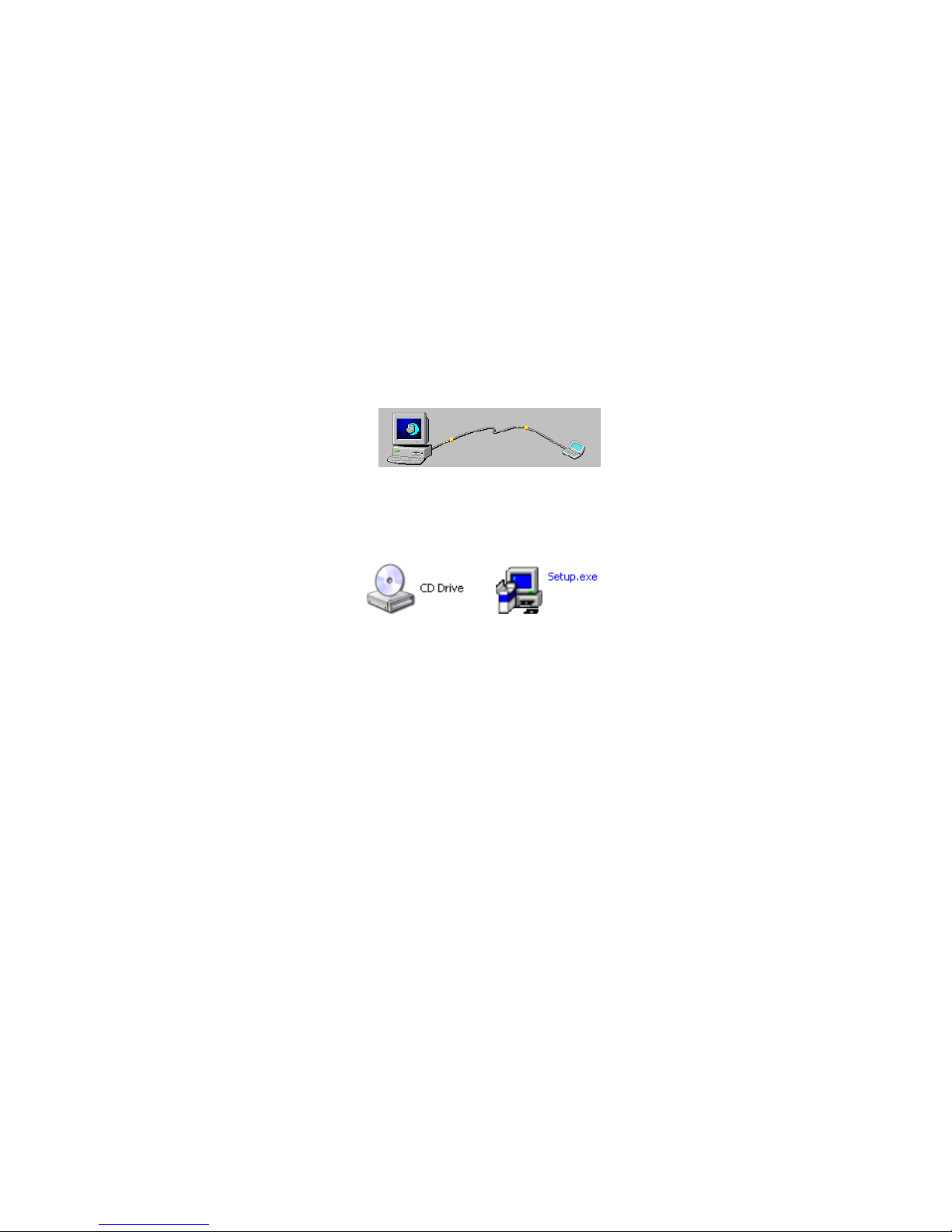
1. Make an active connection between your device and a host PC. Use
ActiveSync and a serial/USB/Ethernet connection cable or cradle.
2. Insert the Socket Low Power WLAN Installation CD.
3. Use My Computer or Windows Explorer to access your CD-ROM drive.
In the CD, click on SETUP.EXE.
4. Follow the instructions on your screen to install the software.
5. When software installation is complete, a message will appear on your
Pocket PC directing you to soft reset your device. Tap OK.
6. Disconnect the Pocket PC from the host PC. Soft reset the device by
pressing the reset button. Now you are ready to insert the WLAN card
into your Pocket PC.

8
STEP 2: Insert the Card
Insert the card into your Pocket PC’s SDIO slot.
Important!
• Make sure the card is positioned correctly in the
slot. Do NOT insert the card upside down or shove
the card in too hard.
• Make sure you have soft reset your device after
software installation before you insert the card.
Press the reset button.
• Do not soft reset the device when a Socket card is inserted, or errors may
occur in application(s) using the card. If errors occur, remove the card
and soft reset the device. Wait for the device reset to finish before you re-
insert the card.
Whenever the card is inserted, the Socket status icon will appear in the
menu bar of the Today screen. The icon varies to denote radio/connection
status.
Radio on, Bad key or
Weak signal not authenticated
Radio on, Radio off
Strong signal

OPEN AND WEP-ENABLED NETWORKS 9
CONNECTING TO OPEN AND
WEP-ENABLED NETWORKS
Connection Summary
STEP 1: Prepare network information.
STEP 2: Connect to WLAN.

10
STEP 1: Prepare Network Information
Find out what security settings you need to connect to your open or
WEP-enabled WLAN network. If applicable, consult with the network
administrator. The necessary settings may include the following (only
some will apply):
• Wireless network name, known as ESSID or SSID
• Encryption type, WEP key(s)
• Use of either DHCP or Static IP to assign IP addresses
For a Network Information Form that you can email to your network
administrator, go to the Docs folder on the installation CD or visit:
ftp://ftp.socketcom.com/wlan/WLAN_NetworkForm.txt
Questo manuale è adatto per i seguenti modelli
1
Indice
Altri manuali Socket Hardware per computer

Manuali Hardware per computer popolari di altre marche

EMC2
EMC2 VNX Series Manuale del proprietario

Panasonic
Panasonic DV0PM20105 Manuale utente

Mitsubishi Electric
Mitsubishi Electric Q81BD-J61BT11 Manuale utente

Gigabyte
Gigabyte B660M DS3H AX DDR4 Manuale utente

Raidon
Raidon iT2300 Manuale utente

National Instruments
National Instruments PXI-8186 Manuale utente


