reliable. Do not move with neither computer nor module during configuration. If current modification of the module
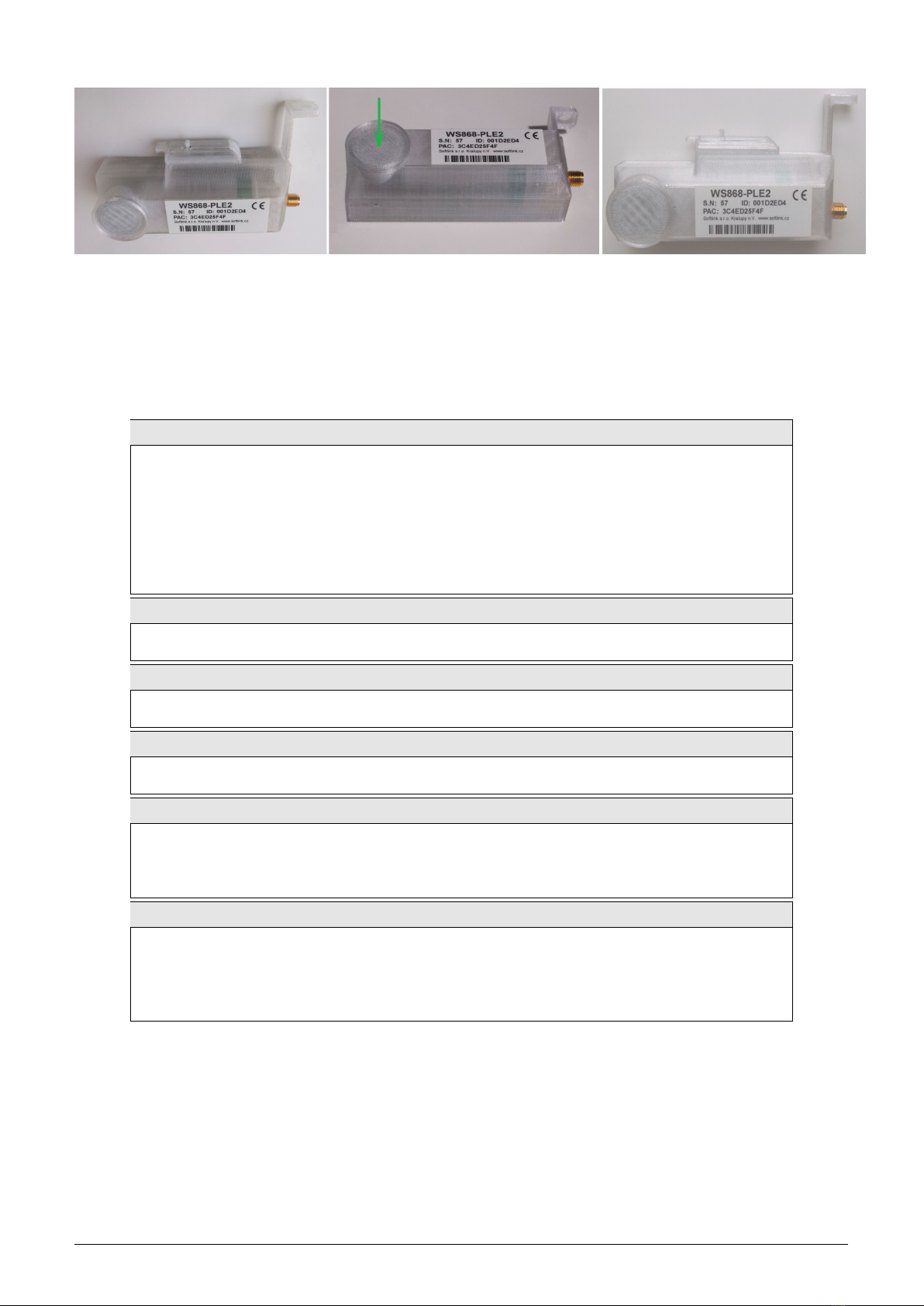
is equipped with magnetic attachment for the USB-IRDA converter, it is very easy to use a special modification
of converter equipped with circular magnet. In this case just simply put the converter to the circularly shaped
crater-shaped pit on the module where it is kept by power of magnet, and use USB extension cable.
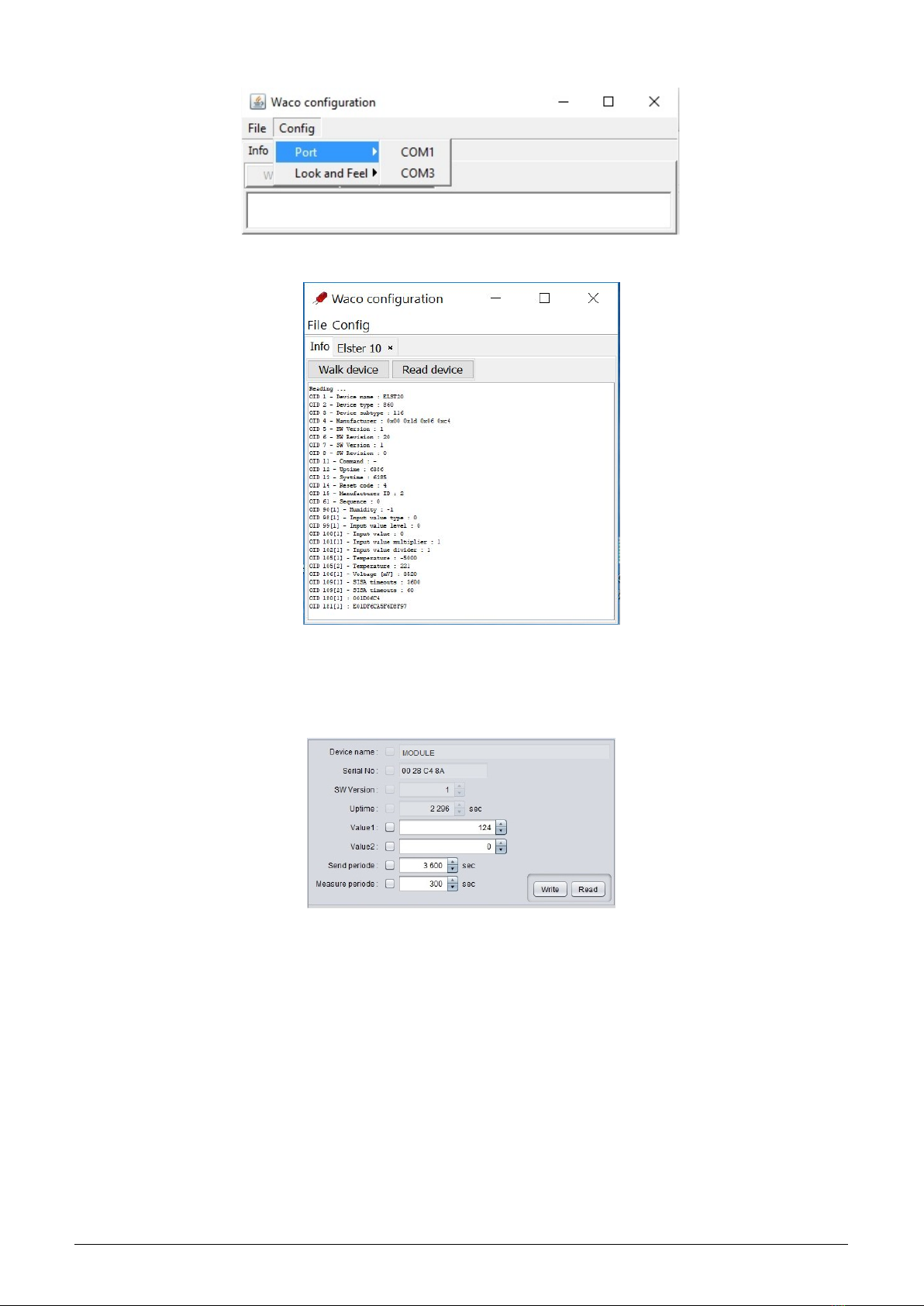
By clicking to ”Read device” open a configuration table with all the relevant parameters of the module. Parameters
that can be changed are displayed in white colored editing fields. There are four types of editing fields:
- text fields, in which a text can be edited (e.g. ”Info-text” field)
- numeric fields, in which a change of number can be done
- selection fields, in which a choice from pre-set options can be done
- hexadecimal fields (marked by ”hex”), in which hexadecimal characters can be entered
Text fields can be changed by correcting, erasing, or rewriting of the text inside the field.
Numeric fields can be changed by rewriting number inside the field or by its increasing/decreasing with using of
arrows ∆a∇.
Selection fields can be changed by clicking to symbol ∇and choosing required option from the list-box.
Hexadecimal number fields (e.g. ”8B 01”) can be changed by clicking on the character and rewriting its value
to another hexadecimal character (0 to F).
For editing of individual items keep following rules:
•after making any change in editing field there appears symbol ”√” before the field that is an indication of
active change request that will be sent to the module;
•by clicking to ”Write” button in the lower part of the configuration table the program sends configuration
commands through the USB-IRDA converter. During the process of establishing connection converter’s LED
light stops flashing for approximately 2 seconds and then lights-up;
•after sending data to module the program automatically requests a new status of configuration. Displaying of
the new current status of configuration parameters (after requested changes) is signalized by disappearance
of symbol ”√”before editing field;
•if requested change of some parameter is out of its range, the change is not accomplished and after disappear-
ance of symbol ”√”there appears an original value in the editing field;
•the program enables making multiple configuration changes at one time. If there are changes in several editing
fields of the table, each of them is marked by symbol ”√” and after clicking to ”Write” button all the changes
are requested/performed;
•if some of the fields was edited unintentionally (by mistake) and the change of this field is not really requested,
by clicking to symbol ”√” the field can be ”unchecked” and the change request of the parameter is not sent
to module;
•current status of all configuration parameters of the module can be requested anytime by clicking to ”Read”
button in lower part of the table;
•ongoing communication between module and USB-IRDA converter may be signaled by flashing of LED on
the device;
•if the connection between USB-IRDA and the module was not established until several seconds, error window
”Error: Read timeout” will appear in the program window;
•the most common reason of connection failure is either bad position of the module (long distance, wrong
orientation, dirty cover, obstacle in the beam), or the module’s battery was switched off.
NOTE! ”WACO OptoConf” program contains specific data and settings for interworking with certain types of
modules. Each version of the program thus supports only the relevant versions of the wacoSystem modules (i.e.
actual versions of the modules up to date of the software release). If after reading of data from the module the error
window ”Error: Unknown device” will appear, the current version of the program does not support configuration
of this version of the module. In this case it is necessary to download a new version of the ”WACO OptoConf”
program from the product WEB site www.wacosystem.com/podpora, or contact manufacturer’s technical support
3.2 ”USB GateWay” and ”USB-IRDA” driver installation
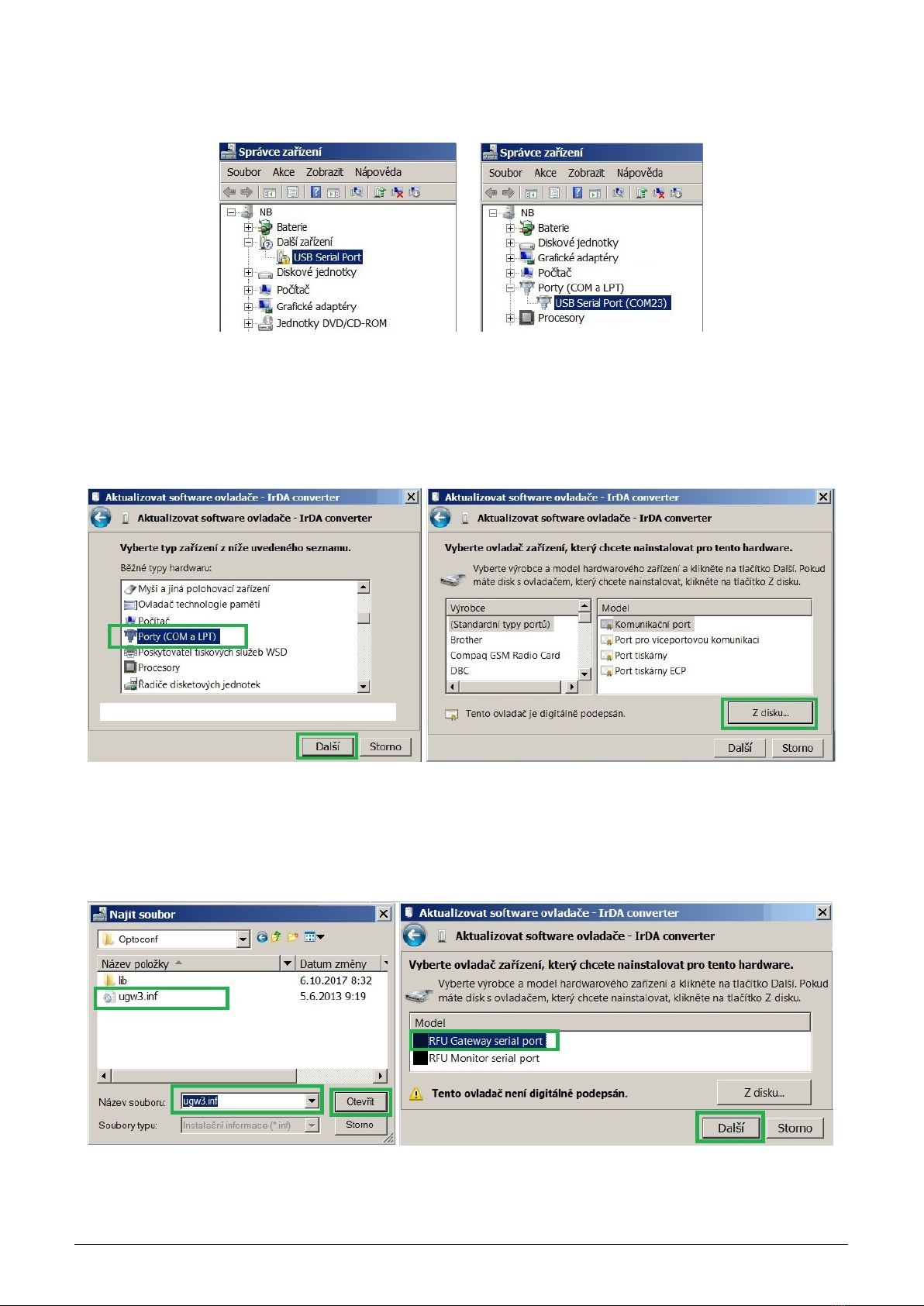
The driver ”ugw3.inf” intended for support of multiple virtual serial ports through the USB interface of a computer
is a part of delivered installation pack. If your version of MS Windows operating system failed in automatic
installation of a driver for connected ”USB GateWay” or ”USB-IRDA” device, make an installation of ”ugw3.inf”
driver manually.
WS868-PLE2 6