
Soliom S100 Manuale utente

Outdoor Wireless Solar Camera
R
Please text us for any product issues
Thanks for purchasing from Soliom.
Having issues with your Soliom cameras?
Please through either ways below.
Soliom care team staffs would offer you a best
solution to solve any problems within .
Register via below link to get
.
contact us
24 hours
2 Years Extended
Warranty
https://soliom.net/pages/product-registration
Contact Us:
If this manual is not clear enough to
read,please download a PDF file via
below link:
https://soliom.net/pages/download
Warranty Service
Join Soliom Customer group for instant help:
https://www.facebook.com/groups/soliomvip/
.15-16
.17-24
Part 5: How to Save and Delete Videos...............................25
Part 6: More Settings........................................................26- 27
8-14
1-7

1. Soliom camera can only be set up with 2.4g Wi-Fi network. (It's ok
to use Cell phone 4G data to live viewing it after the camera was
set up with 2.4g Wi-Fi network firstly.)
2. You may possibly need a Wi-Fi extender if your Wi-Fi signal is
weak around the yard where you want to install it.
3. At least 1-3 hours direct sunlight to the camera every day is
needed, the more sunshine the better to avoid manually charge
it frequently. (North side of the house is not a recommended
installation place)
4. Please format the micro sd card to FAT32 format and install the
card when camera powered off.(Micro sd card is not provided
in the package)
5. Please charge your Soliom camera before you set it up, it
usually takes up to 10 hours to fully charge it. Do not use any
power adaptor exceed 5V/2A,or it may damage the camera.
(There's no indicator to show charging status from the camera)
6. Make sure the distance between your phone, router and the
camera is no more than 1.5 feet when you're ready to pair the
camera. Ensure that the Wi-fi signal strength on your phone is
good.
7. The PIR range is 33 feet around, the recommend camera install
height is 8 feet around. To avoid too much false alarms, we
suggest you do not install the camera with nearby bushes, shrubs,
grasses and tree leaves coming into the PIR range.
8. To ensure an accurate motion detection function, it is suggested
to adjust the camera angle physically to focus the motion area
within the PIR suggested 23-33ft range.
9. If you install the camera on stucco, brick or concrete surface, please
mark 3 holes matching the bracket and then use a drill driver to
drill into the wall and insert the expansion screws to hold the
camera tightly
Very Important Tips

Antenna
Power switch
White LED
Silicone flap
Speaker
SD Slot
Bottom
Solar Panel
Reset
USB
Bracket

SD card. Pls make sure to insert the SD card when you power off
the cam, this cam doesn’t support hot-plugging and play.
Please charge the camera about 10 hours by plugging it
into a power source using the provided USB cable. After
connecting the camera with App, the App will indicate the
battery status.
Charging Your Camera
Before Installation
Insert SD card
Please format the SD card to FAT32 format (Application to
Windows system ONLY), then install the micro-SD card when
the camera is off. The camera only supports class 10 SD cards
with at least an 8GB capacity and a maximum capacity of 64GB
(There's no indicator to show charging status
from the camera)
uncover silicone flap

Note: After installed your micro SD card, pls match and tighten
the silicone flap exactly to avoid leakage of rain water.
Before Installation
4*Expansion Screws
4

5
In-App Setup
Please locate the in your Google Play store or
to download the soliom+ App.
SOLIOM+ App store
Make sure the distance between your phone, router
and the camera is no more than 1.5 feet when you're
ready to pair the camera. Ensure that the Wi-fi signal
strength on your phone is good.
Allow"SOLIOM+" use mobile cellular data and wireless LAN,
otherwise it may be failed to add S100 camera.
Allow "SOLIOM+" to get system push message and location
permissions
Download the App :
1
.
1.1
1.2

6
In-App Setup
Open the App and register your account with your email
address.
(3)Please click "Allow" or "Agree" on all access when you
download soliom+ and during the process of setting up
your account so that the can have full access tosoliom+
your camera and phone. otherwise, your camera may
have less function or incomplete setups.
2. Register an account
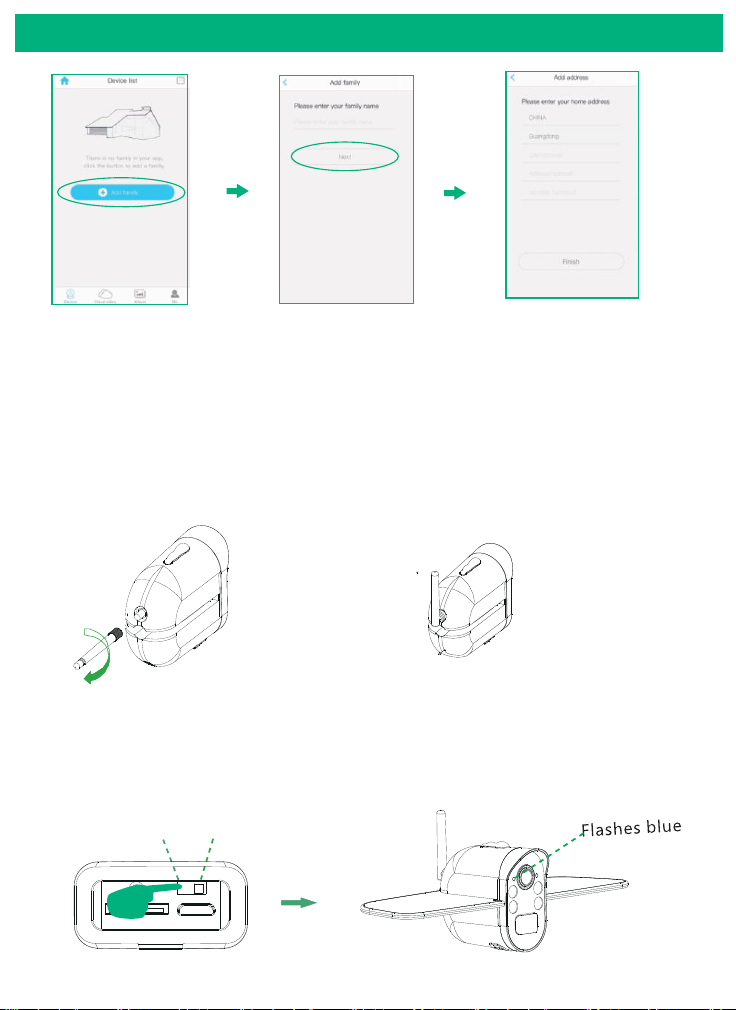
Click”Add family” and then input your desired family
name, click “next step” and then input required information,
and then click “finished” to save it.
3. Set up the installed location
please pay attention to choose your right "Country/Region"
so that you can connect the camera smoothly later and get
proper notifications from your correct region server
Note: The required fields are country and state.
(1) Open the app and register your account with your Email address
and it is recommended to verify your account from email so that
you can retrieve password of your Soliom account in case.
(2) Set a password for your account and make note to remember it.
(Password is 8-32 digit or alphabet combination)
Note:
att.net , msn.com or hotmail.com domains are strict for unsubscrible
email block,you may need to change other email so that you can
receive verification email smoothly.
Not work with 802.11 ac or ax 5G or higher frequency band.
In-App Setup
Slide switch to the right to turn on the camera.
LED flash green once and then flashes blue. Then you will hear
the following voice “The camera is now ready to begin pairing”.
6. Turn on the camera
4. Connect your phone to 2.4Ghz wifi first.
Only work with 802.11 b/g/n frequency band 2.4G Wi-Fi .
(It's ok to use Cell phone 4G data to live viewing it after the
camera was Paired up with 2.4g Wi-Fi network firstly.)
On
Off
5.Install the antenna and point the antenna to the sky, antenna
is not waterproof downward.
(Note: the camera can not be paired up without antenna)
7
Altri manuali per S100
1
Indice
Altri manuali Soliom Macchina fotografica digitale


