Solstice SLS-ENVR16 Manuale utente

1SLS-ENVR16_RQ
8/31/12
What you need
Your SLS-ENVR16 NVR hardware is pre-congured with HDD(s). If you want to change the HDD or
congure it dierently (RAID options, trays, etc.), refer to the document SLS-ENVR Series Network
Video Recorder V2.1 User Manual provided on the Software CD for specic instructions.
A PC is required to access and control your NVR. It must meet the following requirements:
• Operating system: Microsoft® Windows® 2000, 2003, XP, Vista, 7; Apple® OS X® 10.4, 10.5 and
10.6; Linux with 2.6 kernel
• Internet browser: Mozilla® Firefox® 11.0 or newer (recommended); Microsoft Internet Explorer®
8 or 9 (32-bit version only); Google® Chrome 18 or newer ; Safari® 4 or 5 with Apple OS only, with
JavaScript® and cookies enabled (see the preferences of your web browser)
• Java®: Java SE 6.0 or higher, Oracle® Java 7 recommended
• Hardware conguration: depends on the type and number of connected cameras. Minimum 1GB
RAM recommended.
Other computers used to monitor video from the NVR, download screen captures, and playback and export
video clips, should also meet the requirements listed above.
Setting up your NVR
The initial setup of your SLS-ENVR16 NVR includes the following steps:
1. Installing the NVR on the local area network (LAN)
2. Discovering the NVR on your network
3. Using the Conguration Guide
4. Associating cameras with the NVR
5. Setting recording options
6. Viewing and exporting recordings
7. Adding users (usernames) to the system
Step 1. Installing the NVR on the LAN
1. Plug an Ethernet cable into the network connector on the back of the NVR. Plug the other end into a
network access device, such as a network switch, hub, or router.
Ethernet cable
Power adapter
cable
2. Plug the power adapter into the power connector on the back of the NVR.
3. Plug the power adapter cable into the power adapter, then into a standard 120 Vac outlet. The NVR
should automatically power on within one minute.
Step 2. Discovering the NVR on your network
1. Power on your computer and allow it to boot up.
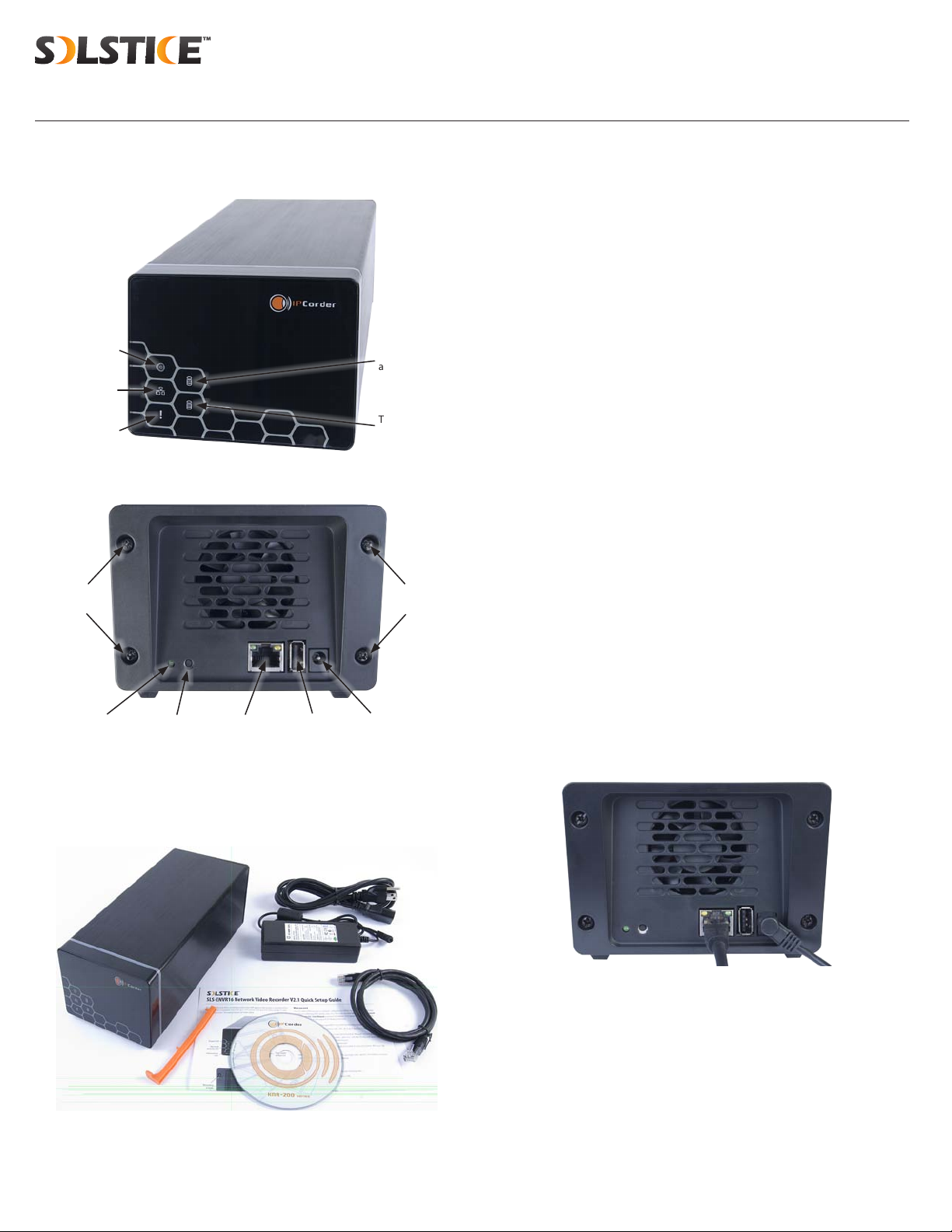
The SLS-ENVR16 series NVR is an intelligent and compact appliance that provides a network interface to
monitor, record and playback video from up to 16 IP cameras, with up to 6TB of data storage. It is very
easy to install and use. The external features are shown below.
Power LED Tray 1 HDD
active LED
Tray 2 HDD
active LED
Network
activity LED
Information
LED
SLS-ENVR16 front panel
Retaining
screws
Retaining
screws
Control
button
Control
button LED
Network
connector
USB
(not used)
Power
connector
Back panel
What’s in the box
Your SLS-ENVR16 product includes components shown in the picture below.
Software CD
SLS-ENVR16 NVR
Ethernet
cable
Quick Setup Guide
Power adapter
and cable
HDD extractor
SLS-ENVR16 Network Video Recorder V2.1 Quick Setup Guide

2© 2012 Observint Technologies, Inc. All rights reserved.
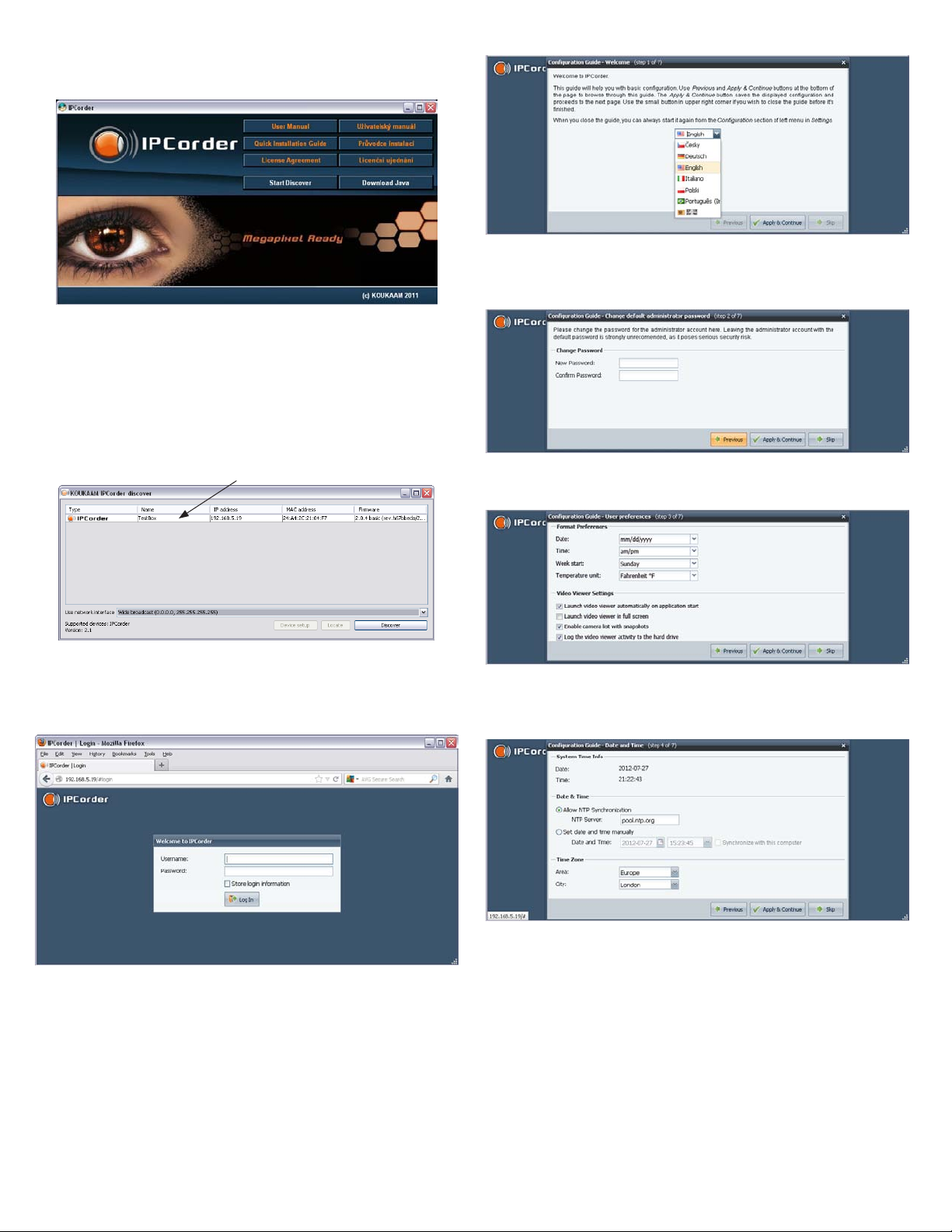
2. Insert the software CD into the optical drive and allow it to initialize (autorun). The screen shown
below should open.
3. If Java is not loaded on your computer, click the Download Java button on the IPCorder window,
then follow the on-screen instructions to install it.
4. On the IPCorder window, click the Start Discover button.
5. In the IPCorder discover window, click the Discover button in the lower-right corner and wait until
your NVR is found. Verify that the NVR discovered is your target NVR by the MAC address; the MAC
address of the NVR hardware is shown on a label on the underside of the unit. If your NVR was not
found during the scan, click the Discover button again.
NVR device discovered
Step 3. Using the Configuration Guide
1. In the Discover window, double-click the entry for your NVR to access the unit through an internet
browser.
In the login window, enter the default administrator Username and Password (admin and admin),
then click Login In. Passwords are case sensitive.
2. In the Conguration Guide - Welcome window, click the button next to “English” open the drop-
down list. Select your preferred language, then click Apply and Continue.
3. In the Conguration Guide - Change default administrator password window, enter your new
password in both elds, then click Apply and Continue. It is strongly recommended that you
change the password to one with high security strength.
4. In the Conguration Guide - User preferences window, select the options appropriate for installation,
then click Apply and Continue.
5. In the Conguration Guide - Date and Time window, select the options appropriate for location,
including the Time Zone Area and City, then click Apply and Continue. Note that an option is
provided to synchronize the NVR with your computer.
Note that an option is provided to synchronize the NVR with your computer. If you change the clock
time, the NVR will restart, then open the next conguration screen.
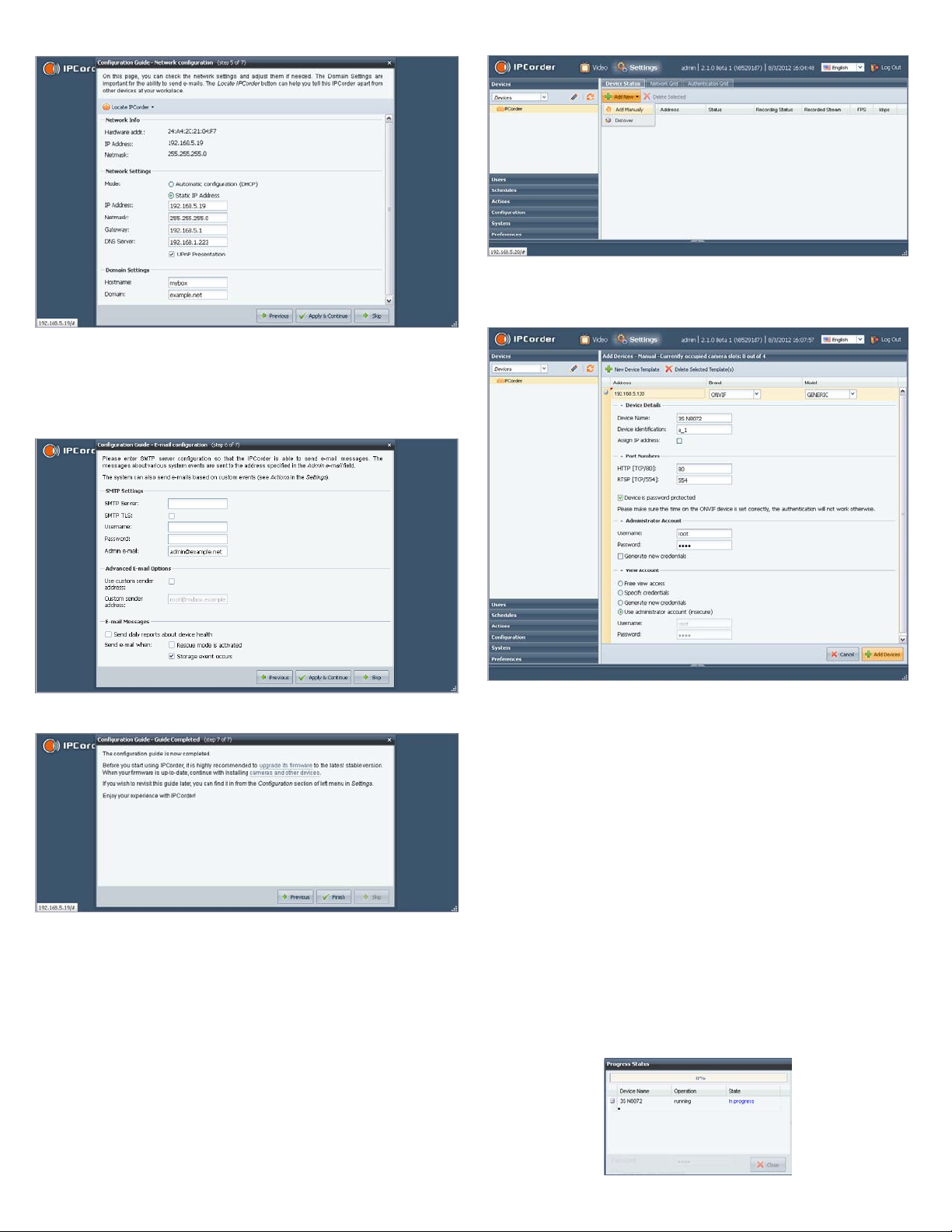
6. In the Conguration Guide - Network conguration window, enter the network and domain options
you prefer. In the Domain Settings section, you can specify a Hostname for your NVR. Click Apply
and Continue.

3
NOTE: If you change the network settings of the NVR, the Conguration Guide may lead you to
repeat some steps completed previously.
7. In the Conguration Guide - E-mail conguration window, enter the SMTP settings and other e-mail
options to automatically send e-mail when events occur. Click Apply and Continue.
8. In the Conguration Guide - Guide Complete window, click Finish.
Step 4. Associating cameras with the NVR
Cameras can be added to (monitored by) the NVR in two ways:
• Add Manually method: A method for adding cameras that are on the same subnet as the NVR or a
subnet dierent.
• Discover method: An automated method for adding cameras that are on the same subnet as the NVR.
Add Manually method
1. After logging into the NVR as an administrator, click the Settings option in the header of the screen.
2. In the right pane, click the Add New button to open the drop down list, then click Add Manually.
3. In the menu that opens in the right pane, enter the following:
a. Address. Enter the IP address of the device you want to add.
b. Brand. Open the drop-down list and select the brand of the device you are adding. If the device
is ONVIF compatible, select ONVIF.
c. Model. Open the drop-down list and select the model of the brand you are adding. In the
example above with the ONVIF brand, only one option, GENERIC, is selectable. Here, click
GENERIC to select it.
d. Device Name. Enter a device name. The device name can be composed of alpha-numeric
characters
e. Device identication. Enter an identication for the device. The identication code must be
composed of alpha-numeric characters
f. HTTP and RSTP ports. Change the port numbers if necessary.
g. Device is password protected. IMPORTANT: If the device requires a user name and
password to login, check this box, then include the username and password information in the
sections below to administer and view the device.
h. After all information on the screen is entered, click the Add Devices button in the lower right
corner. If the addition was successful, the following pop-up window will open, and a dot will
appear under the device name as shown below. If it was not successful, an error expression will
be shown.

4© 2012 Observint Technologies, Inc. All rights reserved.
Discover method
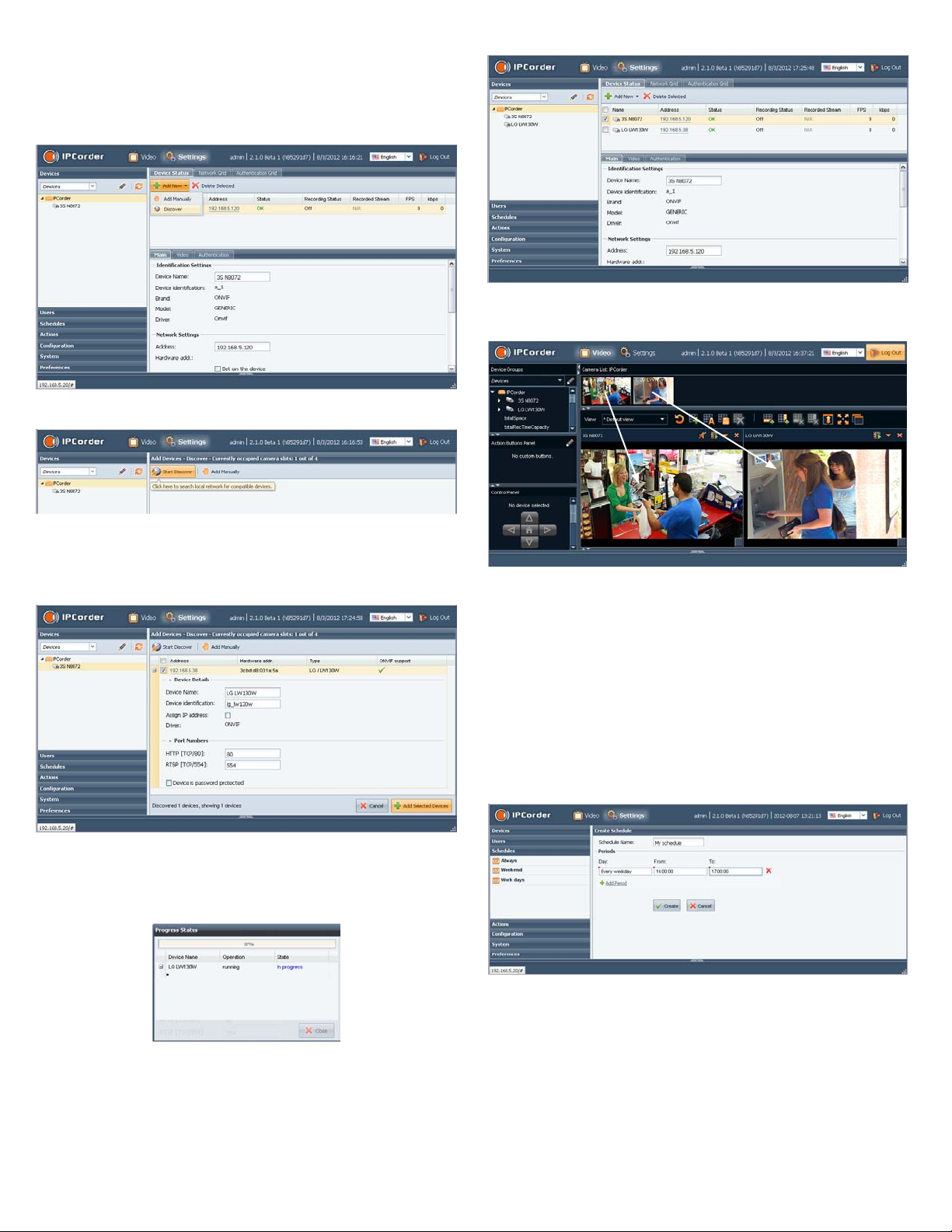
1. After logging into the NVR as an administrator, click the Settings option in the header of the screen.
2. In the right pane, click the Add New button to open the drop down list, then click Discover.
3. On the following screen, click the Start Discover button in the page header.
4. For each camera discovered on the network, check the select box to the left of the IP address,
then enter the appropriate information required in the conguration menu as described above.
IMPORTANT: If the device is password protected, click the checkbox (see below), then scroll down
to enter the username and password information required.
5. For each camera discovered on the network that you want to add to the NVR system, check the select
box to the left of the IP address, then click the Add Selected Devices button in the lower right
corner. If an addition was successful, the following pop-up window will open and a dot will appear
under the device name as shown below. If it was not successful, an error expression will be shown.
6. After a camera is added to the NVR, it appears in the Settings | Devices | Device Status tab.
Verify that all Status indication for each is OK.
7. Click the Video button in the header to return to the video display. Verify that you can see a
thumbnail-sized video stream from your camera in the Camera List near the top of the window.
To see and expanded view of a camera, drag and drop the thumbnail for the camera into a cell in the
View frame. See above.
Step 5. Setting recording options
1. After logging into the NVR as an administrator, click the Settings option in the header of the screen.
2. In the left pane, click Schedules to establish the weekly time frame when recording can occur. In
the following example, a time frame named My schedule was added to pre-set schedules included
by default in the system.
a. Click the Create Schedule icon at the top of the right frame, then enter a unique schedule name
in the entry eld. In the example below, the name My schedule was entered.
b. Click the Add Period icon.
i. Click In the Day entry eld twice to open a drop-down list, then select the option
you prefer.
ii. The From and To elds dene the start time and end time when recording will occur
on the “Day” selected previously. The To and From elds are in the format HH:MM:SS
in 24-hour notation (00:00:00 to 23:59:59). Edit these elds as needed.

5
c. Click the Add Period icon again to enter an additional time segment if needed.
3. Click the Create button to save the schedule. Notice that the new schedule is shown in the list in the
left frame. Note: you can edit the default preset schedules.
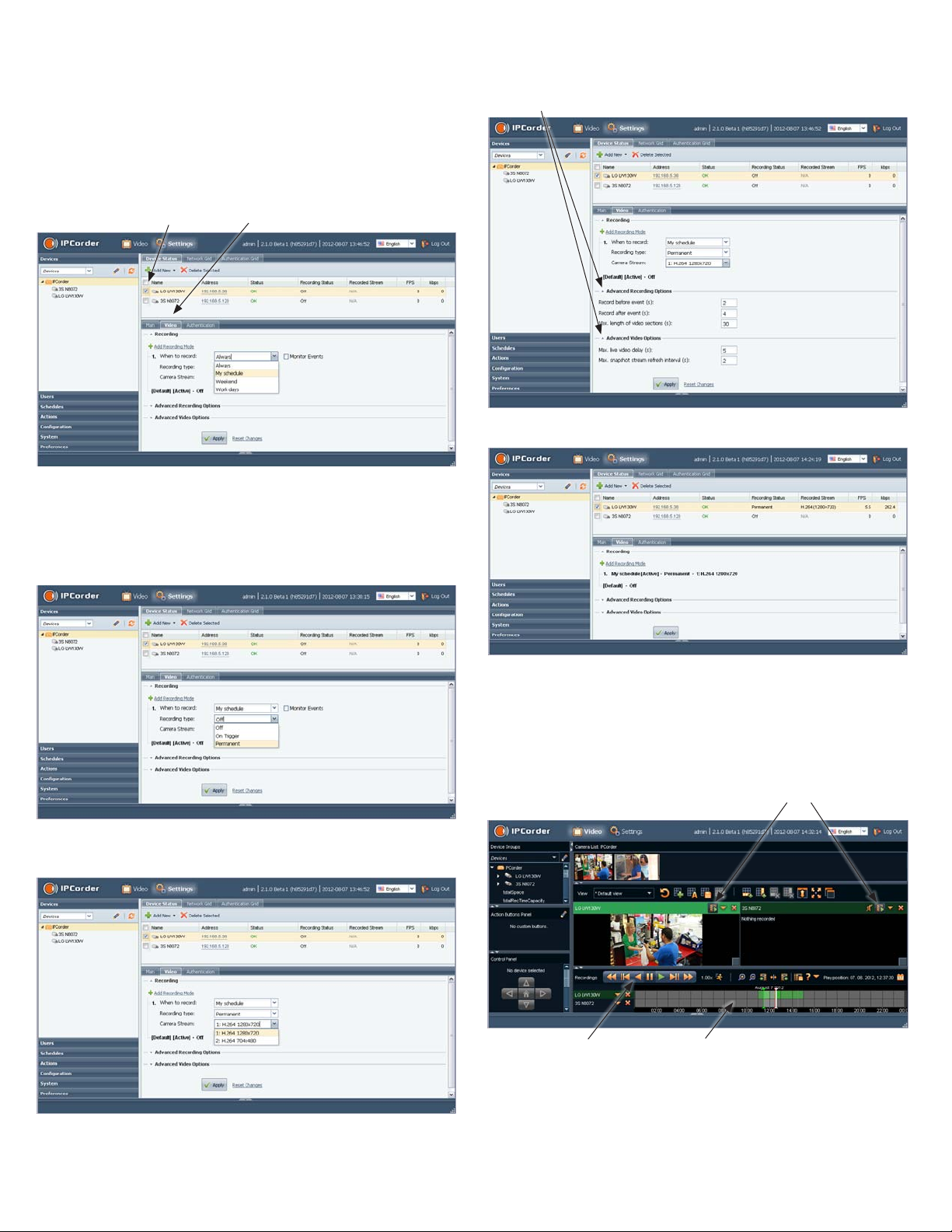
4. Click Devices in the left frame, then, in the right pane, click the Device Status button.
5. Check the device select box to the left of the IP address of the camera you want to record, then click
the Video tab in the frame below.
Device select box Video tab
a. In the Video tab, click the Add Recording Mode icon to congure a scheduled recording mode.
b. Open the drop-down list to the right of When to record, then select the schedule you prefer.
c. Open the drop-down list to the right of Recording type, then select either O, On Trigger, or
Permanent (continuous when scheduled).
d. Open the drop-down list to the right of Camera Stream, then select the stream (resolution)
you prefer.
e. You can open the Advanced Recording Options and Advanced Video Options submenus
by clicking the q icons. Edit the elds in those submenus if necessary.
Click to open/close the submenu
6. Click the Apply button to complete the recording mode setup for the camera.
7. Setup the recording modes for other cameras in the system as needed.
Step 6. Playback and export recordings
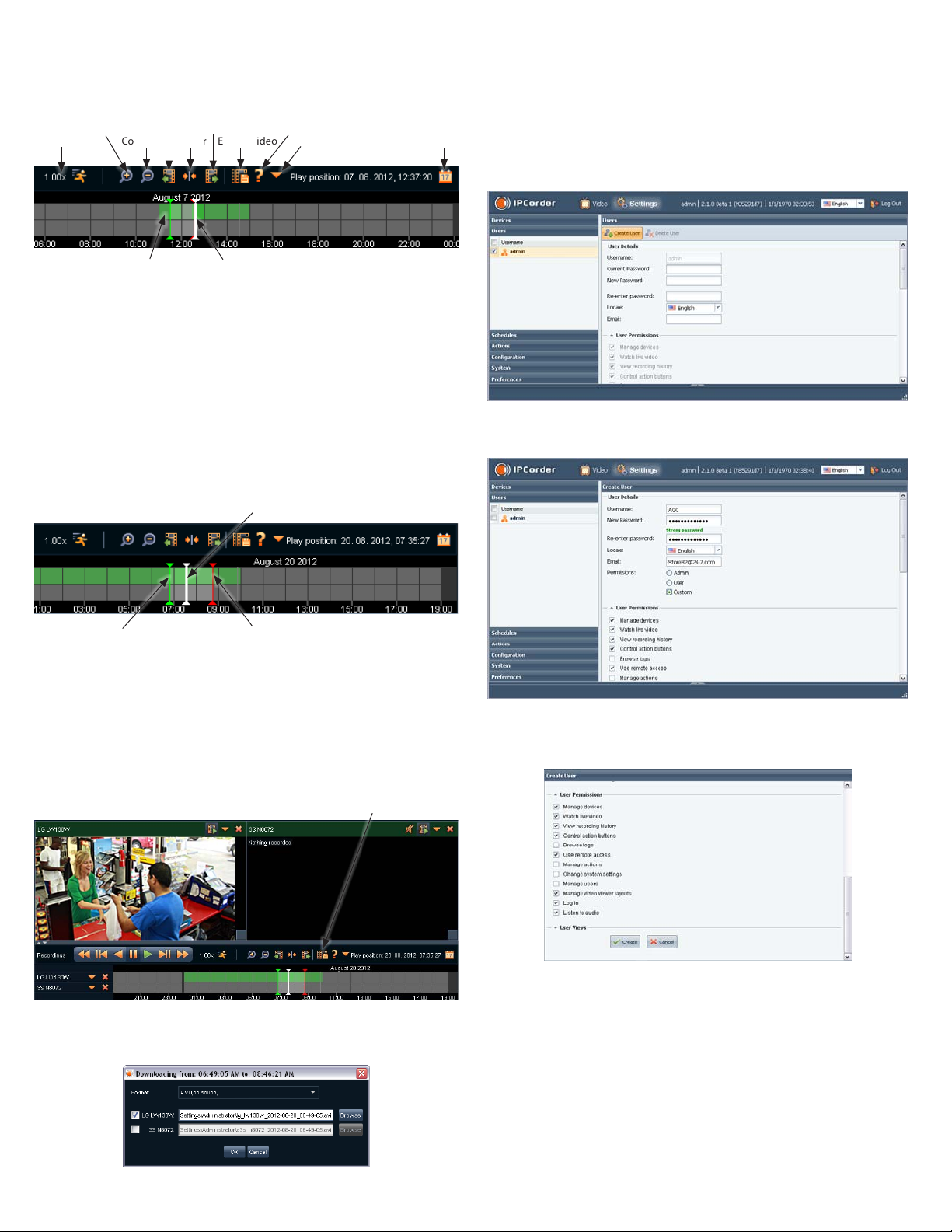
1. In the Video view, click the Recordings icon for the camera you want to playback or download
video from. A timeline will open at the bottom of the window indicating when video and other
recordings were made. In the screen below, the Playback icons were selected for both cameras.
Recordings icons
Playback control buttons Timeline
2. To play recorded video (see screen capture below):
a. Click on the camera used to record the video you want to payback.
b. Click the calendar icon, then select the day on which the video was recorded.

6© 2012 Observint Technologies, Inc. All rights reserved.
c. In a section of the timeline that shows recorded video (green segment, see below), click (once)
the time at which you want to start playing video. The current play position is indicated by a
white marker.
Shift left
CenterPayback rate
Expand
Contract
Open Legend
Open calendarExport video More actions
Shift right
Play position marker
(white)
Video recorded area
(green)
Controls on the time line include:
- Click the Expand icon to widen the timeline
- Click Shift left icon or Shift right icon to shift the time span
- Click the Playback rate icon to adjust the playback speed.
d. Click the Play button ( u ) in the playback controls to watch the video. Click the Pause icon
(;) to Stop.
e. To mark a segment of the time line for repeated playback (or export), drag your mouse cursor
from the start of the segment to the end of the segment. The segment you selected will be
indicated by a green marker at the start and a red marker at the end.
Playback start marker (green) Playback end marker (red)
Play position (white)
f. Click anywhere between the red marker and the green marker to set the play position, then click
the play button to continuously replay the segment. Click the Pause icon (;) to stop.
g. To export the video segment between the green marker and the red marker:
i. Stop the video playback.
ii. Click the Export video icon.
Export video icon
h. In the pop-up window, uncheck the cameras that you don’t want to download video from, then
click Browse and select the location where the video segment will be saved on your computer.
i. Click OK to export (download) the video segment. A window will open showing the progress of
the download.
Step 7. Add users to the NVR system
1. After logging into the NVR as an administrator, click the Settings option in the header of the screen.
2. In the left pane, click Users.
3. Click the Create User button. In the Use Details menu, enter a Username, enter then re-enter a
password (note that the password strength is calculated), then click a Permissions level.
The Admin and User options have pre-set User Permissions, however, as an Admin you can
change any permissions assigned to any user.
Create User - User Permissions list
4. After selecting the permissions for the new user, scroll to the bottom of the frame, then click the
Create button.
Altri manuali per SLS-ENVR16
1
Indice
Altri manuali Solstice Hardware di rete
Manuali Hardware di rete popolari di altre marche

Matrix Switch Corporation
Matrix Switch Corporation MSC-HD161DEL Manuale utente

B&B Electronics
B&B Electronics ZXT9-IO-222R2 Manuale utente

Yudor
Yudor YDS-16 Manuale utente

D-Link
D-Link ShareCenter DNS-320L Manuale utente

Samsung
Samsung ES1642dc Istruzioni per l’uso

Honeywell Home
Honeywell Home LTEM-PV Istruzioni per il montaggio