Solwise PL-200AV-PEW Manuale utente

PL-200AV-PEW
USER MANUAL

Contents
1 Introduction .............................................................................................................. 1
1.1 Features ...................................................................................................... 1
1.2 System Requirements ................................................................................. 1
1.3 Package Contents ....................................................................................... 2
2 Safety Notice............................................................................................................ 3
3 About the Adapter..................................................................................................... 4
3.1 The Ethernet Interface ................................................................................. 4
3.2 The Adapter's Buttons ................................................................................. 4
3.3 The Adapter's LEDs..................................................................................... 5
3.4 Connecting the PL-200AV-PEW .................................................................. 6
4 Wi-Fi Web configuration........................................................................................... 7
4.1 Setting TCP/IP Properties............................................................................ 7
4.2 Login............................................................................................................ 7
4.3 Overview...................................................................................................... 8
4.4 LAN.............................................................................................................. 9
4.5 Wireless..................................................................................................... 10
4.6 Security...................................................................................................... 11
4.7 Management.............................................................................................. 13
5 Installing PLC Utility Software ................................................................................ 14
6 How to Use the Utility Software.............................................................................. 16
6.1 Main Page ................................................................................................. 16
6.2 Privacy page.............................................................................................. 19
6.3 Diagnostics page ....................................................................................... 21
6.4 About page................................................................................................. 23
7 How to Use the SECURITY Pushbutton ................................................................ 24
7.1 Creating a HomePlug AV Logical Network ................................................ 24
7.2 Joining a Network ...................................................................................... 25
7.3 Leaving a Network..................................................................................... 26
Appendix A Specifications......................................................................................... 28
Appendix B Acronyms and Abbreviations ................................................................. 30
Appendix C About PLC QoS ..................................................................................... 31

1
PL-200AV-PEW USER MANUAL
1 Introduction
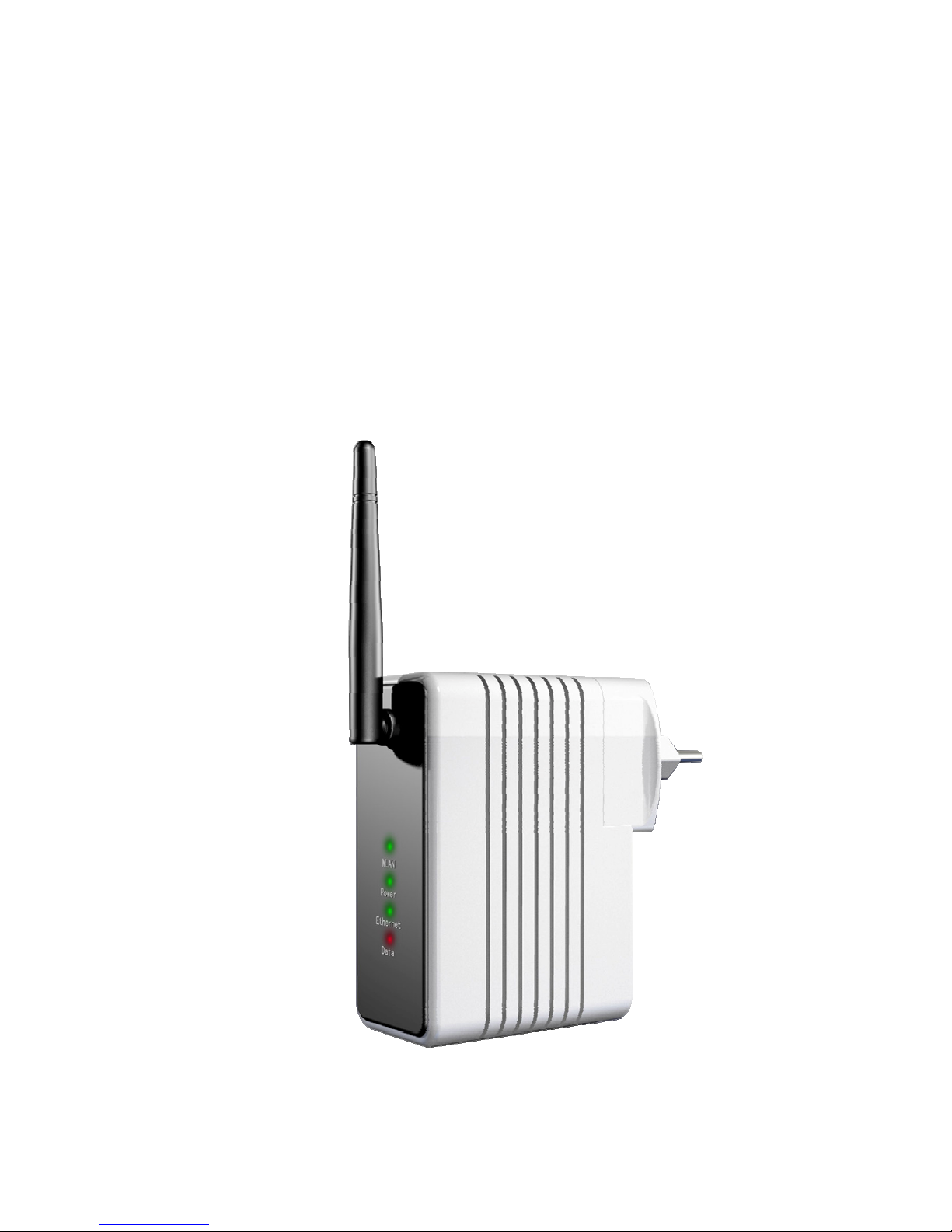
This PL-200AV-PEW wallmount Wireless extender for transmitting data up to 200
Mbps across the household power line and every power socket becomes a WLAN
access point. Through the combination of these two technologies, you can wirelessly
surf on line conveniently in the complicated corner that is used to be unreachable with
wiring and data rate is up to 54 Mbps. It is suitable for using in a wide range of both
residential (in-home) and commercial (offices, apartments, hotels, warehouses)
network applications. No cables, no drilling. These adapters enable the effortless
creation of a high-speed network that supports video, voice and data.
1.1 Features
Wallmount type and power voltage range of 100 V to 240 V AC 50/60Hz
Compatible with IEEE 802.11b/g and HomePlug AV
Support QAM 256/64/16/8, QPSK, BPSK, and ROBO modulation schemes
Physical layer data rate up to 200 Mbps
128-bit AES link encryption for PLC
IEEE 802.11b/g
Support WAP, WAP2, 64/128/152-bit WEP, SSID hide
Wireless module supports AP and VAP mode
Support GUI WEB interface
1.2 System Requirements
Operating System: Microsoft Windows 2000 or XP, Vista 32-bit
CPU: Intel Pentium III or better, clock rate faster than 2.0GHz recommended
RAM: At least 128MB
Screen Resolution: Any resolution

2
Free Disk Space: At least 20MB
Network Interface: At least one fast Ethernet (100 Mbps) network card, and
Ethernet cord
1.3 Package Contents
PL-200AV-PEW x 1
CD ROM x 1
RJ45 Ethernet cable x 1

3
2 Safety Notice
This device is intended for connection to the AC power line. For installation
instructions, please refer to the installation section of this guide. The following
precautions should be taken when using this product.
Read all instructions before installing and operating this product.
Follow all warnings and instructions marked on the product.
Unplug the device from the wall outlet before cleaning. Use a damp cloth for
cleaning. Do not use liquid cleaners or aerosol cleaners.
Do not operate this product near water.
This product should never be placed near or over a radiator or heat register.
Do not use an extension cord between the device and the AC power source.
Only a qualified technician should service this product. Opening or removing
covers may result in exposure to dangerous voltage points or other risks.
Unplug the device from the wall outlet and refer the product to qualified service
personnel for the following conditions:
- If liquid has been spilled into the product
- If the product has been exposed to rain or water
- If the product does not operate normally when the operating instructions are
followed
- If the product exhibits a distinct change in performance

4
3 About the Adapter
3.1 The Ethernet Interface
Ethernet: The Ethernet port connects to an Ethernet network cable. The other end
of the cable will connect to your computer or other Ethernet-enabled network
device.
3.2 The Adapter's Buttons
Button Description
Reset The Reset button is used to restore the factory defaults.
Security The Security button is used to set the membership state.

5
Note:
Restoring the PL-200AV-PEW factory defaults will erase all of settings that you have
set before, and replace them with the factory defaults. Please be careful for not
retaining the reset button if you want to retain the former settings.
3.3 The Adapter's LEDs
All adapter's LEDs are located on the front panel, there are 3 LEDs to indicate the
adapter’s status.
Indicator Status Description
On When the LED is green, it indicates that the device
is ready for use.
Power(Green/Red)
Flash When the LED is orange, it indicates that the
device is loading firmware.
On When the PLC indicator is green, it indicates that
powerline link is detected
PLC(Green/Red)
Flash When serving as a STATION, the LED is green
and flashes to indicate powerline activity.
When serving as a CCO, the LED is green and
lights steadily ON, even in the presence of
powerline activity.
On Ethernet link is detectedLAN (Green)
Flash It indicates that data over Ethernet is activated.
On WLAN link is detected.WLAN (Green)
Flash It indicates that data over Wi-Fi link is activated.

6
3.4 Connecting the PL-200AV-PEW
Step 1 Put the PL-200AV-PEW to the AC power socket directly.
Step 2 Use one end of Ethernet network cable to connect to the
PL-200AV-PEW Ethernet port, and another end connect to your PC
Ethernet port.

7
4 Wi-Fi Web configuration
This chapter mainly describes how to configure the Access Point through Web page.
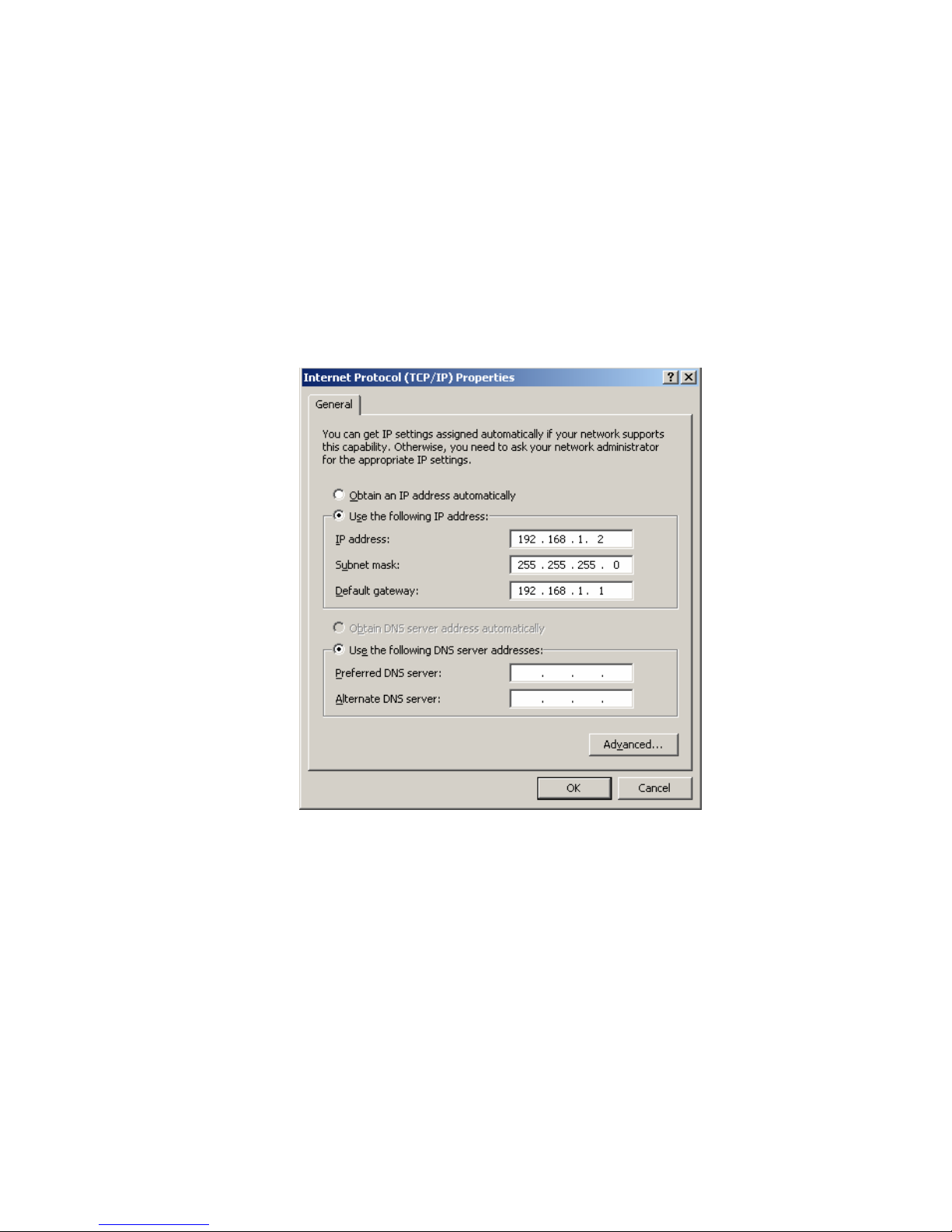
4.1 Setting TCP/IP Properties
The default IP address of PL-200AV-PEW is 192.168.1.1, you should set your PC’s IP
address in the same subnet.
4.2 Login
Open IE and enter http://192.168.1.1 at the URL column to log in to PL-200AV-PEW
web page.

8
In the login page, enter the user name and password.
The default user name is admin.
The default password is password.
Click OK to log in to the web page, otherwise click Cancel to exit.
4.3 Overview
After finish login, the default page Overview appears. The Overview page displays
the current status information, including version, LAN interface, wireless LAN and
statistic information.
Indice
Altri manuali Solwise Estensione