Custom Tunings & Temperaments
You may edit the notes of any preset except Chromatic. Each preset may be configured as
an open tuning with up to 9 strings, or a temperament.
For a temperament, the tuner is in chromatic mode where it responds to all 12 notes of the
scale and displays the note letter. For an open tuning, the tuner only selects notes that are
defined for the particular tuning, and displays the string number.
Entering Edit Mode
o put the tuner in edit mode, select the preset you wish to change using a MODE button,
and while holding down the MODE button, press the other MODE button.
he LED indicator for the preset about to be altered will be flashing. Check to make sure
the selected preset is the one you want to change. If not, turn the tuner off then back on and
try it again.
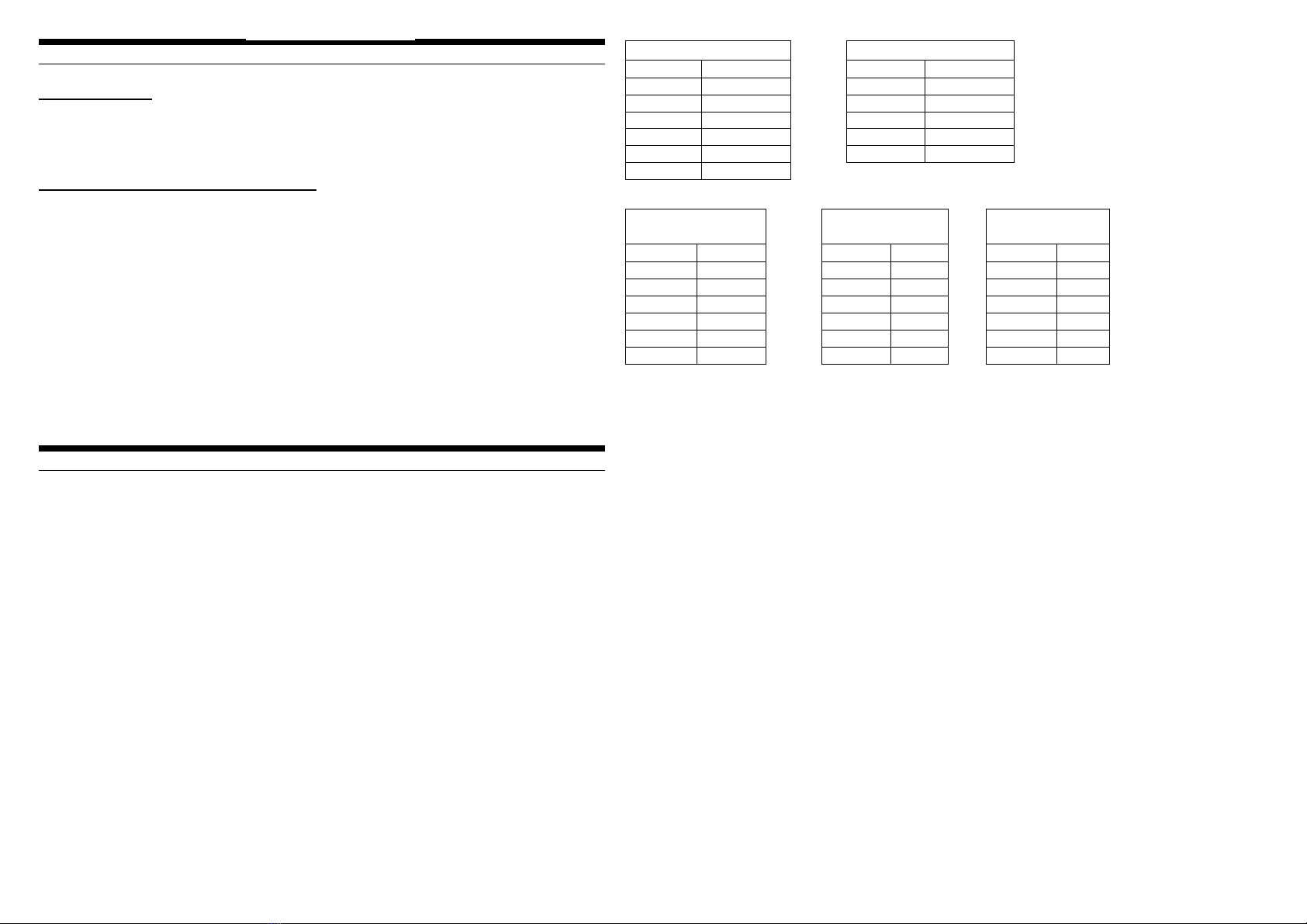
Upon entering edit mode, the note display will show one of these two values:
o his is "o" and means the preset is an open tuning.
14
t his is "t" for temperament, and means the preset is currently a temperament.
Pressing the right MODE button will toggle between open tuning mode (o) and
temperament mode (t). Press the left mode button to proceed.
Each of the 5 presets has a temperament and open tuning associated with it, and editing one
has no effect on the other.
Editing An Open Tuning
After entering edit mode as describe above, press the left button when the display reads o .
he note display will read 1 . his is the string number.
he left button will scroll through the strings of the tuning, and will show one more string
than is defined. For example, a standard guitar tuning has 6 strings, and when scrolling
through the strings in edit mode, there will be 7. his is so you can add more strings to the
tuning if you desire.
15
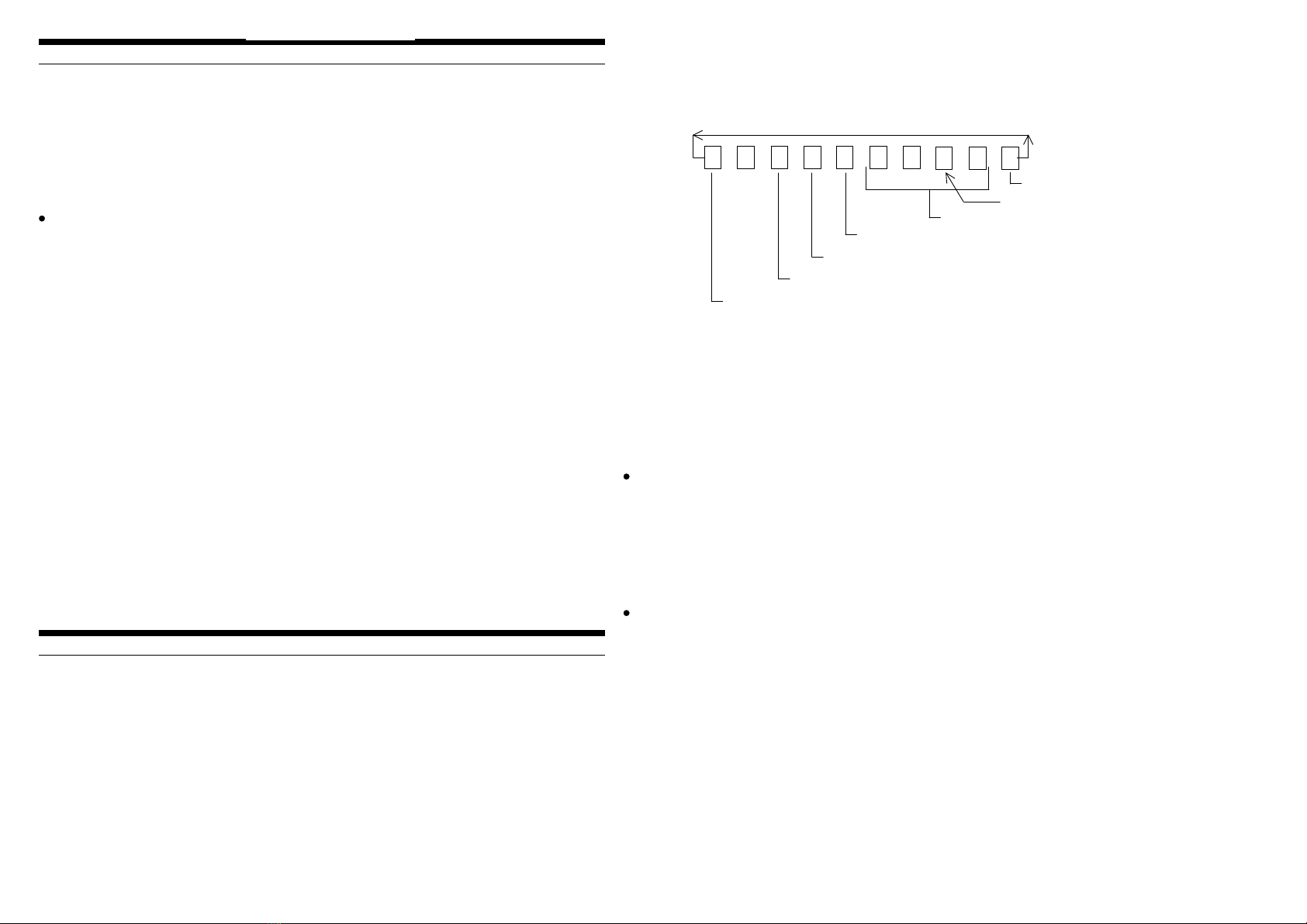
Pressing the right button scrolls through the setting for the string. he display starts with
the string number, then an = followed by the cents offset in the format +/-nn_n. For
example, if you wanted to offset the 5th string of the guitar by +2.0 cents, the display
would scroll through the following digits when pressing the right button:
o change a value, use the left MODE button.
o exit edit mode, use the right button to scroll through a note's settings until you reach the
end and the display is blank. hen press the left button.
16
Adding A String
When scrolling through the strings for a tuning you will notice there is one string more than
is defined for the tuning. For example, the GUI tuning has 6 strings, but when in edit
mode there will be a 7th string. If you scroll through the settings for the "7th" string, you
will find the note value is U for undefined. If you set the note to anything other than U, the
string is added to the tuning.
Removing A String
Normally there are 12 note values available for a string (A-G#). For the last string in a
tuning, there is an additional note, named U for undefined. If you set the note value to U,
the string is no longer part of the open tuning. his can only be done to the last string in the
tuning.
17
5 = a 2 + 0 2 _ 0
Blank
Cents Offset
+ / - represetns the + sign
Octave of note
Note Name: A-G#, U for undefined
String Number
Decimal point
+
PRELIMINARY