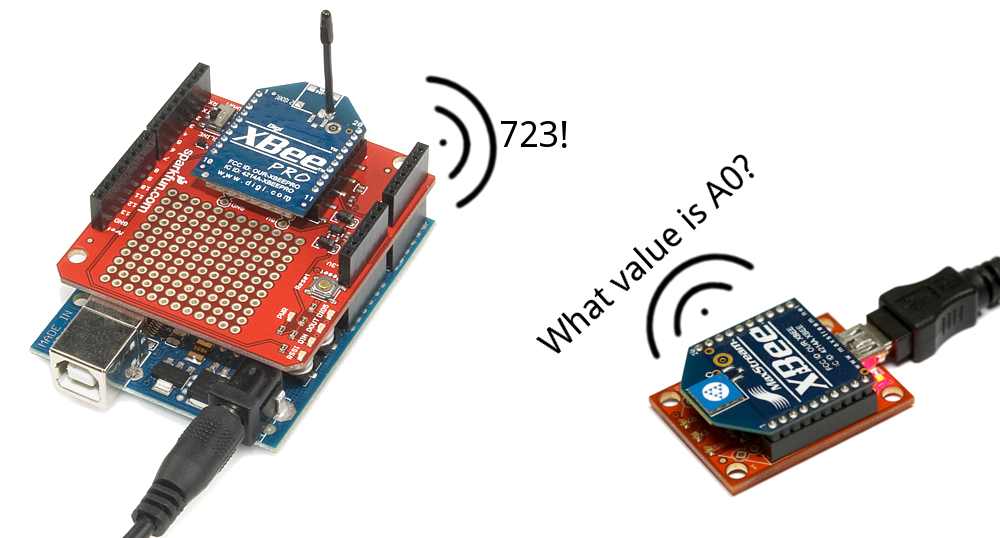
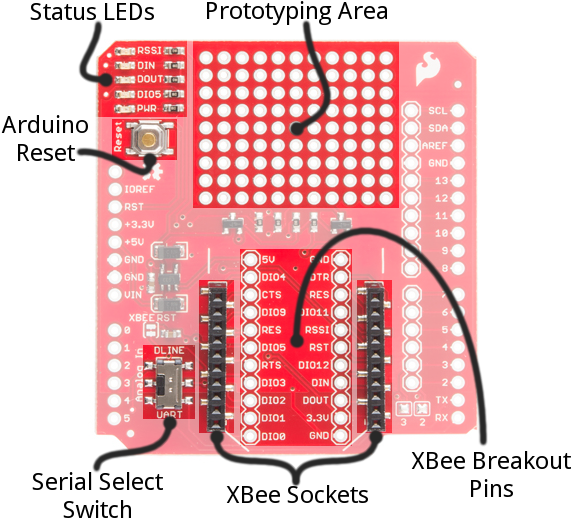
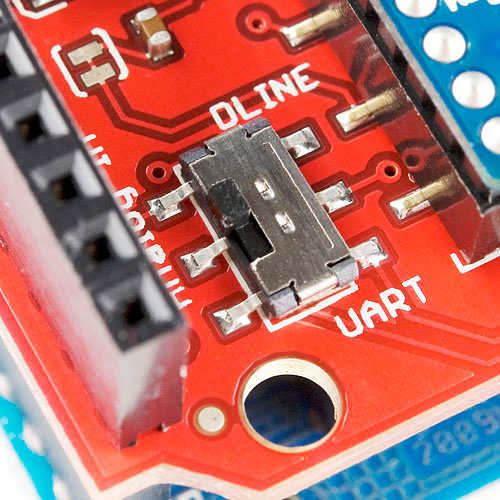
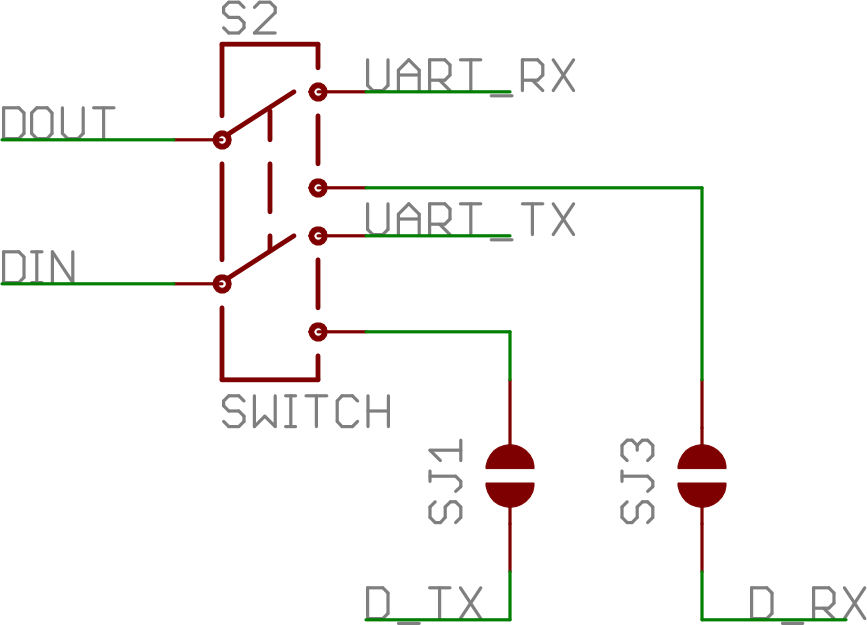
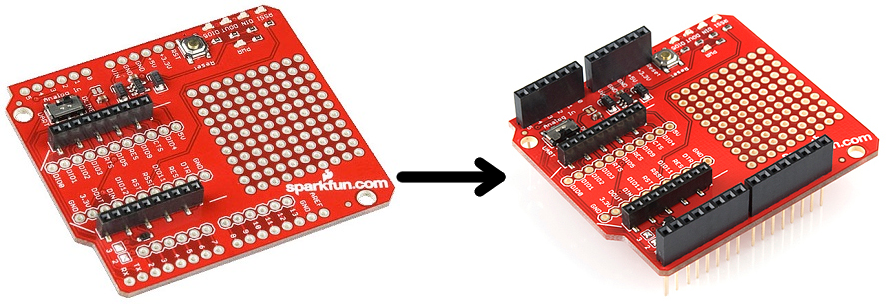
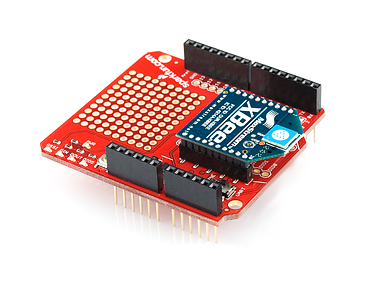
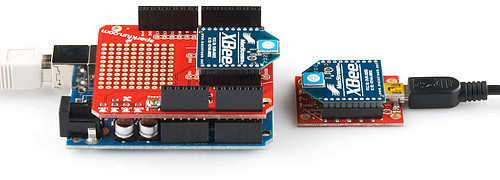
We'll begin by examining the schematics and hardware of the XBee Shield, then move on to example code. First
we'll set up a test program to make sure our XBees are communicating with each other. Then we'll move on to the
remote control Arduino sketch.
Required Materials
To follow along with this tutorial, you will need the following materials. You may not need everything though
depending on what you have. Add it to your cart, read through the guide, and adjust the cart as necessary.
1x XBee Shield -- The star of this tutorial.
You'll also need headers to install into your shield. We recommend stackable headers.
1x Arduino -- The XBee Shield should work with any Arduino-compatible board -- Uno, RedBoard, Mega,
you name it.
2x XBees -- XBees exist in a variety of series, frequencies, and ranges. If you're just getting started with
XBee, we highly recommend going with Series 1 models -- either with a trace antenna, wire antenna or u.fl
connector.
For more help picking an XBee, check out our XBee Buying Guide.
Heads up! While this tutorial was written for XBee Series 1, you can still follow along using XBee
Series 3 modules. Just make sure to configure it with the 802.15.4 (Series 1) firmware. For more
information, check out the Exploring XBees and XCTU tutorial.
1x Explorer -- The Explorer board allows you to connect an XBee to your computer. You can use either the
Explorer USB, Explorer USB Dongle, or Explorer Serial.
Depending on which explorer you have, you may also need a matching mini-B USB or serial cables.
At least one computer with X-CTU installed.
The latest version of X-CTU is available for both Mac and Windows!
Tools
You will need a soldering iron, solder, and general soldering accessories.
Solder Lead Free - 100-gram Spool
TOL-09325
Weller WLC100 Soldering Station
TOL-14228