Sparklan WL-850R Manuale utente

User’s Guide 1
Wireless Network Card Series
User’s Guide
Version 2.1

User’s Guide 2
Copyright statement
No part of this publication may be reproduced, stored in a retrieval system, or transmitted in any form
or by any means, whether electronic, mechanical, photocopying, recording, or otherwise without the
prior writing of the publisher.
Nov 2006

User’s Guide 3
Contents
1. Introduction............................................................................................................... 4
2. Wireless LAN Basics................................................................................................. 5
3. Installation for Windows platform.............................................................................. 6
3.1. Installation Overview.............................................................................................. 7
3.2. Install Procedure for Windows............................................................................... 8
3.3 Uninstall Procedure............................................................................................... 13
4. Configuration Utility................................................................................................. 14
4.1 Link Information .................................................................................................... 15
4.2 AP List................................................................................................................... 17
4.3 Profile Setting........................................................................................................ 18
4.4 About..................................................................................................................... 22
5. Appendix................................................................................................................. 23

User’s Guide 4
1. Introduction
Thank you for purchasing your Wireless LAN Adapter. This User’ s Guide will assist you with the
installation procedure.
The package you have received should contain the following items:
•Wireless LAN Adapter
•Quick Installation Guide
•CD containing Wireless network adapter utility & drivers and User’s Guide
Note: if anything is missing, please contact your vendor
Note: This manual is valid for all Wireless LAN adapters, such as PC Card, USB, mini-USB, PCI
adapter, mini-PCI…etc.

User’s Guide 5
2. Wireless LAN Basics
Wireless LAN (Local Area Networks) systems offer a great number of advantages over a traditional,
wired system. Wireless LANs (WLANs) are more flexible, easier to setup and manage and often more
cost effective than their wired equivalence.
Using radio frequency (RF) technology, WLANs transmit and receive data over the air, minimizing the
need for wired connections. Thus, WLANs combine data connectivity with user mobility, and, through
simplified configuration, enable movable LANs.
With wireless LANs, users can access shared information without looking for a place to plug in and
network managers can set up or augment networks without installing or moving wires. Wireless LANs
offer the following productivity, convenience and cost advantages over traditional wired networks:
•Mobility - Wireless LAN systems can provide LAN users with access to real-time information
anywhere in their organization. This mobility supports productivity and service opportunities not
possible with wired networks.
•Installation Speed and Simplicity - Installing a wireless LAN system can be fast and easy and can
eliminate the need to pull cable through walls and ceilings.
•Installation Flexibility - Wireless technology allows the network to go where wires cannot go.
•Reduced Cost-of-Ownership - While the initial investment required for wireless LAN hardware
might be higher than the cost of wired LAN hardware, overall installation expenses and life-cycle
costs will be significantly lower. Long-term cost benefits are greatest in dynamic environments
requiring frequent moves, adds, and changes.
•Scalability - Wireless LAN systems can be configured in a variety of topologies to meet the needs
of specific applications and installations. Configurations are easily changed and range from peer-
to-peer to full infrastructure networks, also allow roaming over a broad area.

User’s Guide 6
3. Installation for Windows platform
The following section will assist you in installing wireless LAN Adapter successfully. You will first install
software (Utility) and then insert / attach the Wireless LAN Adapter to your system, and finally set the
network properties to accommodate resource sharing and select the type of wireless network that you
wish to install. The Wireless LAN card can easily be installed and used, without bothering to connect
cables for keeping your computer to use network resources.

User’s Guide 7
3.1. Installation Overview
Here are some steps you will perform in establishing your wireless network connection:
zInstall the Access Point at first. AP is needed in case of Infrastructure network mode.
zInstall the software using the Install CD.
zInstall the Wireless LAN Card.
zInstall the network protocol(s) required to communicate on your network. Most likely you will need
the TCP/IP protocol.

User’s Guide 8
3.2. Install Procedure for Windows
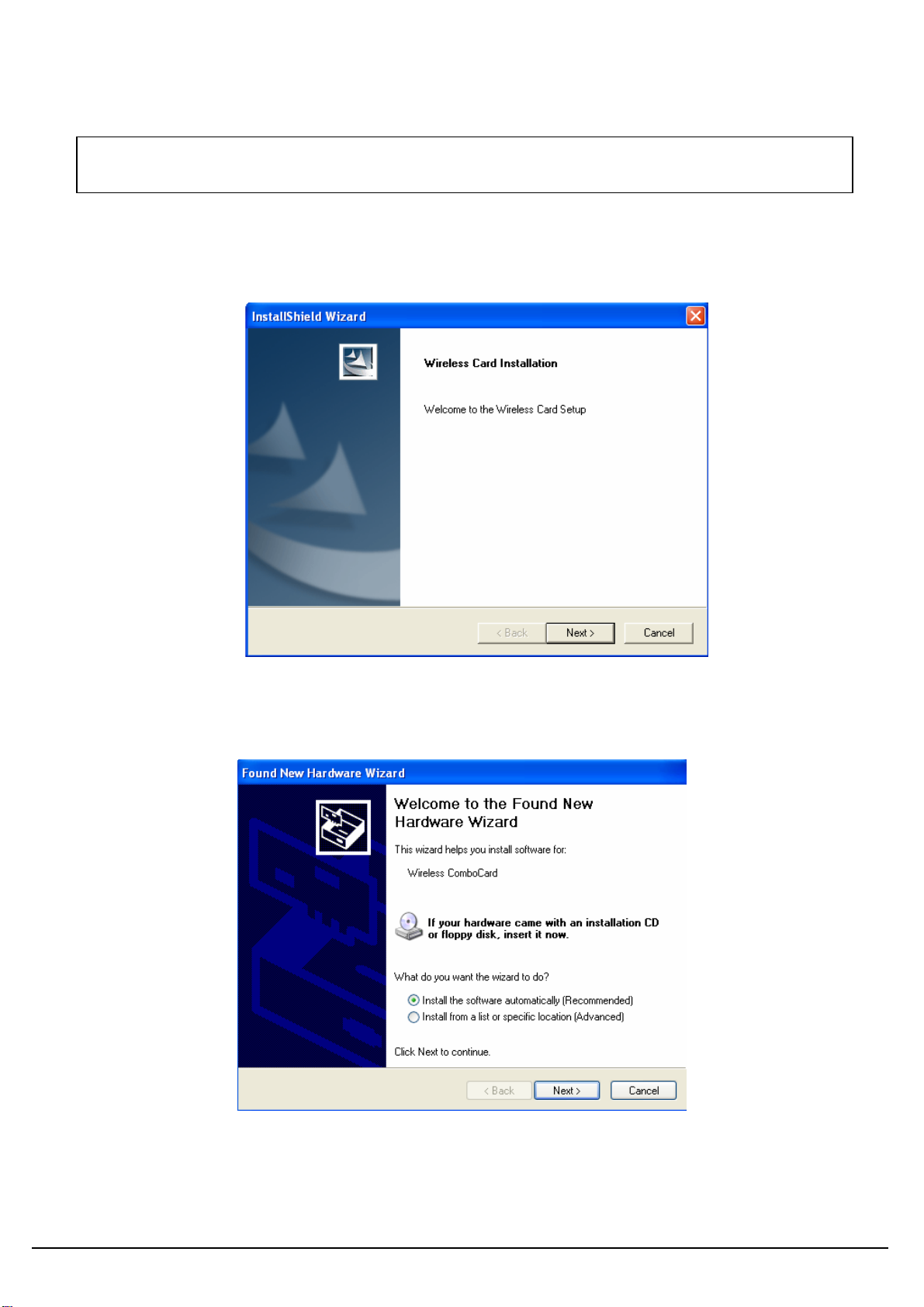
1. Insert the given Installation CD in the CD-ROM, then browse the CD content and find a file which
be named Setup.exe, double click it for beginning the installation.
Follow the instruction to finish the installation.
2. After complete the procedure, insert your WLAN card into PCMCIA/PCI slot or USB connector of
your system, and then system will detect new hardware.
Select “Install the software automatically (Recommended) ”, and then click Next to continue.
Note: Do not insert the WLAN Adapter until you are asked to do so, failure of which may
result in unsuccessful installation of your WLAN device.

User’s Guide 9
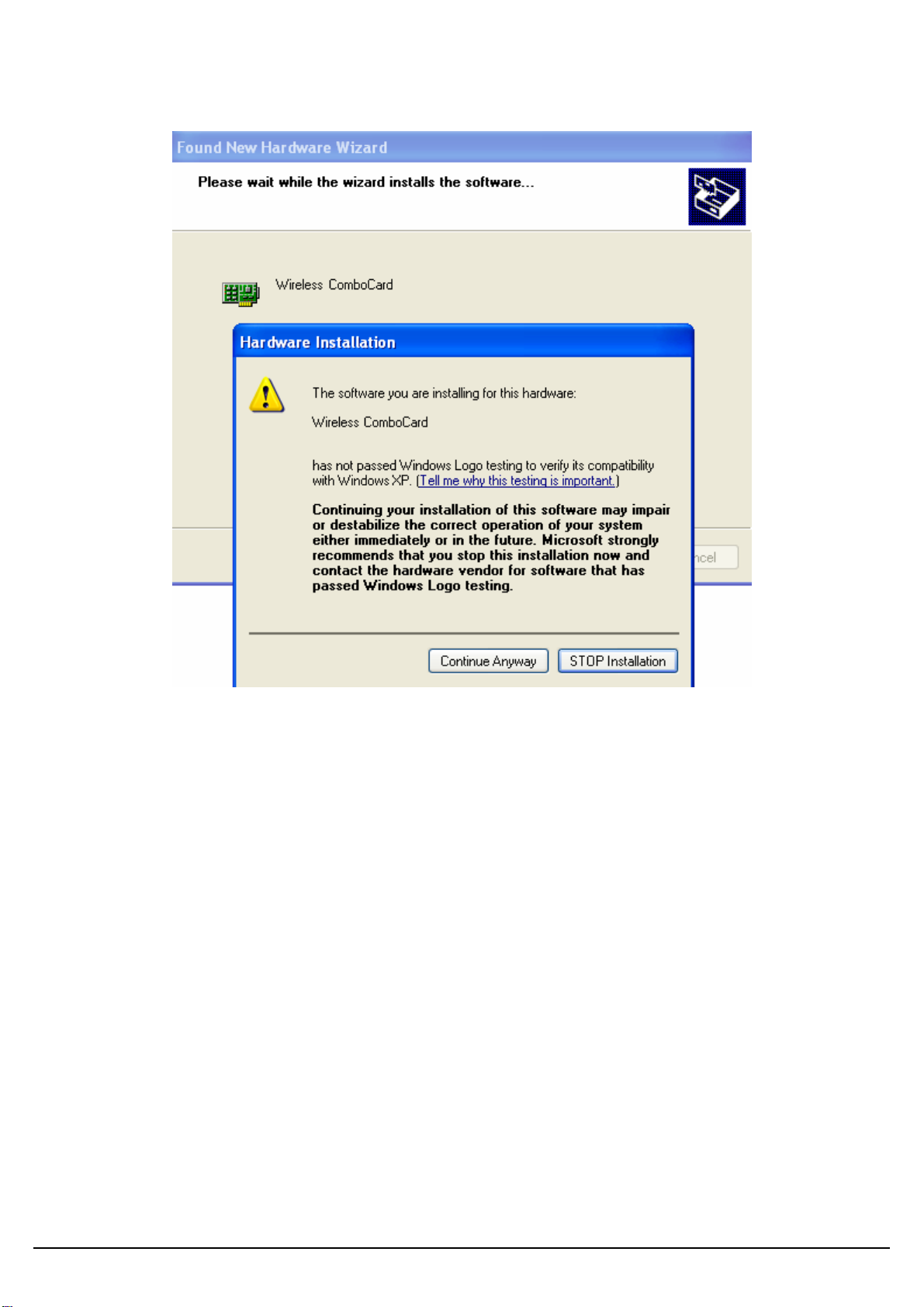
Once your system detected the driver, Microsoft will show a warning message as below.
Click “ Continue Anyway ” for next step.
After copy the file to your system, then the setup is finish.
3. Insert your wireless network card into your computer.
Note: If the wireless network card is PCI interface, then you should shut down your computer first
and power on your computer after you complete the card insertion.

User’s Guide 10
4. Click the right button of mouse on My Computer ÆManage ÆDevice Manager.
Check whether it has WLAN adapter in one of the sockets or not. If you find Wireless
ComboCard in one of the sockets, it means the card is detected properly.
If you cannot find this card on device manager, please click the Action ÆScan for hardware
changes for research again. If this card is shown with yellow exclamation mark, please remove it
and click the Action ÆScan for hardware changes for research this hardware again for proper
hardware installation.
5. Click StartÆSettingsÆNetwork Connections or right click mouse on the My Network Places
(Network Neighborhood) for TCP/IP setting.
Indice
Manuali Hardware di rete popolari di altre marche

Matrix Switch Corporation
Matrix Switch Corporation MSC-HD161DEL Manuale utente

B&B Electronics
B&B Electronics ZXT9-IO-222R2 Manuale utente

Yudor
Yudor YDS-16 Manuale utente

D-Link
D-Link ShareCenter DNS-320L Manuale utente

Samsung
Samsung ES1642dc Istruzioni per l’uso

Honeywell Home
Honeywell Home LTEM-PV Istruzioni per il montaggio