
Speaksee Microphone Kit Manuale utente

User Manual
Speaksee Microphone Kit
Information in this document may change without notice.
©Speaksee. All rights reserved.

User Manual Speaksee Microphone Kit 2
Content
Parts overview 3
In the box of the Microphone Kit 3
Charging dock 3
Speaksee Microphones 4
Accessories for charging 4
Installation 5
Follow the steps of the Quickstart Card 5
Follow the steps of the Speaksee App 6
1) Creating an account 6
2) Verifying your account 7
3) Verifying your Microphone Kit 7
4) Turning on the Microphone Kit 8
5) Connecting via Bluetooth 8
6) Pairing the Microphone Kit with your Phone 9
7) Setting up Wi-Fi 9
8) Removing the protective stickers 10
9. Ready for use 11
Regular use 12
Turn on the Microphone Kit 12
Turn on the Microphones 12
Wear the Microphones 12
Clip or neck strap 12
Transcribe conversations 13
Turn off the Microphone Kit 13
Charge the Microphone Kit 13
Adjusting settings 14
Customise transcription view 14
Font size & colour theme 14
Microphone name 15
Adding additional Wi-Fi networks 16
Advanced features 18
Using a mobile hotspot 18
Android 18
Samsung 18
Motorola 18
Google Pixel 18
Huawei 18
iOS 18
Contact details 19

User Manual Speaksee Microphone Kit 3
Parts overview
In the box of the Microphone Kit
In the Speaksee Microphone Kit you will find the following parts and accessories:
●1 x charging dock
●3 x Speaksee microphones
●9 x colour pucks
●3 x neck straps
●1 x international adaptor
●1 x USB-C cable
●1 x carry case
The packaging also includes the following printed documentation:
●Quickstart Card
●User Guide
●Legal Information Card
Charging dock
1. Audio jack port
Connect your hearing aid streaming
device, headphones or earphones to
directly receive the audio picked-up by
the Speaksee Microphone Kit.
2. USB-C charge port
Use this port to charge your Microphone
Kit.
3. Ethernet port
In addition to the wifi connection, you
can connect cable internet. Ethernet
priority is higher than wifi, to ensure a
speedy and stable connection.
4. LED Lights
To indicate the charging dock status.
5. Charging pins
These connect the microphones to the dock to charge them.
6. Power button
Press this to turn on the Speaksee dock. Then turn on the microphones separately.

User Manual Speaksee Microphone Kit 4
Speaksee Microphones
1. Focused speech detection
To pick up the voice of the person wearing it.
2. LED light
Indicating the microphone status.
3. Microphone receivers
To listen and transcribe what is being said in real-time
4. Colour puck
Indicating the transcription colour of the speaker wearing the
microphone.
5. Power button
After switching on the charging dock, switch on the microphones
by pressing this power button.
Accessories for charging
1. Power outlet
Will look different depending on the country you are in.
2. International adaptor
Change the adaptor head to
suit your power outlet.
3. USB-C cable
To connect the adaptor to
the charging dock.
4. USB-C port
Plug the USB-C cable into
this port of the charging
dock.

User Manual Speaksee Microphone Kit 5
Installation
Follow the steps of the Quickstart Card
With your Microphone Kit, a paper printed Quickstart card can be found in the inside pocket
of your carry case. It looks like this:
[2021 production run]
Follow these 3 steps and use the Verification code to onboard your device:
1. Scan the QR code as shown on the Quickstart Card to download the Speaksee app or
visit: speak-see.com/setup
2. Follow the instructions in the app to set-up your Microphone kit. You will be prompted to
use your verification code as printed on your Quickstart Card.
3. Enjoy transcribing!

User Manual Speaksee Microphone Kit 6
Follow the steps of the Speaksee App
1) Creating an account
If you do not have a Speaksee account yet, press
the ‘’Get started’’ button. Do you already have an
account? Then you can press ‘’Login’’. Continue
with step 3. Do you already have an account for
Speaksee AutoCaption? Then you can login with
the same credentials.
Fill in the complete form to be able to create your
Speaksee account.
For the transcription language, you can select the
language of the audio that the Microphones are
receiving. Later on we will add a language
switcher inside the application.
Choose your own password to be able to login to
your Speaksee account, this is NOTthe unique
verification code on your quick start card. Your
password needs to pass the following
requirements:
●Minimum of 10 characters
●One capital letter
●One number
●One special character

User Manual Speaksee Microphone Kit 7
2) Verifying your account
After creating your account, you will receive an
email to verify your account. Click on the link in
the email and your account will be verified. After
clicking on the link, you can return to the app and
login with your Speaksee account.
3) Verifying your Microphone Kit
Fill in the unique verification code delivered
with your Speaksee Microphone Kit. You can find
the verification code on the Quickstart Card in the
inner pocket of your Speaksee carry case.

User Manual Speaksee Microphone Kit 8
4) Turning on the Microphone Kit
Press the power button to turn the Microphone Kit on.
You will see that all 3 LED lights turn white and start
blinking. If the Microphone Kit is turned on
successfully, you can press ‘’Next’’.
5) Connecting via Bluetooth
To be able to connect the Speaksee Kit to your
smartphone, you need to turn on your Bluetooth.
Please note: Android users also need to turn on
their location. Wait for the 3 LED’s to turn steady
blue, this means you have successfully established a
bluetooth connection. You can now press ‘’Next’’.

User Manual Speaksee Microphone Kit 9
6) Pairing the Microphone Kit with your Phone
The app is scanning to set up a connection between
your phone and the Microphone Kit. Once the
Microphone Kit under the name Speaksee is found,
you can press ‘’Pair’’. You will now be able to connect
a Wi-Fi network on the next page.
7) Setting up Wi-Fi
Select the Wi-Fi network you would like to connect to
the Speaksee Microphone Kit. Fill in the correct Wi-Fi
credentials and press ‘’Connect’’.Is the app unable to
find your desired network? Please press ‘’Scan
again’’. If the app is still unable to find your network
after 3 tries, please contact our support team.
User Manual Speaksee Microphone Kit 10
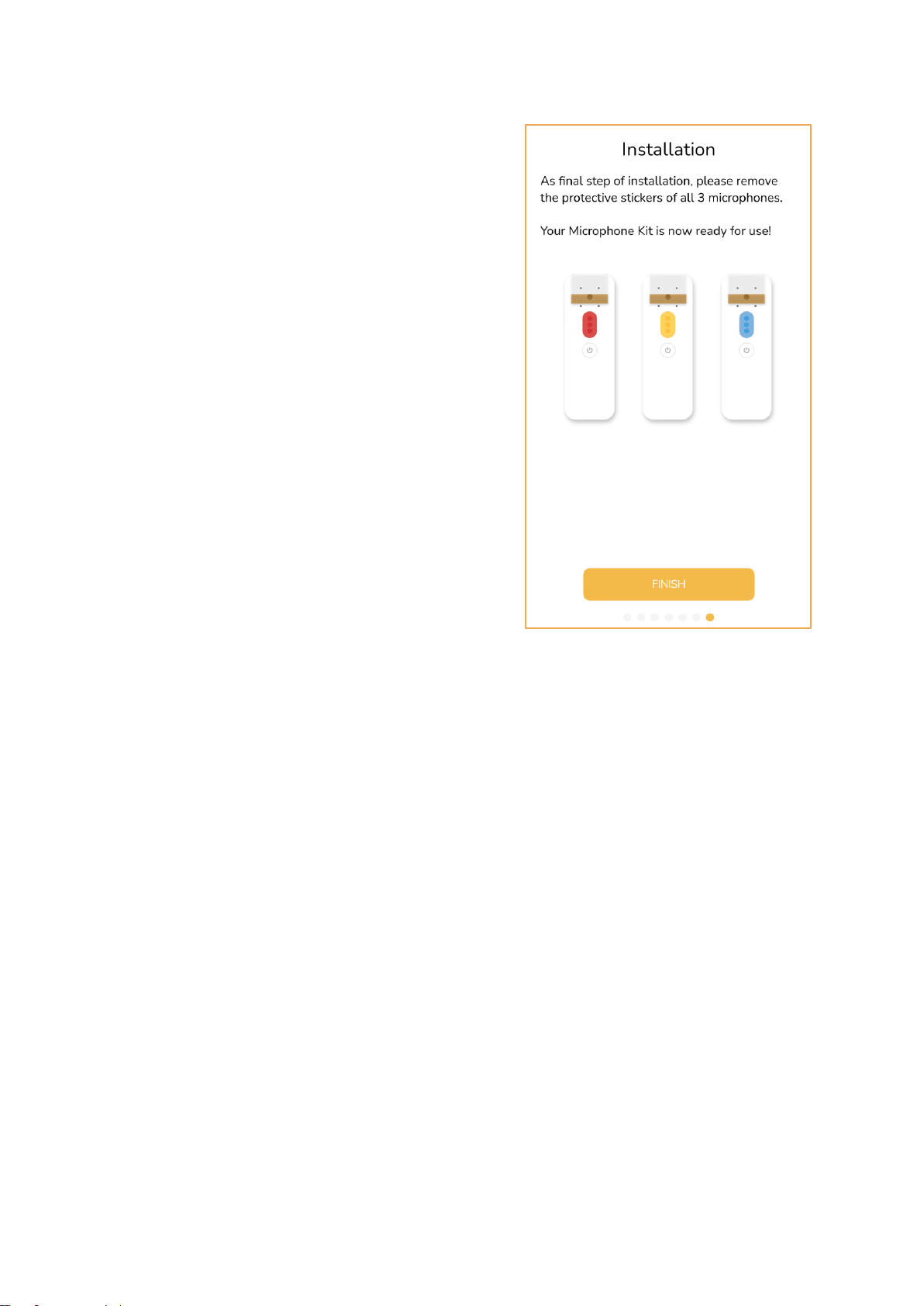
8) Removing the protective stickers
Please remove all 3 protective stickers from your
Microphones before you start using your Microphone
Kit. Once this is done, you can press ‘’Finish’’. You
have now successfully installed your Microphone Kit!
Altri manuali per Microphone Kit
2
Indice
Manuali Hardware di rete popolari di altre marche

Matrix Switch Corporation
Matrix Switch Corporation MSC-HD161DEL Manuale utente

B&B Electronics
B&B Electronics ZXT9-IO-222R2 Manuale utente

Yudor
Yudor YDS-16 Manuale utente

D-Link
D-Link ShareCenter DNS-320L Manuale utente

Samsung
Samsung ES1642dc Istruzioni per l’uso

Honeywell Home
Honeywell Home LTEM-PV Istruzioni per il montaggio


