11
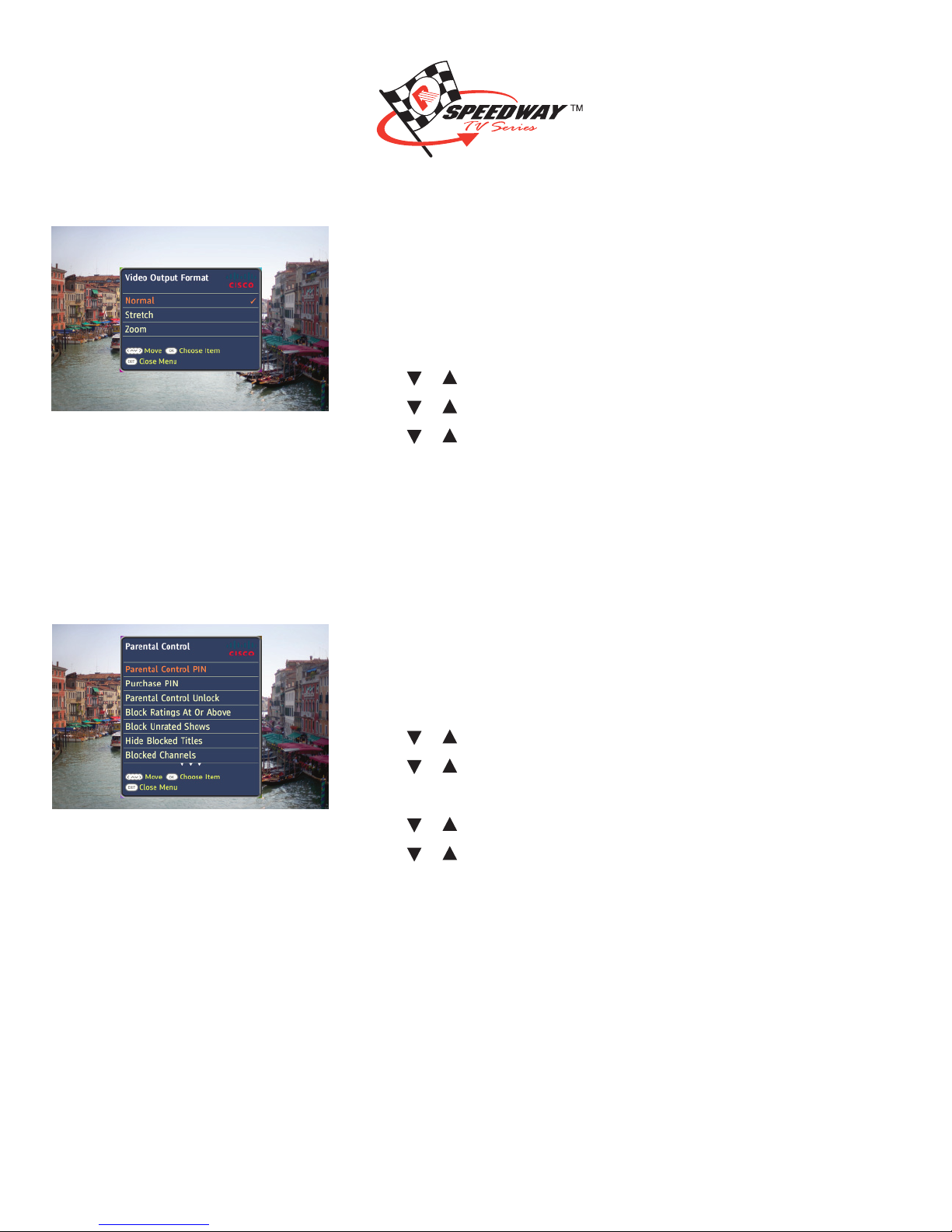
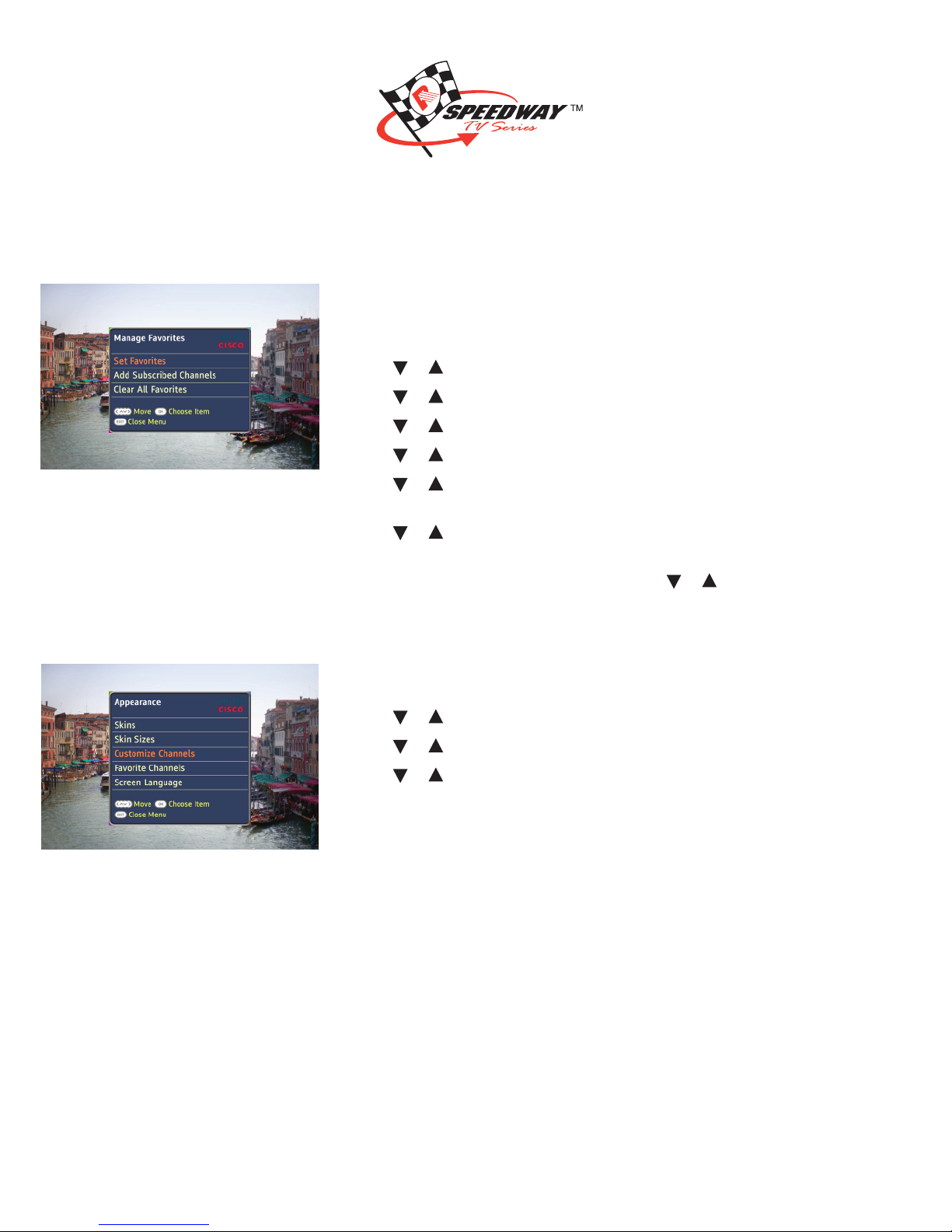
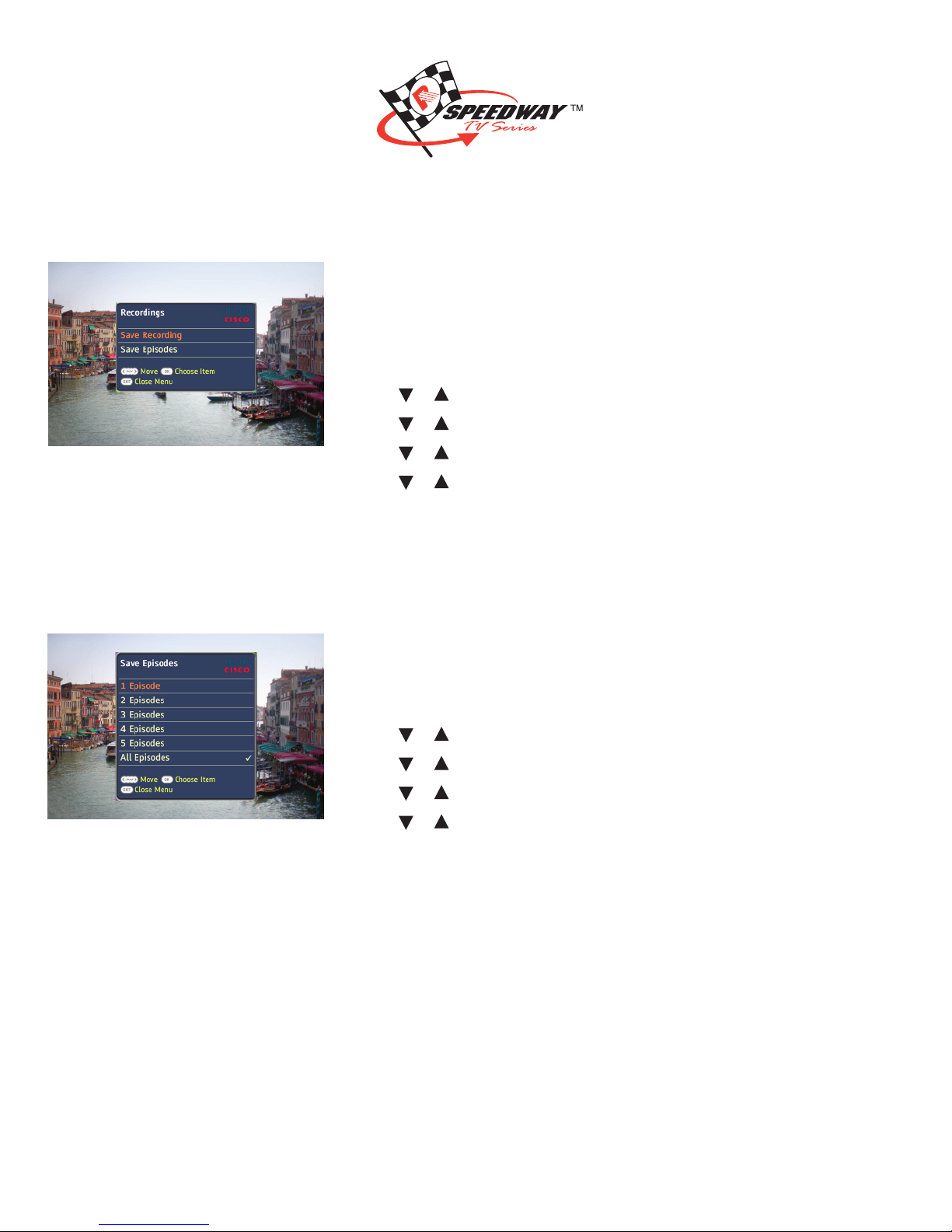
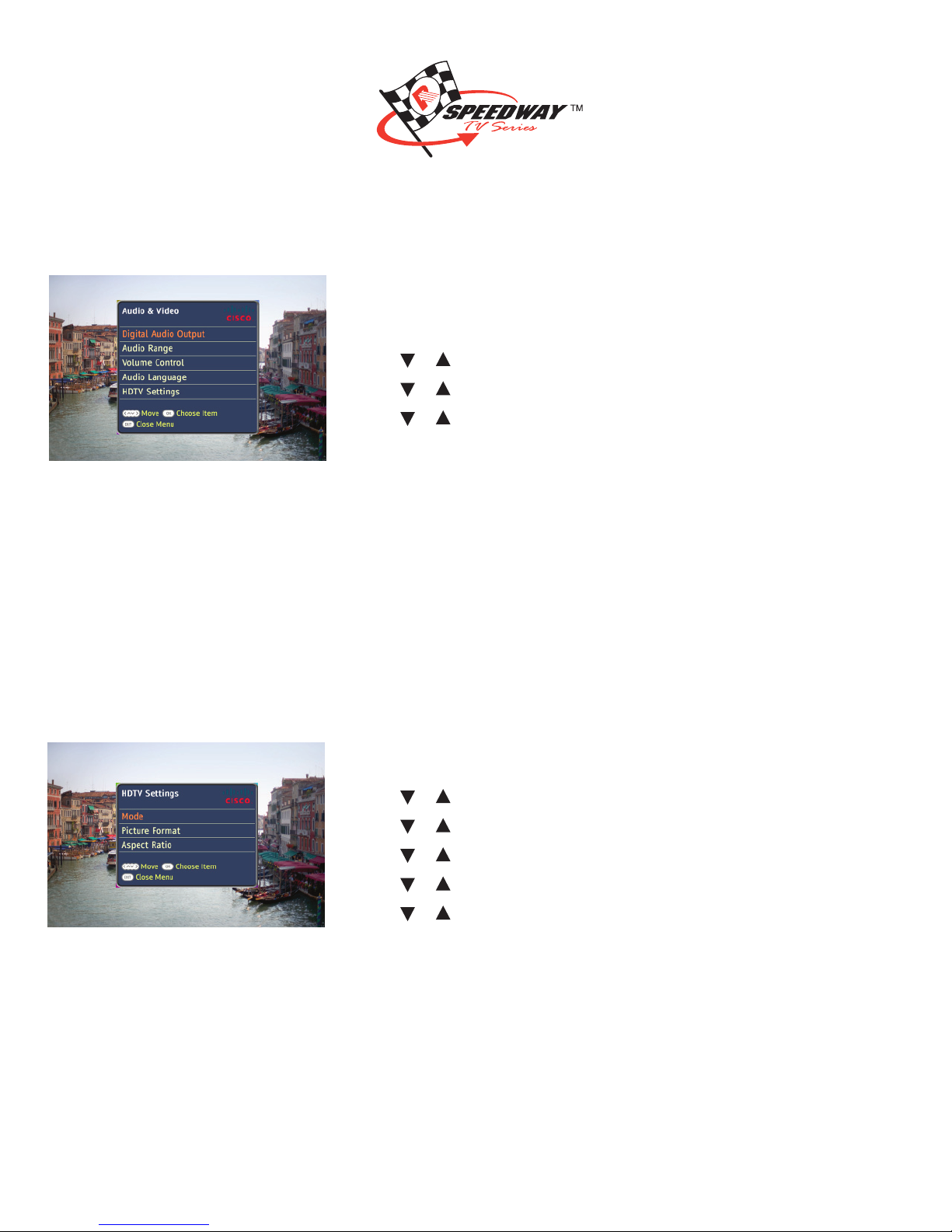
Set the HDTV Settings – Picture Format Options
1. Press Menu.
2. Press or to navigate to Settings and press OK.
3. Press or to navigate to Audio & Video and press OK.
4. Press or to navigate to HDTV Settings and press OK.
5. Press or to navigate to Picture Format and press OK.
6. Press or to navigate through the picture format choices:
• Passthru
• Fixed
7. Press OK.
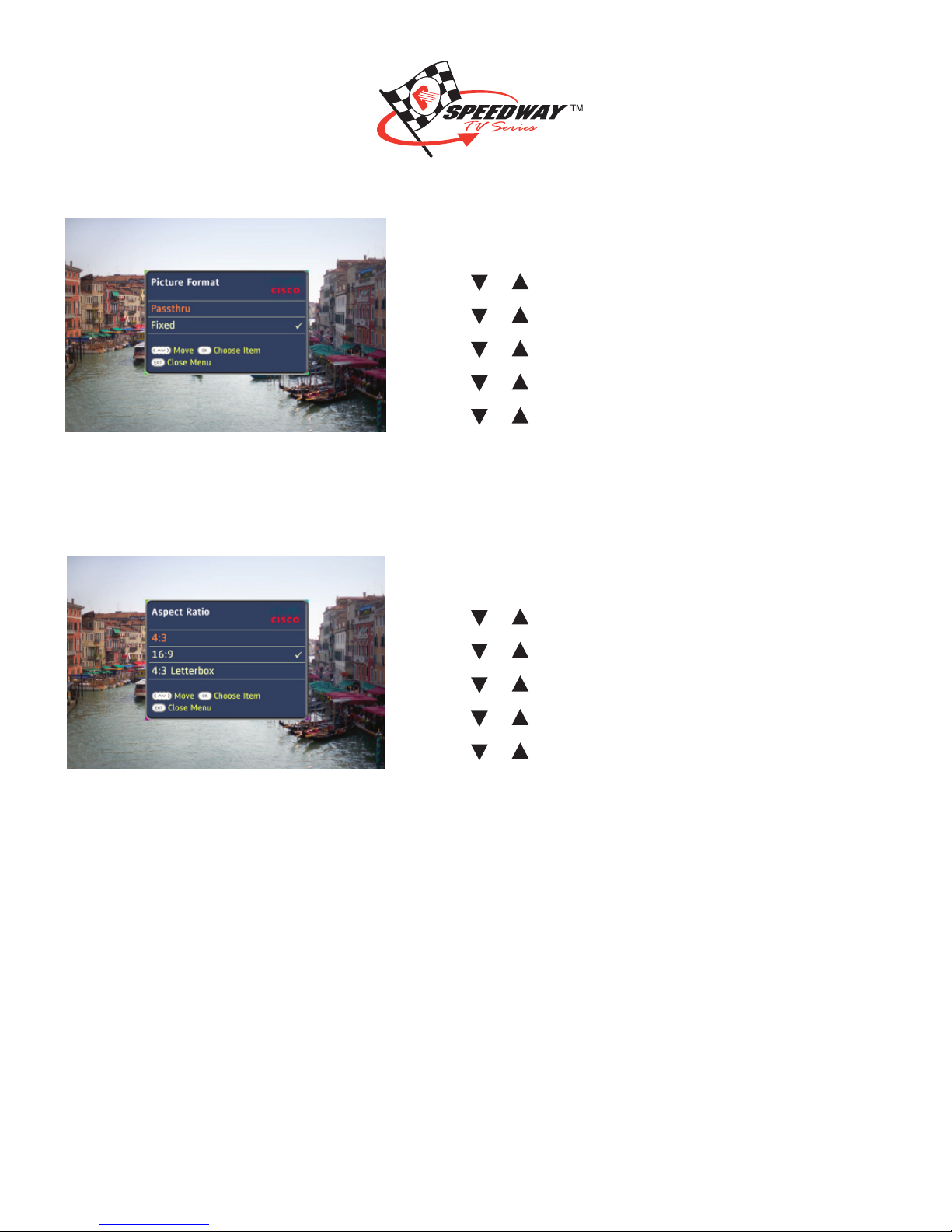
Set the HDTV Settings – Aspect Ratio Options
1. Press Menu.
2. Press or to navigate to Settings and press OK.
3. Press or to navigate to Audio & Video and press OK.
4. Press or to navigate to HDTV Settings and press OK.
5. Press or to navigate to Aspect Ratio and press OK.
6. Press or to navigate through the aspect ratio choices:
• 4:3
• 16:9
• 4:3 Letterbox
7. Press OK.
User Guide
12
Set the General Settings
1. Press Menu.
2. Press or to navigate to Settings and press OK.
3. Press or to navigate to General and press OK.
4. Press or to navigate through the general settings choices:
• Power On Channel (options include Last Channel Viewed [default] and Fixed Channel)
• Portal (to Services menu) (options include Show at Power On and Don’t Show at Power On)
• Default Guide Settings (options include Horizontal and Vertical)
• Closed Caption (this option is detailed below)
• Channel Change Banner (options include Show and Don’t Show)
• Caller ID (this option is detailed later in this section)
5. Press OK.
Turn Closed Captioning On and Off
1. Press Menu.
2. Press or to navigate to Settings and press OK.
3. Press or to navigate to General and press OK.
4. Press or to navigate to Closed Caption and press OK.
5. Press or to navigate to Enable and press OK.
Choose a Closed Captioning Source
1. Press Menu.
2. Press or to navigate to Settings and press OK.
3. Press or to navigate to General and press OK.
4. Press or to navigate to Closed Caption and press OK.
5. Press or to navigate to Analog Service or Digital Service, and then press OK.
6. Press or to scroll through the analog or digital service options. (See sidebar at left
for a description of the analog and digital options.)
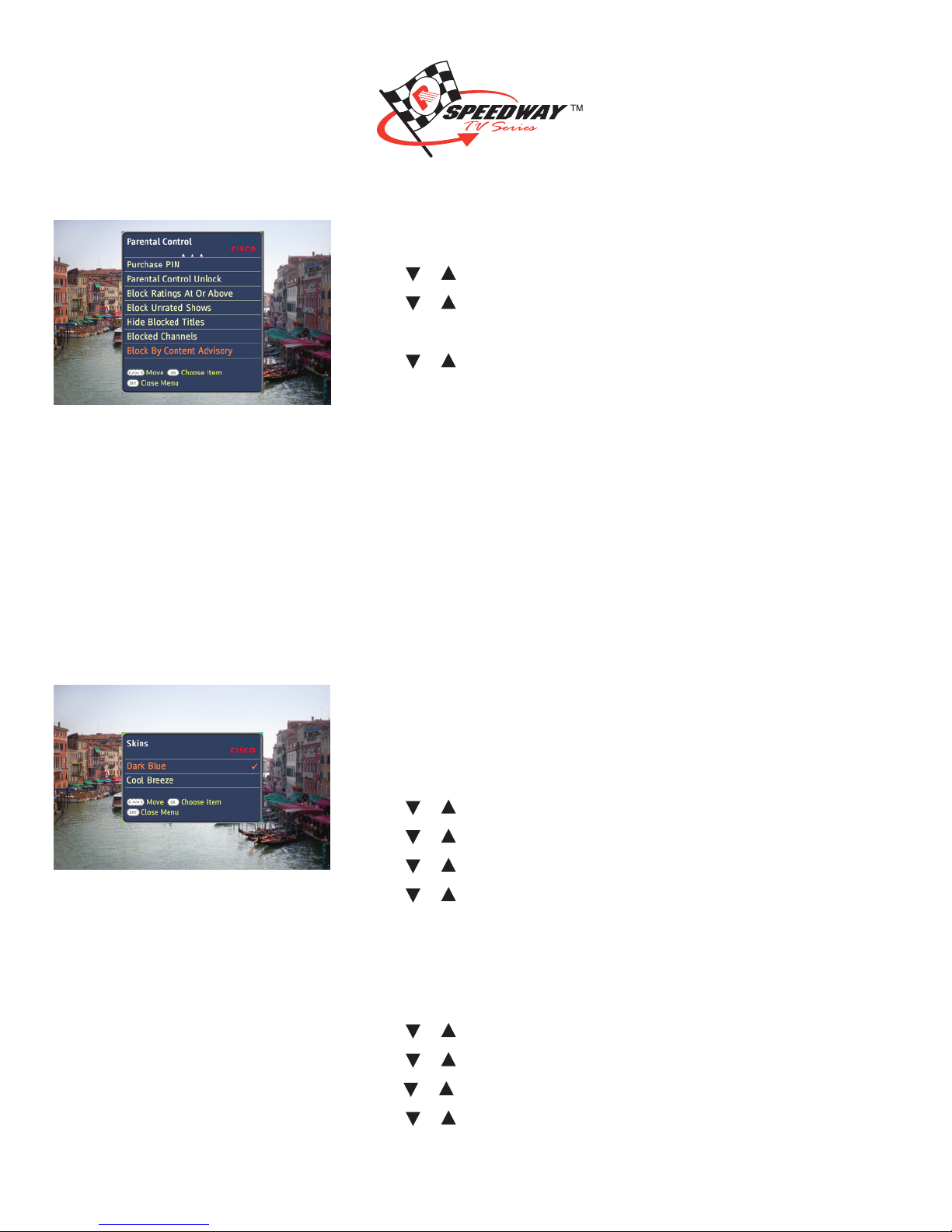
Change the Closed Captioning Look
Depending on the program or caption provider, you may or may not be able to change
how the closed captioning looks on the TV screen.
1. Press Menu.
2. Press or to navigate to Settings and press OK.
3. Press or to navigate to General and press OK.
4. Press or to navigate to Closed Caption and press OK.
Who Provides
Closed-Captioning Service
Several companies (sources) provide
closed-captioning service to television
networks and production companies
for analog and digital programming.
Closed-Captioning Sources -
Analog Service
• Std CC1 is the primary caption
service for non-digital programming.
• Std CC2 through Std CC4 are text
services that may contain different
information, including alternate
languages.
• T1 through T4 are text services
that may also provide additional
information from the closed-caption
provider.
Closed-Captioning Sources –
Digital Service
• Digital 1 is the primary caption
source.
• Digital 2 is the suggested choice for
alternate languages.
• Digital 3 through Digital 6 are
undefi ned at this time.