06
SPIKECAM
WiFi Function
To activate the WiFi function, press and hold the Photo
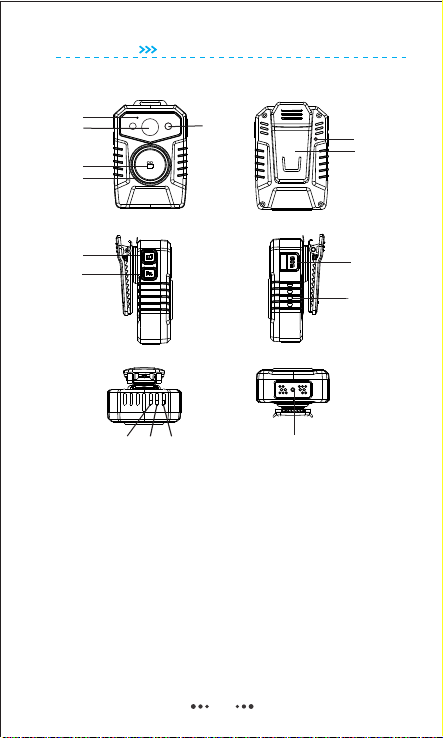
Button for more than 3 seconds until the White LED(No.12)
on the top lights up. This indicates that the camera has
entered WiFi hotspot mode, and you can locate the
camera's WiFi signal (starting with " ") wifi_camera_xxxxxx
in your mobile phone's WiFi list.
To connect to the camera's WiFi, enter the initial password
" ". If a pop-up message appears informing you 12345678
that the current WiFi hotspot cannot access the internet
and prompts you to switch to another network, please do
not switch networks.
To turn off the camera's WiFi hotspot, press and hold the
power button for approximately 3 seconds. Before turning
off the hotspot, make sure to close the App first.viidure
You can use the App to play back video files on viidure
your phone via WiFi. More information about the viidure
App will be provided on a later page.
Connect to PC
To transfer files, dock the camera onto the cradle and
connect the cradle to a Windows PC via a mini USB cable.
The camera will turn into a USB drive on the PC, allowing
you to copy and play back files. Please note that you must
use the cradle to transfer files. The USB charging port on the
side is solely for charging purposes. Please note that the
camera cannot be connected to a PC while in the recording
state. To cater to non-technical users, we use firmware without password
protection. If you require firmware with password protection, please get in touch with
our customer service team.
PC
Download
Via Cradle