
spok T52 Manuale utente
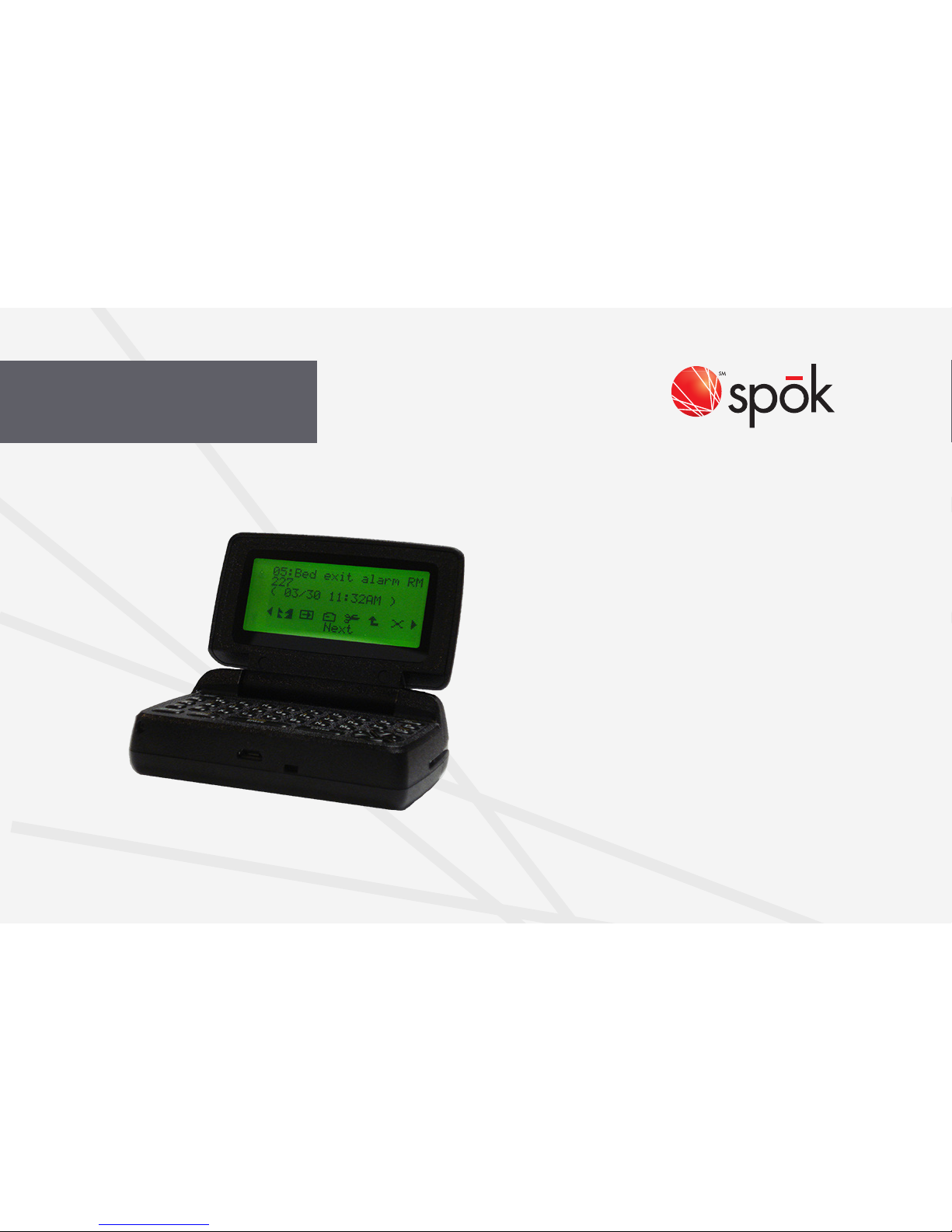
two-way pager
T52
USER GUIDE

2
TABLE OF CONTENTS
Control Buttons..........................................3
Getting Started..........................................4
Turning Device On .....................................5
Replacing Battery ......................................5
Turning Device Off.....................................6
Using the Main Menu ...............................6
Backlight....................................................7
Setting the Time and Date ........................7
Sending a Message...................................8
Reading a Message.................................10
Replying to Messages.............................11
Deleting All Read Messages...................13
Deleting All Messages............................13
Deleting Sent Messages.........................13
Contacts...................................................14
Setting an Alert .......................................16
Setting the Alarm ....................................18
Quiet Mode..............................................18
Turning the Transmitter Off .....................19
Setting Quick Text ...................................19
Setting Private Time................................20
Setting the Screen Saver ........................20
Setting Passcode ....................................21
Message Zoom........................................22
Setting Owner Info ..................................22
Creating a Signature ...............................23
Setting the Contrast ................................23
About .......................................................24
Care and Maintenance............................25
Safety Information.................................. 26
UL Warning and Caution .........................27
2 3
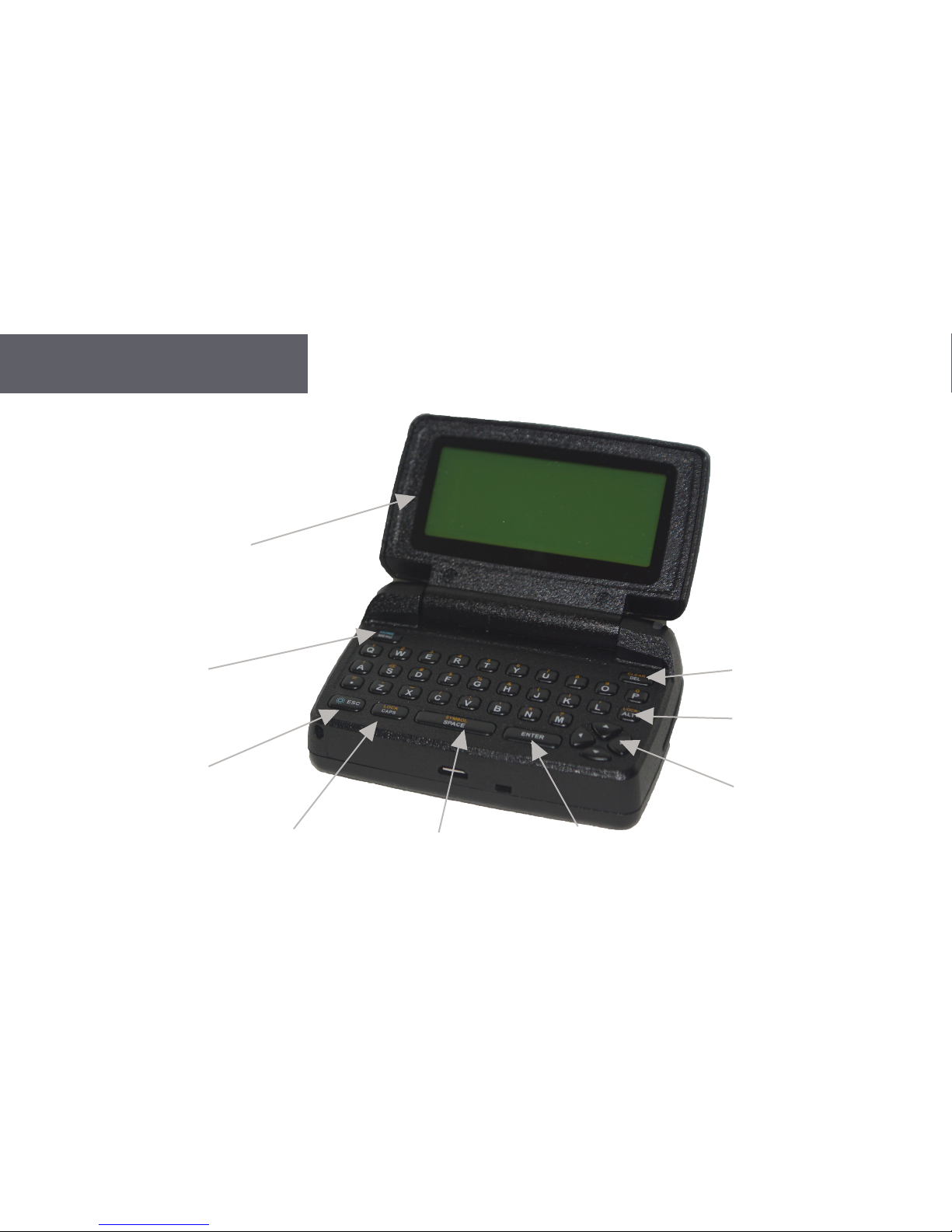
CONTROL BUTTONS
Flip
Home
Menu
Escape/
Backlight
CAPS Symbol Menu/Space Enter
Navigation
Buttons
ALT
Clear/Delete
4
GETTING STARTED
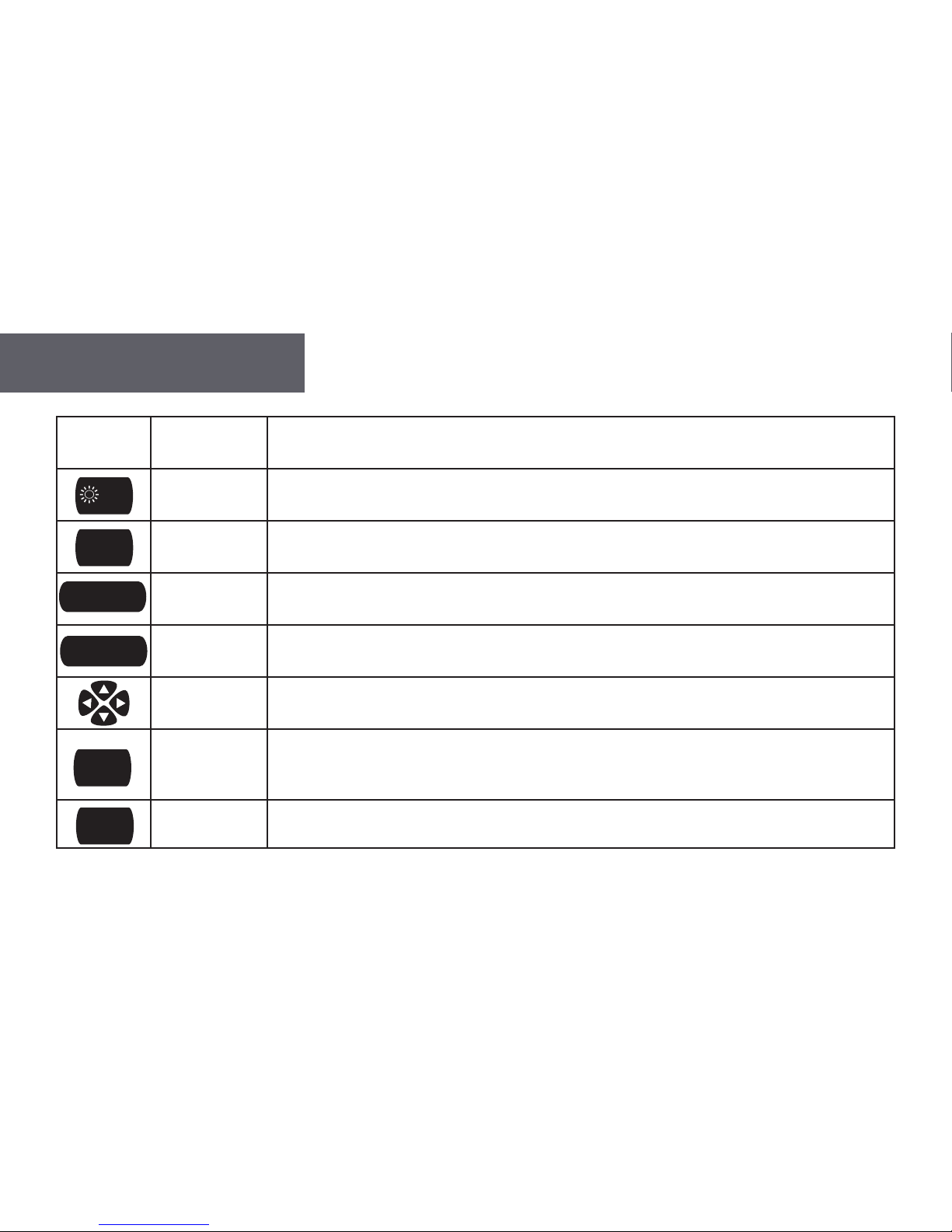
Flip Houses and protects the LCD screen. Opening the ip awakens the device display and
acknowledges a new message alert. Closing the ip puts the screen into sleep mode.
Escape/
Backlight Used to return to the preceding screen. Also used to turn the backlight on and off.
CAPS When pressed, the next character typed is capitalized. The status icon displays on the right
of the screen. Pressing twice locks the capitalization function until it is pressed again.
Space Used to insert a space in text while composing a message. Alt-Symbol brings up
additional symbol characters when entering text.
Enter Used to select the highlighted option, to save settings or to enter a carriage return into
composed text.
Navigation
Buttons Used for moving between menu options and within message text.
ALT
Activates the Alt-mode control keys. The status icon displays on the right of the screen.
The next key pressed indicates the Alt-mode function. Pressing twice locks this function
until pressed again.
Delete When pressed the character to the left of the cursor is deleted. Alt-Clear deletes the entire
text.
LOCK
CAPS
CLEAR
DEL
ENTER
ESC
LOCK
ALT
SYMBOL
SPACE

4 5
TURNING DEVICE ON
• Ensure that a AA alkaline battery is properly installed.
• Open the lid and press the ENTER key to power on the device. Upon powering on, the T52 will take several seconds to
initialize before displaying the Home Screen.
• From the Home Screen, press any key (except ESC key) to display the Main Menu.
• If a menu item is not selected, the device reverts to Standby mode after a predened amount of time (congurable in
the Display/Keyboard/Screen Saver section of Preferences)
• If the device contains one or more unread messages, a circle indicator icon on the left side of the screen will ash
(while in Standby mode).
REPLACING BATTERY
• Remove the old battery
• Wait 10 seconds for the device to clear its “Low Battery” condition
• Insert a new alkaline AA battery
If your device does not register with “Full Service” or you experience issues with sending messages or replies it may be
necessary to insert a new AA battery in the device and wait up to 4 hours for the internal battery to fully charge.

6
TURNING DEVICE OFF
• From the Main Menu, press the Navigation button to scroll down to Power Off and press ENTER.
• Highlight Yes and press Enter.
USING THE MAIN MENU
Use the Main Menu for the following features:
Press navigation keys to highlight the desired feature and then press Enter.
• Read the received or sent messages
• Send messages
• Access contact information
• Change preferences
• Set the alarm
• Access quiet mode
• Turn the transmitter off and on
• Turn the device off

6 7
SETTING THE TIME AND DATE
• From the Main menu, press the navigation keys to highlight Preferences and press Enter.
• Press navigation keys to highlight Setup and press Enter.
• Press navigation keys to highlight Set Time & Date and press Enter.
• Use Left/Right keys to select the desired Network Sync type. They are:
• Yes : The minutes value of the time is automatically set.
• No : Allows complete manual setting of the time and date.
• Use Up/Down keys to move the cursor up and down.
• Use Left/Right keys to select the desired date format while the cursor is on the Format.
• Use Left/Right keys to move the cursor eld to eld while the cursor is on the Time and Date setting.
• Use Enter key to increase the time and date while the cursor is on the Time and Date setting
BACKLIGHT
• In low-light conditions, press and hold ESC to turn on the backlight.
• The backlight remains illuminated until the T52 times out and returns to the Standby screen.
• To manually turn the backlight off, close and open the ip lid.

8
SENDING A MESSAGE
This section discusses how to compose a message, select addresses and send a message with the device.
Composing a Message
From the Main Menu, press the navigation keys, highlight Write and then press Enter.
Enter a message. After composing the message, press the Menu key (located at the upper left corner of the keyboard).
Menu Options
The device will display six menu items. Menu items include: Select Address, Send, Add-replies, Quick-
Text, Back and Cancel. Use the navigation key to highlight the desired item and then press Enter to
execute.
• Select Address: The user can select addresses to send the message to.
• Send: The device sends the message. The Send icon will only be highlighted after an address has been selected.
• Quick-Text: The user can insert pre-dened text into the message being composed.
• Back: Exits the Write menu.
• Cancel: Removes the menu items from the bottom of the screen.

8 9
Selecting Addresses
Up to twenty addresses from existing contacts can be selected for sending a single message to.
• Use Navigation Keys to move the cursor and highlight the desired address.
• Press Enter and then use navigation key to select the desired address type.
• Press Enter to select the address.
• A wireless address or email can be manually entered by selecting Enter Address and then selecting One Time Wireless
or One Time Email from the list.
• Use Navigation Keys to move the cursor to highlight “Done Selecting” when you have nished adding all desired
recipients. This will return you to the Write Menu to send the message.
Sending a Message
Once message composition is completed and the addresses selected, the cursor can be moved to the Send item. Pressing
Enter sends the message.
‘Message Transmitting’ is displayed to conrm that the message is being sent to the selected addresses.

10
READING A MESSAGE
• When a Personal message is received, the device displays a pop-up window and alerts according to the InBox Alert
setting. (Please see the Setting Alert section of this manual for details on how to set the InBox Alert and the “Setting
News/Info InBox” section of this manual for adjusting the alert for News/Info messages)
• To Stop the alert press any key, or open the ip cover. The InBox or News/Info icon will ash until all received messages
have been read.
• If reminder alerts were preset from Preferences, the device periodically alerts as a reminder of any unread InBox
messages.
Previewing Message
• From the Main menu, press navigation keys to highlight Read and press Enter to display InBox, OutBox, News/Info
InBox and Message Folder.
• Use the navigation keys to move the cursor and press Enter to open the InBox, OutBox, News/Info InBox or Message
Folder.
• The screen will display rst six messages.
Reading Messages
• To read a message, (while previewing) press navigation keys to highlight the desired message and press Enter.
• Press up/down navigation keys to scroll through the text of a message or press Enter to page through the message.
• At the end of the message, a highlighted menu bar is displayed. Press Menu or Enter to Reply, Forward, Move, or Delete
the message.
• Note: At any time, while previewing or reading a message, press Menu to access the Message Options menu.
Altri manuali per T52
1
Indice
Altri manuali spok Cercapersone


