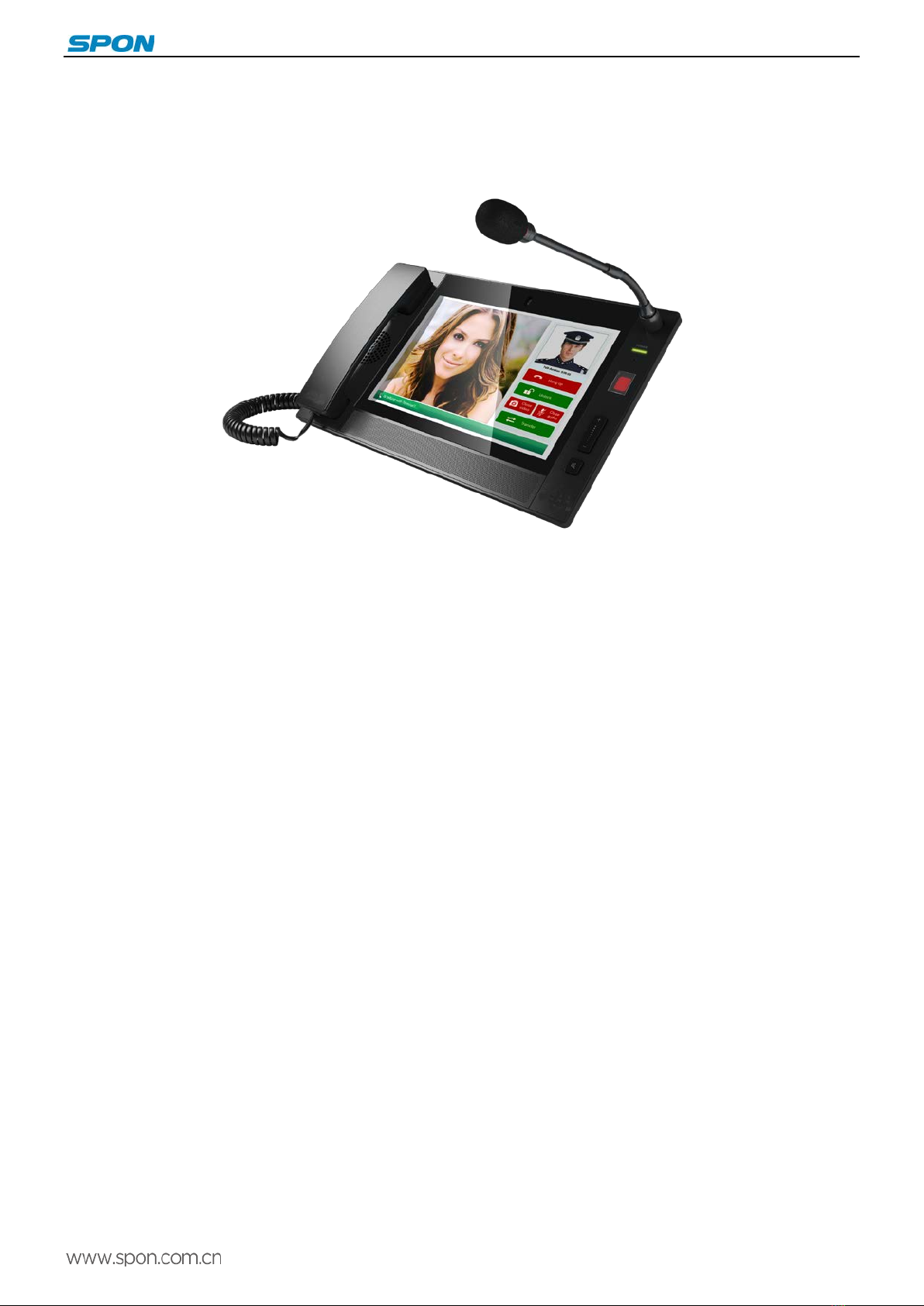
IP video intercom paging console user manual
Content
Summarize........................................................................................................................................................................................................ 1
Safety precaution .............................................................................................................................................................................................. 1
Product introduction .......................................................................................................................................................................................... 2
Features ............................................................................................................................................................................................................. 2
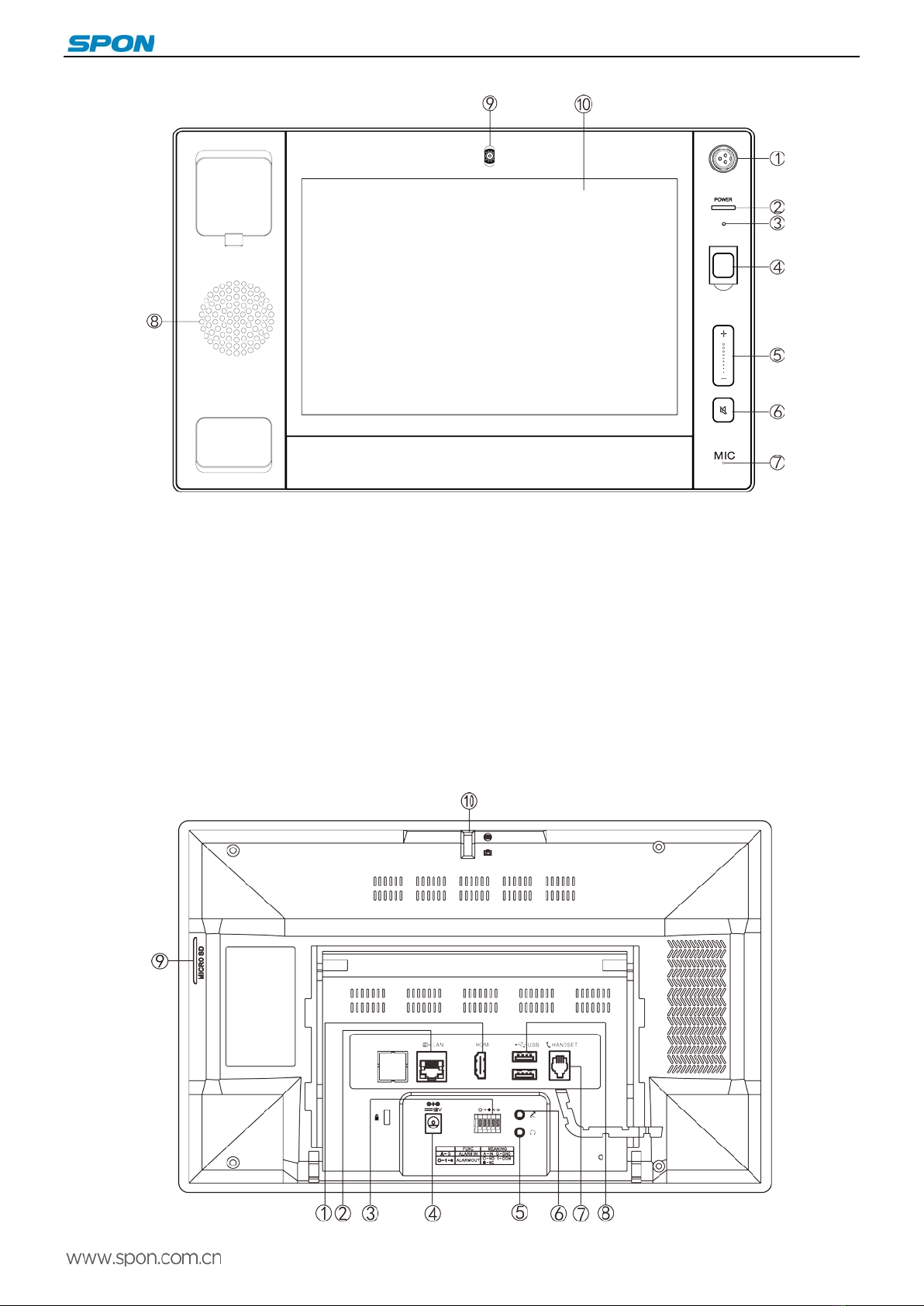
Hardware interface introduction ...................................................................................................................................................................... 2
Introduction...................................................................................................................................................................................................... 4
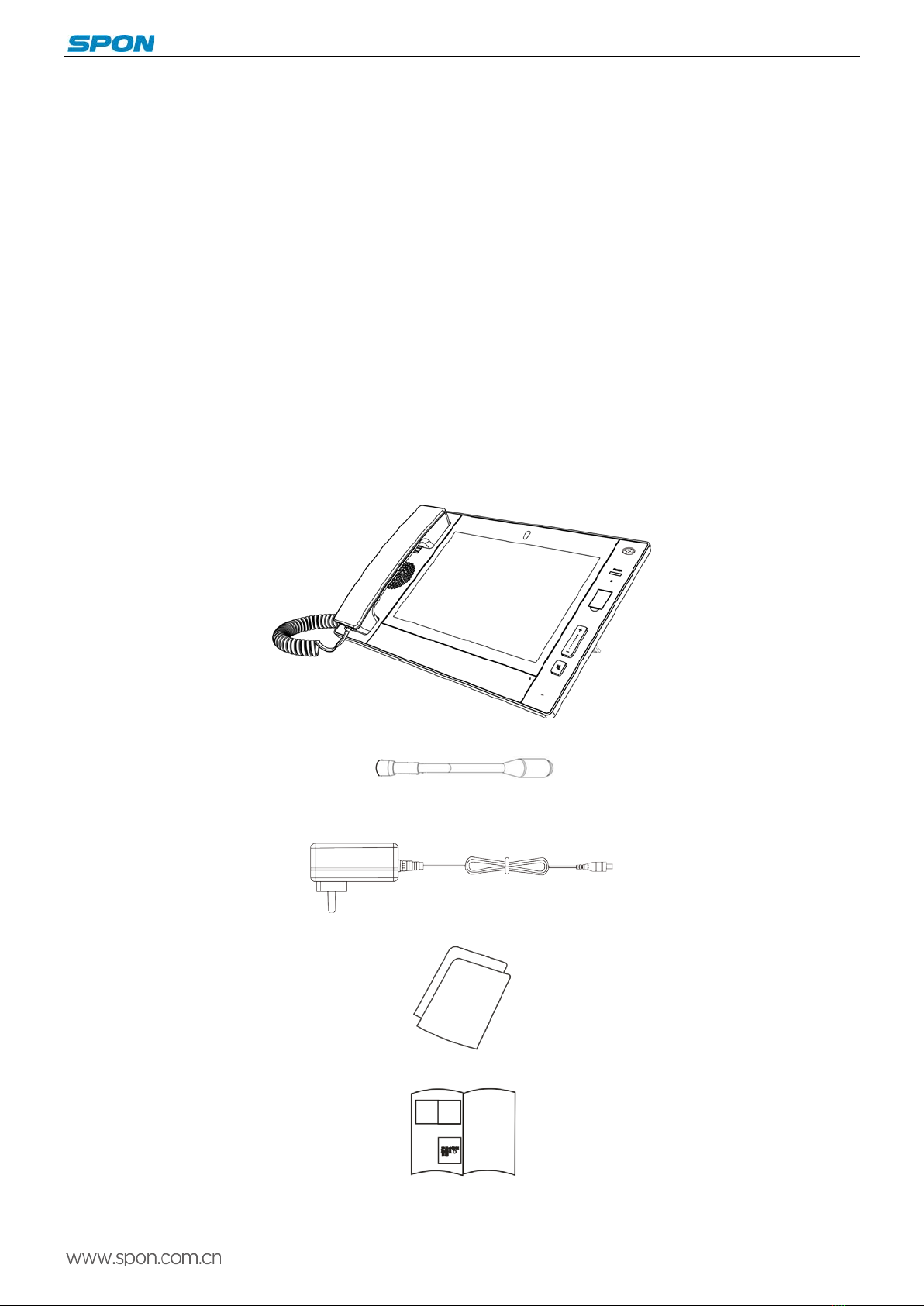
Packing list ......................................................................................................................................................................................................... 4
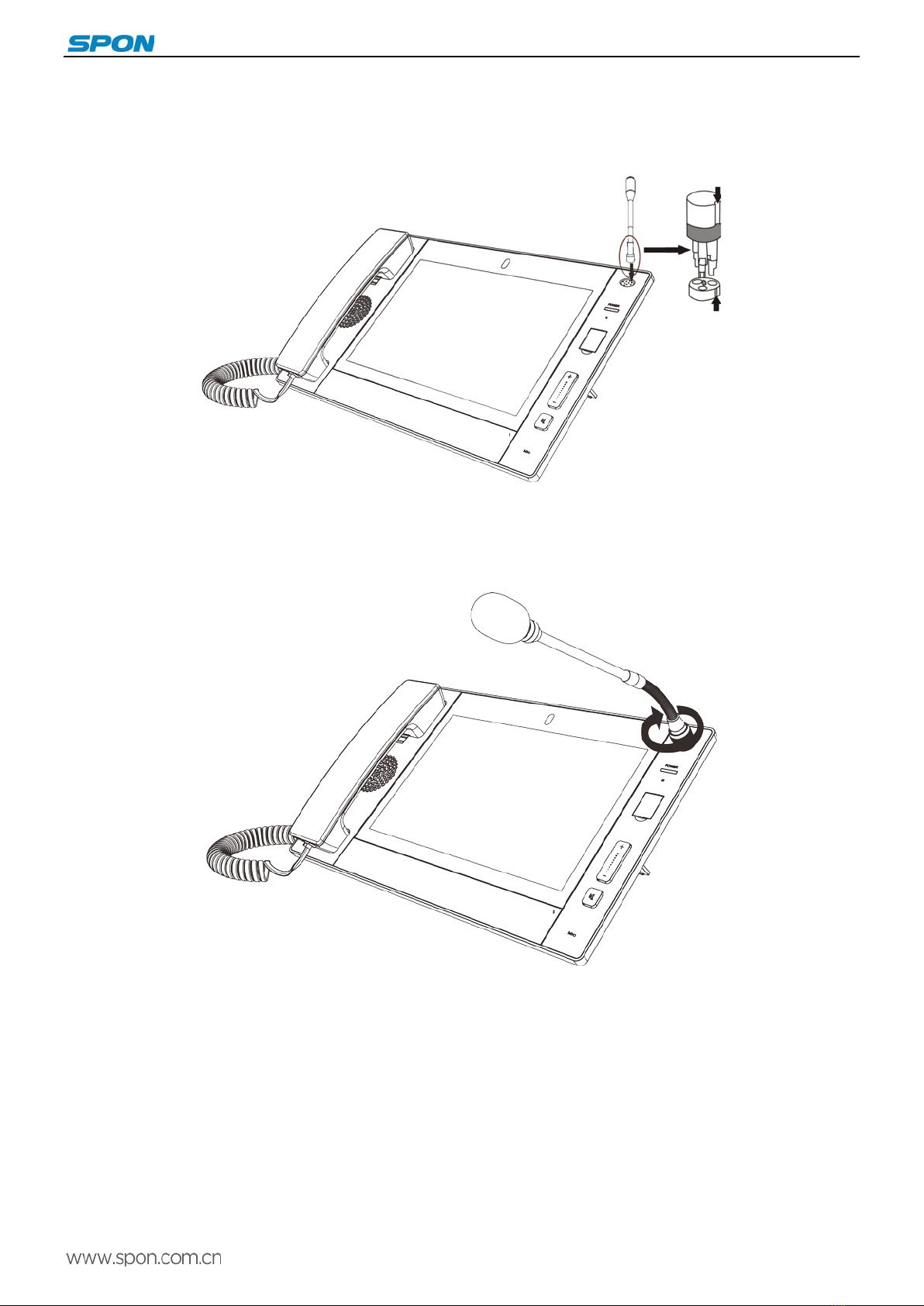
IP video intercom paging console installation ............................................................................................................................................... 5
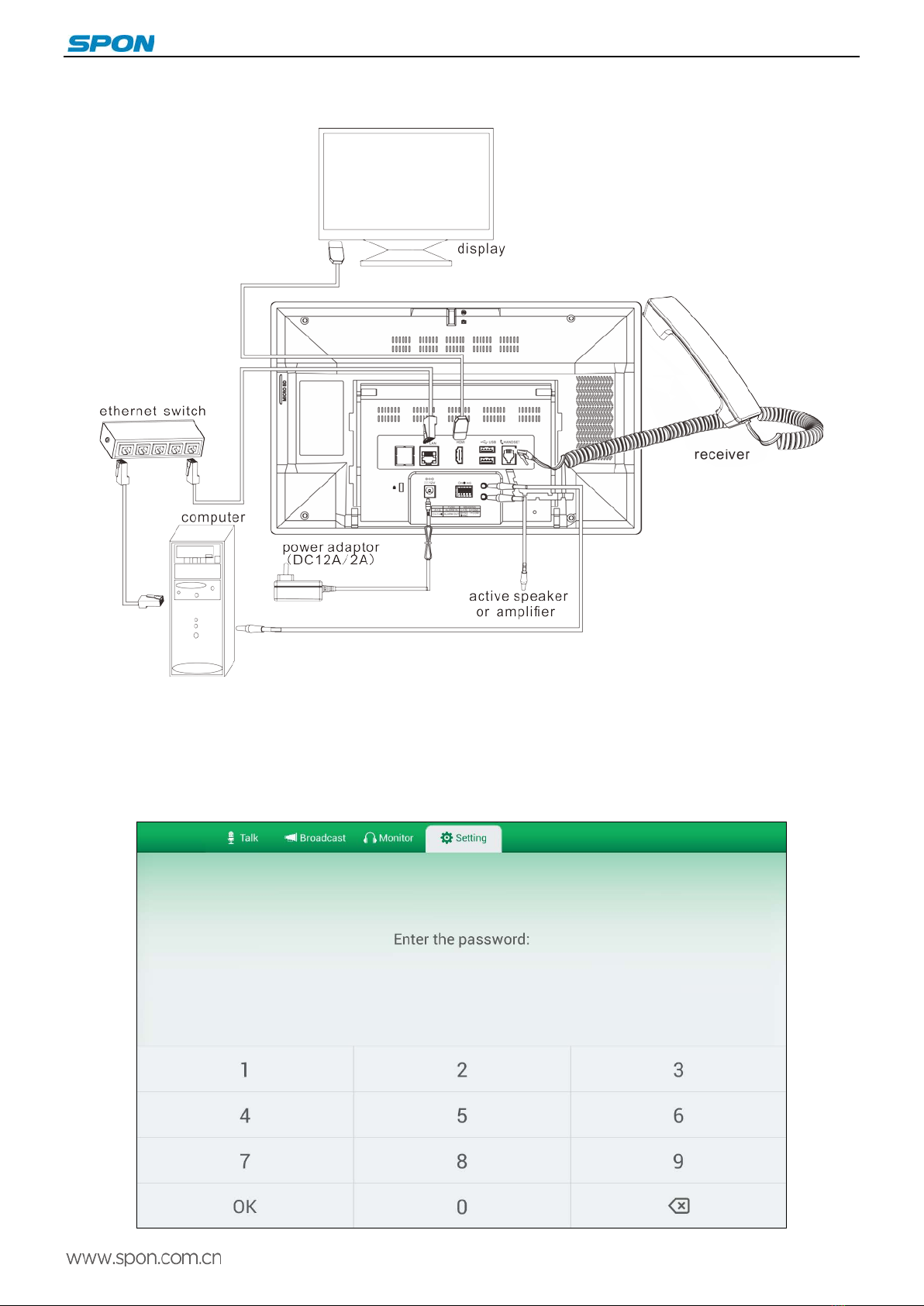
Wiring picture ..................................................................................................................................................................................................... 6
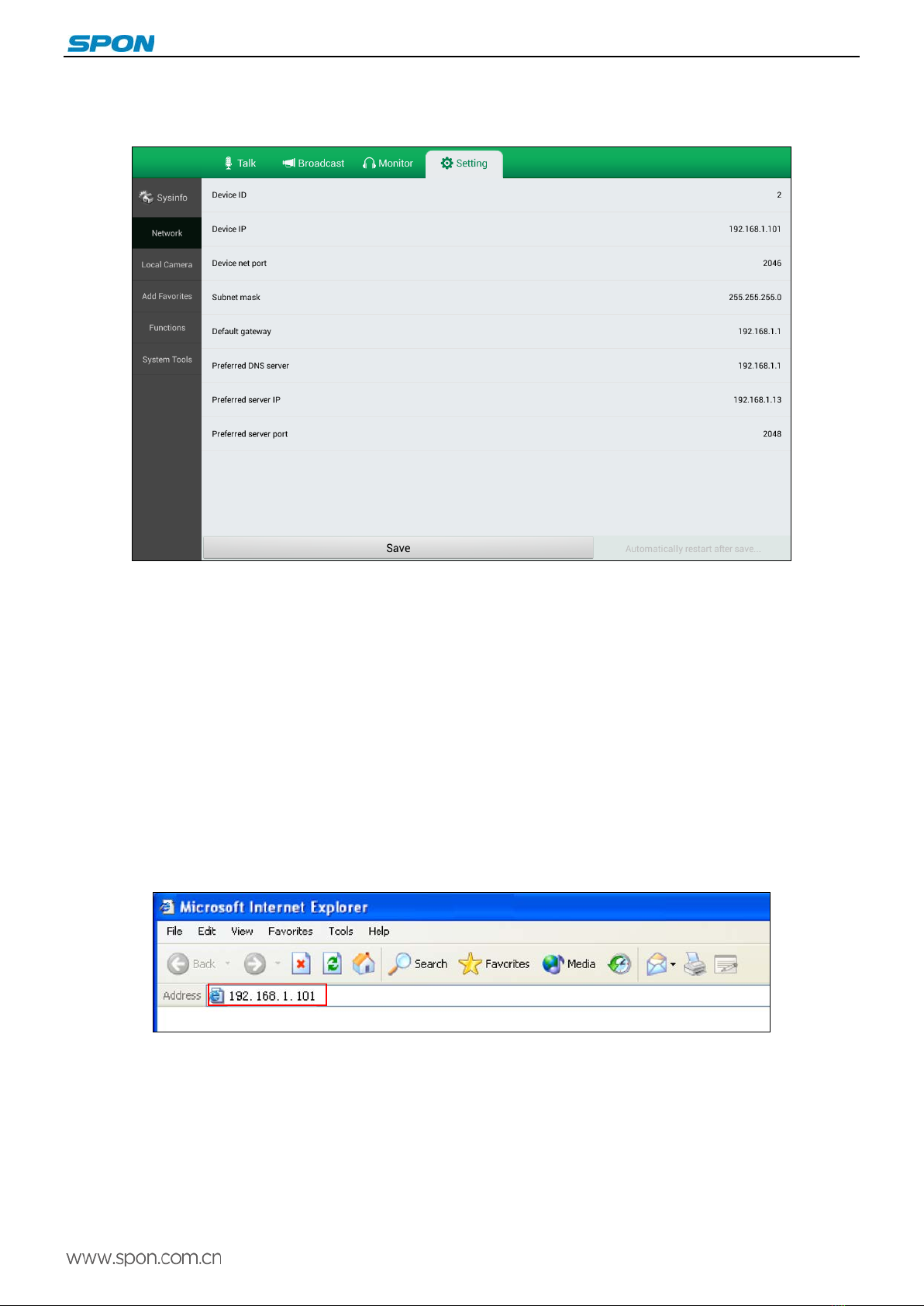
Basic network setting........................................................................................................................................................................................ 6
Custom parameters........................................................................................................................................................................................ 7
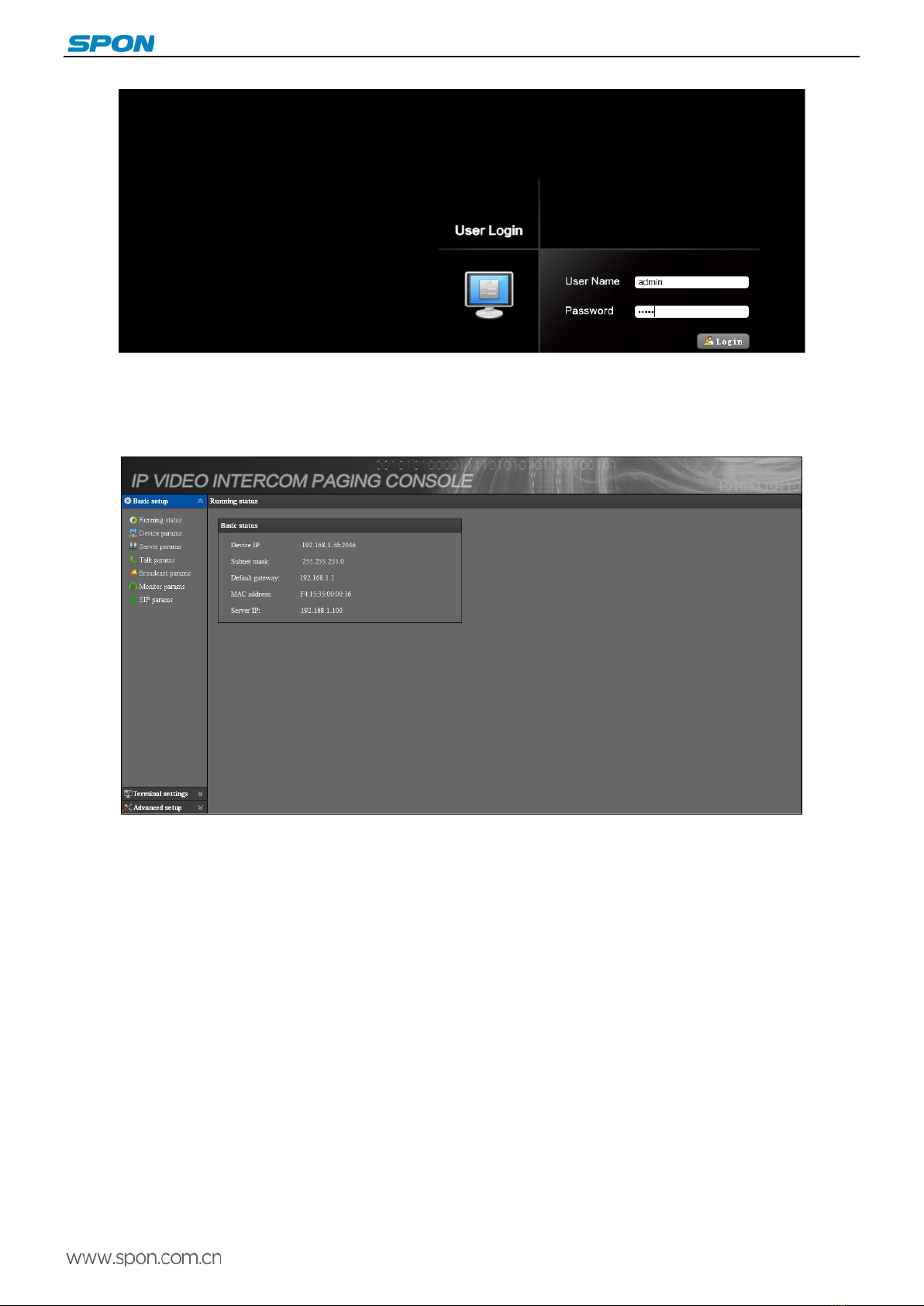
Login web page ................................................................................................................................................................................................. 7
Basic setup ........................................................................................................................................................................................................ 8
Running status ......................................................................................................................................................................................... 8
Device parameters .................................................................................................................................................................................. 9
Server parameters ................................................................................................................................................................................... 9
Ta l k p a ra m e t e r s ..................................................................................................................................................................................... 10
Broadcast parameters ........................................................................................................................................................................... 10
Monitor parameters ............................................................................................................................................................................... 10
SIP parameters ...................................................................................................................................................................................... 11
Te r m i n a l se t t i n g ............................................................................................................................................................................................... 11
Off-line parameters ................................................................................................................................................................................ 11
External video......................................................................................................................................................................................... 12
Advanced setup............................................................................................................................................................................................... 12
System setting ........................................................................................................................................................................................ 12
User manage .......................................................................................................................................................................................... 12
Firmware upgrade ................................................................................................................................................................................. 13
System log .............................................................................................................................................................................................. 13
Interface description ....................................................................................................................................................................................... 14
Te r m i n a l l is t s e t t i n g ......................................................................................................................................................................................... 14
Group list setting ............................................................................................................................................................................................. 15
Basic function................................................................................................................................................................................................ 15
Ta l k .................................................................................................................................................................................................................... 15
Call transfer ...................................................................................................................................................................................................... 17
Monitor .............................................................................................................................................................................................................. 18
Broadcast ......................................................................................................................................................................................................... 20
Setting............................................................................................................................................................................................................... 22
View .................................................................................................................................................................................................................. 25
Favorite ............................................................................................................................................................................................................. 26
Ta l k r e c o r ds ...................................................................................................................................................................................................... 27
Other functions ................................................................................................................................................................................................ 28
Fault exclude.................................................................................................................................................................................................. 28
Copyright Announcement........................................................................................................................................................................... 29