
Spracht ZuM Maestro Combo USB/DECT Manuale utente

ZūM Maestro Combo
USB/DECT™
Wireless Headset with up to 350' of Range
USER GUIDE
English and French

Spracht®
Thanks for purchasing the Zūm Maestro Combo USB/
DECT™ Headset. This comfortable headset allows you
to take and make phone calls wirelessly with your
Deskphone, but also to use it as a Softphone on your PC/
Mac via USB.
Headset Features:
• Volume and mute controls on the headset.
• Wideband audio for exceptional sound quality.
• Intuitive headset multi-function button for easy call handling.
• LED and audio indicators.
• Advanced hearing protection to cut out sudden loud
volumes.
• Noise-canceling microphone.
Base Unit Features:
• Headset recharge docking cradle.
• Visual call status indicators.
• Visual wireless connection status indicators.
• Mute indicators.
• Battery indicators.
• Voice-prompted configuration.
• Volume adjustment.
• Port for an EHS cable. You can install a remote handset
lifter if your phone doesn’t have EHS capability. Both are
available separately on our website, www.spracht.com.
• Work with Deskphone & as Softphone (Skype for
Business and other VoIP apps) with PC/Mac.
i

ZūM Maestro Combo USB/DECT™
Contents
Product Features...................................................................i
Package Contents.................................................................ii
Setup ........................................................................................1
Connecting to a Deskphone
With a Headset Port ........................................................1
Without a Headset Port ..................................................1
With a Remote Handset Lifter .......................................2
With Electronic Hook Switch (EHS) ..............................2
Connecting to a Computer .................................................3
Docking the Headset/Charging/Pairing with Base......3
Alternating Between Deskphone and Computer ........4
Configuring the Deskphone Audio
Adjust for clear dial tone ................................................4
Adjust for Microphone and Receiver volume ..........5
Headset Features and Functions
Headset Multi-function button .....................................5
Headset Mute button .....................................................5
Headset LED Indicators .................................................6
Base Visual Indicators ....................................................6
Call Management
Making Calls, Answering and Ending Calls
For Phones without a headset port or .......................6, 7
handset lifter or EHS Cable
For Phones with a headset port ..................................7
For Phones with a handset lifter or EHS cable .......7
Switch between Phone and Headset .............................8
Conference Calling With Multiple Headsets..................8
Making a Conference Call ..................................................8
Technical Specifications .....................................................9
Headset Battery ...............................................................10
Base .....................................................................................10
Safety Instructions ................................................................10
FCC Declaration and Certifications .................................11
Warranty ..................................................................................12
Spracht®
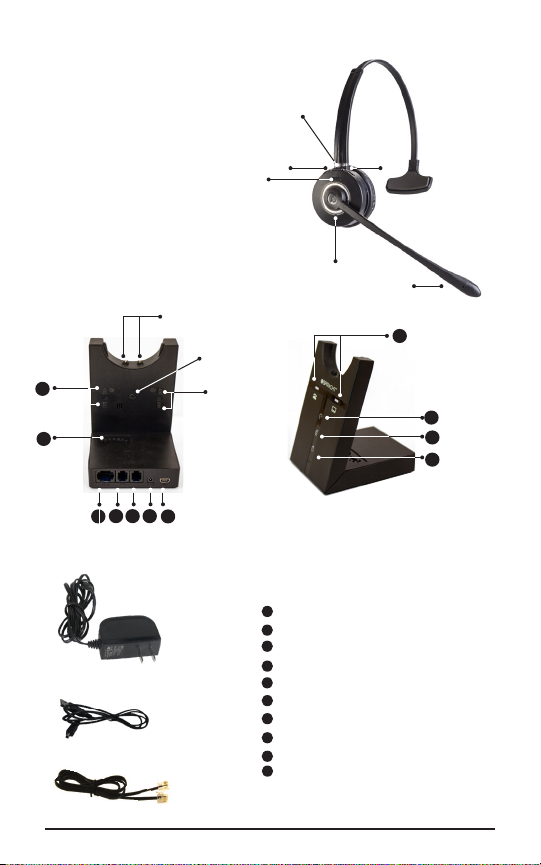
Package Contents
Headset
➊ Mic Mute
➋ Headset Volume Up
➌ Noise Canceling
Microphone
➍ Headset Status LED
➎ Multiple Function Button
➏ Headset Volume Down
Base Back and Front
➐ Charging Contacts
➑ Page Switch
➒ Mic Volume UP/DOWN
➓ Mini USB Port
Power Adapter Jack
Handset Port
Telephone Port
AUX Port for EHS Cable
Dial Tone Switches
Headset Volume UP/DOWN
Deskphone / USB Mode LEDs
Audio Link Indicator
Mute Indicator
Battery Status
Power Adapter
Mini-USB Cable
Telephone Cable
➑
➒
➐
111213
16
10
15
14
11
12
13
14
15
17
18
19
20
16
17
18
19
ii
➊
➏
➎
➍
➋
➌
20

ZūM Maestro Combo USB/DECT™ 1
Setup
Connecting to a Deskphone
Phone With a Headset Port
Check whether your Deskphone has a dedicated headset
port (usually at the back of the phone). These phones
typically have a button on the front panel for switching
between handset and headset.
1. Plug the supplied telephone cable into the port marked
on the base.
2. Connect the telephone cable to the headset port on the
Deskphone.
Phone Without a Headset Port
If your Deskphone does not have a dedicated headset port:
1. On the Deskphone, unplug the handset cable from the
phone body.
2. Connect the handset cable to the port marked on the
base.
RJ09
A
B
C
D
E
F
G
RJ09
A
B
C
D
E
F
G

Spracht®
2
3. Plug the supplied telephone cable into the port marked
on the base.
4. Connect the telephone cable into the handset port on
the Deskphone.
Deskphone With a Remote Handset Lifter
If you have a Handset Lifter which physically lifts the
Deskphone handset to make or answer a call, check the
mounting instructions in the documentation that came with
the Handset Lifter.
1. On the Deskphone, unplug the handset cable from the
phone body.
2. Connect the handset cable to the port marked on the
base.
3. Plug the supplied telephone cable into the port marked
on the base.
4. Connect the telephone cable into the handset port on
the Deskphone.
5. Connect the Handset Lifter cable into the port marked
AUX on the base.
Deskphone With an Electronic Hook Switch (EHS)
An EHS adapter enables an incoming call to be answered
or ended by the headset Multi-Function button. EHS cables
are sold separately for certain phones. Please check the
Spracht website for more information.
1. Connect the EHS adapter as shown in the documentation
supplied with the EHS. On some phones the telephone
cable will also need to be connected.
RJ09
A
B
C
D
E
F
G
Hand
set
Lifter

ZūM Maestro Combo USB/DECT™ 3
2. Call your connected Deskphone using another phone
to activate the EHS adapter. Wait 10 seconds before
answering the phone.
Powering the Base
1. Plug the power adapter into the DC jack marked + on
the base.
2. Connect the power adapter to a wall power outlet.
Connecting to a Computer
1. Plug the Mini-USB end of the cable into the base and the
USB into a port in your computer: PC or Mac.
2. Open the VoIP application you want to use, ie. Skype
for Business. Choose Zūm Maestro Combo USB/
DECT™ in settings. This should allow you to answer
and end Softphone calls from the Multi-function button
on your headset.
Docking the Headset/Charging/Pairing with Base
1. Press the Multiple Function button on the Headset; after
the LED lights up for 2 seconds, it will be powered on.
2. Press the Multiple Function button again, or dock the
headset and re-lift it, you will see that the Audio Link
indicator LED is on, which confirms the connection
between the headset and base is set up correctly.
3. If docked correctly, the headset battery will begin
charging, if needed (the LED will flash while charging).
Charge for 20 minutes or until the battery indicator LED
shows steady green.
4. If you want to clear the pairing of the headset with the
base, press the R+ button on the back of the base. The
battery charging LED will flash 3 times.
5. To re-pair the base with the headset, press the PAIR
button for 5 seconds: the Paired light on the base will
flash to indicate it’s searching for the headset. On your
headset, press and hold the MUTE button until you see
the headset’s Status LED flash. This will indicate the
headset and base are paired. The LEDs on the headset
and base will shut o at the same time.

Spracht®
4
Alternating Between Deskphone and Computer
When you connect the base to the power adapter, Zūm
Maestro Combo USB/DECT™ will be in default mode, which
is Deskphone. The LED in the front of the base will indicate
Deskphone mode.
To switch to Softphone mode with your computer, connect
the USB cable to the base and your computer. Press the
PAGE button on the back of the base. The LED on the front
of the base should indicate Computer mode.
Your computer should automatically recognize your
headset and install whatever drivers might be needed.
To switch back to Deskphone mode, press the PAGE button
on the back of the base again; the LED on the front of the
base should indicate Deskphone.
Configuring the Deskphone Audio
Due to the large variety of Deskphone brands/models,
you will need to set a clear dial tone before using ZūM
Maestro Combo USB/DECT™ for the first time. Setting a
clear dial tone will enable the device to function correctly
with your specific Deskphone. It is also important to
customize the microphone and receiver volume for your
optimal sound quality.
Adjust for clear dial tone
1. Put the Headset on.
2. Get a dial tone by pressing the headset button on the
Deskphone, or by lifting the Deskphone’s handset.
3. Using the Dial Tone switches at the back of the Base,
compare the dial tones after rotating the switch from A
through to G.
4. Choose the best switch position. Choose the position
with loud, clear and undistorted dial tone.
5. When you have set the best tone, press the headset
button on your Deskphone or replace the phone’s
handset.

ZūM Maestro Combo USB/DECT™ 5
Adjust for Microphone and Receiver volume
1. Put the Headset on.
2. Get a dial tone by pressing the headset button on your
Deskphone or by lifting the Deskphone handset.
3. Make a test call. Call a co-worker or friend to test your
microphone and receiver volumes. Ensure the person
you called does not adjust the volume on their end.
6. Adjust the microphone volume using the Microphone
Volume +/- buttons on the back of the Base (see item 9
on page ii), based on what the person on the other end
says about the volume.
7. Adjust the Receiver volume using the Receiver Volume +/-
buttons on the back of the Base (see item 16 on page ii), if
the volume in your headset is too loud or too low for you.
8. After you’re done configuring your headset, end the call.
Headset Features and Functions
Headset Multi-function button (see diagram on page ii)
The Multi-Function button allows you to answer and end
calls from the headset.
Function Tap Press
Answer incoming call
End call
Power On
Power O
Headset Mute button (see diagram on page ii)
You can Mute and Mute Cancel the Headset microphone.
Function Tap Press
Microphone Mute
Mute Cancel
To use for Pairing with base
Spracht®
Headset LED Indicators
Headset mode LED Indicator
Power On On for 2 sec
Power O On 100ms, Off 100ms, Flash 3s
Pairing On 250ms, Off 250ms, Flash
Standby On 250ms, Off 8s, Flash
Connected Steady On
Online Steady On
Incoming Call On 300ms, Off 700ms, Flash
Headset Docked On 3s, Off 5s, Flash
Low Battery On 300ms, Off 100ms, On 300ms,
Off 500ms, Flash
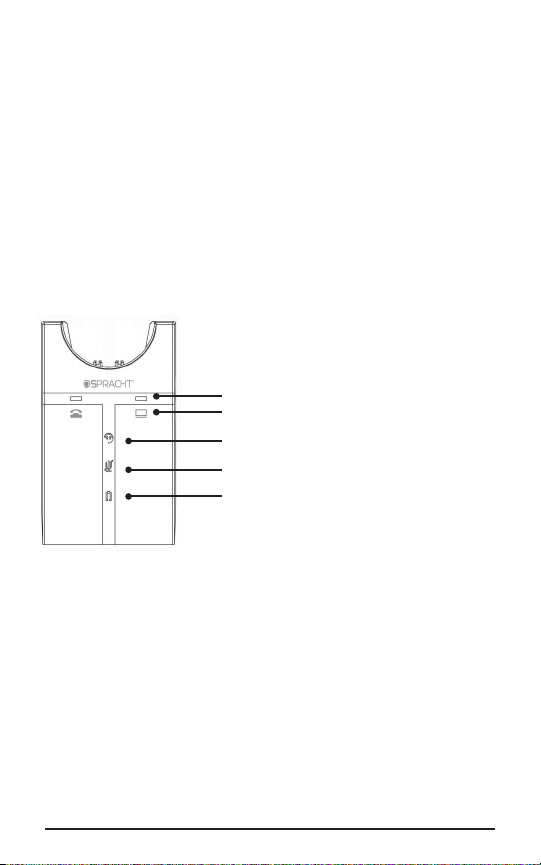
Base Visual Indicators
The Zūm Maestro Combo USB/DECT™
base unit has 5 LEDs to indicate
battery, call status, and events.
➊
➋
➌
➍
➎
➊LEDs to indicate which is active, Deskphone or PC/Mac
➋Deskphone and Computer icons
➌Indicates link is active between Headset and base;
Blinking indicates searching for headset
➍Microphone Mute On/O LED
➎Battery indication: Flashing means charging, Solid on
means fully charged, Not lit means unknown status
Call Management
Making Calls, Answering and Ending Calls
For Phones Without a Headset Port/ Handset Lifter/EHS Cable
6
Indice
Lingue:
Altri manuali Spracht Cuffia

Spracht
Spracht ZuM eco-Set Manuale utente

Spracht
Spracht ZuM Maestro DECT Manuale utente

Spracht
Spracht ZuM Maestro USB Manuale utente

Spracht
Spracht Konf-X Buds Manuale utente

Spracht
Spracht ZuM UC1 Manuale utente

Spracht
Spracht ZuM Maestro USB/BT Combo Manuale utente

Spracht
Spracht ZuM BT Manuale utente

Spracht
Spracht ZuM DECT 6.0 HEADSET Manuale utente

Spracht
Spracht ZuM BT Prestige Manuale utente

Spracht
Spracht ZuM Maestro BT Manuale utente


