
Spyder PowerShadow i4 Manuale utente
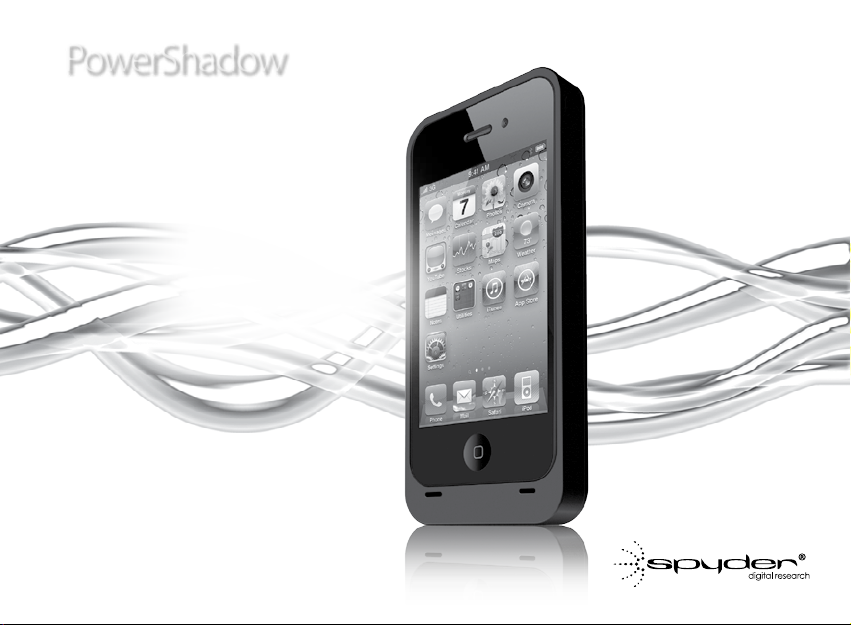
2000 mAh
Battery Case
for iPhone 4/4S
User’s Guide
i4
PowerShadow
PowerShadow
Series
1
WELCOME
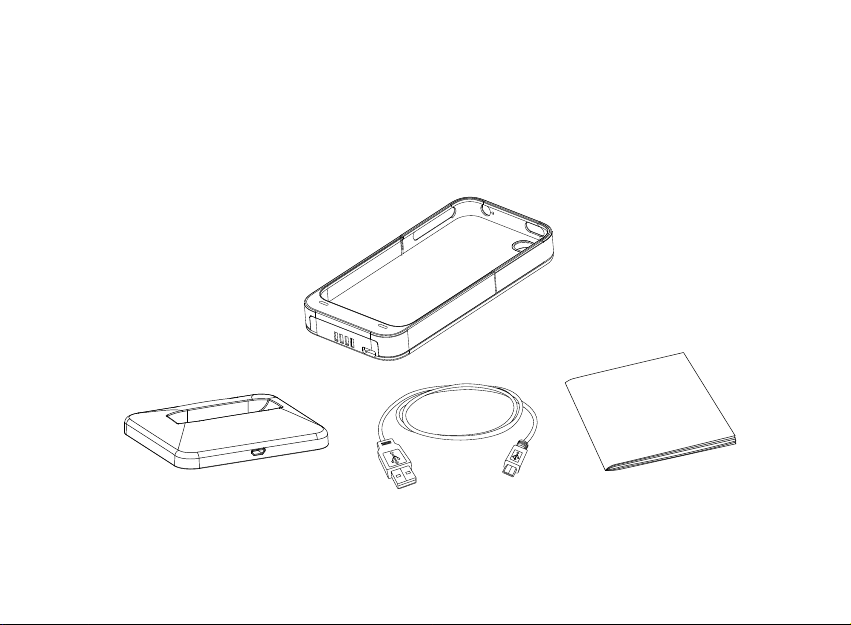
Thank you for choosing Spyder. This guide will help you setup and enjoy your
Spyder product. Please check your package contents. If any items are missing,
contact Spyder Customer Service.
USB Cable User's GuideCharge/Sync Dock
Spyder i4 Battery Case

2
PRECAUTIONS
Please follow the precautions below. Failure to do so may result in damage to the device, loss of
data, and voiding of the warranty.
•Do not attach any other device (such as an iPod) to this product. This prod-
uct was designed and engineered to work only with iPhone 4/4S.
•We strongly recommend that you backup your data. Spyder Digital Research,
Inc. ("SDRI") is not responsible for data loss or corruption; nor will SDRI per-
form recovery of lost data or files.
•Do not expose the device to damp or wet conditions.
•Do not bump, jar or drop the device.
•Data cables can only be plugged in one way. Be sure to orient them correctly.
REQUIREMENTS
The PowerShadow i4 Battery Case works with iPhone 4 or iPhone 4S.
3
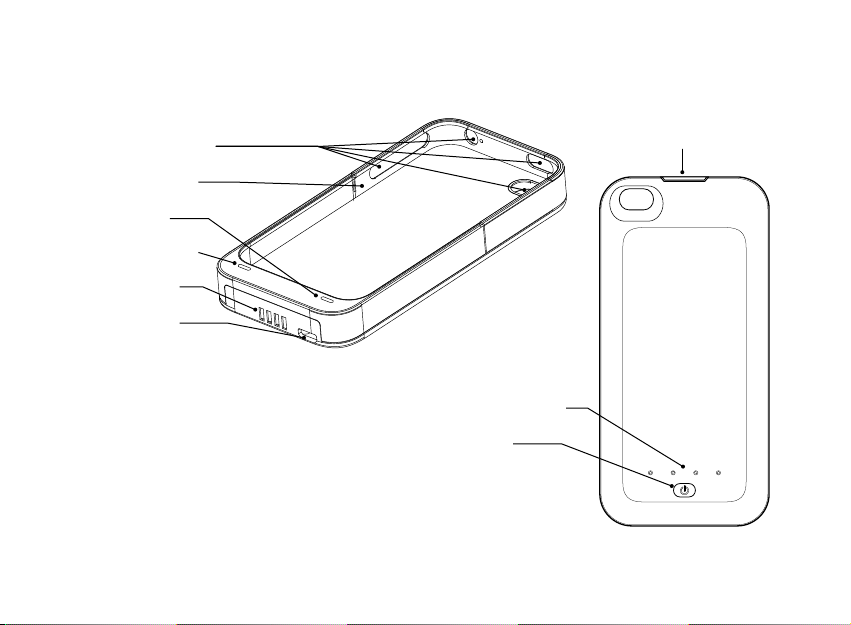
Battery level indicator
On/Off button
Device access ports
Slide-out cowling
Speaker grille
Microphone grille
Charging pads
Micro-USB port
i4 AT A GLANCE
Cowling snap lock

4
HOW THE i4 WORKS
The Spyder i4 Battery Case has an advanced 2000 mAh A-grade Lithium-Ion
Polymer battery cell, which is very similar to the one in your iPhone. The i4
has intelligent circuitry that can detect your iPhone's battery level and charge
it as required. The i4 can recharge your iPhone while you use it, so you may
never have to suffer down time. The i4 is also equipped with a thermal sensor
which prevents the battery cell from overheating, and an automatic power
cut-off that prevents short-circuiting.
Go to spyderstyle.com for all of the powerful details.
CONNECTING AN iPHONE TO YOUR i4
Your Spyder i4 Battery Case came from the factory almost fully charged, so
you can connect your iPhone and begin using it right away (see illustration,
next page).
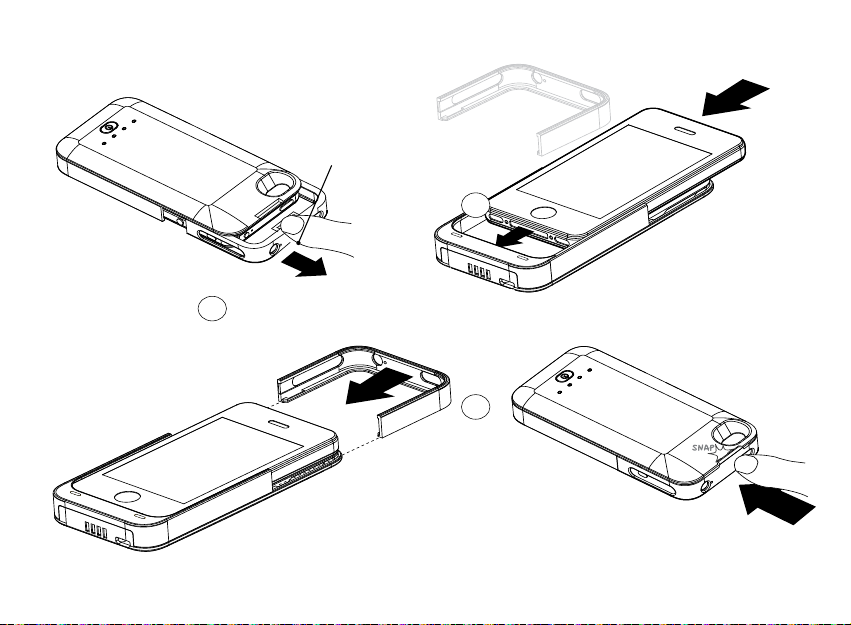
1. Slide out the cowling.
2. Slide your iPhone all the way into the case.
3. Align the rails of the cowling with the grooves in the case and slide the
cowling back in until it locks into place.
5
Snaplock
1
2
3
6
USING YOUR i4
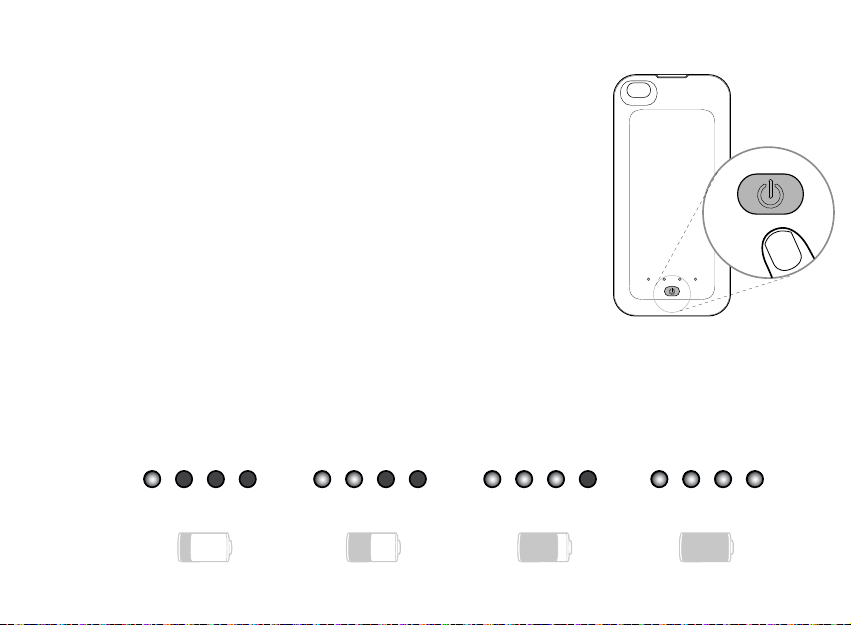
The On/Off Button
When the i4 is powered on it will charge your iPhone's
battery as soon as it detects a drop in battery level.
However, for maximum efficiency, we recommend
turning on the i4 only after your iPhone's battery has
dropped to 20% of full charge or less. One of the great
benefits of the i4 is that you can continue to use your
iPhone while the i4 is recharging it.
Turning the i4 on and off
Press and hold the On/Off button for about three seconds.
Battery level indicator
When the i4 is powered on, the LED array displays the i4's battery level, as
shown below.
25% 50% 75% 100%

7
Flexible Functionality
You can use your i4 Battery Case with your iPhone in two ways:
1. As an integrated power source and protective case;
2. As a temporary, supplemental power source.
Using your i4 as an integrated power source and protective case
Under this approach, your iPhone is always attached to the i4. This eliminates
routinely attaching and detaching your iPhone, while also keeping it protect-
ed at all times. However, using this approach also means you will have down
time because you will be charging and depleting both devices together.
Using your i4 as a supplemental, portable power source
Under this approach, you connect your iPhone to the i4 only when you need
to recharge the iPhone. Once the iPhone is fully charged you can remove it,
recharge the i4 and repeat the cycle.

8
Recharging and Syncing
For maximum efficiency, we recommend turning on the i4 to recharge your iPhone only when your iPhone's internal
battery is almost fully depleted (20% or below).
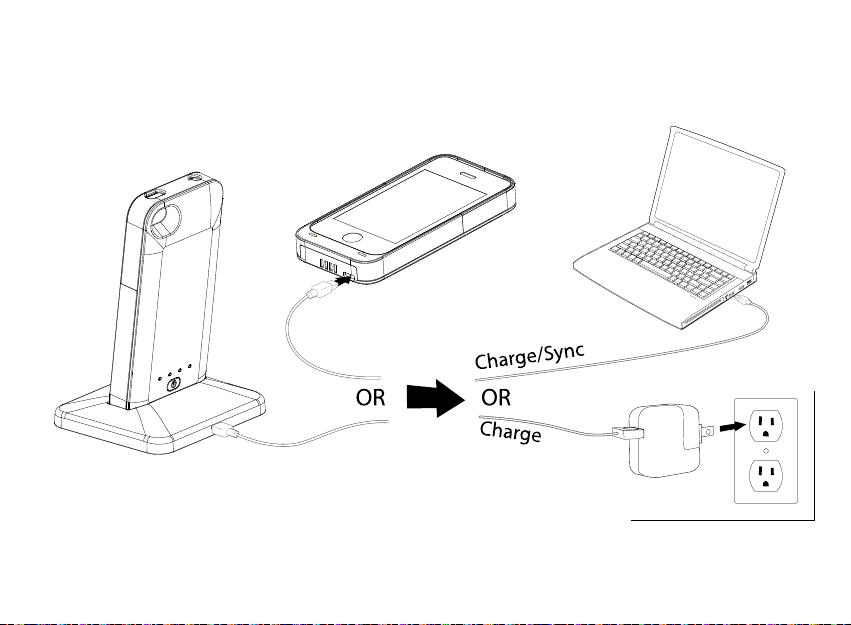
With your iPhone attached to the i4, you can recharge and sync using the
Charge/Sync Dock, or by connecting the USB cable directly to the i4 (see
illustration, next page).
To sync your iPhone, connect the USB cable from the i4 or dock to your
iTunes computer and follow the standard syncing procedure. When connect-
ed to a computer, you can recharge and sync at the same time.
To recharge the i4 alone, connect the USB cable directly to the i4. We rec-
ommend you do not use the dock in this case.
During the charging process, the LEDs on the back of the i4 will blink. All four
LEDs will light up solid when charging is complete.
If using a USB power adapter to charge your i4/iPhone , be sure it was made specifically to work
with iPhone.
For proper maintenance of your iPhone, Apple says to be sure to go through at least one charge cycle per month
(charging the battery to 100% and then completely running it down).
9
Charging/Syncing with the iPhone attached to the i4
USB POWER ADAPTER
Indice


