
Starmobile Quest Manuale utente
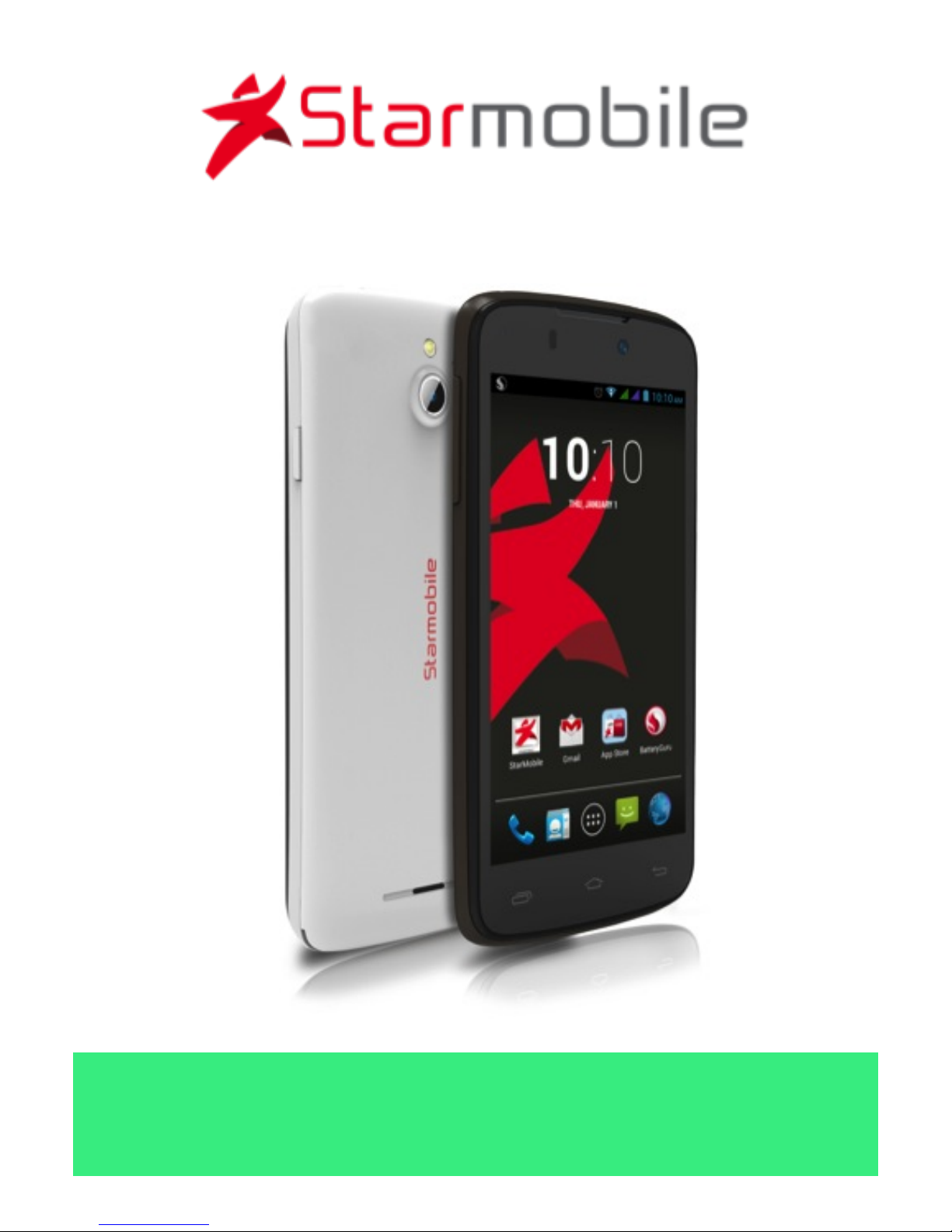
QUEST
User Manual

Starmobile QUEST
2
TABLE OF CONTENTS
I. Introduction .............................................................. 5!
II. About Android......................................................... 6!
What’s New With 4.3 ‘Jelly Bean’?.............................. 9!
III. Battery Information ............................................... 9!
Installing the Battery ................................................... 9!
Removing the Battery ............................................... 10!
Charging the Battery ................................................ 10!
Optimizing Battery Performance ............................... 11!
Extending Battery Life ............................................... 11!
IV. Inserting the SIM and Memory Card/s ............... 12!
Installing the SIM Card.............................................. 12!
Installing the Memory Card....................................... 13!
V. Device Controls ..................................................... 14!
Ports And Keys ......................................................... 14!
Navigation Buttons ................................................... 15!
Favorites Tray............................................................ 16!
Home Screen ............................................................ 16!
Notification Bar......................................................... 17!
VI. Basic Operation .................................................... 17!
Turning The Power On and Off ................................. 17!
Using the Lock Screen............................................... 17!
Touchscreen Gestures............................................... 18!
Google Search .......................................................... 20!
Changing The Wallpaper .......................................... 20!
VII. Connecting to the Internet................................. 21!

Starmobile QUEST
3
Wi-Fi Connection...................................................... 21!
Cellular Connection (SIM) ......................................... 22!
Wi-Fi Tethering (Hotspot).......................................... 23!
VIII. Setting Up Your Google Account ..................... 24!
Why use a Google Account?..................................... 24!
IX. Communication .................................................... 26!
X. Built-In Apps and Functions ................................. 28!
XI. USB and Bluetooth............................................... 35!
Connecting To A Computer via USB ......................... 35!
Connecting To Bluetooth Devices ............................. 35!
XII. Android Settings ................................................. 37!
Profiles ..................................................................... 39!
Storage..................................................................... 39!
Battery...................................................................... 39!
Accounts & Sync....................................................... 39!
Language & Input ..................................................... 40!
XIII. Special Features ................................................. 40!
3G SIM Selection ...................................................... 40!
Built-in Photo Editing ................................................ 40!
Transfer Apps to SD.................................................. 41!
Noise Cancellation .................................................... 41!
Over-The-Air (OTA) Updates ..................................... 41!
Qualcomm Snapdragon Audio+................................ 41!
Qualcomm Snapdragon Battery Guru ....................... 42!
Starmobile App Store................................................ 42!
Starmobile Sync ........................................................ 42!
Wireless Display ........................................................ 43!
XIV. Safety and Notice .............................................. 43!

Starmobile QUEST
4
XV. Troubleshooting ................................................. 45!
XVI. Warranty ............................................................ 49!
Terms And Conditions .............................................. 49!
Note On Defective/Dead LCD Pixels........................... 51!
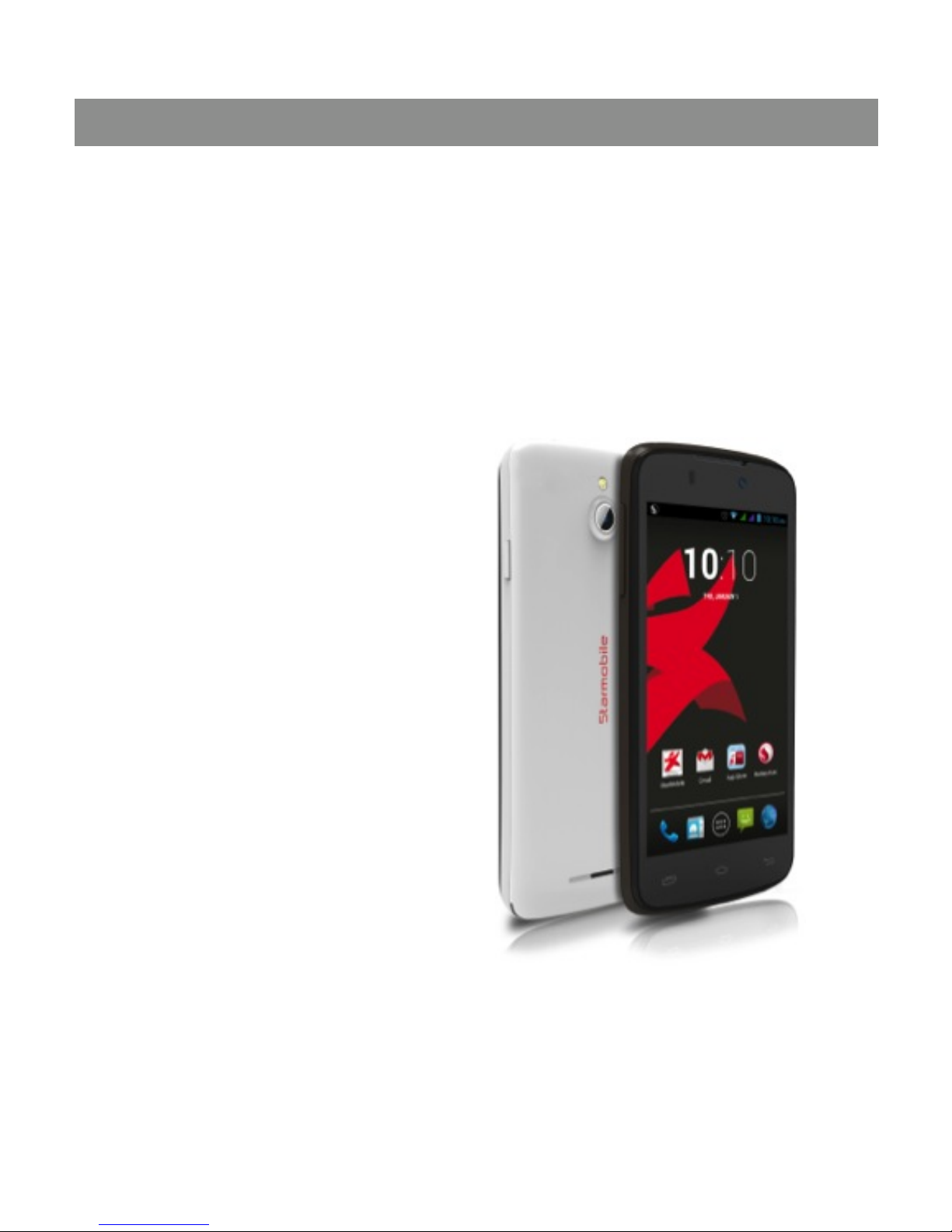
Starmobile QUEST
5
I. Introduction
Thank you for purchasing the Starmobile QUEST.
Please read the instructions in this user manual prior to
operating your device. Starmobile does not assume any
liability from improper operation or accidental damage of
the unit.
If setup and usage of your
unit differ from what is
detailed in this user
manual, please visit the
Starmobile website
(www.starmobile.com.ph)
for the latest product
information or email us at
info@starmobile.com.ph
NOTE: Copyright laws and
regulations protect the
content of this user
manual. You may not, by
any means, copy any part of this guide in any form or
through any cable or wireless network for transmission, or
have this user manual translated into any language
without permission from Starmobile.
Starmobile QUEST
6
II. About Android
Introducing Android: The world's most
powerful mobile platform
There's no other software quite like
Android. Google engineered Android,
and Google’s own apps run best on it.
And with millions of apps, games,
songs, and videos on Google Play,
Android is great for fun, and for getting things done.
Android devices come in all kinds of sizes, with all sorts of
features, and at all sorts of prices. With Android, you’re in
control of your mobile experience.
Your stuff, always available, no wires needed
When you sign in to your phone or tablet with Google,
you can access all of your Google stuff (contacts, photos,
Gmail and more) quickly and easily. You can also enjoy all
of your favorite entertainment across your Android
devices and even your computer — no wires, no syncing.

Starmobile QUEST
7
Play everywhere you go
Google Play is the easiest way to enjoy all your favorites:
more than 700,000 apps and games, millions of songs,
thousands of movies and TV shows, the world's largest
collection of eBooks, and a growing selection of
magazines. With Google Play, there's no wires, no hassle,
just pure entertainment. You can now read, listen and
watch anywhere you want—on your tablet, phone, or in
any browser at play.google.com.
Powerful, simple, and beautiful
Millions of people use Android because it’s so powerful
yet still so easy. The home screen, apps, and widgets are
simple to use right out of the box, but completely
customizable. With Android, you can create a unique
mobile experience that’s just right for you.
Widgets
Put the important stuff right within reach and interact
with your favorite apps directly from your home screen
with widgets — see the latest sport scores, view your
favorite photos, check the weather or peek at your inbox
all without having to open different apps or leave the
home screen.

Starmobile QUEST
8
Notifications
An easy-to-read notification tray gives you quick access to
your calls, incoming texts, and new emails in a non-
intrusive way.
Multi-tasking
With Android, you can quickly and seamlessly switch
between apps and pick up whatever you were doing.
Juggling multiple tasks at once on a mobile device has
never been easier.
Voice typing and actions
Control your Android device with your voice. Simply
touch the microphone on the keyboard and start talking
to write emails, SMS, or any other text — more than 30
languages supported. Text appears in real time, so there’s
no waiting.
Photos and videos
Capture special moments with great photos and videos,
explore your shots and quickly share your favorites in any
way that you want.
Starmobile QUEST
9
What’s New With 4.3 ‘Jelly Bean’?
Bluetooth Smart support
Bluetooth Smart minimizes power use while
measuring and transmitting data for fitness
sensors like Fitbit, Runtastic and other
devices, making your phone or tablet more
power efficient.
Dial pad autocomplete
Just start touching numbers or letters and the dial pad will
automatically suggest numbers or names.
Improved support for Hebrew and Arabic
We’ve added more support for Hebrew and Arabic
speakers with new builds for right to left layouts
III. Battery Information
Installing the Battery
1. Make sure the unit is turned off.
2. Gently lift the battery cover.
3. Align the metal connectors of the battery with the
terminals.
4. Push the battery in until it locks into the slot.

Starmobile QUEST
10
5. Put the battery cover back in place.
Removing the Battery
1. Make sure the unit is turned off.
2. Gently lift the battery cover.
3. Raise the battery from one end to remove it from the
slot.
4. Put the battery cover back in place.
Charging the Battery
Your device needs to be fully charged for first use.
1. Make sure the unit is turned off.
2. Plug one end of the charger into the USB/charging port
then plug the other end into a standard AC power outlet.
3. Once connected, the battery icon will repeatedly flash
on the screen.
4. If the device has been depleted of battery life, it will
take a while before a charging indicator appears on
screen after it has been plugged to a power source.
5. When the battery level icon has stopped flashing, this
means that charging is complete. Disconnect the charger
from both the electrical outlet and the device.
ATTENTION
*Charging must be performed in well-ventilated areas
with temperatures ranging between -10 degrees Celsius
and +45 degrees Celsius.
Indice
Altri manuali Starmobile Telefono cellulare

Starmobile
Starmobile FEATURESMART MINI Manuale utente

Starmobile
Starmobile OCTA Manuale utente

Starmobile
Starmobile Neptune B503 Manuale utente

Starmobile
Starmobile KNIGHT Manuale utente

Starmobile
Starmobile Play Manuale utente

Starmobile
Starmobile MUSE Manuale utente

Starmobile
Starmobile UP Manuale utente

Starmobile
Starmobile NAVI Manuale utente

Starmobile
Starmobile TURBO Manuale utente

Starmobile
Starmobile ROAR Manuale utente


