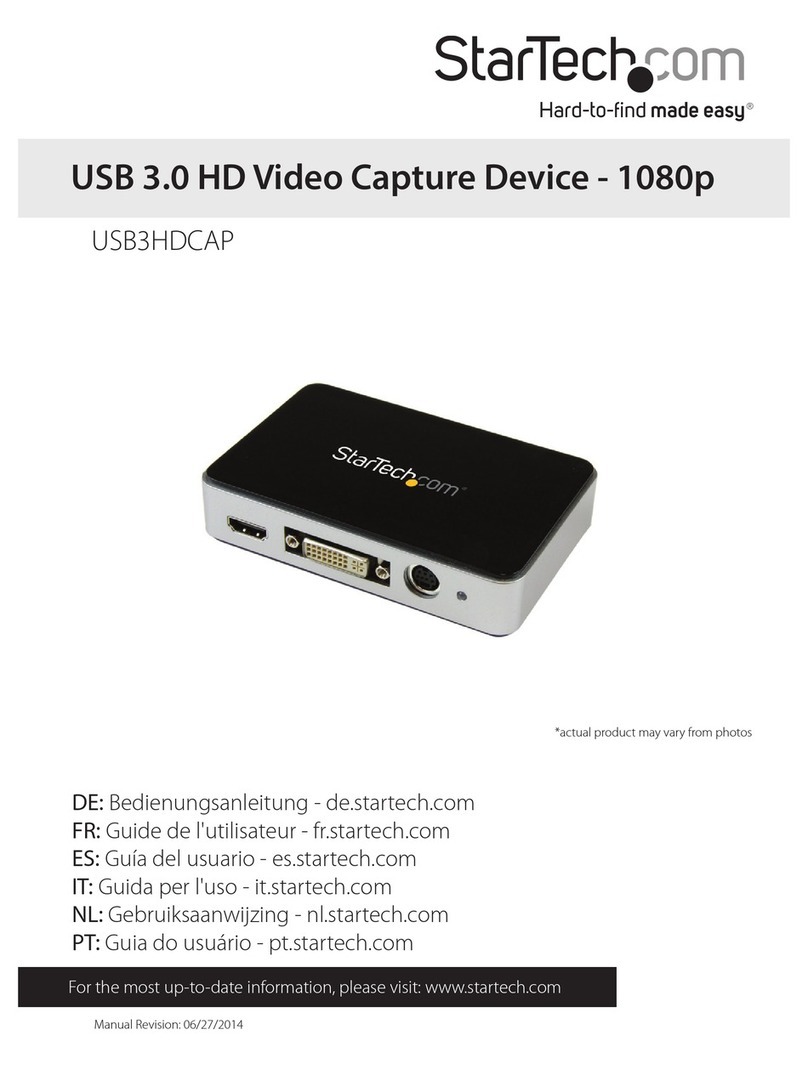
StarTech.com USB2HDCAP Manuale utente

Manual Revision: 03/12/2013
For the most up-to-date information, please visit: www.startech.com
DE: Bedienungsanleitung - de.startech.com
FR: Guide de l'utilisateur - fr.startech.com
ES: Guía del usuario - es.startech.com
IT: Guida per l'uso - it.startech.com
NL: Gebruiksaanwijzing - nl.startech.com
PT: Guia do usuário - pt.startech.com
USB2HDCAP
High-Denition USB 2.0 Video Capture
Device with H.264 Encoder - 1080p
*actual product may vary from photos

Instruction Manual
FCC Compliance Statement
This equipment has been tested and found to comply with the limits for a Class B digital
device, pursuant to part 15 of the FCC Rules. These limits are designed to provide reasonable
protection against harmful interference in a residential installation. This equipment generates,
uses and can radiate radio frequency energy and, if not installed and used in accordance with
the instructions, may cause harmful interference to radio communications. However, there
is no guarantee that interference will not occur in a particular installation. If this equipment
does cause harmful interference to radio or television reception, which can be determined by
turning the equipment o and on, the user is encouraged to try to correct the interference by
one or more of the following measures:
• Reorient or relocate the receiving antenna.
• Increase the separation between the equipment and receiver.
• Connect the equipment into an outlet on a circuit dierent from that to which the receiver
is connected.
• Consult the dealer or an experienced radio/TV technician for help.
Use of Trademarks, Registered Trademarks, and other Protected Names and Symbols
This manual may make reference to trademarks, registered trademarks, and other
protected names and/or symbols of third-party companies not related in any way to
StarTech.com. Where they occur these references are for illustrative purposes only and do not
represent an endorsement of a product or service by StarTech.com, or an endorsement of the
product(s) to which this manual applies by the third-party company in question. Regardless
of any direct acknowledgement elsewhere in the body of this document, StarTech.com hereby
acknowledges that all trademarks, registered trademarks, service marks, and other protected
names and/or symbols contained in this manual and related documents are the property of
their respective holders.

Instruction Manual
i
Table of Contents
Introduction ............................................................................................1
Packaging Contents ................................................................................................................................. 1
System Requirements .............................................................................................................................. 1
Hardware Installation ............................................................................3
Software Installation .............................................................................3
Software Conguration .........................................................................6
Specications ..........................................................................................8
Technical Support ..................................................................................9
Warranty Information ............................................................................9

Instruction Manual
1
Introduction
The USB2HDCAP USB 2.0 HD Capture Device allows you to record High-Denition
1080p video from an HDMI or Component source to your computer through an
available USB 2.0 port.
With Support for 1080p video and stereo audio (HDMI / Component) input and output,
this external HD capture card is the perfect solution for recording video game play, or
home videos for editing and compiling. On board hardware H264 encoding manages
the video conversion process independently of your computer, to save valuable system
resources. The added versatility of 3 dierent video inputs (HDMI / Component /
S-Video) gives you the freedom to connect a multitude of audio-video devices to your
computer, quickly and easily.
This USB capture device supports NTSC and PAL systems, and comes complete with
an easy to use video capture software suite, allowing you to record video or take still
screenshots and save them to your PC. The device also oers video pass through, so
you can watch the same source on an external display.
NOTE: This Product will not record digitally encrypted content.
Backed by a StarTech.com 2-year warranty and free lifetime technical support.
Packaging Contents
• 1x USB Capture Device
• 1x USB Cable
• 1x Component Cable
• 1x RCA Audio Cable
• 1x Driver / Software CD
• 1x Instruction Manual
System Requirements
• USB 2.0 enabled computer system with available USB port
• Microsoft® Windows® 2000/XP/Vista(32/64bit)/7(32/64bit)/ 8(32/64bit)
• HDMI®/Component/S-Video/ video source and cabling (DVD, DVR, VCR, Etc.)

Instruction Manual
2
NOTE: This Device can caputre at 1080p at 30/50/60 frames per second. Live Video
output will always display at 30 frames per second.
This Product will not record digitally encrypted content.

Instruction Manual
3
Hardware Installation
1. Connect the type B connector on the included USB cable to the USB2HDCAP device
2. Connect the type A connector on the included USB cable to an available USB 2.0
port on your computer system.
3. Connect your video source (DVD, DVR, VCR, Etc.) to the HDMI, Composite or S-Video
input on the USB2HDCAP depending on the video source.
NOTE: After you connect the physical hardware to the computer it is likely that you
may receive prompts for installation. Please close these specic prompts as these
steps will be performed during software installation.
Software Installation
After Hardware Installation the “Found New Hardware Wizard” will open, click “Cancel”
to close the window.
1. Download the latest drivers from the StarTech.com website (recommended), or
insert the included Driver and Software Disk into your DVD-ROM drive.
2. Locate the Setup(.exe) application. This le will be located in Windows directory
in the downloaded folder, or if using the included Driver and Software DVD the
installation will begin automatically.
3. The Driver installation program will being. If a Windows Security dialog window
appears, click the “Run” or “Install this driver software anyway” option to proceed.

Instruction Manual
4
4. Select Quick Installation from the Menu that appears. The Installation will begin.
5. Select Typical Installation and click Install.

Instruction Manual
5
6. You will receive a request to start HiVison HD Capture Click the Start Button
7. You will be asked to select the language for installation, select your desired
Language and click OK
8. Follow the Prompts to complete the VivaStation Installation, when prompted
click Finish.
NOTE: You will be required to restart your computer.

Instruction Manual
6
Software Conguration
1. Once the Installation an ICON on your computer’s Desktop will be created called
“Viva Station”, click this ICON to launch the software.
2. Upon Launch the Software will prompt you to select the device and the source
import. Select “HD Capture Device” as the Device. For the Source Input Select the
type of device you are capturing (HDMI®, Component etc.)
3. You will now see your video source displayed in the Viva Station Window.
Record
To Record Video to your computer click the Red
record button on the Option Bar
Click this button again to stop recordin
SnapShot
To take a save an image the video source on your
computer click the SnapShot button on the
Option Bar
Ration
To toggle between available Aspect Rations select
the Ration Button on the Option Bar
Volume Control
You can adjust volume using the Volume Buttons on
the Option Bar
Playback
The Playback Option allows you to access les that
have already been saved.

Instruction Manual
7
Schedule Recordings
Select the Schedule Records button allows you to
schedule specic times that the device should start
and stop recording.
Video Source
Select Video source to change the Input Select the
type of device you are capturing (HDMI,
Component etc.)
Additional Settings
Settings provides a more complex visual interface to
adjust the same changes made through the Option
bar as well as some additional advanced settings
including frames per second, and the path where
les are saved.
Indice
Altri manuali StarTech.com Registratore digitale