StarTech.com PCI300WN2X2 Manuale utente

Manual Revision: 07/25/2012
For the most up-to-date information, please visit: www.startech.com
DE: Bedienungsanleitung - de.startech.com
FR: Guide de l'utilisateur - fr.startech.com
ES: Guía del usuario - es.startech.com
IT: Guida per l'uso - it.startech.com
NL: Gebruiksaanwijzing - nl.startech.com
PT: Guia do usuário - pt.startech.com
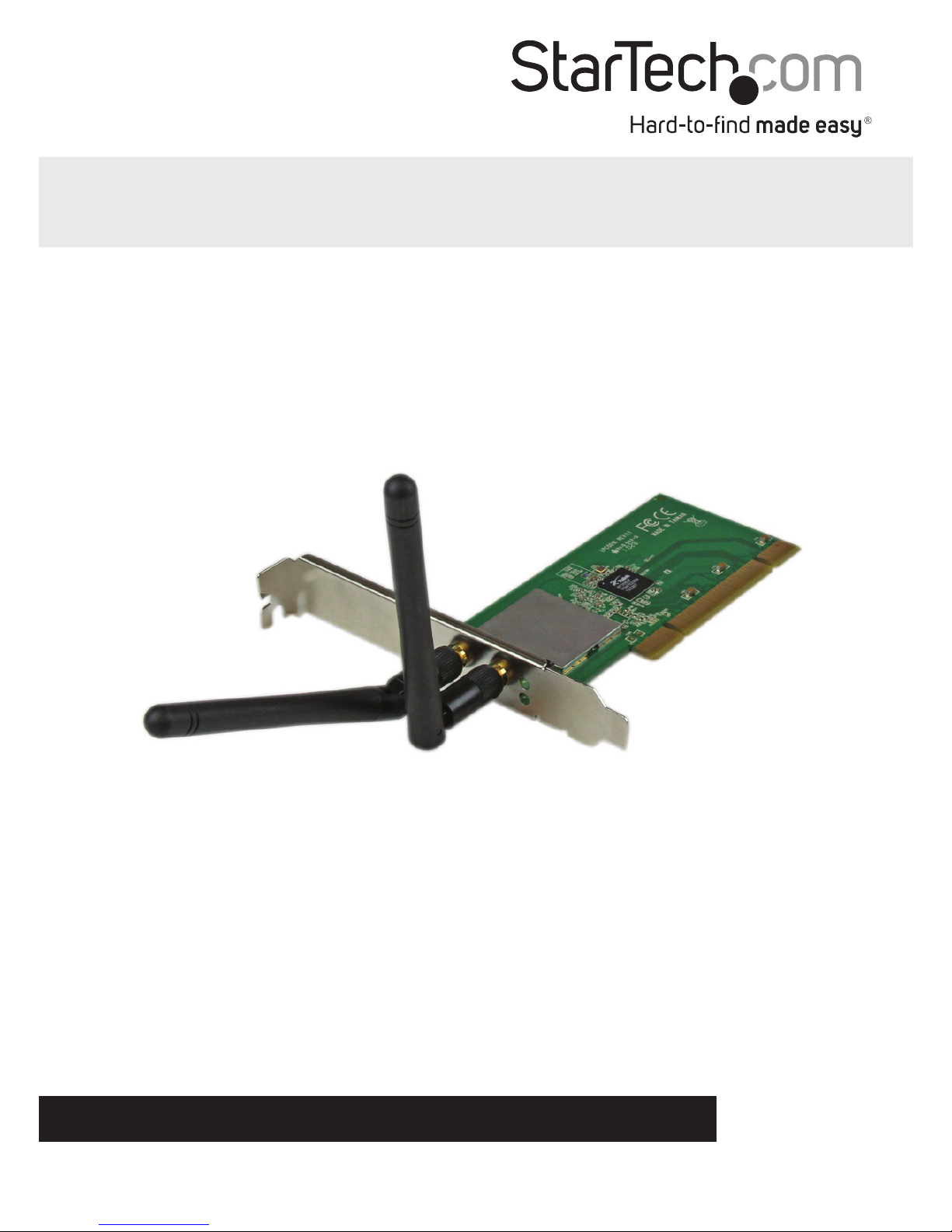
PCI300WN2X2
PCI 802.11n 300Mbps WiFi Adapter - 2T2R
*actual product may vary from photos

Instruction Manual
2

Instruction Manual
FCC Compliance Statement
This equipment has been tested and found to comply with the limits for a Class B digital
device, pursuant to part 15 of the FCC Rules. These limits are designed to provide reasonable
protection against harmful interference in a residential installation. This equipment generates,
uses and can radiate radio frequency energy and, if not installed and used in accordance with
the instructions, may cause harmful interference to radio communications. However, there
is no guarantee that interference will not occur in a particular installation. If this equipment
does cause harmful interference to radio or television reception, which can be determined by
turning the equipment o and on, the user is encouraged to try to correct the interference by
one or more of the following measures:
• Reorient or relocate the receiving antenna.
• Increase the separation between the equipment and receiver.
• Connect the equipment into an outlet on a circuit dierent from that to which the receiver
is connected.
• Consult the dealer or an experienced radio/TV technician for help.
Use of Trademarks, Registered Trademarks, and other Protected Names and Symbols
This manual may make reference to trademarks, registered trademarks, and other
protected names and/or symbols of third-party companies not related in any way to
StarTech.com. Where they occur these references are for illustrative purposes only and do not
represent an endorsement of a product or service by StarTech.com, or an endorsement of the
product(s) to which this manual applies by the third-party company in question. Regardless
of any direct acknowledgement elsewhere in the body of this document, StarTech.com hereby
acknowledges that all trademarks, registered trademarks, service marks, and other protected
names and/or symbols contained in this manual and related documents are the property of
their respective holders.

Instruction Manual
i
Table of Contents
Introduction ............................................................................................1
Packaging Contents ................................................................................................................................. 1
System Requirements .............................................................................................................................. 1
Installation ..............................................................................................2
Hardware Installation .............................................................................................................................. 2
Driver Installation ...................................................................................................................................... 3
Verifying Installation ................................................................................................................................ 4
How to Use ..............................................................................................5
Windows XP ................................................................................................................................................ 5
Windows Vista/7/8 .................................................................................................................................... 6
Ralink WLAN Utility ................................................................................................................................... 7
Connecting to an Available Network ................................................................................................. 8
Manually Creating a Prole.................................................................................................................... 10
Wi-Fi Protected Setup (WPS) ................................................................................................................. 11
Specications ..........................................................................................12
Technical Support ..................................................................................13
Warranty Information ............................................................................13

Instruction Manual
1
Introduction
The PCI300WN2X2 PCI 300Mbps Wireless N Card adds high speed wireless network
connectivity to almost any PCI-enabled desktop/workstation PC. Using a 2T2R (2
Transmitter/2 Receiver) design over the 2.4GHz frequency, this PCI wireless card
provides up to 300Mbps of data bandwidth over an 802.11n network, while improving
signal reception and range.
Backward compatible with 802.11b/g networks (11/54Mbps), this WiFi N adapter
oers a versatile wireless networking solution with support for standard and advanced
security options such as WEP, WPA and WPA2, along with wireless Quality of Service
(QoS) support and quick and easy setup through WPS.
This easy-to-install PCI card is backed by StarTech.com’s 2-year warranty and free lifetime
technical support, making for an excellent wireless upgrade or rst-time setup option.
Packaging Contents
• 1x PCI Wireless-N Card
• 1x Low Prole Bracket
• 2x Antenna
• 1x Driver CD
• 1x Instruction Manual
System Requirements
• Available PCI expansion card slot
• Wireless B, G or N compatible router or access point
• Microsoft® Windows® XP/Vista/Server 2003/Server 2008 R2/7/ 8 (32/64-bit), or Linux
kernel 2.6.32 and later

Instruction Manual
2
Installation
WARNING! PCI cards, like all computer equipment, can be severely damaged by static
electricity. Be sure that you are properly grounded before opening your computer
case or touching your PCI card. StarTech.com recommends that you wear an anti-static
strap when installing any computer component. If an anti-static strap is unavailable,
discharge yourself of any static electricity build-up by touching a large grounded metal
surface (such as the computer case) for several seconds. Also be careful to handle the
PCI card by its edges and not the gold connectors.
Hardware Installation
1. Turn your computer o and any peripherals connected to the computer (i.e. Printers,
external hard drives, etc.). Unplug the power cable from the rear of the power
supply on the back of the computer and disconnect all peripheral devices.
2. Remove the cover from the computer case (see documentation for your computer
system for details).
3. Locate an open PCI slot and remove the metal cover plate on the rear of the
computer case (refer to documentation for your computer system for details).
NOTE: If installing the card into a small form factor/low prole system, replacing the
pre-installed full prole bracket with the included low prole installation bracket may
be necessary.
4. Insert the card into the open PCI slot and fasten the bracket to the rear of the case.
5. Place the cover back onto the computer case.
6. Attach the included external antennas to the rear bracket of the card.
7. Insert the power cable into the socket on the power supply and reconnect all other
connectors removed in Step 1.

Instruction Manual
3
Driver Installation
Windows XP/ Server 2003
1. Upon starting Windows, if the “Found New Hardware” wizard appears on the screen,
cancel/close the window and insert the included Driver CD into the computer’s CD/
DVD drive.
2. AutoPlay should automatically launch the Driver/Software installation splash screen.
If not, open “My Computer” then open the CD/DVD drive the disk is inserted into
and double-click the le Setup.exe.
3. Select the option to install the Drivers. This will launch the Driver Installation wizard.
4. During the installation, you will be prompted to install only the drivers or also the
Ralink WLAN Utility. If you wish to use the built-in Windows utility for setting up your
wireless connection, then install the drivers only. If you do not wish to use the built-
in Windows Utility (Zero Conguration Utility), then also install the Ralink Utility.
NOTE: You can switch to using the Windows Utility at any time.
Windows Vista/ 7/ 8
1. Upon starting Windows, if the “Found New Hardware” wizard appears on the screen,
cancel/close the window or choose not to install the drivers and insert the included
Driver CD into the computer’s CD/DVD drive.
2. AutoPlay should automatically launch the Driver/ Software installation splash screen
or prompt you to run Setup.exe. If not, open “Computer” open the CD/ DVD drive
the disk is inserted into and double-click the le Setup.exe.
3. Select the option to install the Drivers. This will launch the Driver Installation wizard.
4. During the installation, you will be prompted to install only the drivers or also the
Ralink WLAN Utility. If you wish to use the built-in Windows utility for setting up your
wireless connection, then install the drivers only. If you do not wish to use the built-
in Windows Utility (Zero Conguration Utility), then also install the Ralink Utility.
NOTE: You can switch to using the Windows Utility at any time.
5. Complete the wizard and this will automatically install all of the drivers/software.
Restart the computer when prompted.

Instruction Manual
4
Windows Server 2008 R2 Note:
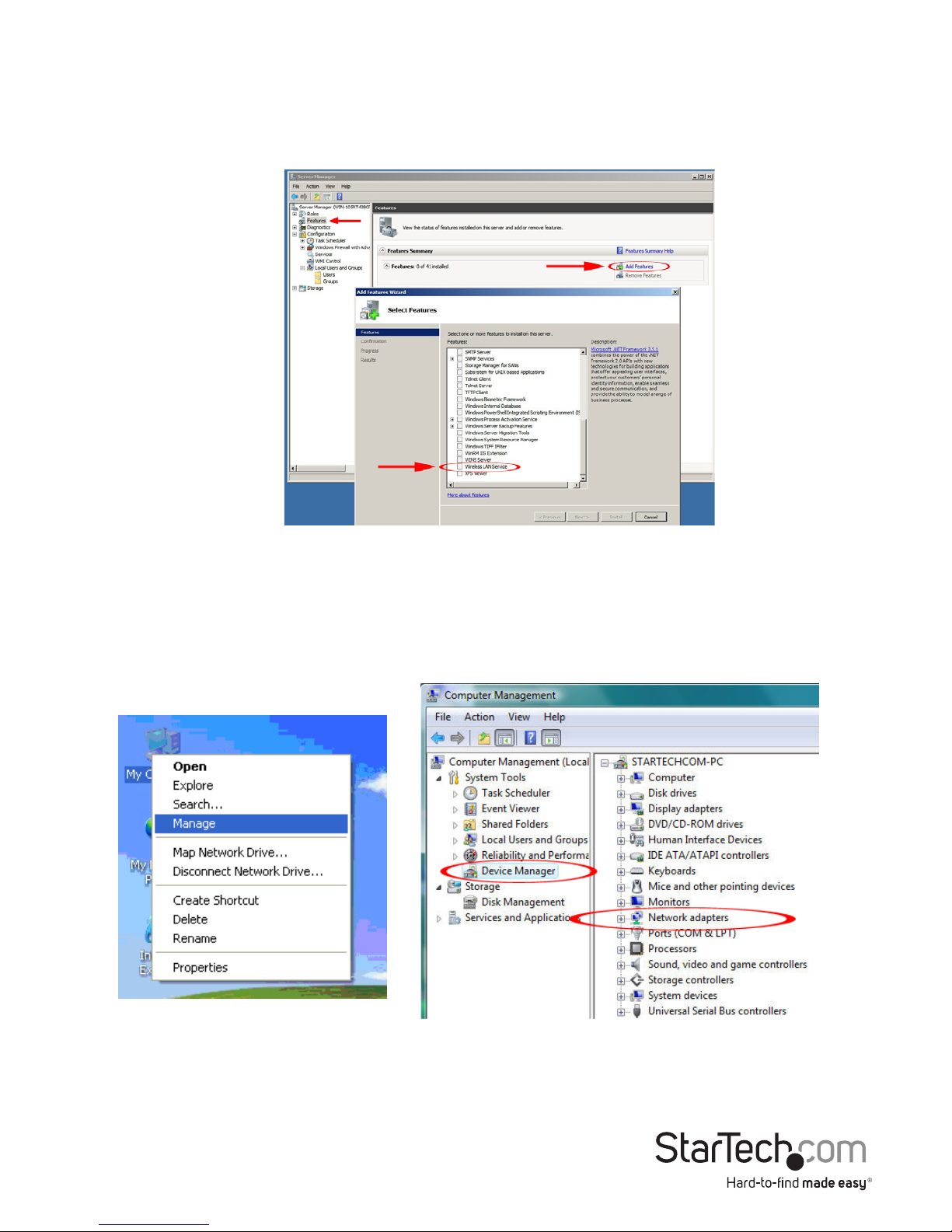
By default, the Microsoft “Wireless LAN Service” Feature is not installed. Before any
wireless networking can be enabled, this feature must be installed through the
Windows Server Manager window. Refer to Windows’ documentation for details.
Verifying Installation
Windows 2000/XP/Vista/7/8
From the main desktop, right-click on “My Computer” (“Computer” in Vista/7), then
select Manage. In the new Computer Management window, select Device Manager
from the left window panel.
Double-click on the “Network adapters” option to open it. A new Wireless adapter
should be listed.
Instruction Manual
5
How to Use
Connecting to a wireless network is done through the Windows wireless conguration
utilities. You must know the name of the wireless network (SSID), the type of security
it is using (if any) and it’s associated password to connect to a wireless network.
Consult the documentation for your wireless access point (AP) or contact your network
administrator or the wireless AP manufacturer for details.
Windows XP
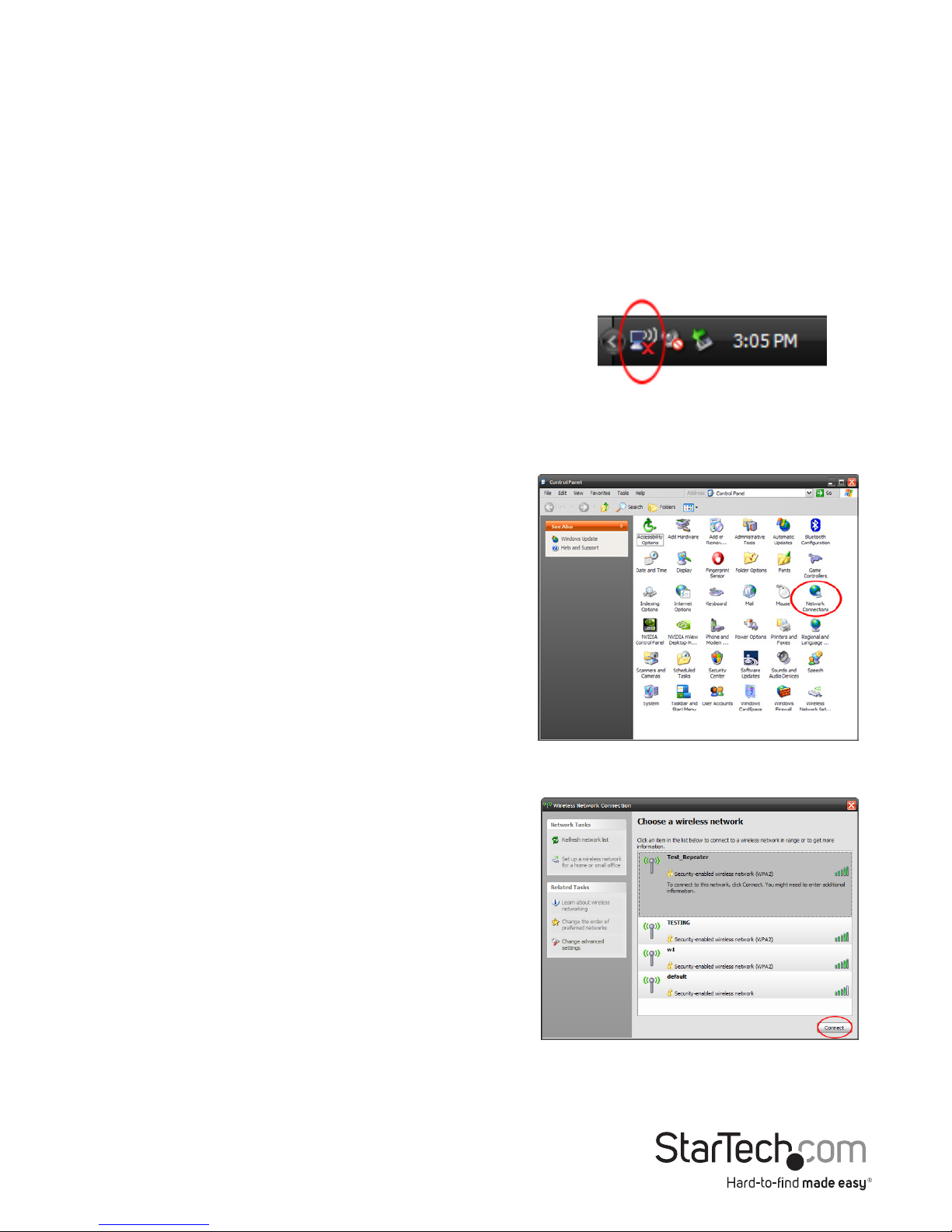
The wireless network adapter may appear in
the System Tray (next to the clock), or you may
have to access it through the Control Panel. If
visible in the System Tray, right-click on the icon
and select “View available wireless networks”.
This will bring up a new window that will show
you all available wireless networks that Windows
has found.
Alternatively, you can access this window by
opening the Control Panel from the Start Menu
and double-clicking the Network Connections
icon. Right-click on the Wireless Network
Connection icon (there may be multiple; the
highest number should be the latest) and select
“View available wireless networks”.
Select the wireless network you wish to connect to
from the list, and click on the “Connect” button in
the bottom right corner. If the network has security
enabled, you will be prompted for the password.

Instruction Manual
6
Windows Vista/7/8
The wireless network adapter will appear as a small icon in the System Tray (next to
the clock). Left-clicking on this icon will bring up a list of detected wireless networks.
Select the wireless network you wish to connect to and click the “Connect” button. If
the network has security enabled, you will be prompted for a password.
Alternatively, you can access the wireless network adapter by opening the Control
Panel from the Start Menu, and selecting the Network and Internet category, followed
by Network and Sharing Center.
Click on the “Connect to a network” option on the far right side of the window to bring
up the list of detected wireless networks.
Indice
Altri manuali StarTech.com Modem

StarTech.com
StarTech.com 8STUSB56KEMH2 Manuale utente

StarTech.com
StarTech.com USB56KEM Manuale utente

StarTech.com
StarTech.com USB56KEMH2 Manuale utente

StarTech.com
StarTech.com PEX56KIM Manuale del sistema

StarTech.com
StarTech.com USB56KEM2 Manuale utente

StarTech.com
StarTech.com USB562KEMH Manuale utente

StarTech.com
StarTech.com USB56KEMH Manuale del sistema

StarTech.com
StarTech.com PEX56KIM Manuale utente