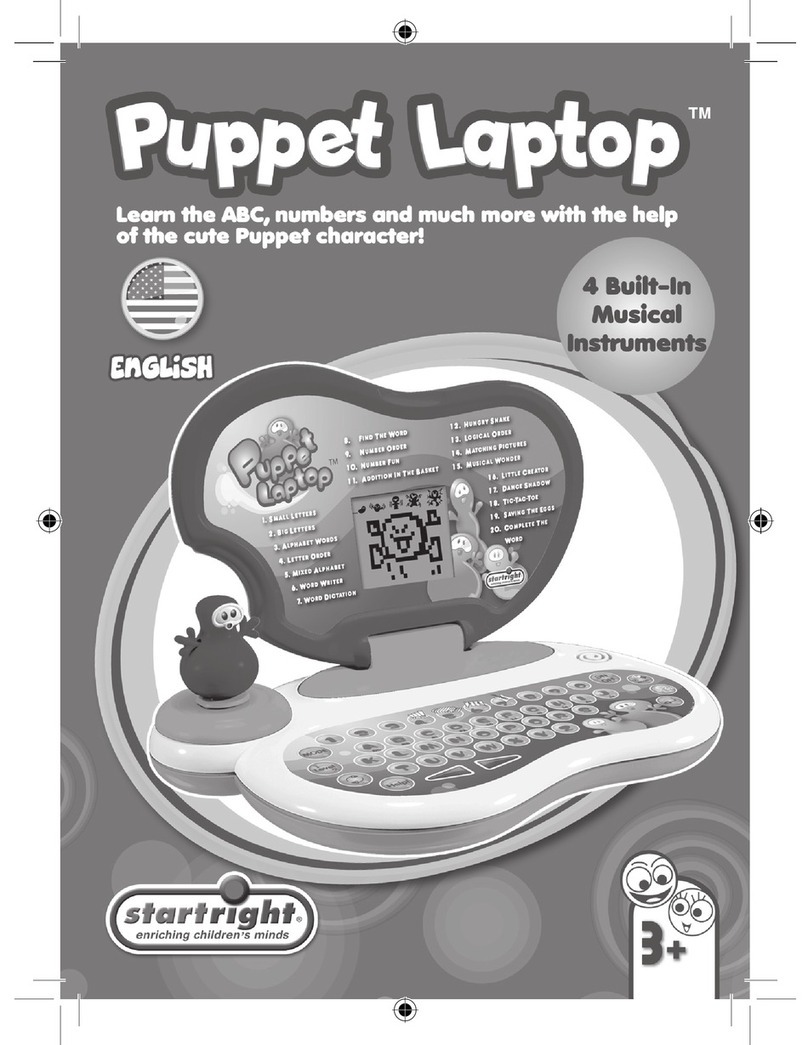
Startright Color Advance Notebook Manuale utente


Introduction 1
Color Advance NoteBook™ Overview 1
Notice to Parents 2
AC Adaptor 3
Care and Maintenance 3
Getting Started 4
General Operation 4
Keyboard Layout 4
Description of Activities 6
Category 1) Vocabulary & Grammar 6
Activity 1: Missing Letter 6
Activity 2: Extra Letter 6
Activity 3: Correct Spelling 6
Activity 4: Scrambled Word 6
Activity 5: Anagrams 6
Activity 6: Antonyms 7
Activity 7: Flash Cards 7
Activity 8: Defi ne the Word 7
Activity 9: Plurals 7
Activity 10: Tenses 7
Activity 11: Comparatives 7
Activity 12: Sentence Completion 7
Activity 13: Scrambled Sentences 8
Activity 14: Sentence Correction 8
Activity 15: Vocabulary Builder 8
Activity 16: Word Completion 8
Activity 17: 2-Player Flash Cards 8
Activity 18: Hang-Man 9
Category 2) Mathematics 9
Activity 19: Addition 9
Activity 20: Subtraction 9
Activity 21: Multiplication 9
Activity 22: Division 9
Activity 23: Complete Equation 9
Activity 24: Smaller / Larger 10
Activity 25: Number Logic 10
Activity 26: Algebra 10
Activity 27: Geometry 10
Activity 28: Fractions 10
Contents

1
Activity 29: Percentages 11
Activity 30: Ratios 11
Activity 31: Word Problems 11
Activity 32: Formulas 11
Activity 33: Maths in Order 11
Category 3) Trivia 11
Activity 34: Animal Trivia 11
Activity 35: Amusement Trivia 12
Activity 36: Geography Trivia 12
Activity 37: History Trivia 12
Activity 38: Science Trivia 12
Activity 39: Miscellaneous Trivia 12
Activity 40: Symbols Trivia 13
Category 4) Games 13
Activity 41: Stone-Paper-Scissors 13
Activity 42: Tower of Hanoi 13
Activity 43: Shape Puzzle 13
Activity 44: Snaps 13
Activity 45: Tic-Tac-toe 14
Activity 46: Ping-Pong 14
Activity 47: Grand-Prix 14
Activity 48: Punch Game 14
Activity 49: Catch the Last Dot 15
Category 5) Music 15
Activity 50: Music Station 15
Activity 51: Music Keyboard 15
Activity 52: Dance To Music 15
Activity 53: Follow me 16
Category 6) My Notebook 16
Activity 54: E-mail 16
Activity 55: Phone Book 16
Activity 56: Scheduler 16
Category 7) My Computer 17
Activity 57: Maze Game 17
Activity 58: Typing Skills 17
Activity 59: Calculator 17
Activity 60: Dictionary 18
Specifi cations 18

2
Introduction
Thank you for selecting this Color Advance NoteBook™ unit.
This box contains one (1) Color Advance NoteBook™ unit and a User
Instruction Guide.
Please read the Notice to Parents carefully before you allow your child
to use this unit. Reading through this User Instruction Guide with your
child can be a valuable learning experience.
Please discard of any packing materials such as plastic sheets, wire
ties, tags etc for your child’s safety.
Color Advance NoteBook™ Overview
Color Advance NoteBook™ is a powerful learning tool that encourages
independent expression with a high-resolution color LCD screen. With
60 fun-fi lled learning activities to choose from, this laptop offers hours of
educational entertainment that cover a variety of subject areas.
High-Resolution
Color LCD Screen
QWERTY
Keyboard
Ball Mouse
Power On/Off Key
Volume control
Speaker

3
Notice to Parents
Battery Installation
Note: Do not allow children to install batteries.
• This unit requires four (4) AAA batteries (Not included). We recommend
alkaline batteries.
• Open the battery compartment found on the back of the unit.
(See Figure 1)
• Insert the batteries correctly, as indicated by the polarity symbols (+)
and (-) marked inside the battery compartment. (See Figure 2)
• Make sure to correctly replace the battery compartment door and
screw it fi rmly back in place.
Battery Precautions
• Install batteries for your child.
• Do not use rechargeable batteries.
• Do not recharge non-rechargeable batteries.
• Do not mix old and new batteries.
• Do not mix alkaline, standard (Carbon-Zinc), or rechargeable (Nickel-
Cadmium) batteries.
• Do not short circuit the supply terminals.
• Only use batteries of the same type or equivalent as recommended.
• For best operation, always use new alkaline batteries.
• Insert batteries following the correct polarity.
• Replace the batteries if the sound weakens or the display dims.
• Remove exhausted or weak batteries from the unit.
• Remove batteries if you are not going to use the unit for more than
one (1) week.
• This unit is not to be connected to more than the recommended
number of power supplies.
Fig. 1 Fig. 2

4
AC Adaptor
Using the Adaptor
Note: The use of an adaptor will override the batteries. When this unit is
not going to be in use for an extended period of time, we recommend
unplugging the adaptor.
• Use a standard 6V --- 300mA AC/DC adaptor recommended for this
unit.
• Make sure the unit is turned OFF.
• Plug the power jack into the 6V DC socket located at the back of the
unit.
• Plug the AC adaptor into a wall socket.
AC Adaptor Precautions
• Do not hold the adaptor with wet hands.
• Do not use an adaptor if it has damaged, split or broken wires or
cords.
• Do not play with the adaptor or cable. Do not wrap the adaptor or
cords around your neck as strangulation might result.
• Do not insert many plugs into one connection.
• When disconnecting the adaptor, pull it out by the plug. Never pull by
the cord.
• Do not wind the adaptor cable around the adaptor.
• Do not place furniture or any heavy objects on top of the adaptor or
adaptor cable.
• Do not use more than one (1) adaptor for the unit simultaneously
• Do not plug in the adaptor for extended periods of time.
• For safety purposes this adaptor is not intended for use by children
under the age of three years old.
• The adaptor is not a toy.
Care and Maintenance
• Clean this unit with a slightly damp cloth.
• Do not use any chemical solvents or abrasives on this unit.
• Do not spill any liquids on this unit.
• Avoid dropping this unit on hard surfaces.
• Do not expose this unit to moisture or immerse it in water.
• Do not try to dismantle this unit.
• It is best to switch off this unit when your child is not playing with it.
Please remind your child to do so.
• Use only a soft cloth for cleaning the LCD. Never use solvents,
abrasives or a moist cloth.

5
Getting Started
General Operation
Slide the volume control key to the middle setting to power On/Off the
unit. Slide the key to the far right to mute the volume.
After the opening animation, you may select one (1) of seven (7)
categories as displayed on-screen. Press the direction keys or move the
mouse to control the cursor on-screen to select a category then press
the “Enter” key or press the mouse button to confi rm your selection.
A new window will appear and list each activity in the category. Press
the direction keys or move the mouse to control the cursor to select an
activity. Press the “Enter” key or press the mouse button to confi rm your
selection. Alternatively you may input the corresponding activity number
by using the keyboard.
Press the “Mode” key at any time to return to the activity selection
window.
Keyboard Layout
Power On/Off key / Volume control key:
Slide this key to activate the unit ON and OFF. And then it can adjust the
volume to mute physically.
Slide the volume control key to power On/Off the unit. Slide the key to
the far right to mute the volume.
Enter key:
Press this key to confi rm a selection.

6
Help key:
Press this key to receive a helpful hint in certain activities.
Save key:
Press this key to save data in certain activities.
Level key:
Press this key to select a level for certain activities.
Player key:
Press this key to select a player in certain activities.
Erase key:
Press this key to delete a letter/number.
Clear all key:
Press this key to delete all text.
Answer key:
Press this key to receive an answer to a question.
Memory key:
Press this key to select E-mail, Phone Book or Scheduler within the My
Notebook category.
Ball Mouse:
To use the mouse, move it in the same direction that you want the cursor
on the screen to move. Pressing the button on the mouse has the same
effect as pressing the “Enter” key on the keyboard.

7
Description of Activities
For each activity, a rewarding animation will be displayed on-screen for
each correct answer unless otherwise stated. You will receive two (2)
chances per round.
Category 1) Vocabulary & Grammar
Activity 1: Missing Letter
A picture will be displayed together with the corresponding word which
will have a missing letter. Find the missing letter by pressing a letter key
and then press the “Enter” key to confi rm your answer.
Activity 2: Extra Letter
A picture will be displayed together with the corresponding word which
will have extra letters. Find the extra letters by either using the mouse or
the direction cursor keys to move the cursor and select the extra letters.
Press the “Enter” key or press the mouse button to confi rm your
selection.
Activity 3: Correct Spelling
A picture will be displayed together with the corresponding word which
will appear with the incorrect spelling. One (1) of the letters in the word
is incorrect.
Use either the mouse or the “<” and “>” keys on the keyboard
to move the cursor to the position of the incorrect letter and type in the
correct letter. Press the “Enter” key or press the mouse button to
confi rm your answer.
Activity 4: Scrambled Word
A picture of an object and the word that corresponds with the picture will
appear on the screen. This word is scrambled. Select the relevant letter
keys and rearrange the word in the correct order. You may only input letters
which are included in the displayed word. Press the “Enter” key or
press the mouse button to confi rm your answer.
Activity 5: Anagrams
A word will appear on the screen. You must create an anagram from the
given word. In other words, you must make a new word using the letters
Indice
Altri manuali Startright Giocattolo

Startright
Startright Barney i love music laptop Manuale utente

Startright
Startright Toddler-Talk Computer Manuale utente

Startright
Startright Bilingual Super Notebook Manuale utente

Startright
Startright Barney Manuale utente

Startright
Startright Color Bilingual Laptop Plus Manuale utente

Startright
Startright Smart Creata Pen My Link ? Learn Globe Manuale utente

Startright
Startright Multi-Lingual Laptop PRO Manuale utente

Startright
Startright Learning Smart Bilingual Laptop Manuale utente

Startright
Startright Trilingual Laptop Plus Manuale utente

Startright
Startright Bilingual capture fun notebook Manuale utente