
Steren Com-868 Manuale utente
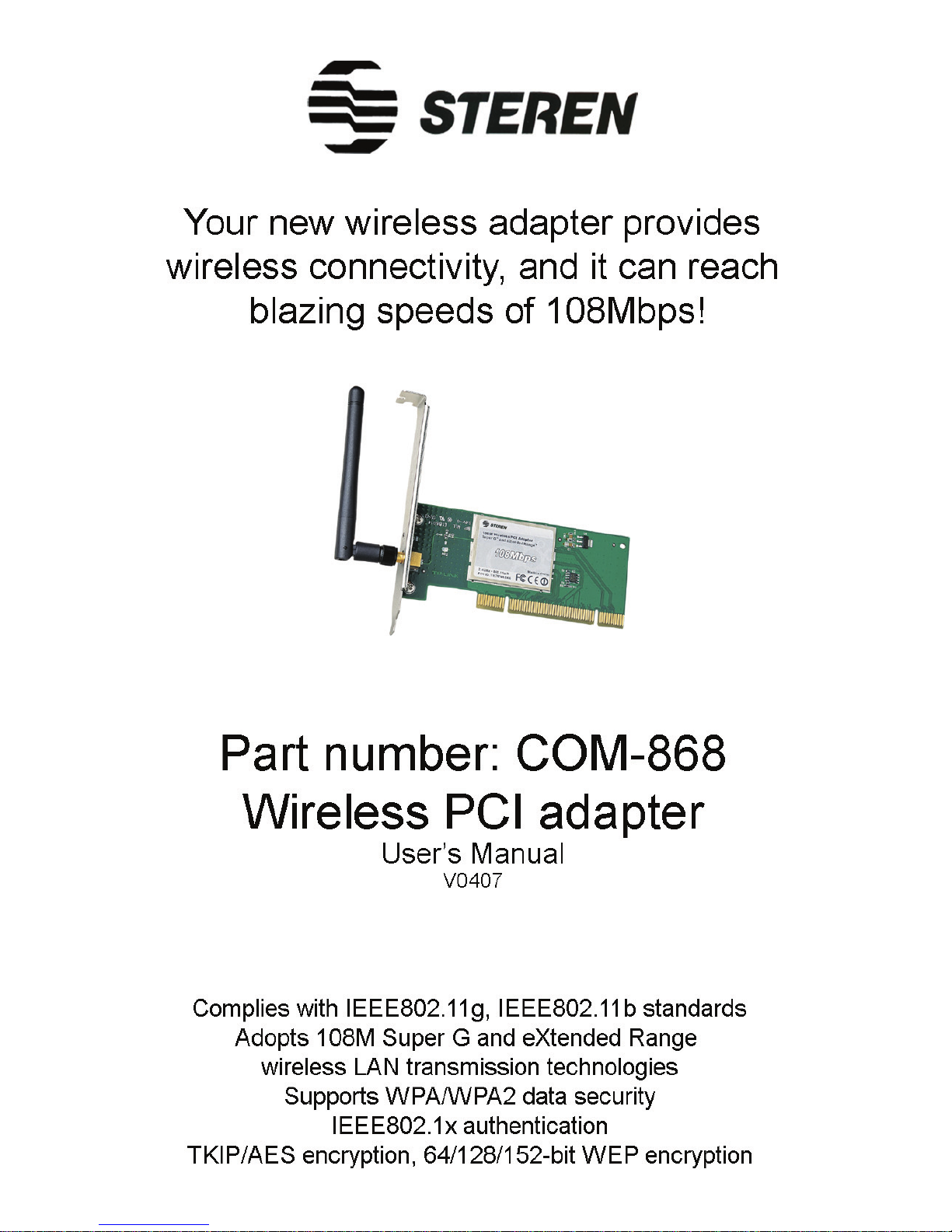

Before using your new Wireless PCI adapter, please read
this instruction manual to prevent any damage. Put it away
in a safe place for future references.
INTRODUCTION
The Wireless Adapter gives you the flexibility to install your PC or
Notebook PC in the most convenient location available, without
the cost of running network cables.
The adapter’s auto-sensing capability allows high packet
transfer rate of up to 108Mbps for maximum throughput, or
dynamic range shifting to lower speeds due to distance or
operating limitations in an environment with a lot of
electromagnetic interference. It can also interoperate with all
11Mbps wireless (802.11b) products. Your wireless
communications are protected by up to 152-bit WEP and WPA
encryption for high security.
It adopts 2x to 3x eXtended Range WLAN transmission
technology so that transmission distance is 2-3 times of
traditional 11g/b solutions.
It adopts 108M Super G WLAN Transmission Technology, which
offers the highest throughput performance available on the
market today, link rates of up to 108Mbps. In dynamic 108M
mode, the device can attach 802.11b, 802.11g and 108Mbps
Super G devices at the same time in an integrated environment.
FEATURES
Complies with IEEE802.11g, IEEE802.11b standards
Adopts 108M Super G and 2x to 3x eXtended Range
wireless LAN transmission technologies
Supports WPA/WPA2 data security, IEEE802.1x
authentication, TKIP/AES encryption, 64/128/152-bit WEP
encryption
Supports 108/54/48/36/24/18/12/9/6Mbps or 1/5.5/3/2/1Mbps
wireless LAN data transfer rates
Provides 32-bit PCI interface
Supports Ad-Hoc and Infrastructure modes
Supports roaming between access points when configured in
Infrastructure mode
Easy to configure and provides monitoring information
Supports Windows 98Se, Me, 2000, XP
Detachable reverse SMA connector antenna
•
•
•
•
•
•
•
•
•
•
ENGLISH
ENGLISH-2
Before usin
g
y
our new Wireless PCI adapter, please read
t
his instruction manual to prevent an
y
dama
g
e. Put it awa
y
i
n a safe
p
lace for future references
.
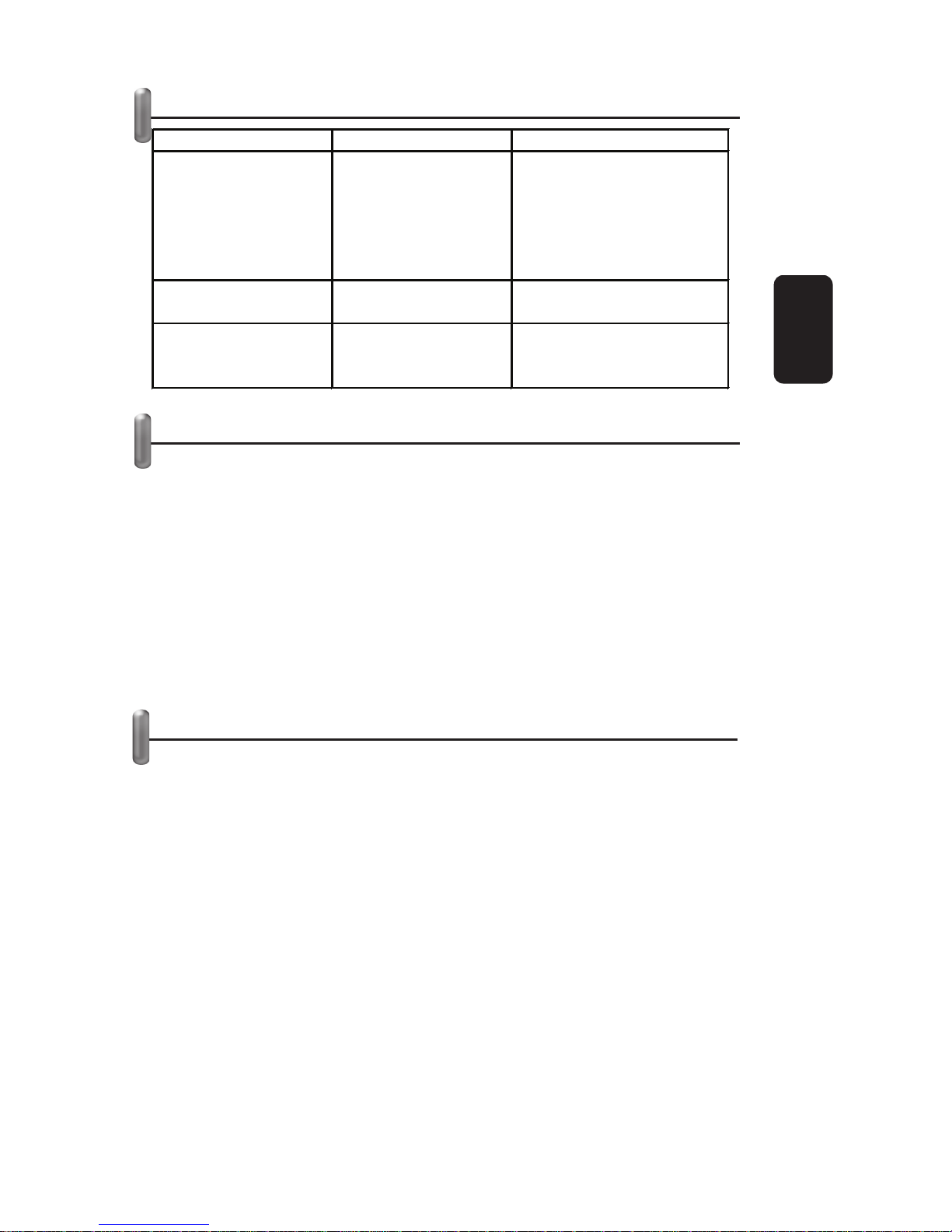
LED STATUS
HARDWARE INSTALLATION
1. Turn off your desktop PC and disconnect the power.
2. Open your PC case and locate an available PCI slot on the
motherboard. Remove the metal slot cover on the back of the
PC. Check with your computer manufacturer for instructions if
needed.
3. Slide the PCI Adapter into the PCI slot. Make sure that all
of its pins are touching the slot’s contacts. Once the adapter is
firmly in place, secure its fastening tab to your PC’s chassis with
a mounting screw. Then, close your PC case.
4. Reconnect your PC’s power and turn on your desktop PC.
SOFTWARE INSTALLATION
The Adapter’s Setup Wizard will guide you through the
Installation procedure for Windows 98Se, ME, 2000, XP. The
Setup Wizard will install the Wireless Client Utility (SWCU) and
drivers.
When you install the hardware before installing the software, the
system will prompt “Found New Hardware Wizard” window, click
Cancel, and run the Setup Wizard program on the CD-ROM.
The Setup steps for Windows 98Se, Me, 2000 and XP are very
similar. The following setup steps are for Windows 2000.
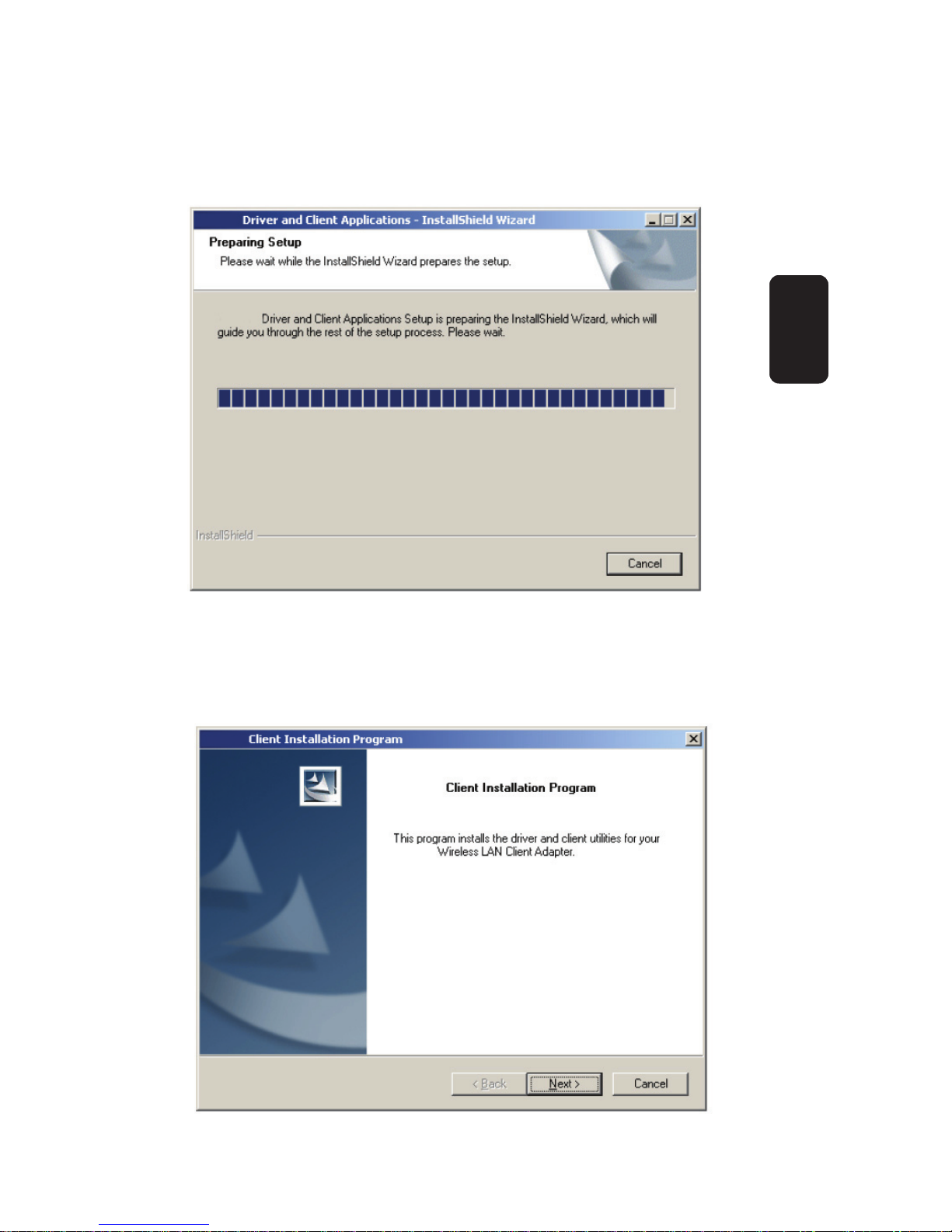
1. Insert the Resource CD into your CD-ROM drive, click Start
and choose Run. In the field that appears, enter F:\XXX\Setup.
exe (if “F” is the letter of your CD-ROM drive; XXX is the setup
program path, which is labeled on the Resource CD), figure 1
should then appear.
ENGLISH
ENGLISH-3
LED Indications Status Workin
g
Status
Green Intermittently
The adapter is in an
electricity saving status or
the adapter is already
connected but is not
transmitting or receiving
data.
Green Lit The adapter is on wake up
status.
Green Flashing The adapter is transmitting
and receiving data.
ENGLISH
ENGLISH-4
2. You can click Cancel to end the installation on the
Preparing Setup screen, figure XXXX otherwise, the Setup
Wizard will display a screen similar to that shown in figure 1 after
a moment.
3. To continue, click Next on the screen,
Fig. 1
Fig. 2
Click Cancel to end the Installation.
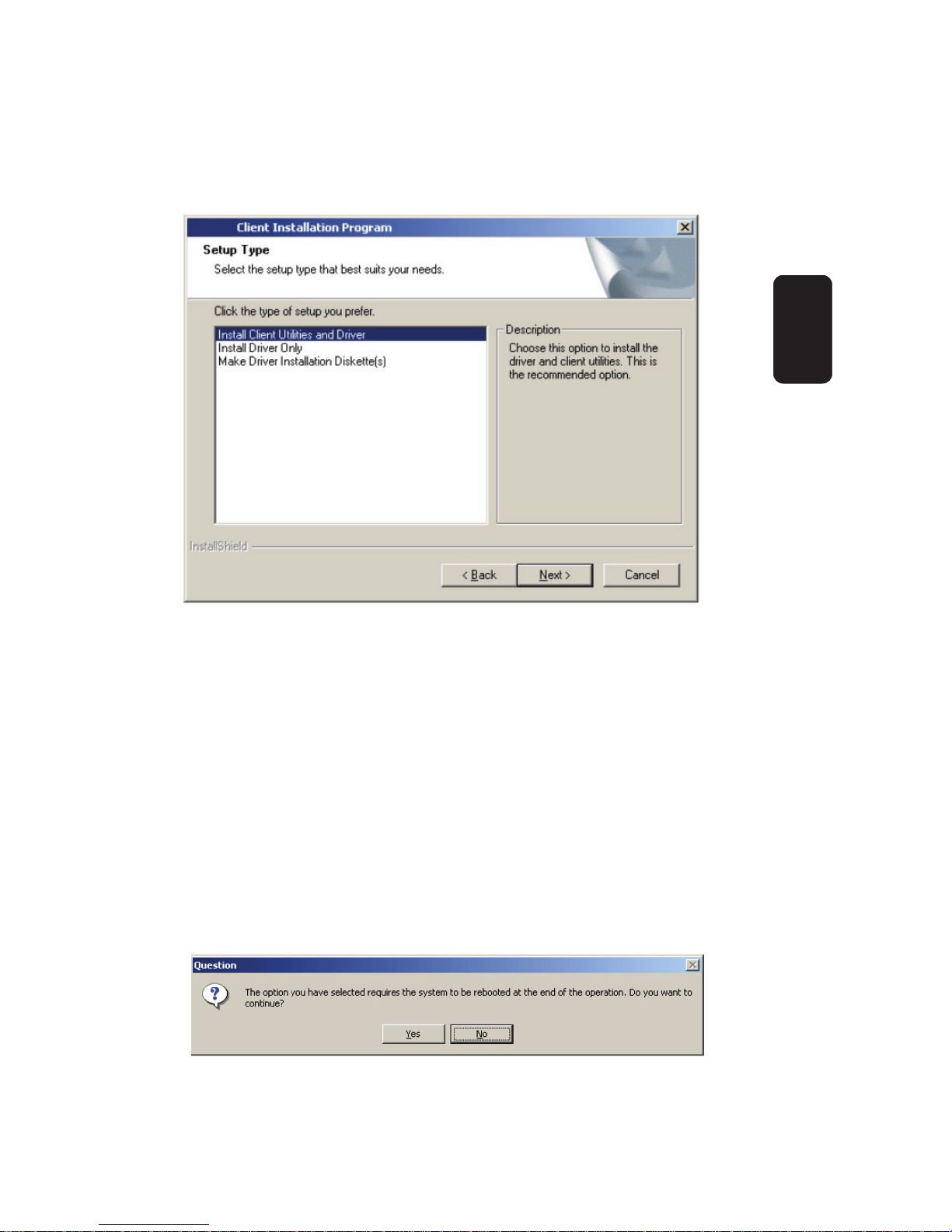
4. The Setup Wizard will ask you to choose a Setup type in figure
3.
It is recommended that you select Install Client Utilities and
Driver. Select Install Driver Only to install driver only, select
Make Driver Installation Diskette(s) to make the diskette(s) as
the installation driver. Select Install Client Utilities and Driver and
click Next to continue the Installation. Click Back to return to the
previous page, or click Cancel to end the Installation.
5. Figure 4 should appear. Click Yes to continue the
Installation, or click No to end theInstallation.
ENGLISH
ENGLISH-5
Fig. 3
Fig. 4
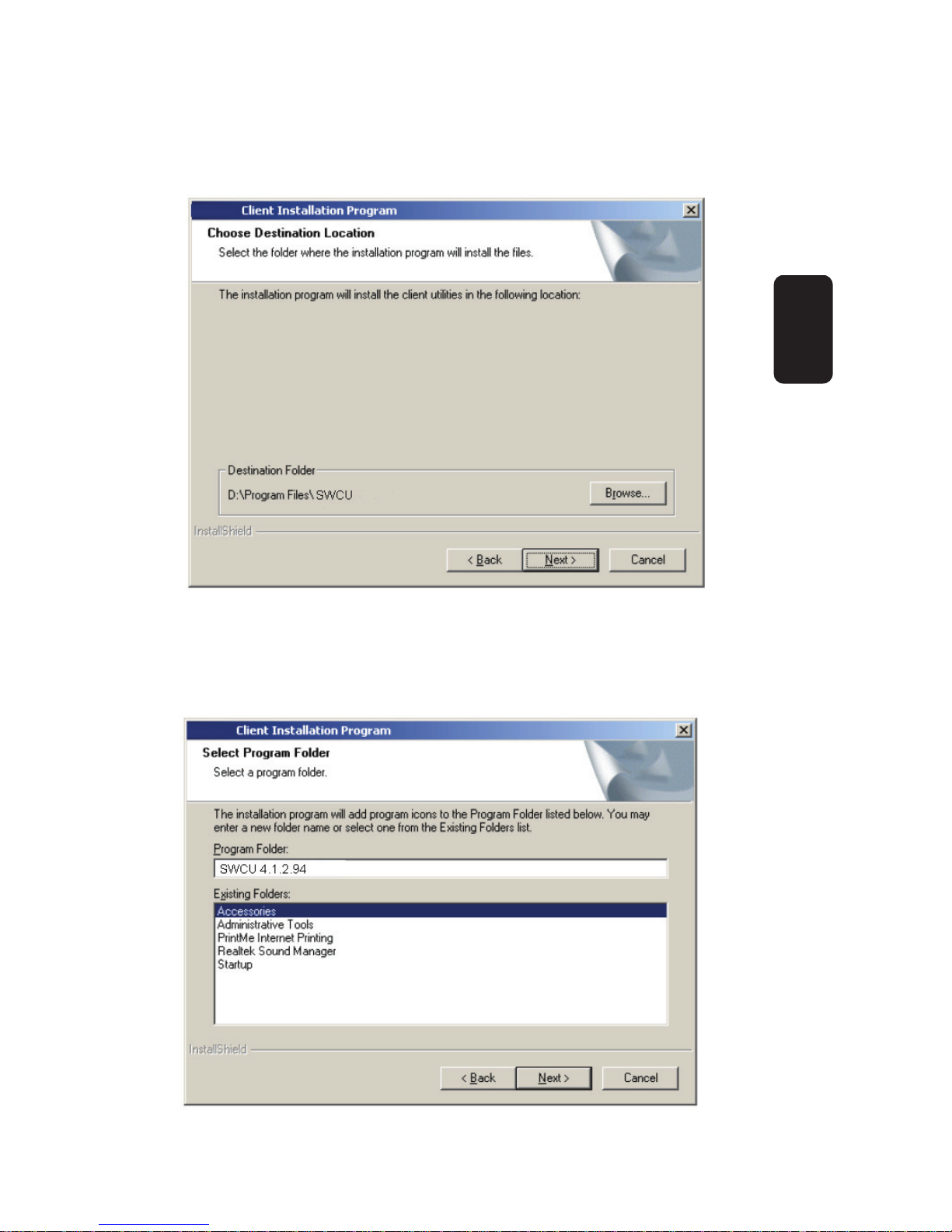
6. Click Browse to change the destination location for the
software in figure 5. Click Next to continue the Installation. Click
Back to return to the previous page, or click Cancel to end the
Installation.
7. The Setup Wizard will ask you to create a new folder name or
select one from the Existing Folders list shown in figure 6.
ENGLISH
ENGLISH-6
Fig. 5
Fig. 6
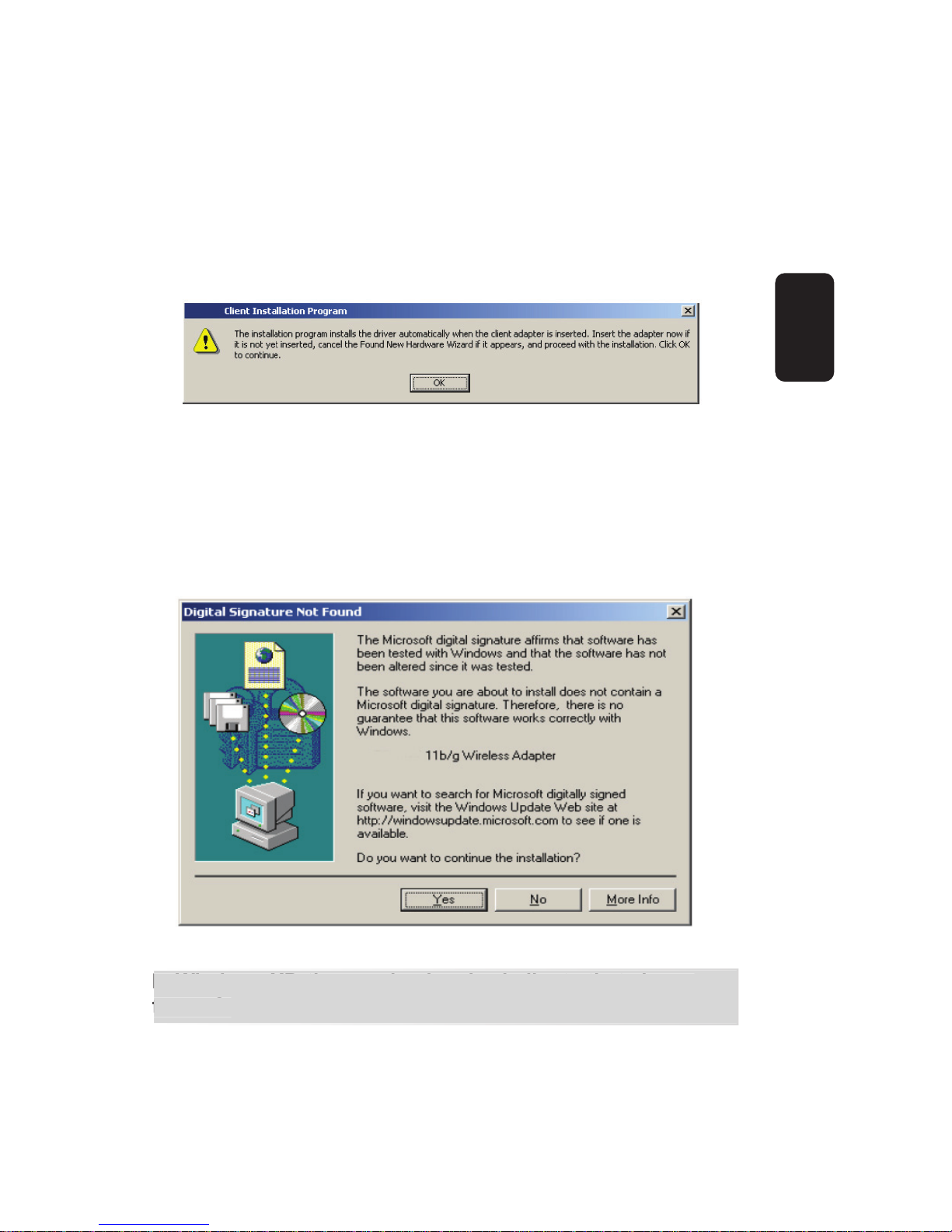
It is recommended that you keep the default value. Click Next
to continue the Installation. Click Back to return to the previous
page, or click Cancel to end the Installation.
8. The Setup Wizard will notify you of how to proceed with the
installation, shown in figure 7. Click OK to continue the
Installation.
9. While files are copying, you will see a warning box, shown in
figure 8. Please select YES to continue installation. Our
drivers have been tested thoroughly, and are able to work with
the operating system.
In Windows XP, the warning box is similar to that shown
figure 9.
ENGLISH
ENGLISH-7
I
n
Wi
n
d
ows
XP
, t
h
e warn
i
n
g
b
ox
i
s s
i
m
il
ar to t
h
at s
h
own
fi
g
ure 9.
Fig. 7
Fig. 8
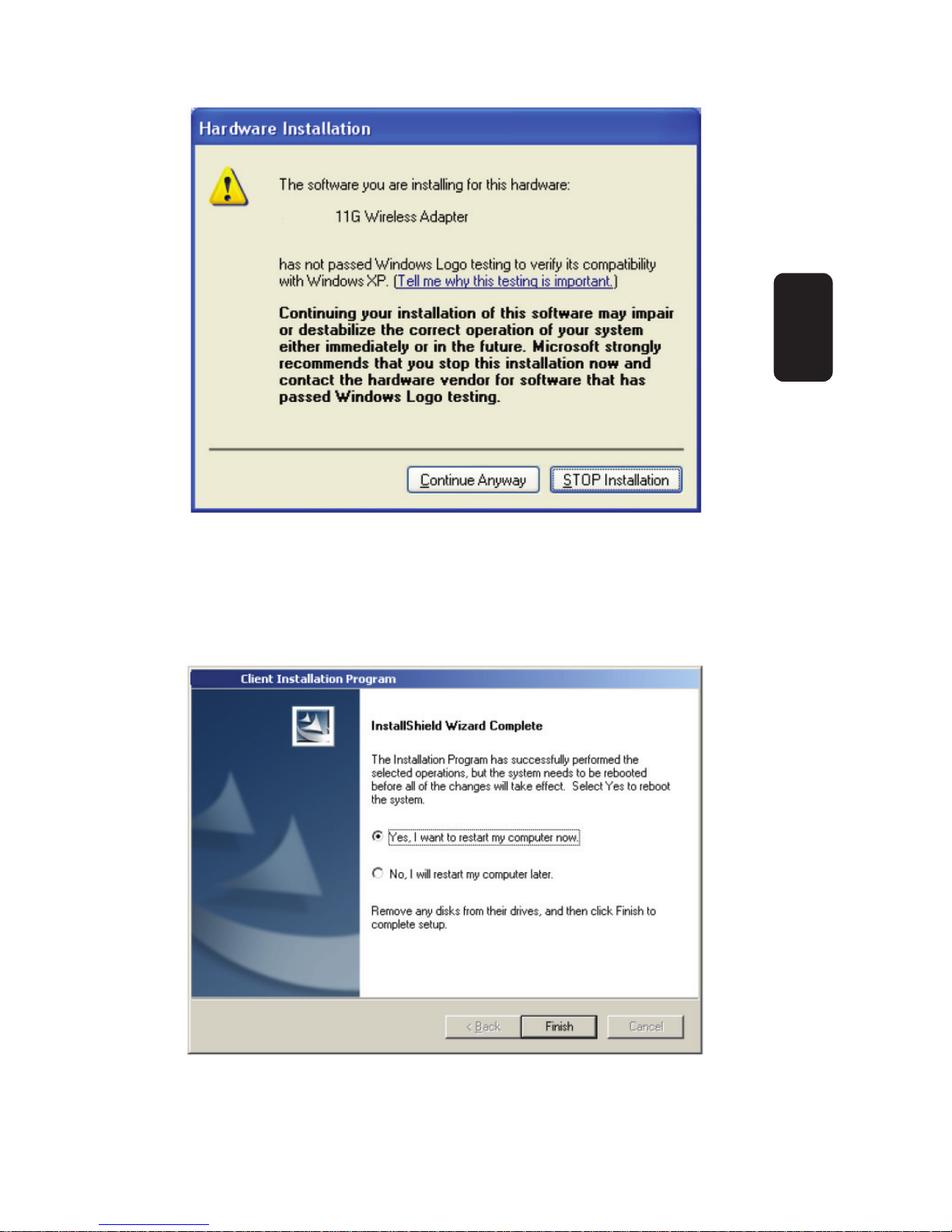
Please select Continue Anyway to continue installation.
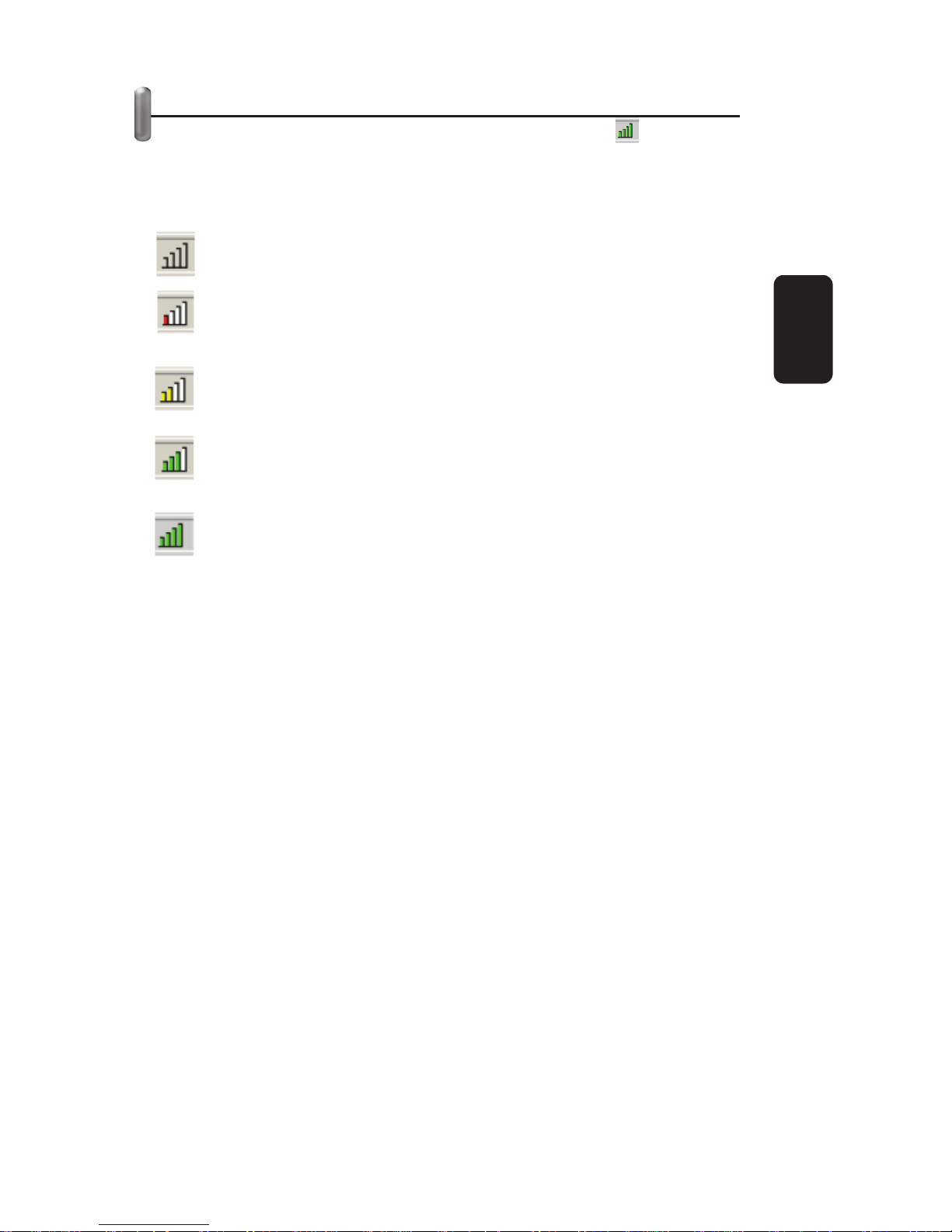
10. After the files have been successfully copied, the screen in
figure 10 will appear.
Click OK to reboot the system.
ENGLISH
ENGLISH-8
Fig. 9
Fig. 10
CONFIGURATION
After Installing the Adapter, the Adapter’s tray icon will
appear in your system tray. It appears at the bottom of the
screen, and shows the signal strength using color and the
received signal strength indication (RSSI).
If the icon is gray, there is no connection.
If the icon is red, there is poor signal strength and the
RSSI is less than 5dB.
If the icon is yellow, there is poor signal strength and the
RSSI is between 5dB and 10dB.
If the icon is green, there is good signal strength and the
RSSI is between 10dB and 20dB.
If the icon is green, there is excellent signal strength and
the RSSI is more than 20dB.
Double-click the icon and the SWCU utility will run. The
SWCU utility provides a complete and easy to use set of tools to:
Display current status information
Edit and add configuration profiles
Display current diagnostics information
•
•
•
ENGLISH
ENGLISH-9
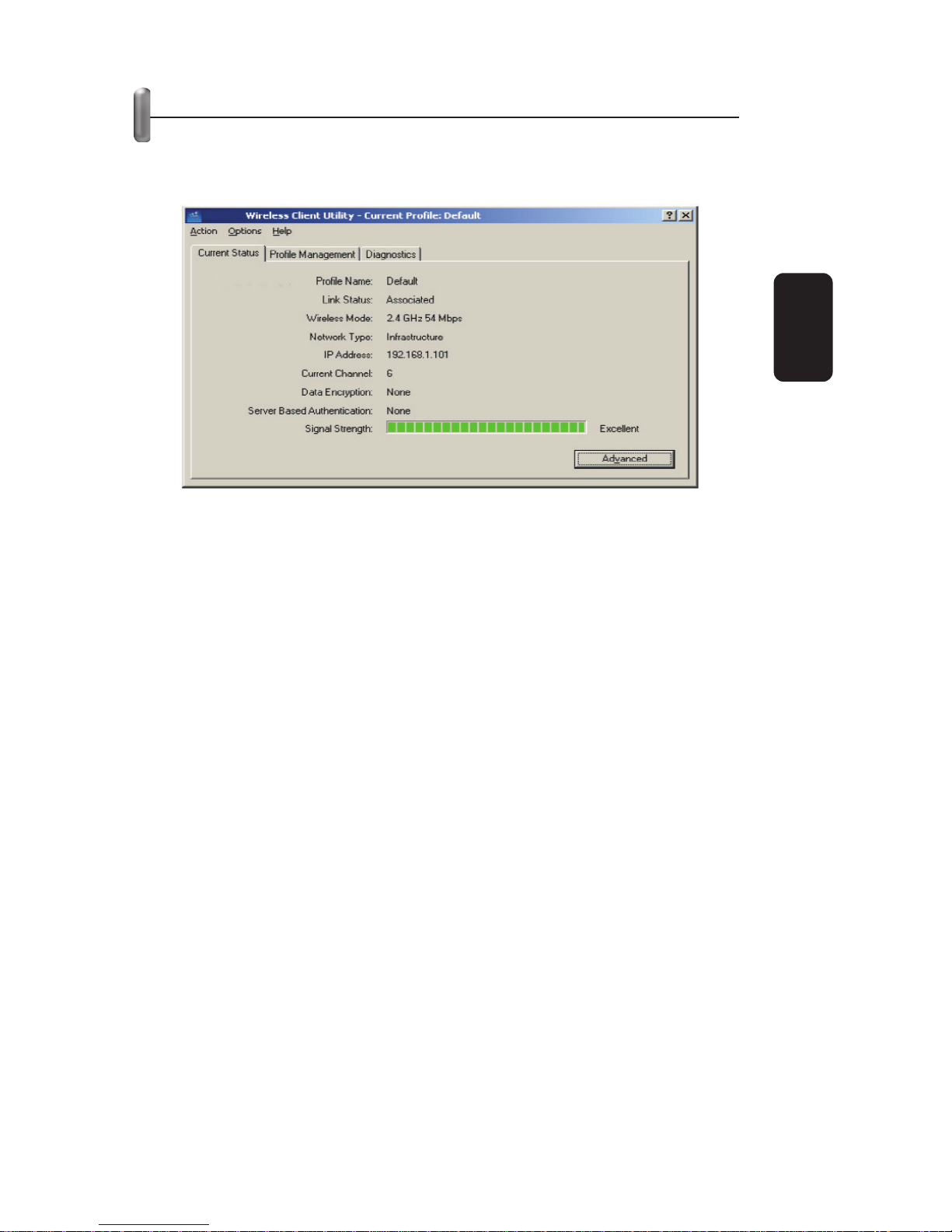
CURRENT STATUS
The Current Status tab contains general information about the
program and its operations. The Current Status tab does not
require any configurations.
The following table describes the items found on the Current
Status screen.
Profile Name - The name of current selected
configuration profile. Set up the configuration name on
the General tab of Profile Management.
Link Status - Shows whether the station is associated to
the wireless network.
Wireless Mode - Displays the wireless mode. Configure
the wireless mode on the Advanced tab of Profile
Management.
Network Type - The type of network and the station
currently connected. The options include:
- Infrastructure (access point)
- Ad Hoc
Configure the network type on the Advanced tab of
Profile Management.
ENGLISH
ENGLISH-10
Fig. 11
Questo manuale è adatto per i seguenti modelli
1
Indice
Lingue:
Altri manuali Steren Scheda PCI


