
Stokes Publishing MathMaster Manuale utente
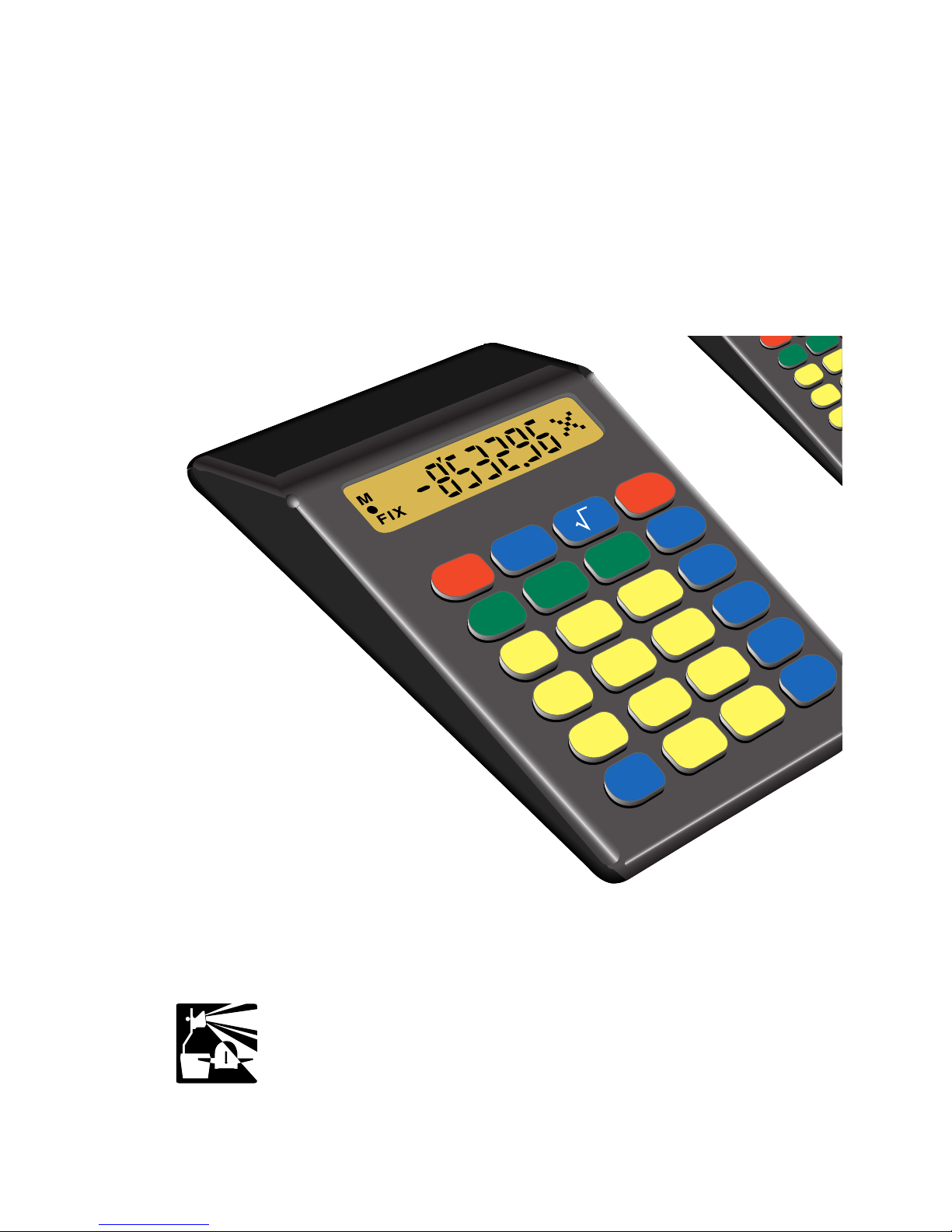
Reference Manual for the
MathMaster™
Educational Calculator
a product of
Stokes Publishing Company
Sunnyvale, CA
MathMaster
®
K E Y E L I M I N A T O R
2
0
•
3
1
5
8
6
x
–
M+
+/–
%
MRC
RESET
4
7
+
=
CE
/
C
M
–
÷
9
8
M+
MRC
RESET
4
7

MathMaster Key List
cClear entry, clear
0-9, .Numeric input
+-x/
Operations
=Result
MAdd to memory
mSubtract from memory
rMemory recall, memory clear
$
RESET
Clears decimal fix and
all pending operations
_
Toggles sign of dispayed number
%Percent
vSquare root
MathMaster is a registered trademark of Stokes Publishing Company
Key Eliminator is a trademark of Stokes Publishing Company
©1995 Stokes Publishing Company •Sunnyvale, California

3
Welcome to the exciting world of the
MathMaster calculator. You will be using
the “world’s finest four-function calculator,”
the only one with the patented feature, the
Key Eliminator. To take full advantage of
the many features and functions of the
MathMaster, go through this manual with
MathMaster in hand following the explana-
tory sequences. Most sequences contain
single-digit numbers so you can concentrate
on the process rather then on cumbersome
computations. You will then gain the
confidence and know-how to use the
MathMaster to perform difficult computa-
tions with speed and accuracy.
Exciting Features of the MathMaster
• Eliminator
This new, patented function will allow
the user to disable or make inactive one
or more keys.
•Constants
The MathMaster has full constant capabili-
ty for all four operations. A counter show-
ing in the display indicates the number of
times the constant has been used.

4
•Fixing the Number of Decimal Places
The decimal point may be fixed to a desig-
nated number of places, from 0 to 7.
•RESET
Pressing the RESET key will reactivate any
keys that have been disabled and return
the calculator to floating decimal point
notation. All constants, pending opera-
tions, and contents of memory will be
cleared.
•Operation Icons
Icons for the operations of addition,
subtraction, multiplication, and division
will appear on the right side of the display
in a large five-by-five dot matrix to indicate
what operation is being processed or is
pending.
•Logic System
All operations are processed according to
the standard algebraic order of operations
(MDAS).
•Reading Large Numbers
Large numbers in the display are easy to
read. The periods of a large number are
separated with an apostrophe at the top
of the number.

5
Guide to Display Symbols
The display holds up to eight digits. In addi-
tion, there are indicators which will appear
in the display to alert you to the status of the
various features and functions of the
MathMaster.
Indicator Description Page
’
Separates large numbers
into periods 4
+
Operation of addition in
progress or pending 4
–
Operation of subtraction in
progress or pending 4
x
Operation of multiplication in
progress or pending 4
÷
Operation of division in
progress or pending 4
E
Calculation resulted in error; or
(error)
display or memory exceeded 7
M
Non-zero number is stored in
memory 10
FIX
The number of decimal places
is fixed at 0 to 7 places. 14
•
Eliminator feature is in effect. 15

6
Key Functions
c, Digit keys and =
Press c to turn on the calculator. You
should have a “0”in the display.
To display 12, press 12.
Clear the display by pressing c.
To display 21, press 21.
Clear the display by pressing c.
To display 3’287’914, press
3287914. Note the apostro-
phes at the top of the display separate this
seven-digit number into periods of three for
ease of reading.
Clear the display by pressing c.
Press 5+3=. Display 8. Notice that
when the addition key was pressed, the
addition icon appeared on the right side of
the display.
Press 9-2=. Display 7. Notice that it
was not necessary to clear the display. If the
=key is pressed between separate calcula-
tions, you do not have to clear the display.
Use cto clear a numerical input error.
Press 6+7 ‘Erase”the 7 by pressing
c4=. Display 10 (6 + 4).

7
Press cto clear the current number in
display.
Press 6+7cc. Display 0.
The addition calculation has been cleared,
as well as both arguments.
Press cto clear errors. Key in
99,999,999.
Press +1=. The display shows the error
indicator. The sum exceeds the display’s 8-
digit capacity. Press c. Display 0. The
error has been cleared.
Round Off
The MathMaster performs precise calcula-
tions with a round-off feature. Press
2/3=. The right-most digit is a 7. The
rounded-off decimal equivalent for 2/3 is dis-
played. Press x9=. Display 6 (2/3 x 9).
Logic System
All operations are processed according to
the standard algebraic order of operations.
For 2 x 3 + 5, press 2x3+5=.
Display 11.
For 5 + 2 x 3, press 5+2x3=.
Display 11.

8
For 4 x 5 + 3 x 2, press
4x5+3x2=. Display 26.
For 4 x (5 + 3 x 2), press
5+3x2=x4=. Display 44.
Constant Operations
Use the constant feature to repeatedly
operate with the same number.
Example Press Display
Use 4 as a constant. RESET or CE/C 0
2 + 4, 5 + 4,
7 + 4, 9 + 4 2 2
+ 2 [+]
44
2 + 4 = 6
5 5 [+]
5 + 4 = 9
7 7 [+]
7 + 4 = 11
9 9 [+]
9 + 4 = 13

9
Example Press Display
RESET or CE/C 0
10 x = = = = = 10 10
x 10 [x]
10 x10 = 100
10 x 10 x10 = 1000
10 x10 x10 x10 = 10000
10 x10 x10 x10 x10 = 100000
Notice that the counter shows the number of
times the entered number is used as a
factor.
Example Press Display
RESET or CE/C
2 + 3 = = = = = 2 2
+ 2 [+]
33
2 + 3 = 5
2 + 3 + 3 = 8
2 + 3 + 3 + 3 = 11
2 + 3 + 3 + 3 + 3 = 14
Notice that the counter, starting at 2, indi-
cates the number of times the constant (3) is
being used as a addend.
Counter
Counter
2
3
4
5
2
3
4

10
Memory Keys
The three memory keys allow the user to
store, add to, subtract from, recall, and
clear numbers in memory.
M+ Adds displayed number to memory.
(memory indicator active)
M–Subtracts displayed number from
memory. (memory indicator active)
MRC Pressed once, recalls memory to dis-
play. (memory indicator active)
Pressed twice, clears memory. (mem-
ory indicator not displayed)
Press 4+5= Display 9.
Press M. The displayed number is stored
in memory.
The display now has an “M”in the left-hand
corner of the display. This indicator tells the
user that a non-zero number is stored.
Press c. Display 0. The memory indica-
tor is still present.
Press r. Display 9.
Press r. Display 9. The “M”symbol
disappears.
Press 4MMMr. Display 12.
Indice


