
Swarm EVAL Kit Manuale utente

© 2021 SWARM TECHNOLOGIES INC.
Evaluation Kit
Quickstart Guide
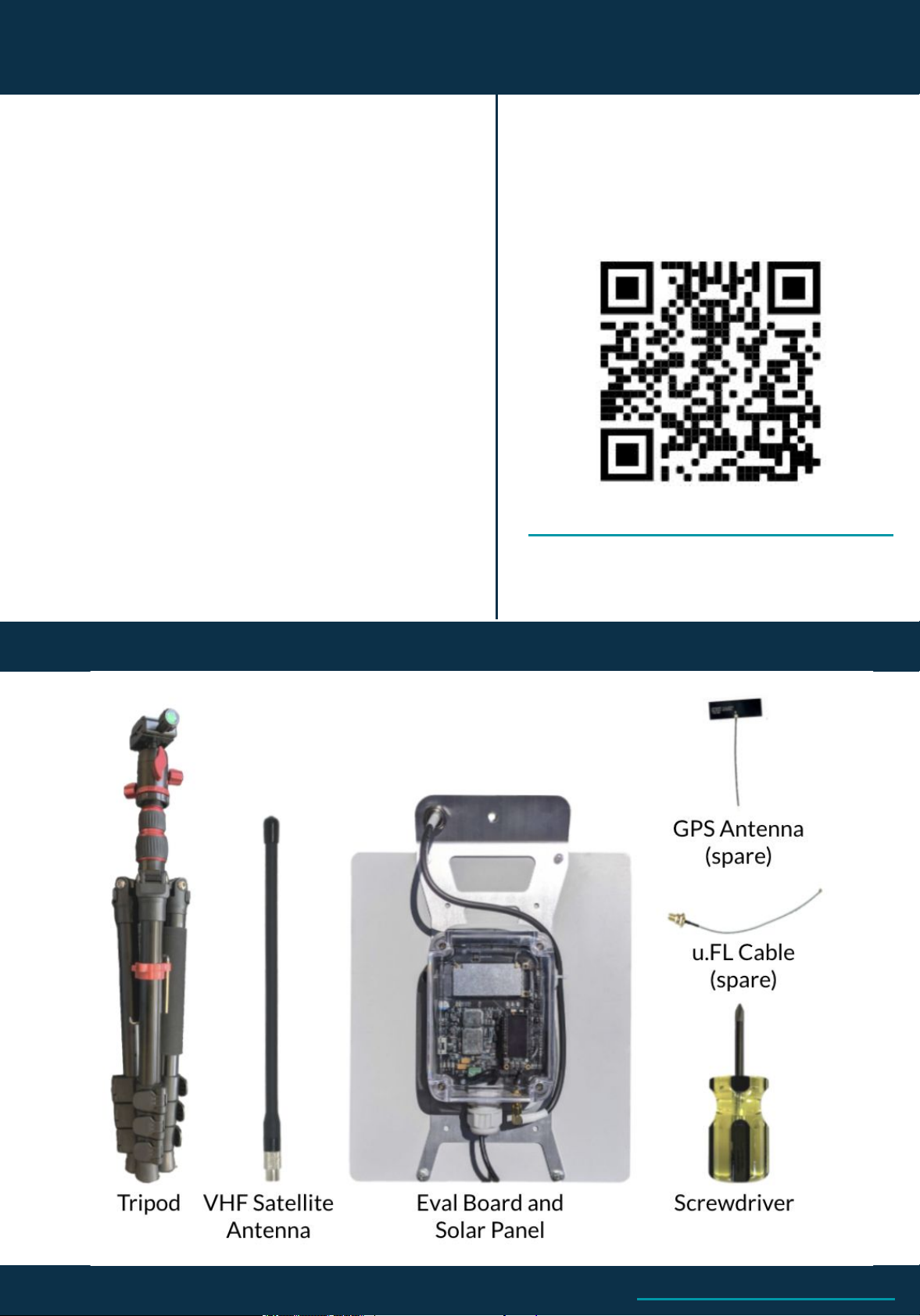

Overview & Setup - Eval Kit Components
GPS Flex
Antenna
Swarm Tile
(Satellite Modem)
USB-C Header
(PWR + DATA)
Battery
Power
Switch
8-24VDC
Solar Input
6-pin Serial
Header
I²C Header
Noise RSSI
Indicator
LED
FeatherS2 +
OLED Display
Stack
u.fl-SMA Sat
Antenna
Cable
Eval Kit
Configuration
Buttons
3
Customer Support | [email protected]
4.2VDC Out
USB/Feather
Serial Jumper
Swarm Tile
Device ID
Swarm Tile
Authentication Code

Overview & Setup - Activating your Device
4
Customer Support | [email protected]
Create your Hive account and sign in:
https://bumblebee.hive.swarm.space/hive/ui/sign-up
After signing up, an activation email will be sent to you.
Navigate to Devices > Add Devices:
Click Start Scanning to scan your Swarm Tile QR Code:
The Swarm Tile modem is located inside the Evaluation Kit.
If you are unable to use the browser-based scanner, you can also use your
camera app to scan the Tile QR code and enter the auth code in the Hive manually.
See example below:
{"ac":"ABCDE.
12345$%XYZ"}
x
1
2
3

Place the Eval Kit on a
flat surface, with solar
panel facing down.
Locate the external
power button on the
side of your Eval Kit.
Press and latch the
switch to power on.
Overview & Setup - Powering on the Kit
5
Customer Support | [email protected]

Overview & Setup - Eval Kit Assembly
21
43
Reinstall the tripod attachment (with Eval
Kit) to the Tripod, extend tripod legs
Install ¼ wave VHF antenna onto the solar
bracket bulkhead, hand-tight.
Screw the tripod mount into the threaded
hole on bottom of the Eval Kit solar bracket.
Remove the tripod mounting attachment by
loosening the latch at the top of the tripod.
6
Customer Support | [email protected]

Overview & Setup - RSSI LED Indicator
The Eval Kit provides an LED indicator of the background noise RSSI. An RSSI
value of <-95dBm is ideal for successful transmission.
The OLED also displays the actual background noise RSSI value.
To lower your noise RSSI, isolate the Eval kit in an area with RF interference
(outside, in a more remote location is ideal).
Noise RSSI [dBm] Background Noise Level
>-90 Bad (Unlikely to work)
-93 Marginal
-97 OK
-100 Good
<-105 Great
<-95dBm >-91dBm
7
Customer Support | [email protected]

Customer Support | [email protected]
Message Transmission - Custom Messages
There are multiple possible methods to send messages through the Eval Kit:
GPS Pinger
Email Web App
USB-C
Telnet
The GPS Pinger feature will automatically queue messages containing
the Eval Kit’s GPS location, speed, solar input, battery charge level, and
more.
By default, the pinger is set to queue a message every 60 minutes. This
can be configured between 15-720 minutes, or disabled by the User (see
user command page).
This method does not require WiFi to be enabled.
When connected to the Eval Kit access point in Access Point (AP) mode,
the Email Web App can be accessed at the web address 192.168.4.1
Users can queue messages on the Eval Kit of up to 192 bytes using the
web App. When transmitted by the Kit, the message will be sent to the
specified “To: (email)” address.
This method requires WiFi to be enabled.
In Access Point (AP) Mode, users connect to the Eval Kit AP (default
name swarm-xxxx with password 12345678), and communicate to
address 192.168.4.1 to queue messages and send other commands.
In Station (STA) Mode, users specify the network to connect the Eval Kit
to, connect to that network on another device, and communicate with
the Kit using the new displayed IP address.
This method requires WiFi to be enabled.
Users can connect a USB-C cable from their device to the Eval Kit to
communicate over a serial connection.
To enable USB-C Data, the J7 SERIAL CTRL jumper (#2) must be
moved from FEATHER to USB.
Once connected, Users can queue messages and send commands
directly to the Swarm Tile in the Eval Kit.
The USB-C source will also charge the batteries in the Eval Kit.
This method does not require WiFi to be enabled. 8

Message Transmission - GPS Pinger
The Eval Kit will automatically queue messages (default 60 min
interval) containing your GPS location, speed, solar input, battery
charge level, information while powered on.
You can now place your kit outdoors with a clear view of the sky
(with minimal obstructions), and observe the RSSI indicator LED on
the board. If leaving the Kit for an extended period of time, orient
the solar panel to face the Equator.
When the LED indicator shows GREEN, your kit has an optimal
background noise RSSI level for a successful transmission.
The Eval Kit will have best transmission results outdoors and ~5 km
away from cities (where RF noise is common).
9
Customer Support | [email protected]
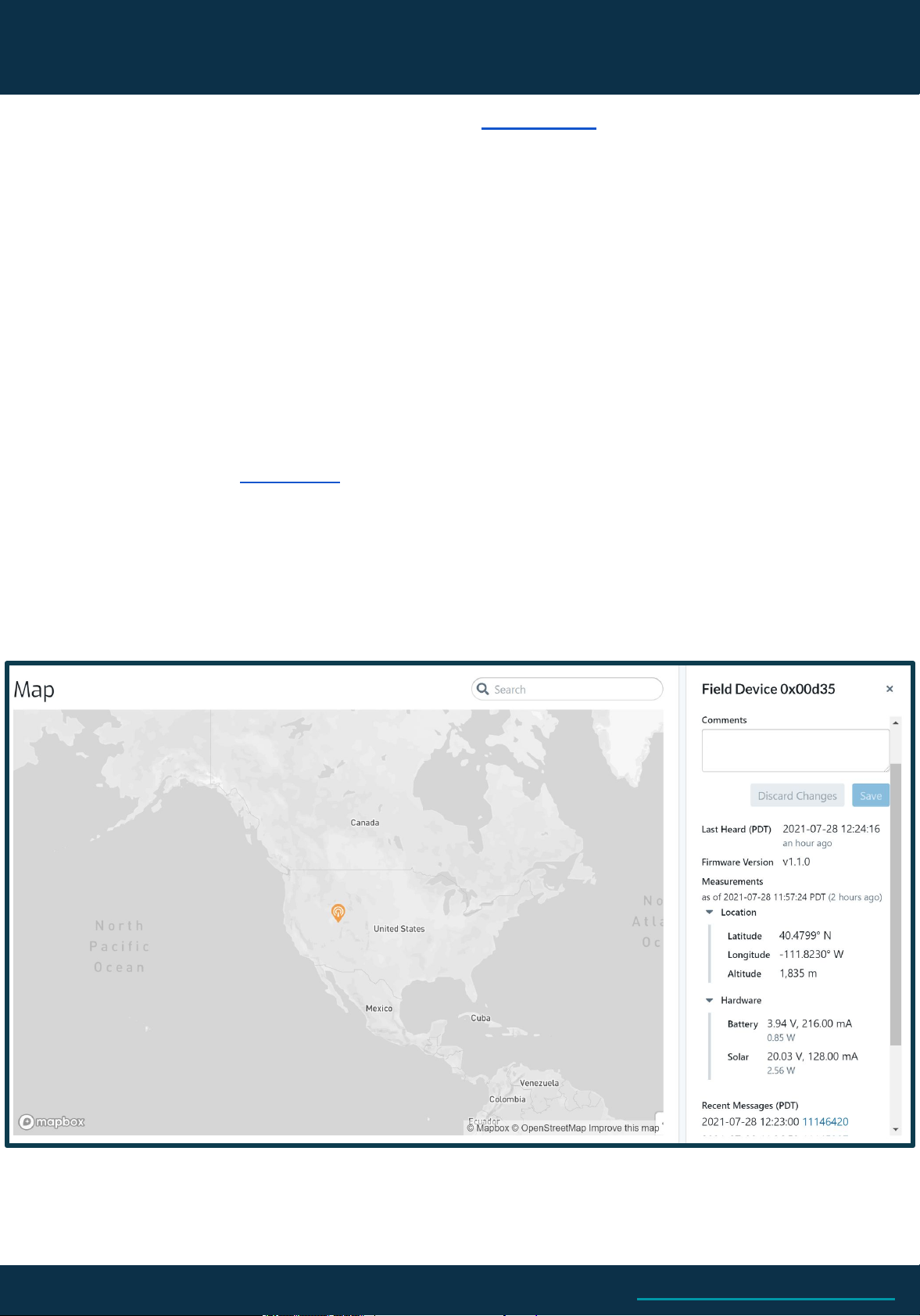
Message Transmission - GPS Pinger Hive Map Feature
The Swarm Map Beta is an included service in the Swarm Hive to monitor device health and
track the location of your devices. The most recent recorded GPS point (taken from your Eval
Kit pinger messages) is displayed on the map.
Map functionality can be expanded to include any of Swarm’s modems (using firmware version
v1.1.0 or newer) by sending messages using APPID: 65535 through the Swarm Network in a
JSON-structured message:
{"ln":-111.823,"si":0.128,"bi":0.216,"sv":20.032,"lt":40.4799,"bv":3.944,"d":1627498644,"n":261,"a":1835.0,"s":2.0,"c":290.0,"r":-103,"ti":0.04}
ln: Longitude
si: Solar current (A)
bi: Battery current (A)
sv: Solar voltage (V)
lt: Latitude
bv: Battery voltage (V)
d: Date and time as Epoch seconds (ex: 1625771690 = Thursday, July 8, 2021 12:14:50 PM GMT-07:00 DST)
n: Number of messages that have been sent since last power-up
a: Altitude (m)
s: Speed (km/h)
c: Course (degrees)
r: Last RSSI value (dBm)
ti: Tile current (A)
This GPS location report is accurate up to 4 decimal places in Decimal Degrees, around 11 meters.
10
Customer Support | [email protected]
Questo manuale è adatto per i seguenti modelli
2
Indice
Altri manuali Swarm GPS


