
SWEDX SDST43K8-01 Manuale utente
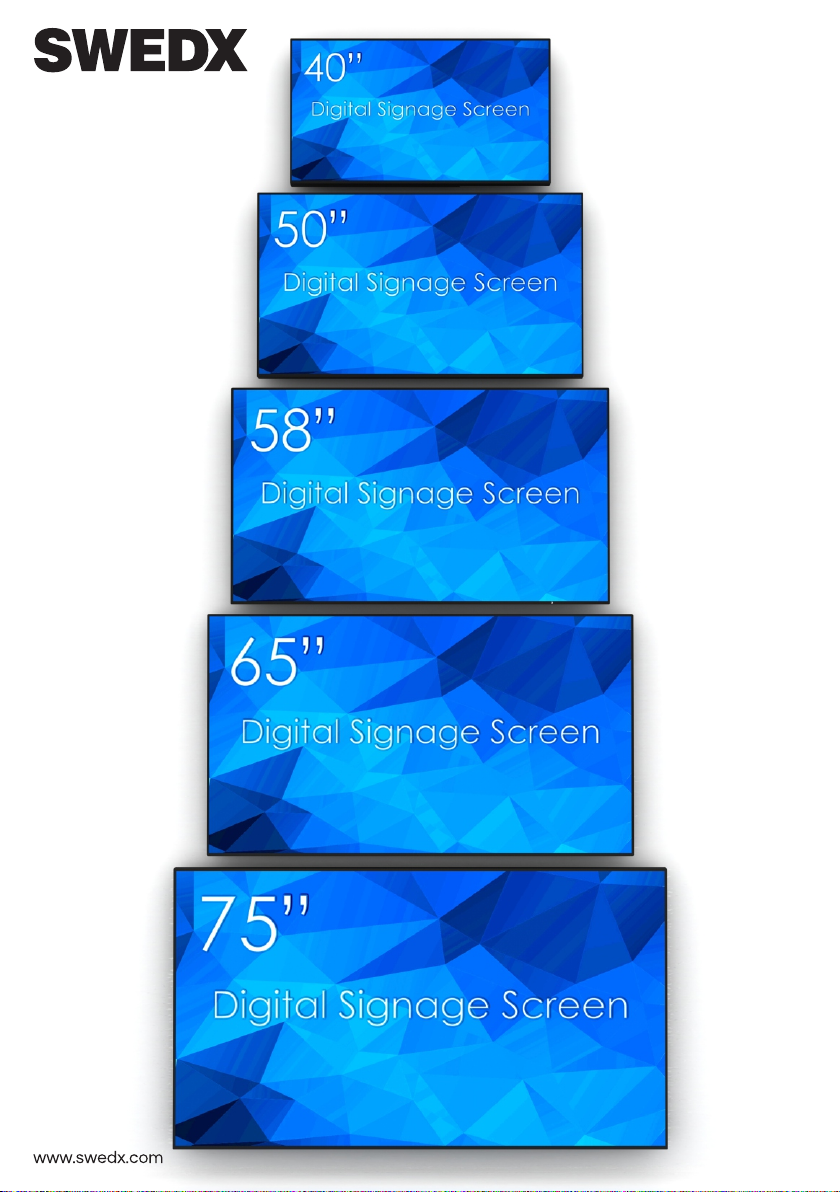
User’s Guide
SDS28K8-01
SDS32K8-01
SDS40K8-01
SDS43K8-01
SDS50K8-01
SDS58K8-01
SDS65K8-01
SDS75K8-01
SDST43K8-01
SDST50K8-01
SDST50K8-02
MX-40K8-01
MX-50K8-01
MX-58K8-01
MX-65K8-01
MX-75K8-01
UMX-49K8-01
UMX-55K8-01
SUMX-55K8-01
SWL-28K8
SWL-32K8
SWL-40K8
SWL-50K8
SWL-58K8
SWL-65K8
SWL-75K8
SWLT-28K8
SWLT-32K8
SWLT-40K8
SWLT-50K8
SWLT-58K8
SWSB32K8
Your Digital Signage Partner
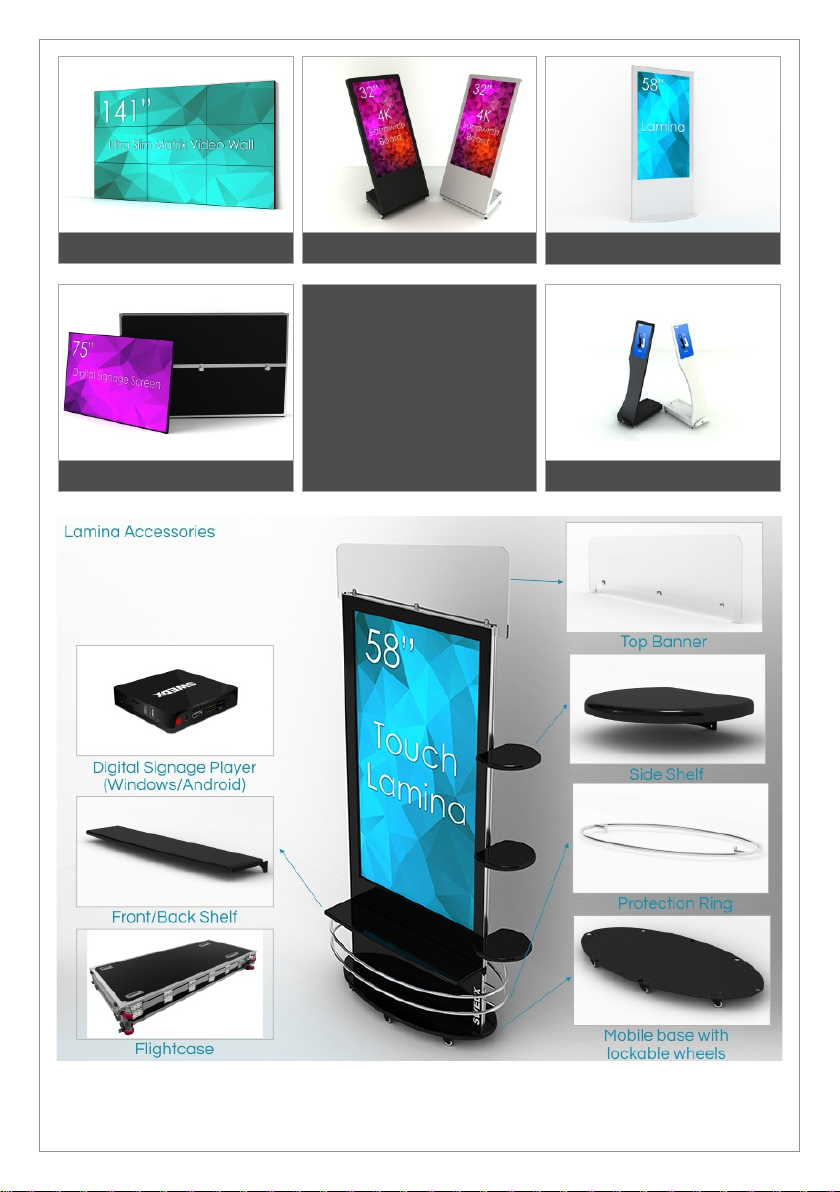
Digital Signage Screens
SWEDX Lamina
SWEDX Signo
SWEDX offers a wide
range of LED-TVs and
digital signage products
and its accessories. For
more information please
visit
www.swedx.com
SWEDX Sandwich Board
SWEDX Matrix Video Walls
03
Design and specifications are subject to change without notice.
INDEX Page
Introduction 4
Safety precaution 4
Basic operation 5
Contents 6
Inputs 6
SWL/SWLT specific information 7
Remote Control For SDS/SWL/SWLT 8
Remote control buttons (FR5) 9
Remote control buttons (FR-IR) 10
Main Operations 11
Volume Control 11
OSD Menu Operations 11
OSD Menu Structure 11
Picture Menu 12
Sound Menu 13
Time Menu 14
Settings Menu 15
Media Player 1/2 17
Supported Formats and Codes 18
Matrix Video Wall Information 19
Troubleshooting 21
Warranty and Service 22
How to get service 23
Limitation of liability 23
Introduction
Thank you for choosing SWEDX Digital Signage
products. Please read this manual thoroughly
before operating the product. Make sure the
display was not damaged in transit. Should the
product be damaged, please contact your dealer
and do not install it. Check that you have all the
accessories according to the model.
Safety precaution
• Do not place the product on unstable places,
from which it may fell off
• Do not expose the product to extreme
temperature and humid environment
• Avoid subjecting the product to direct sunlit or
other heat sources
• Do not put the product into any liquid
• Do not put anything inside the product, or
place water container on top of the it
• In thunder rainy days (especially with
lightening), please unplug the power and
antenna cables
• Do not step on the power cable, or tangle
them together
• Avoid overload of the exterior electric outlet
to prevent fire hazard of electric shock
• Clean the product with dry and soft fabric
• lf your product is broken, do not repair it by
yourself, but contact the maintenance
personnel
• lf the remote control is left unused for a
longtime, please take the batteries out and
store them in dry places
• Avoid dropping the remote control
• lf the product is installed for exhibition
purpose, please do not place the overheated
part on the ground or carpet to prevent
accident
• The apparatus shall not be exposed to
dripping or splashing and that no object filled
with liquids, such as vases, shall be placed
on the apparatus
• Where the MAINS plug or an appliance
coupler is used as a disconnect device, the
disconnect device shall remain readily
operable
• Battery shall not be exposed to excessive
heat such as sunshine, fire or the like
• Excessive sound pressure from earphones
and headphone can cause hearing loss
Please install the product at proper position, such
as wall or ceiling. Please install it under the
guidance of professional staff.
This device complies with Part 15 of the FCC
Rules. Operation is subject to the following two
conditions:
1. This device may not cause harmful
interference
2. This device must accept any interference
received, including interference that may
cause undesired operation
Please disconnect the power cord if this
equipment will not be used for a long time.
Precautions When Displaying a Still Image
A still image may cause permanent damage to
the screen
• Do not display a still image on the screen for
more than 2 hours as it can cause screen
image retention. This image retention is also
known as "screen burn". To avoid such image
retention, reduce the degree of brightness
and contrast of the screen when displaying a
still image
• Watching the screen in 4:3 format for a long
period of time may leave traces of borders
displayed on the left, right and center of the
screen caused by the difference of light
emission on the screen. Playing a DVD or a
game console may cause a similar effect to
the screen. Damages caused by the above
effect are not covered by the Warranty.
• Displaying still images from Video games and
PC for longer than a certain period of time
may produce partial after-images. To prevent
this effect, reduce the ‘brightness’ and
‘contrast’ when displaying still images
WARNING
To prevent the spread of fire, keep candles or
other open flames away from this product at
all times
04
Basic operation
• Use AC 100-240V 50~60 Hz power outlet for
the product power supply
• lf the screen of the product is not on, please
press the power button on the remote control
or on the product
• lf you want to shut off the product temporary,
please press the power button on the remote
control or on the product
• lf you want to shut off the product completely,
please disconnect the power cable
• In Component and AV modes the product
will shut off if there is no signal input for 30
minutes
• ln PC-RGB and HDMI modes the product will
enter idle state if there is no signal input after
30 seconds
• ln Media Player 1/2 modes the product will
remain On if there is no signal input
• The setting and tuning of picture and sound
will be saved when the product is shut off,
which will be working in the pre-shut off state
when the product is turned on again
• lf PC signal source is used, please first set
the resolution of the PC display card as the
following modes:
For HDMI 1/2/3 (3840x2160 @ 60Hz)
For PC (1920 x 1080 @ 60Hz)
• lf there is progressive output of the signal
used by the user, signal source with
progressive output is recommended
Preparation
• Put the product on a stable surface
• Do not fix the product with others fixations than
those provided or suggested by the
manufacturer
• If you have a wall mount, check that it is
steady.
• Do not place any material on the product.
• Do not block or cover the ventilation
openings on the product
• The product must be plugged with a tension
source of 110-240 volts and 50~60 Hz
• Power cord and cables must be properly
routed and protected to prevent from
stepping on them
• Keep the power cord away from any heat
source. Possible fire hazard
Heating sources and humidity
• Keep the product dry and away from humidity
• Keep the product away from heat sources
Cleaning and maintenance
• Unplug the product before cleaning it. Do not
use solvents or liquids to clean the product
• Only clean the product with a soft and dry
fabric
• In case of troubleshooting, do not use spare
parts other than those suggested by the
manufacturer. Using inadequate spare parts
can lead to electric shocks, short-circuits fire
WARNING:
TO REDUCE THE RISK OF FIRE OR ELECTRIC
SHOCK, DO NOT EXPOSE THIS APPARATUS
TO RAIN OR MOISTURE
WARNING
RISK OF ELECTRIC SHOCK
DO NOT OPEN
CAUTION:
TO REDUCE THE RISK OF ELECTRIC SHOCK, DO NOT
REMOVE COVER(OR BACK). REFER SERVICING TO
QUALIFIED SERVICE PERSONNEL
or others incidents. Please contact a
technical authorized by SWEDX
Departure in holidays
• Unplug the product during lightning storms or
when unused for long periods of time
05
Contents
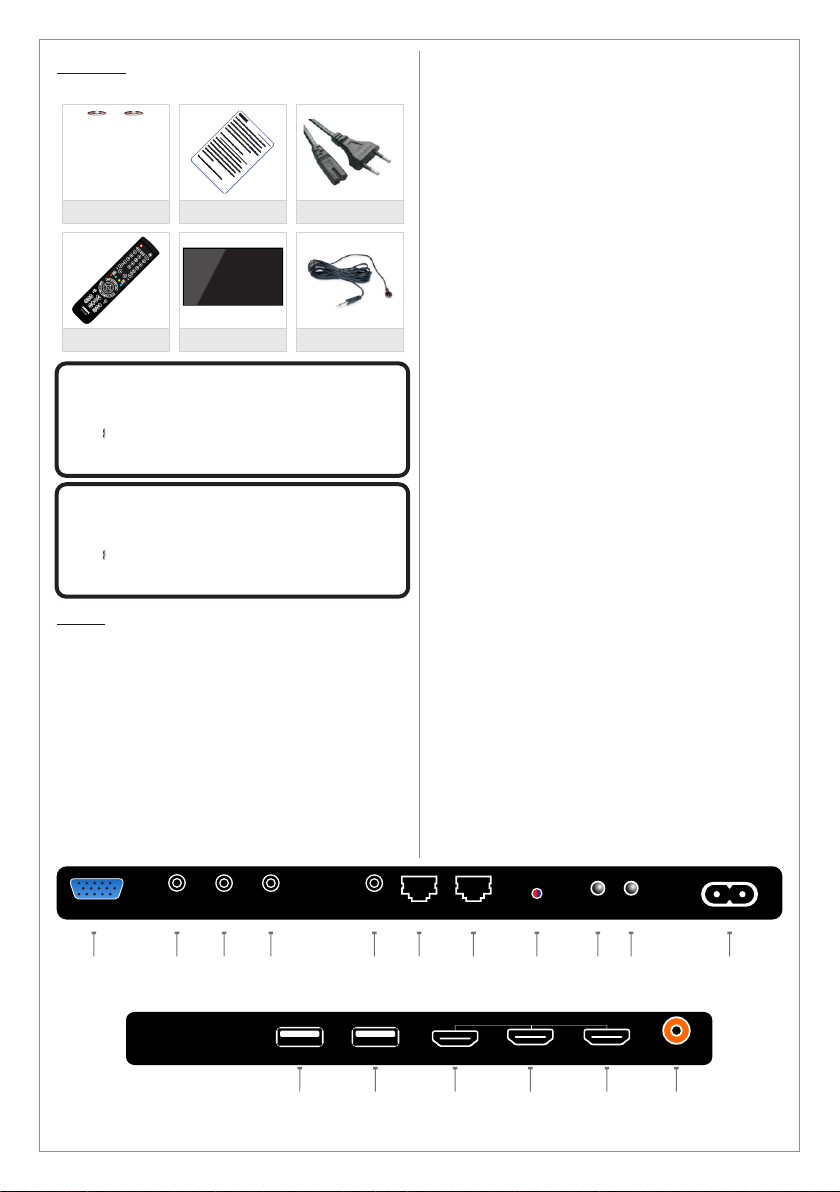
Included items:
2 x AAA Battery
Notice! / Information
Notice AC Cable
LED Screen
1 2 3 4
9
1714 15
AAA
AAA
Remote Control
CAUTION
Danger of explosion if battery is incorrectly
replaced. Replace only with the same or
equivalent type
AAA Battery
AAA
CAUTION
The batteries shall not be exposed to
excessive heat such as sunshine, fire or the like
AAA Battery
AAA
5 6
7 8 11
12
4. AV
Input for AV (Audio/Video) sources
5. IR*
Input for external infrared receiver. See Matrix
function
6. RS232 OUT*
Output for RS232 signal. See Matrix function
6. RS232 IN*
Input for RS232 signal. See Matrix function
8. LED
LED indicator for power status
9. On/OFF
Key to power the product On/Off
10. Remote Pairing
Key to pair the remote control with the product
11. POWER INPUT
Input for 100-240 V power 50~60Hz
12. MEDIA PLAYER 1
Input for USB Media Player 1/Firmware
upgrade
13. MEDIA PLAYER 2
Input for USB Media Player 2
14. HDMI1
Input for HDMI1 (Ver. 2.0). Supports maximum
resolution 3840x2160 @ 60 Hz
15. HDMI2
Input for HDMI2 (Ver. 2.0). Supports maximum
resolution 3840x2160 @ 60 Hz
16. HDMI3
Input for HDMI3 (Ver. 2.0). Supports maximum
resolution 3840x2160 @ 60 Hz.
17. COAXIAL
Output for digital audio signal (Coaxial)
* Inputs 5, 6 and 7 are available only in MX/UMX
series
06
COMPONENT
POWER INPUT
AC 100-240 V ~ 50/60 Hz
AV
DS-K8-UHD-2
PC
PC
AUDIO RS232 INRS232 OUT
IR LED ON/OFF
2.4GHz
REMOTE
PAIRING
COAXIAL
DS-K8-UHD-1
12 3
2
USB MEDIA PLAYER
1
HDMI
10
16
Inputs
1. PC
Input for PC (VGA) sources
2. PC AUDIO
Input for PC audio when PC (Personal
Computer) is connected
3. COMPONENT
Input for Component (YPBPR) sources.
Supports maximum resolution 1080p @ 60 Hz
*Component/YPBPR and AV shares the same
audio input
13
IR Cable*
*MX/UMX only
SWL/SWLT specific information
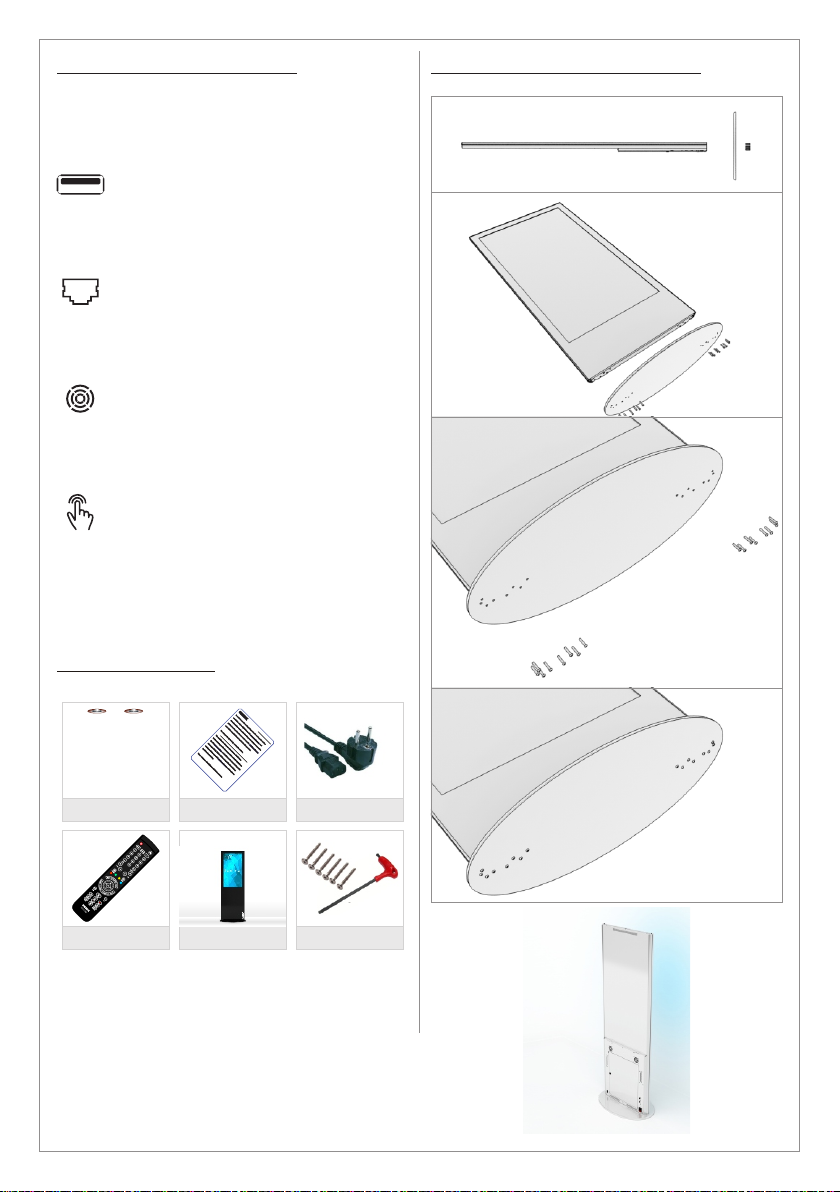
The SWL/SWLT series are equipped with
external inputs to provide easy access.
The external inputs are
USB external input. It can be connected to Media
Player 1 or 2. It can also be connected to a
media player such as Mini PC or Android box
Rj45 input. It could be connected to a Mini PC or
Android box to access the network in case WiFi
is not available or LAN connection is preferred.
The SWL/SWLT series are also equipped with
cooling fans. The fans can be controller in the
OSD menu.
The SWLT (Touch) series are equipped with a
Touch overlay. The connection interface is USB
2.0. The Touch USB cable must be connected to
a media player such as Mini PC or Android box
etc which supports touch function.
07
SWL/SWLT Contents
Included items for SWL/SWLT series:
2 x AAA Battery
Notice! / Information
Notice AC Cable
Lamina with Base
AAA
AAA
Remote Control Screws+Tool
Lamina base assembly instructions
Design and specifications are subject to change without notice.
Remote Control for SDS/SWL/SWLT-series
(FR5)
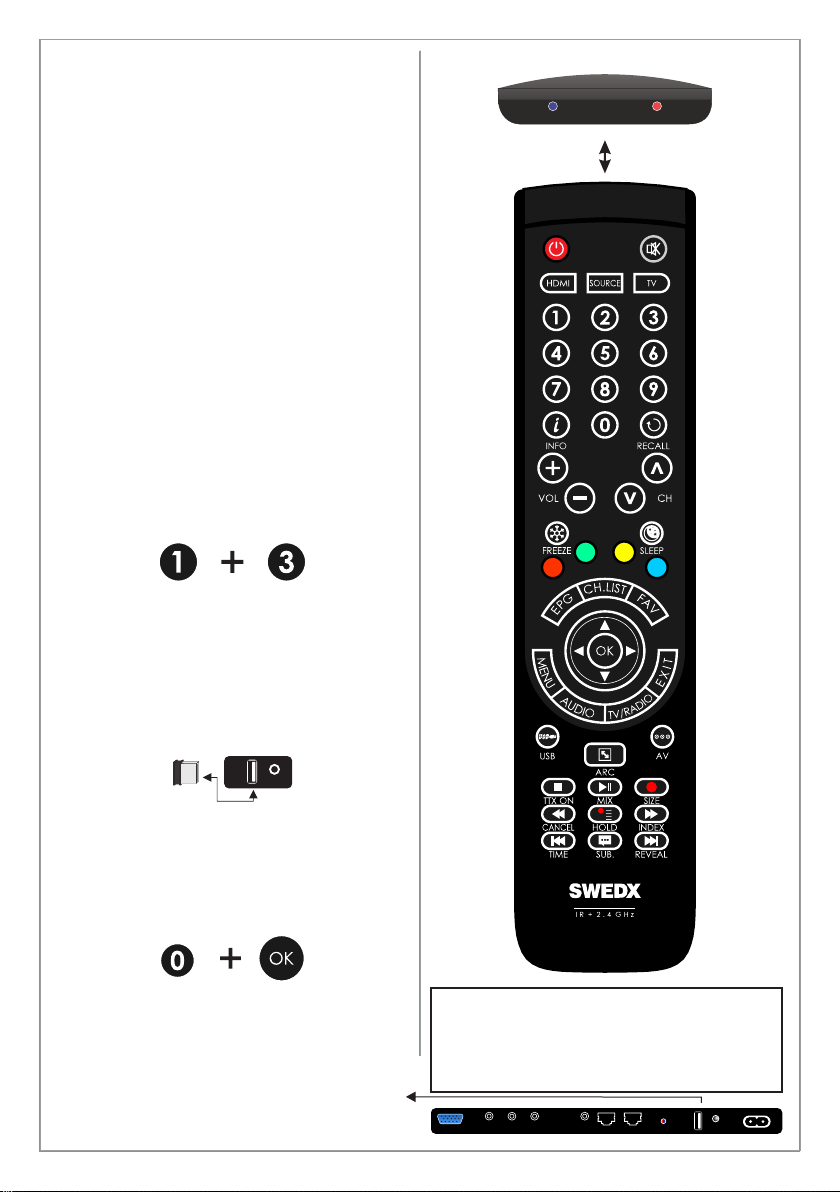
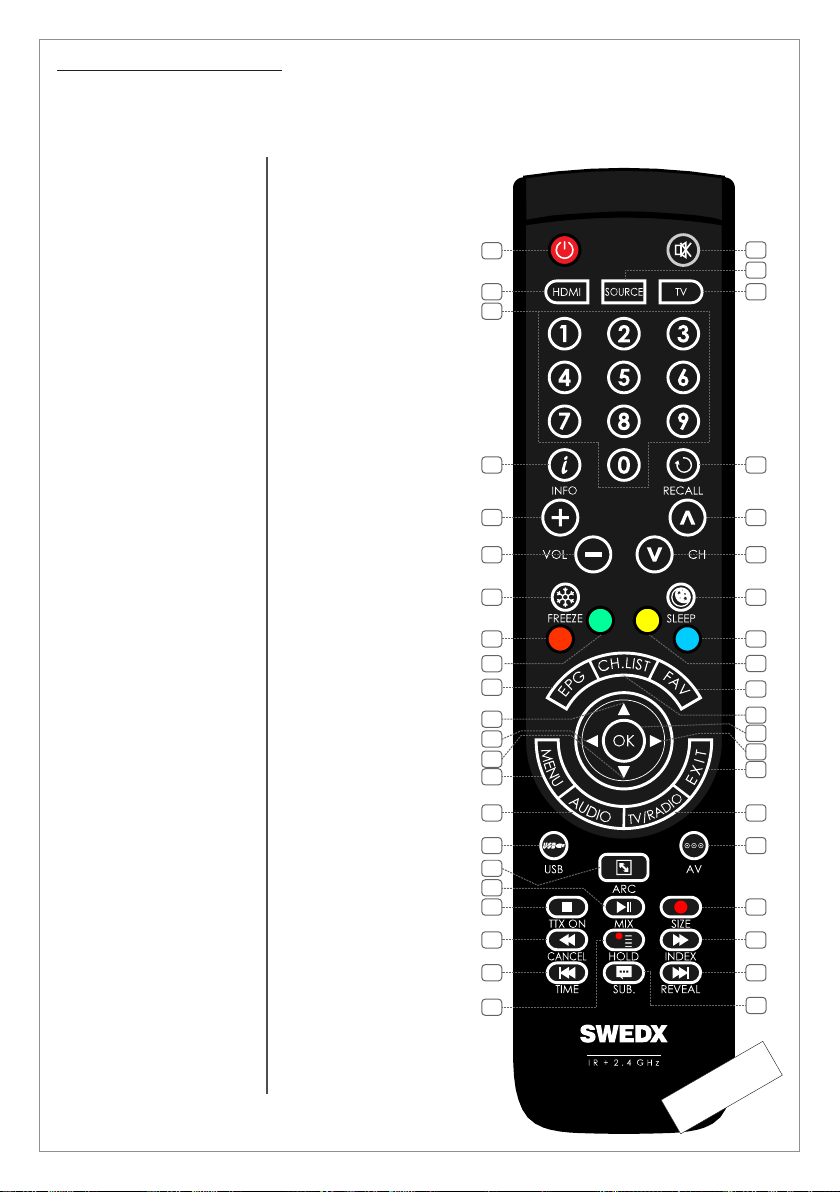
The remote control is based on both 2.4 GHz and
Infrared.
The remote control is equipped with LED
indicators. The RED indicator states that the
remote is in Infrared mode and the BLUE
indicator is for 2.4 GHz mode. Recent products
from SWEDX uses 2.4 GHz receivers.
The 2.4 GHz technology allows the remote to
control the TV without targeting it because the
receiver is built inside the product. Each SWEDX
product has a pre-configured remote control
meaning that if you have several SWEDX produts
then the remote control for one of the products
will function only with that particular product and
not with the other products.
To switch between Infrared and 2.4 GHz mode
press and hold the buttons for 5 seconds. The
Red LED will flash 3 times and switch from the
current mode to the other one.
To pair the remote with the product follow the
steps below
1. Disconnect the product from power outlet
2. Make sure that the remote is in 2.4 GHz
mode
3. Make sure that the USB Remote
Receiver is inserted in the screen
4. Press and hold the buttons 0 and OK on
the remote control simultaneously for
about 5 seconds. The BLUE LED will
flash 5 times indicating that the remote is
now in pairing mode with the product
5. Connect the product to power. The
remote will pair auto,atically and the
BLUE LED light will stop flashing
A On/Off key is also available in recent SWEDX
products.
08
COPMONENT
POWER INPUT
AC 100-240 V ~ 50/60 Hz
AV
DS-K8-UHD-2
PC
PC
AUDIO RS232 INRS232 OUT
IR LED ON/OFF
The remote control “FR5” is included in
the SDS-series (digital signage screens).
For the MX/UMX-series the included
remote control is model “FR” (see page 9)
ON/OFF
REMOTE
RECEIVER
REMOTE
RECEIVER
26
27
30
31
29
32
33
34
35
36
37
38
39
40
41
42
23
24
25
28
1. On/Off button
2. Shortcut to HDMI1,2,3
3. Number buttons for
direct channel access
4. Display additional
information
5. Volume increase
6. Volume decrease
7. Picture freeze
8. RED
9. GREEN
10. Not applicable for this
product
11. Navigation button UP
12. Navigation/adjust button
LEFT
13. Navigation button
DOWN
14. Menu display. In OSD
sub-menu press to
access previous menu
15. Not applicable for this
product
16. Shortcut to Media Player
1,2
17. Aspect Ratio toggling
18. Start/Pause play
19. Stop play
20. Fast backward
21. Previous Title
22. Not applicable for this
product
23. Mute the built-in
speakers
24. Available sources
selection
25. Not applicable for this
product
26. Not applicable for this
product
27. Not applicable for this
product
28. Not applicable for this
product
29. Enter sleep mode in
certain chosen time
30. Blue
31. Yellow
32. Not applicable for this
product
33. Not applicable for this
product
34. Confirm/activate button
35. Navigation/adjust button
RIGHT
36. Exit the OSD
37. Not applicable for this
product
38. Shortcut to AV
39. Not applicable for this
product
40. Fast forward
41. Next Title
42. Not applicable for this
product
1
2
3
4
5
6
7
8
9
10
11
12
13
14
15
16
17
18
19
20
21
22
09
Model: FR5
Remote control buttons (FR5)
Model: FR
10
26
27
30
31
29
32
33
34
35
36
37
38
39
40
41
42
23
24
25
28
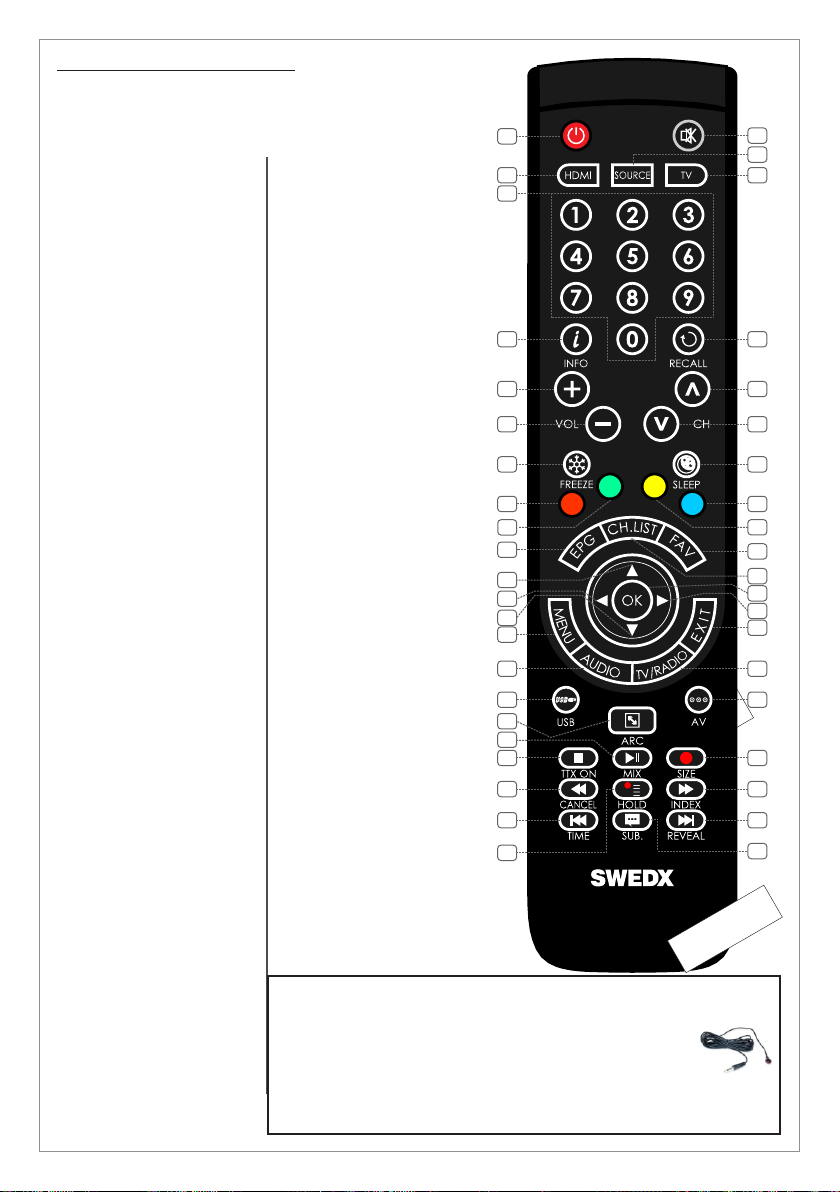
1. On/Off button
2. Shortcut to HDMI1,2,3
3. Number buttons for
direct channel access
4. Display additional
information
5. Volume increase
6. Volume decrease
7. Picture freeze
8. RED
9. GREEN
10. Not applicable for this
product
11. Navigation button UP
12. Navigation/adjust button
LEFT
13. Navigation button
DOWN
14. Menu display. In OSD
sub-menu press to
access previous menu
15. Not applicable for this
product
16. Shortcut to Media Player
1,2
17. Aspect Ratio toggling
18. Start/Pause play
19. Stop play
20. Fast backward
21. Previous Title
22. Not applicable for this
product
23. Mute the built-in
speakers
24. Available sources
selection
25. Not applicable for this
product
26. Not applicable for this
product
27. Not applicable for this
product
28. Not applicable for this
product
29. Enter sleep mode in
certain chosen time
30. Blue
31. Yellow
32. Not applicable for this
product
33. Not applicable for this
product
34. Confirm/activate button
35. Navigation/adjust button
RIGHT
36. Exit the OSD
1
2
3
4
5
6
7
8
9
10
11
12
13
14
15
16
17
18
19
20
21
22
Model: FR-IR
Remote control buttons (FR-IR)
37. Not applicable for this
product
38. Shortcut to AV
39. Not applicable for this
product
40. Fast forward
41. Next Title
42. Not applicable for this
product
The remote control “FR-IR” is included in the UMX/MX-
series (Matrix video wall screens). For the SDS-series
the included remote control is model “FR5” (see page 7)
In order to control the UMX/MX screens with the “FR”
remote control an external Infrared receiver must be
connected to the screens IR input (see page 6 input No.
5)
Questo manuale è adatto per i seguenti modelli
31
Indice
Altri manuali SWEDX Segnaletica digitale


